
Savoir utiliser correctement un ordinateur.
Utiliser tout le potentiel d'internet.
Apprendre à configurer et à utiliser son Smartphone.
Bienvenue sur Premiers Clics, spécialiste des cours d'informatique pour seniors et adultes débutants
Les cours d'informatique Premiers Clics pour se mettre à l'informatique et améliorer ses compétences numériques (PC Windows, Smartphone et Tablette Android)
Premiers Clics propose des cours d'informatique gratuits en ligne pour débutants, afin de vous aider à vous former aux bases de l'informatique, pour mieux débuter sur internet.
Premiers Clics propose 3 principaux cours et de nombreux tutoriels. Vous apprendrez ainsi à maîtriser Windows, à utiliser internet, à envoyer des emails, mais aussi à nettoyer et à protéger votre ordinateur.
Les cours sont gratuits et sans inscription. Vous pouvez retrouver l'intégralité des cours proposés sur ce site dans les ouvrages PDF et livres "Windows facile" et "Je me mets à l'informatique". Un livre d'informatique pour les nuls, à offrir ou à s'offrir !
Enfin, consultez nos tutoriels pour smartphones et tablettes pour être toujours plus à l'aise avec votre appareil Android.

Cours "Maîtriser Windows"
- La souris
- Le clavier
- Le bureau
- Le menu Démarrer
- La barre des tâches
- L'explorateur de fichiers
- Créer un raccourci
- Épingler un programme
- Supprimer les icônes inutiles
- Vider la corbeille
- Couper, Copier, Coller
- Manipuler les fenêtres
- Créer des dossiers
- L'apparence des fichiers
- Réduire toutes les fenêtres
- Utiliser le menu contextuel
- Configurer la mise en veille
- Les Paramètres de Windows
- Désinstaller un programme
- Sauvegarder mon PC
- Faire une capture écran
- Changer le fond d'écran
- Modifier la résolution d'écran
- La vitesse de la souris
- Ajouter un nouvel utilisateur
- Ecrire un courrier
- Créer un fichier PDF
- Ecouter de la musique
- Convertir mes CD Audio
- Vérifier l'espace libre
- Personnaliser son PC
31 leçons

Savoir utiliser efficacement son ordinateur, son smartphone ou encore sa tablette est plus que nécessaire de nos jours. Sur Premiers Clics, vous trouverez toutes les ressources nécessaires, pour apprendre à utiliser ces nouvelles technologies !

Faire un partage de connexion
Comment faire un partage de connexion internet entre son smartphone et son ordinateur.

Voir les photos de Google Photos
Comment afficher les photos présentes dans l'appli Photos de Google, et comment ça marche ?

Libérer de la mémoire
Comment libérer du stockage sur son téléphone. Solutions pour libérer de la mémoire sur son téléphone

Régler les notifications
Le tuto pour vous aider à désactiver les notifications intempestives sur votre tablette ou votre smartphone.

Connecter un casque Bluetooth
Comment connecter un casque en Bluetooth sur son téléphone. Fonctionne aussi pour une tablette Android.
Nos livres d'informatique spécial "Débutants"
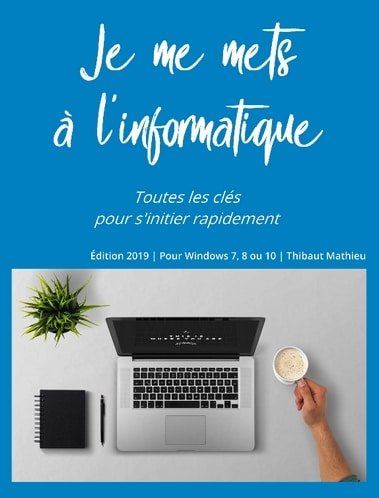
Toutes les clés pour se mettre à l’informatique. Un livre spécialement conçu pour les seniors, les débutants, ou celles et ceux qui souhaitent progresser en informatique. Retrouvez l’intégralité des 3 cours Premiers Clics dans ce livre : cours Windows, cours Internet & Emails, cours Nettoyage et Protection de son PC.
Retrouvez l’intégralité des cours d’informatique proposés sur Premiers Clics dans le livre « Je me mets à l’informatique ». Un livre qui comme son nom l’indique est spécialement conçu pour les débutants, qui souhaitent se mettre à l’informatique. Livre pour apprendre à utiliser Windows 10 ou 11.
300 pages illustrées, de nombreuses captures d’écran réalisées sous Windows 11, des textes simples, clairs mais détaillés, pour vous aider à faire les manipulations sur votre ordinateur chez vous à la maison. Apprenez ainsi, chez vous, à votre rythme, à utiliser Windows et votre ordinateur, à utiliser internet et une messagerie, et même à nettoyer et à protéger votre ordinateur.
Besoin plutôt d’un PDF imprimable ? Nos cours sont également disponibles en version PDF.
Des Tutoriels pour apprendre à bien utiliser son smartphone ou sa tablette (Samsung, Lenovo, Huawei, iPad...)
Sur Premiers Clics, vous trouverez aussi de nombreux cours, tutoriels et trucs et astuces pour vous simplifier la vie avec votre smartphone ou votre tablette. Apprendre à mettre en route son téléphone, transférer les photos, modifier les réglages de son appareil, imprimer depuis son smartphone, faire un partage de connexion... Les tutos et trucs et astuces pour savoir utiliser un smartphone ou une tablette regroupent tout ce qu'il faut pour utiliser au mieux son appareil : mise en route téléphone, réglage du téléphone, apprentissage du fonctionnement et bonnes pratiques d'utilisation du téléphone.
Vous venez d'acquérir un smartphone ou une tablette ? Le guide de mise en route d'un appareil Android est fait pour vous ! Pas à pas, guidé(e) par de nombreuses captures écrans, vous aurez sous la main tout ce qu'il faut pour mettre en route votre appareil, le paramétrer selon vos goûts et apprendre des astuces d'utilisation très pratiques au quotidien.
Tous les cours pour apprendre à utiliser un téléphone ou un tablette sont en accès libre. Comme pour nos cours d'informatique en ligne pour les plus novices.
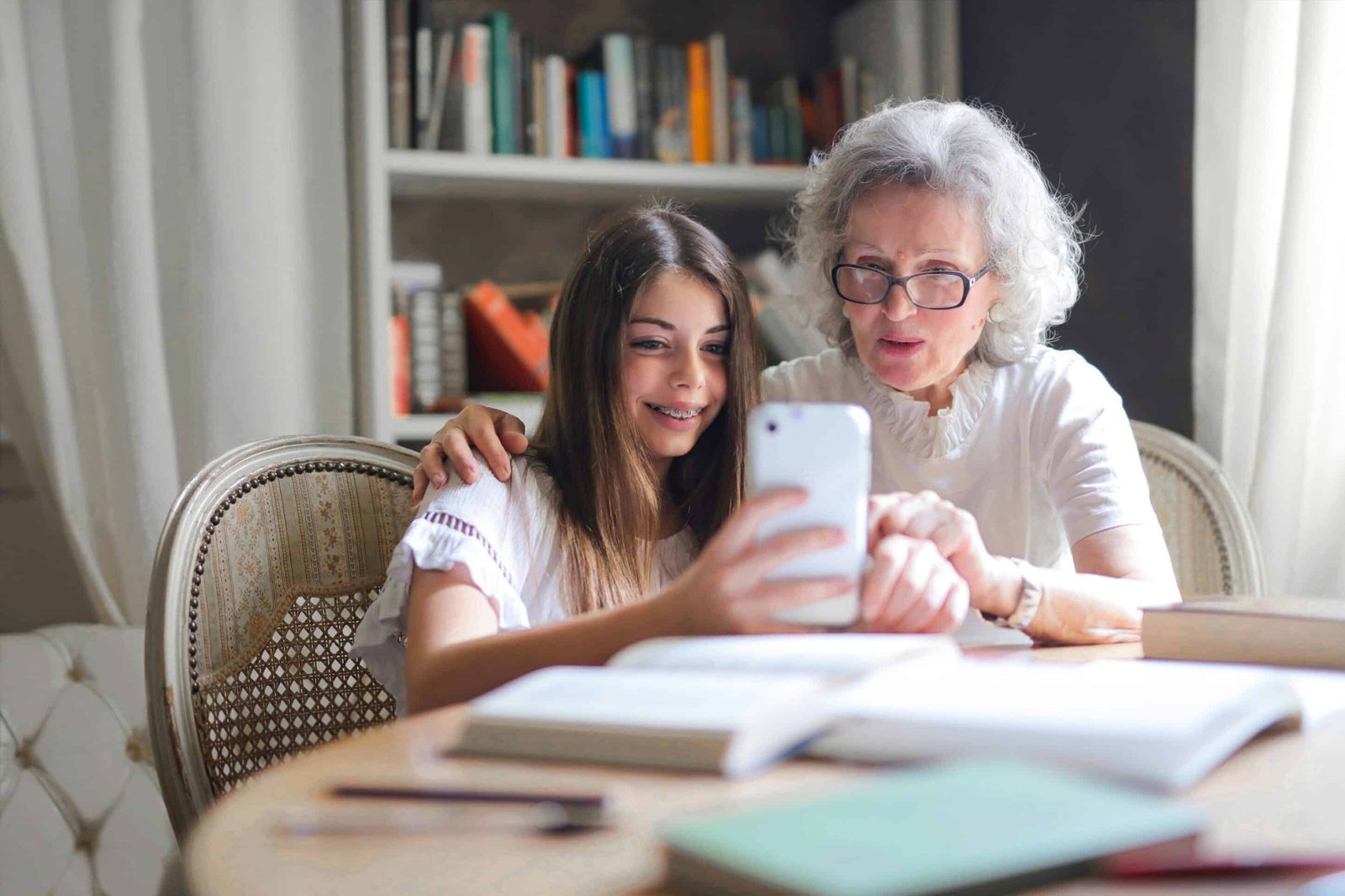
A une époque où nos nouveaux appareils sont fournis avec un rapide guide de mise en route, mais pas d'un mode d'emploi détaillé, apprendre par soi-même est devenu plus que nécessaire. Sur Premiers Clics, nous mettons tout en oeuvre pour vous aider à mettre en route, régler, et utiliser au mieux votre appareil : téléphone, tablette, ordinateur fixe ou pc portable.
Mieux ! Nous proposons des livres d'informatique si vous préférez vous mettre à l'informatique à l'aide d'un livre broché, ou une version PDF à imprimer.
Faire un partage de connexion
Comment faire un partage de connexion internet entre son smartphone et son ordinateur.
Voir les photos de Google Photos
Comment afficher les photos présentes dans l'appli Photos de Google, et comment ça marche ?
Libérer de la mémoire
Comment libérer du stockage sur son téléphone. Solutions pour libérer de la mémoire sur son téléphone
Régler les notifications
Le tuto pour vous aider à désactiver les notifications intempestives sur votre tablette ou votre smartphone.
Connecter un casque Bluetooth
Comment connecter un casque en Bluetooth sur son téléphone. Fonctionne aussi pour une tablette Android.

Outils pour formateurs
Nous proposons un support de cours informatique pour débutants et seniors, prêt à l'emploi !
Notre support de formation est complet et spécialement axé sur l'initiation informatique, pour seniors et débutants.
Maîtriser Windows, internet et sa boite mail, et même nettoyer et protéger son ordinateur.
Le kit comprend : support PDF de 300 pages + licence d'utilisation + facture
Envoi dans les 24H

Comment promouvoir Premiers Clics ? Copiez-collez ce texte pour informer votre public
Apprenez l’informatique gratuitement avec Premiers Clics !
Premiers Clics est une plateforme entièrement gratuite pour aider les débutants et les seniors à maîtriser l’informatique, Internet, les emails, ainsi que les smartphones et tablettes. Tous les cours sont en ligne, simples, progressifs et accessibles sans inscription. Une ressource idéale pour gagner en autonomie numérique et rester connecté au quotidien.
Parce que l'Union fait la force, même sur internet
Incluez un lien vers les cours d'informatique en ligne Premiers Clics
Que vous soyez une bibliothèque, une MSAP, un CCAS, une collectivité, une communauté de commune, une association axée sur l'aide et l'accompagnement des seniors les plus débutants en informatique, utilisez le support de cours Premiers Clics ou référencez Premiers Clics dans votre section liens / ressources ou encore partenaires.



Premiers Clics en quelques mots ! Premiers Clics, ce sont :
- Des cours d'informatique en ligne pour les plus débutants et les seniors
- Des tutoriels pour apprendre à configurer et à utiliser un Smartphone
- Des fiches pratiques pour diagnostiquer et dépanner les problèmes de Smartphone
- Un support de cours informatique pour vous aider à former localement votre public
Parce qu'il n'y a pas d'âge pour apprendre.