
Home / Phone Tutorials / Whatsapp Complete Guide
How to Send a Voice Message on WhatsApp (and Other Apps)
Difficulty : Easy
LEGAL NOTICE – TERMS OF USE – GDPR
About Premiers Clics
Premiers Clics was created as a citizen initiative to reduce digital exclusion. It offers beginner computer courses, training materials, digital and printed books, as well as IT support and troubleshooting services.
Hosting and Publisher
Website host: Hostinger.
Author and publisher: Thibaut Mathieu.
The Premiers-clics.fr website uses a secure SSL connection to protect users.
The domain name is protected with DNSSEC technology.
Copyright – Intellectual Property – Photo Credits – Comments
All content on this website is the exclusive property of Mr. Thibaut Mathieu. All screenshots belong exclusively to Premiers Clics. Copying and reproduction are strictly prohibited.
Any full or partial reproduction of texts is forbidden. All images used in the courses are the property of the publisher and cannot be reused on any other website or communication medium. They come from screenshots taken by the webmaster and authors. Some illustrations come from free image banks, with respect for copyright.
Comments
Comments are moderated by the webmaster. Users can request deletion of their personal data at any time.
Cookies – Advertising
Premiers-clics.fr informs users that cookies (small text files) may automatically be stored on their device. These cookies may come from analytics systems or other services.
Cookies are stored for 12 months and include:
- Performance cookies (Google Analytics)
- Advertising cookies (Google Adsense, Ezoic)
These cookies collect browsing data to provide personalized advertising.
By clicking “OK” on the cookie banner, you consent to:
- Providing your IP address
- Providing personal data (username, email for comments)
- Data collection for Google Analytics, Adsense, and Facebook
- Third-party cookies for videos, sharing buttons, and social content
You can manage or refuse cookies in compliance with European laws.
GDPR – Personal Data Collection
To learn more about how Google uses collected data, please refer to its privacy policies and GDPR regulations. The contact form and voting system collect data such as email and username, stored in a secure database. These data are not used for marketing purposes (e.g., no newsletters). You can request deletion at any time. The consent system used is Google’s consent solution, configured by the Premiers Clics webmaster.

How to Send Voice Messages on WhatsApp and Other Apps
Typing isn't always the easiest way to communicate, especially when you're in a hurry or want to sound more personal. Fortunately, WhatsApp lets you send voice messages with just one button!
Whether you're using an Android phone or an iPhone, this beginner-friendly guide will show you exactly how to record and send a voice message on WhatsApp. No technical skills are required—just follow the simple steps below. This tutorial also applies to most other messaging and social media apps.
Table of Contents
- What is a WhatsApp voice message?
- How to send a voice message on WhatsApp
- How to lock recording for long voice messages
- Tips if you can't send voice messages
- FAQ
1. What is a WhatsApp voice message?
A WhatsApp voice message is an audio recording that you send directly in a conversation instead of typing a traditional text message. Rather than spending time writing on your smartphone's keyboard, you simply press and hold the microphone icon, speak naturally, then release it when you've finished. Your recording is sent automatically and appears instantly in the chat, ready for the recipient to listen to whenever they're available.
Over the years, WhatsApp voice messages have become one of the application's most popular features because they are fast, convenient, and personal. Speaking is often much quicker than typing, especially when you have a lot to say. Unlike a text message, a voice message also lets the other person hear your tone of voice, emotions, and personality, making conversations feel more natural and engaging. This is one of the reasons why millions of people now prefer sending voice recordings instead of long written messages.
Every day, millions of WhatsApp users rely on voice messages for both personal and professional communication. They are ideal for chatting with friends and family, sending quick updates, explaining detailed information that would take much longer to type, or simply leaving a friendly greeting. Many businesses also use WhatsApp voice recordings to communicate with customers or colleagues when a written message would be less practical.

For seniors, beginners, and anyone who finds typing on a smartphone difficult, voice messaging can make using WhatsApp much easier. If you have trouble using a small touchscreen keyboard, have reduced dexterity, or simply type slowly, speaking naturally is often more comfortable and far less frustrating. In just a few seconds, you can send a clear message without worrying about spelling mistakes or typing errors. That's why sending voice messages on WhatsApp has become one of the easiest ways to stay connected with family and friends.
Some common situations where voice messages are useful include:
- Sending a quick update while walking.
- Wishing someone a happy birthday.
- Explaining directions.
- Answering a question without typing.
- Communicating when your hands are busy.
- Talking to relatives who live abroad.
Unlike a phone call, the other person doesn't need to answer immediately. They can simply listen whenever it's convenient, making WhatsApp voice messages ideal for different time zones or busy schedules. However, not everyone enjoys receiving voice messages. Listening to a recording often requires the recipient to stop what they're doing, put on headphones or turn up the volume, and pay close attention until the message has finished. For this reason, it's usually best to keep your voice messages short and only use them when they add real value compared with a simple text message.
2. How to send a voice message on WhatsApp
Sending a voice message on WhatsApp is one of the fastest and easiest ways to communicate with friends and family. Instead of typing a long text, you simply record your voice and send it instantly. The procedure is almost identical on Android phones and iPhones, making it easy to learn regardless of the device you use. Once you've mastered this feature, you'll be able to send quick updates, explain something more clearly, or simply make your conversations more personal.
To record and send your first voice message:
- Open WhatsApp and select the conversation where you want to send your message.
- Locate the microphone icon next to the message box.
- Press and hold the microphone icon to begin recording immediately.
- Speak clearly while holding your phone about 15 to 20 centimetres (6 to 8 inches) from your mouth.
- Continue holding the button until you've finished speaking.
- Release the microphone to send your voice message automatically.
- If you make a mistake before releasing the button, slide your finger to the left while still holding the microphone to cancel the recording without sending it.
For the best results, try to record your message in a quiet environment where background noise is limited. Avoid covering your phone's microphone with your hand, hold your smartphone naturally rather than placing it on a table, and speak at a steady pace, especially if you're sharing important information. A stable internet connection also helps your WhatsApp voice message upload more quickly. Once the recording has been sent, it appears in the conversation with a Play button, allowing your contact to listen immediately or whenever it's most convenient for them.
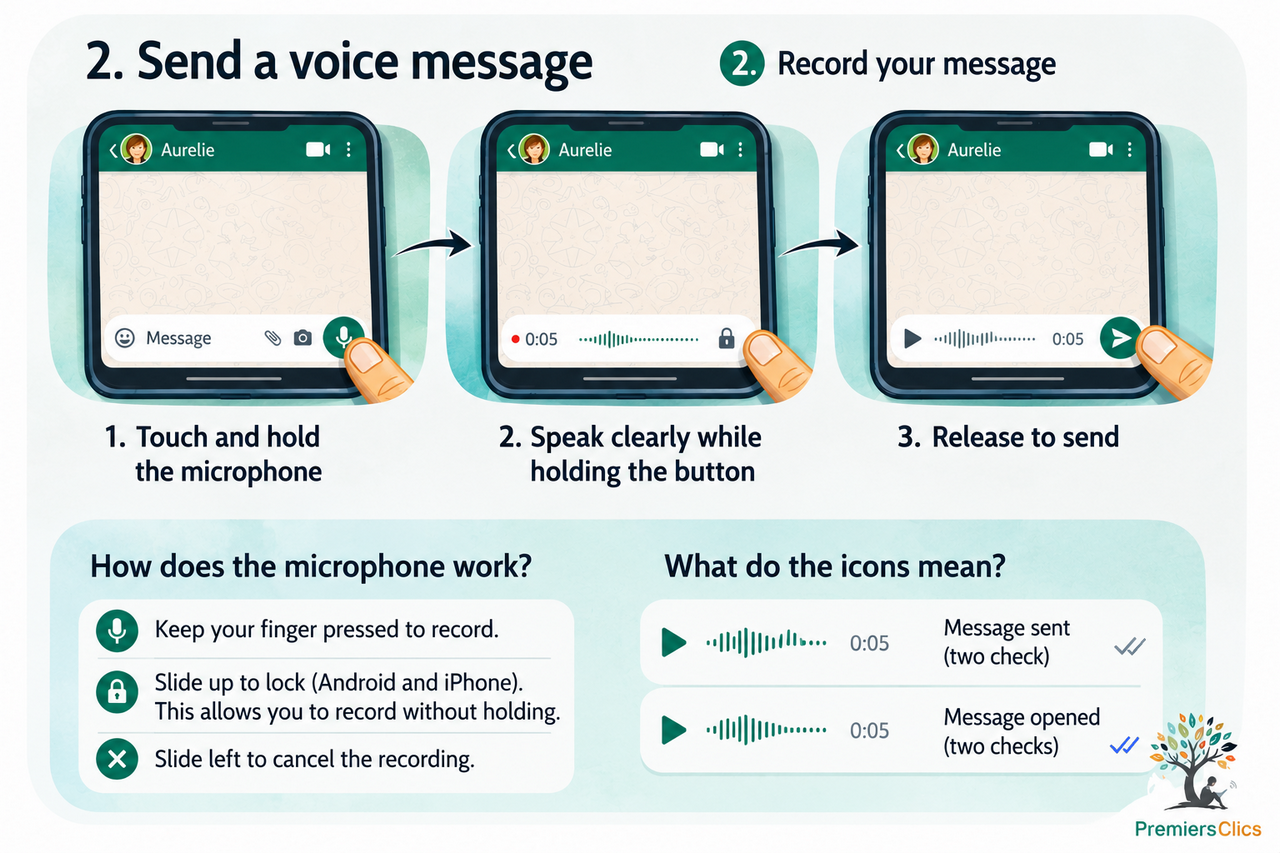
Voice messages are very convenient and easy to use. However, try not to overuse them, as listening to a voice message requires more attention and time than reading a short text message.
Good to know
With WhatsApp, unlike many websites or apps, your identifier is your phone number, not your email address. This makes it easier to find and connect with your phone contacts. You can communicate on WhatsApp with anyone saved in your phone’s contact list.
On WhatsApp, can you contact someone using an email instead of a mobile number?
No, you cannot contact someone using their email address. WhatsApp works exclusively with phone numbers.
3. How to lock recording for long voice messages
If you need to record a longer message, you don't have to keep your finger pressed on the microphone button the entire time. WhatsApp includes a recording lock feature that makes long voice messages much more comfortable.
To use it, press and hold the microphone icon, then slide your finger upward until the padlock appears. Once the recording is locked, you can remove your finger and continue speaking without interruption.
When you've finished, simply tap Send to share your message or Delete if you want to discard it. On some versions of WhatsApp, you can also listen to your recording before sending it.
The recording lock is ideal for longer conversations, detailed explanations, or whenever you need more than a few seconds to get your message across. It also makes recording easier for beginners and anyone who finds it uncomfortable to keep holding the screen.
4. Tips if you can't send voice messages
If you can't send or record voice messages on WhatsApp, don't worry. Most issues are easy to fix and only take a few minutes.
The first thing to check is whether WhatsApp has permission to use your phone's microphone. On Android, go to Settings > Apps > WhatsApp > Permissions and make sure Microphone access is enabled. On an iPhone, open Settings > WhatsApp and turn on the Microphone permission.
Next, verify that you have a stable internet connection. Voice messages require either Wi-Fi or mobile data to upload successfully. If your connection is weak or unstable, the recording may fail to send.
You should also make sure your phone's microphone isn't blocked by dust, dirt, or a protective case. If necessary, test it using your phone's built-in Voice Recorder app. If it works there but not in WhatsApp, restarting the app or your phone often fixes the problem.
If the issue continues, update WhatsApp from the Google Play Store or Apple App Store. Installing the latest version fixes bugs and improves compatibility with newer smartphones and operating systems.
In most cases, checking your microphone permissions, internet connection, and app updates is enough to get WhatsApp voice messages working again.
5. FAQ
How do I send a voice message on WhatsApp?
Open a conversation, press and hold the microphone icon, speak your message, then release the button. Your voice message will be sent automatically.
Can I send WhatsApp voice messages on Android and iPhone?
Yes. The feature works on both Android phones and iPhones, and the recording process is almost identical on both devices.
How do I record a long voice message on WhatsApp?
Press and hold the microphone icon, then slide your finger up to activate the recording lock. You can continue speaking without keeping your finger on the screen.
Why can't I record voice messages on WhatsApp?
The most common causes are disabled microphone permissions, a poor internet connection, or an outdated version of WhatsApp. Checking these settings usually resolves the issue.
Can I listen to my voice message before sending it?
Yes. If you use the recording lock feature, recent versions of WhatsApp let you preview your voice message before sending it.
Are WhatsApp voice messages free?
Yes. Voice messages are free to send through WhatsApp, although they use your Wi-Fi or mobile data connection.
Thibaut Mathieu
Want to learn more ?
Would you like to learn more about how your smartphone works by reading guides and tutorials on smartphone use ? Visit the Smartphone Tutorials section ! Are you also curious about how to troubleshoot your phone ? Then check out the Smartphone Troubleshooting section. Finally, to improve your general computer knowledge—especially about Windows—take a look at my free computer courses, designed for seniors and beginners of all ages.
End of the Tutorial
You now know how to send voice message on WhatsApp (Android or iPhone).

Thibaut MATHIEU
Editor of Premiers Clics
Editor and writer of Premiers Clics, and author of the book “Je me mets à l'informatique” (only avalaible in french), I share all my computer knowledge to help you learn, using the Premiers Clics's computer basics for beginners and seniors. I also offer tutorials to learn how to use a smartphone.
Also the manager of a computer support and repair company, I fully understand your needs in computer training and assistance. Every day, I answer my clients’ questions about their computers, phones, or tablets.
This experience has given me extensive knowledge in consumer digital technology, allowing me to separate fact from fiction in device protection, identify the most common user mistakes, and provide numerous tips to make the best use of PCs, smartphones, and tablets.
WhatsApp Complete User Guide
Check out the complete guide to using WhatsApp easily : create groups, send and save photos and videos, make a call, start a video call… and much more !
1. Install WhatsApp
2. Create an Account
3. Send a Message
4. Send a Voice Message
5. Send a Photo
6. Make a Call
7. Create a Group
8. Manage Notifications
9. Security & Tips
Course compatibility: Android tablets and smartphones (Samsung, Lenovo, Huawei, Xiaomi…), iPhone and iPad
📱 Smartphone Tutorials
I also offer lessons and practical guides for Android or iPhone. You’ll learn how to :
Set up your device
- Send a photo with text message
- Adjust the volume of my phone
- Open settings
- Free up storage space
Install and use useful apps
- How to connect a Bluetooth speaker ?
Transfer photos
- Transfer contacts to new phone
- How to see my Google photos ?
- How to get wifi password
- How to get wifi password with a phone ?
- Recover a lost or forgotten password
- How to reset your Gmail account ?
- WhatsApp : complete user guide
These lessons are ideal for users of Android smartphones and tablets.
Smartphone Problems: All Simple Step-by-Step Solutions
🔹 Computer Basics
- Computer and internet glossary
- Connect à WiFi printer
- How to get wifi password
- Change desktop background
🔹 Windows Basics
- The Mouse
- The Keyboard
- The Desktop
- The Start Menu
- The Taskbar
- Open Windows settings
- Change mouse pointer speed
- Empty Recycle Bin
- Recover deleted files
- Create and organize folders
- Create desktop shortcuts
- Pin a programm on the taskbar
- Compress a ZIP file
- Decompress a ZIP fileMake file and folder icons bigger
- Open a downloaded file
- Change Windows Wallpaper
- Take a screenshot
- All our computer classes
🔹 Internet and Email
- Open and use a web browser
- Add a website to the favorites bar
- Creating a Gmail account
- How to send emails and attachments
- Browsing history in Chrome, Edge or Firefox
- Browsing download history in Chrome, Edge or Firefox
- Delete history in Chrome, Edge or Firefox
- Delete cookies and browsing data
- Set Google Chrome Homepage
- Create and manage an email account
- How access Netflix from Phone, PC or Tablet
- What is a VPN ?
- How to find the wifi password with a phone
🔹 Computer Protection
- Protect my computer with a password
- Install antivirus tools
- Learn how to avoid scams online
🔹 Troubleshooting
🔹 Practical Life
WhatsApp Complete User Guide
Check out the complete guide to using WhatsApp easily : create groups, send and save photos and videos, make a call, start a video call… and much more !
1. Install WhatsApp
2. Create an Account
3. Send a Message
4. Send a Voice Message
5. Send a Photo
6. Make a Call
7. Create a Group
8. Manage Notifications
9. Security & Tips
Course compatibility: Android tablets and smartphones (Samsung, Lenovo, Huawei, Xiaomi…), iPhone and iPad

Create a WhatsApp Account
Check out this guide to create a WhatsApp Account whether it's for yourself or someone else.
Install WhatsApp
Check out this guide if you want to learn how to install WhatsApp on your phone or tablet.
Send a message
Check out this guide to learn how to send messages in WhatsApp.
Send a Photo on WhatsApp
Check out this guide if you want to learn how to send a photo on WhatsApp.

No internet on my phone

My phone is not charging
What should you do if your phone no longer charges?

My phone Freezing

0 commentaire