
Home / Computer Basics / Windows Course / Lesson 3
Windows Course – The Keyboard
Difficulty: Easy
Required OS: Windows 11 or another version

How to use a Keyboard

Pour les lecteurs français
Consultez le cours en français : Comment utiliser un clavier
Table of Contents
- Lowercase, uppercase and the numeric keypad
- Symbols and special characters
- Function keys
- Keyboard shortcuts
- Specific shortcuts
- The keyboard on a laptop (differences and useful features)
- FAQ
1. Lowercase, uppercase and the numeric keypad
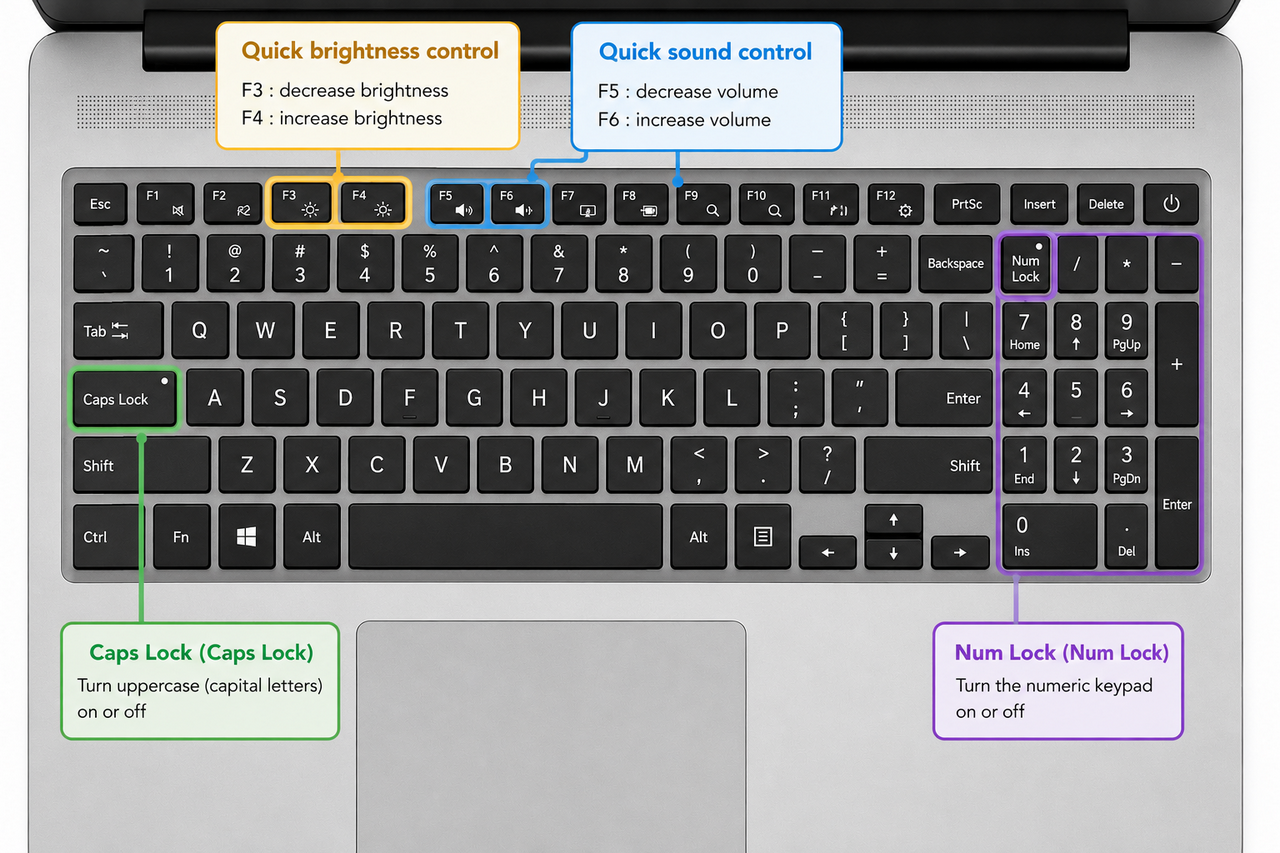
We are now going to see how to switch from lowercase typing mode to uppercase typing mode.
If you only want to briefly type in uppercase, for example to capitalize the first letter of a name, hold down the Shift key on your keyboard and type the letter. Then release the Shift key. As you may have guessed, letters will remain uppercase as long as you keep this key pressed.
On the other hand, if you want to write an entire sentence or paragraph in uppercase letters, press the Caps Lock key once and release it. As its name suggests, this key locks the keyboard into uppercase typing mode. To return to lowercase mode, simply press the key again to disable it.
When uppercase mode is enabled, a small LED light usually turns on in the upper-right area of the keyboard so you can easily see which typing mode is currently active. The Shift and Caps Lock keys can also be used to type the numbers located above the letter keys.
Now let’s talk a little about the numeric keypad. To use it, press the Num Lock key. This will activate the numeric keypad. To use the arrow functions instead, disable Num Lock again. If you use a laptop and frequently work with numbers, I recommend using an external USB numeric keypad for greater comfort and speed.
2. Symbols and special characters
The row of number keys located above the letters also contains many symbols and special characters. This is usually where you will find characters such as the @ symbol, the # hashtag, quotation marks, parentheses, and many others. On a standard QWERTY keyboard, most keys can produce several different characters depending on the key combination used.
- To type the main symbol shown on a key, simply press the key normally.
- To type the upper symbol displayed on a key, hold the Shift key while pressing the desired key.
Some special characters may also require the Alt Gr key (or sometimes Ctrl + Alt on certain keyboards), especially on international keyboard layouts.
Examples of symbols and special characters commonly found on a standard QWERTY keyboard:
Symbols accessible directly or with Shift:
! @ # $ % ^ & * ( )Other common special characters:
_ + = { } [ ] \ | : ; " ' < > ? /
The exact placement of symbols may vary slightly depending on the keyboard language and country layout (US QWERTY, UK QWERTY, international keyboards, etc.).
3. Using the Function Keys on a Keyboard (F1 to F12)
Although they are not used very often by beginners, the function keys can activate several useful Windows features. Some of these keys are used during computer startup, for example to open the BIOS (where certain system settings of your computer are located).
Today, these keys are mainly used for keyboard shortcuts and quick system controls. In web browsers such as Google Chrome, several function keys are especially useful:
F5 refreshes a webpage
F11 switches to full-screen mode
F1 usually opens the help menu of a program or software
On many laptops, you may need to hold the Fn key before pressing a function key such as F1, F5, or F11.
Using Laptop Shortcut Keys (Brightness, Volume, Keyboard Backlight…)
Many laptops also use the function keys for quick system controls. These shortcuts allow you to:
increase or decrease the screen brightness
raise or lower the sound volume
mute the sound
enable or disable the keyboard backlight
activate Wi-Fi or airplane mode on some models
Depending on the laptop brand, these shortcuts may work directly or require the Fn key to be pressed at the same time.
Other Useful Function and Shortcut Keys
Let’s now look at some classic keyboard keys and their functions.
Print Screen (PrtSc): takes a screenshot of your screen
Scroll Lock: stops scrolling in certain older software programs
Pause/Break: pauses some games or software tools
Insert (Ins): switches between insert mode and overwrite mode when typing text
Delete (Del): deletes text, files, or folders
Home: moves the cursor to the beginning of a paragraph or webpage
End: moves the cursor to the end of a paragraph or webpage
Page Up (PgUp): quickly scrolls upward on a page
Page Down (PgDn): quickly scrolls downward on a page
4. Keyboard shortcuts
Many keyboard shortcuts make using Windows easier and faster. Keyboard shortcuts also help you save time when working on your computer. A keyboard shortcut is a combination of two or three keys pressed at the same time. For example, the shortcut Ctrl + A allows you to instantly select all the files inside a folder or all the text inside a document.
5. Specific shortcuts
Each manufacturer offers different keyboard models with more or fewer shortcut keys. You can find many types of keyboards on the market, including gaming keyboards, multimedia keyboards, and simplified keyboards designed for easier everyday use.
Some shortcut keys are very practical because they allow you to quickly open the Windows calculator, a web browser, an email application, or adjust the sound volume. Certain keyboards also include keys for putting the computer into sleep mode. In addition, some keyboard models allow users to assign their favorite programs to customizable shortcut keys.
Some keyboards also include special features that can be very useful. For example, some keyboards are rollable and flexible, others are spill-resistant against accidental drink spills, and some are designed to be ultra-quiet for more comfortable use.
6. The keyboard on a laptop (differences and useful features)

7. FAQ – Using a Keyboard in Windows
How do I type uppercase letters and use Caps Lock ?
There are two ways to type uppercase letters on a keyboard. If you only want to capitalize one letter, hold the Shift key while pressing the letter. This is useful when writing names or starting a sentence. If you want to type an entire word or sentence in capital letters, press the Caps Lock key once. This activates uppercase mode until you press the key again to disable it. Most keyboards include a small light indicator showing whether Caps Lock is enabled.
What is the numeric keypad used for ?
The numeric keypad is mainly used for quickly entering numbers, calculations, and financial data. It is very practical when using spreadsheets, calculators, or accounting software. On desktop keyboards and larger laptops, the numeric keypad is usually located on the right side of the keyboard. On smaller laptops, especially 13-inch or 14-inch models, the numeric keypad may be hidden inside certain letter keys or replaced with a virtual numeric keypad. To activate or deactivate it, use the Num Lock key.
What are the function keys (F1 to F12) used for ?
The function keys are located at the top of the keyboard and provide quick access to many Windows features and shortcuts. For example, F1 usually opens help menus, F5 refreshes a webpage, and F11 switches a browser to full-screen mode. On laptops, these keys are also used to control useful settings such as screen brightness, sound volume, Wi-Fi, airplane mode, or keyboard backlighting. Depending on the laptop brand, you may need to use the Fn key together with the function keys.
Why is my laptop keyboard typing numbers instead of letters ?
This problem usually happens when the Num Lock function is accidentally activated on a laptop. Some compact keyboards share number functions with letter keys. When Num Lock is enabled, pressing certain letters may type numbers instead. To fix the issue, simply press the Num Lock key or use the shortcut Fn + Num Lock depending on your computer model.
What is the difference between a desktop keyboard and a laptop keyboard ?
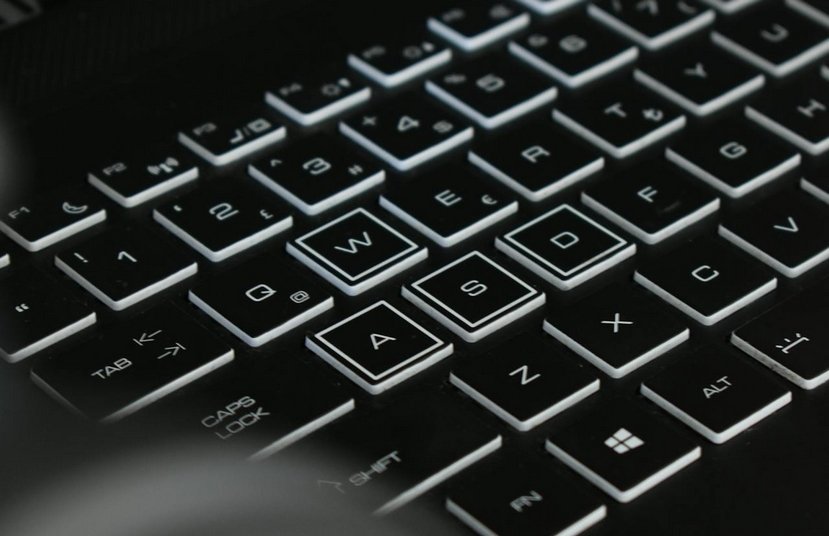
A desktop keyboard is generally larger and often includes a full numeric keypad, larger spacing between keys, and additional shortcut buttons. A laptop keyboard is more compact because it must fit into a smaller device. As a result, several functions are grouped together using the Fn key. Laptop keyboards also often include quick controls for brightness, sound, battery saving, Wi-Fi, and multimedia playback directly on the top row of keys.
Conclusion
You are now familiar with the main parts of a computer keyboard and the most useful keys available in Windows. You have learned how to type in uppercase and lowercase, use the numeric keypad, access special characters, and understand the role of the function keys and common keyboard shortcuts.
You also discovered the specific features of laptop keyboards, including quick controls for brightness, sound volume, and other practical functions accessible with the Fn key.
With regular practice, using a keyboard will become faster, easier, and much more comfortable. Mastering the keyboard is an important step toward becoming more confident when using a computer and Windows.
Thibaut Mathieu
End of the lesson
You are now familiar with using the keyboard.

This may interest you :

Windows Desktop Basics
Learn how to organize shortcuts and folders, and personalize your screen.

Create a Folder

Create an email account (Gmail)
How to create a Gmail account to send and receive emails.
Send emails and attachments
How to send emails and attachments. Example with Gmail.

Recover deleted files
How to recover deleted files in the Windows Recycle Bin.

Change Google Chrome Homepage

Take a Screenshot
See how taking a screenshot in Windows
Increase display size
Create desktop shorcuts
How to create shortcuts on the desktop.

Connect a wifi printer
How connect a printer to your wifi network and how install it in Windows.
Smartphone Tips & Tricks

Connect Bluetooth speakers to phone
How connect a BT device like a speaker to your phone.

Solve internet issues
How to fix the main internet connections issues. Main troubleshooting steps.
Common Smartphone Problems

My phone is not charging
What should you do if your phone no longer charges?

I can't make calls
Check this tips if you can't make calls anymore.
No internet on my phone

My phone restarts by itself
Why does your phone restart by itself and how to fix it.

Open iPhone Settings app
Tips to help you learn how to open the Settings app on an iPhone.

Thibaut MATHIEU
Editor of Premiers Clics
Editor and writer of Premiers Clics, and author of the book “Je me mets à l'informatique” (only avalaible in french), I share all my computer knowledge to help you learn, using the Premiers Clics computer courses.
Also the manager of a computer support and repair company, I fully understand your needs in computer training and assistance. Every day, I answer my clients’ questions about their computers, phones, or tablets.
This experience has given me extensive knowledge in consumer digital technology, allowing me to separate fact from fiction in device protection, identify the most common user mistakes, and provide numerous tips to make the best use of PCs, smartphones, and tablets.
🔹 Computer Basics
🔹 Windows Course
- The Desktop
- The Sart Menu
- Empty Recycle Bin
- Recover deleted files
- Create and organize folders
- Create desktop shortcuts
- Pin a programm on the taskbar
- Compress a ZIP file
- Decompress a ZIP file
Organize files and folders
Customize your desktop
- Make a screenshot
- Make file and folder icons bigger
Understand the start menu and taskbar
- Open a downloaded file
- Change Windows Wallpaper
- Take a screenshot
🔹 Internet and Email
Open and use a web browser
- Creating a Gmail email
- How to send emails and attachments
- Browsing history in Chrome, Edge or Firefox
- Browsing download history in Chrome, Edge or Firefox
- Delete history in Chrome, Edge or Firefox
- Delete cookies and browsing data
- Set Google Chrome Homepage
Create and manage an email account
- How access Netflix from Phone, PC or Tablet
- What is a VPN ?
🔹 Computer Protection
🔹 Troubleshooting
🔹 Practical Life
Smartphone Problems: All Simple Step-by-Step Solutions

0 commentaire