
Home / Computer & Internet Basics
How to Recover a Lost or Forgotten Password ?
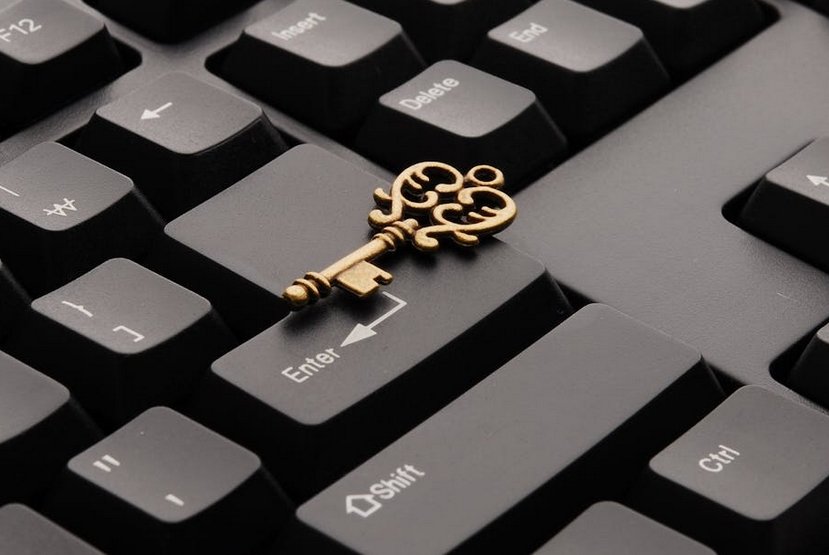

View passwords saved by Google Chrome (or Edge, Firefox, Opera…)
In this tutorial, I will show you how to display all the usernames and passwords saved by your browser: Google, Gmail, Outlook, Hotmail, Yahoo, Orange, La Poste, EDF…
This can be very useful if you want to find login details saved on your computer, for example to connect from another device. It will save you from having to create a new password.
I will explain the steps to follow directly in your web browser.
From my experience, banks generally avoid using typed passwords, even with two-factor authentication. Instead, they often use a numeric code entered with the mouse, which is more secure than typing a password.
For administrative websites, I also recommend using FranceConnect whenever possible. It allows you to log in to multiple government websites with the same credentials. For example, if you know your tax account login, you can access the health insurance website (Ameli) without creating a new account.
For your information, a short password made only of numbers is called a PIN code (usually 4 to 6 digits). Be careful not to confuse it with your phone’s SIM PIN code. I recommend checking an IT glossary if you want to learn more.
Tip: If you are trying to unlock your Outlook, Hotmail, or Microsoft account, I recommend reading the dedicated article on this topic.

Pour les lecteurs français
Consultez le guide complet sur comment récupérer un mot de passe perdu ou oublié
Table of Contents
- Password problems: the 10 most common questions
- How to find a lost or forgotten username or password
1. Method 1: automatic transfer
2. Find a lost or forgotten username or password

Conclusion
I recommend that you read my tips on how to create a simple but secure password. I also suggest downloading and printing a password reminder sheet to avoid forgetting them again. If you can no longer access your Outlook email account, I invite you to read the article dedicated to “Forgot Outlook password”.
If you want to go further, I offer free online computer courses to help you better understand how Windows works and become more comfortable using your computer.
Related Articles
Windows Basics

Create folders
Learn how to create and organize folders in Windows.

Create an email account (Gmail)
How to create a Gmail account to send and receive emails.
Send emails and attachments
How to send emails and attachments. Example with Gmail.

Open iPhone Settings app
Tips to help you learn how to open the Settings app on an iPhone.

Recover deleted files
How to recover deleted files in the Windows Recycle Bin.

Change Google Chrome Homepage

Take a Screenshot
See how taking a screenshot in Windows

Increase display size
Create desktop shorcuts
How to create shortcuts on the desktop.

Connect a wifi printer
How connect a printer to your wifi network and how install it in Windows.
Smartphone Tips & Tricks

Connect Bluetooth speakers to phone
How connect a BT device like a speaker to your phone.

Solve internet issues
How to fix the main internet connections issues. Main troubleshooting steps.
Common Smartphone Problems

My phone is not charging
What should you do if your phone no longer charges?

I can't make calls
Check this tips if you can't make calls anymore.
No internet on my phone

My phone restarts by itself
Why does your phone restart by itself and how to fix it.

Thibaut MATHIEU
Editor of Premiers Clics
Editor and writer of Premiers Clics, and author of the book “Je me mets à l'informatique” (only avalaible in french), I share all my computer knowledge to help you learn, using the Premiers Clics computer courses.
Also the manager of a computer support and repair company, I fully understand your needs in computer training and assistance. Every day, I answer my clients’ questions about their computers, phones, or tablets.
This experience has given me extensive knowledge in consumer digital technology, allowing me to separate fact from fiction in device protection, identify the most common user mistakes, and provide numerous tips to make the best use of PCs, smartphones, and tablets.

0 commentaire