
Home / Smartphone Tutorials
How to Open iPhone Settings (iPhone 13, iPhone 14, iPhone 15, iPhone 16, iPhone17 Settings App...)

Open iPhone Settings
The Settings app is one of the most important features on an iPhone. It allows you to manage your device, connect to Wi-Fi, adjust Bluetooth, customize notifications, change display options, and configure privacy and security settings. If you are new to iPhone or cannot find the Settings app, this guide will show you exactly how to open it.
Table of Contents
- How to open iPhone settings
- Open Settings from the Home Screen
- Use iPhone Search
- What If the Settings App Is Missing?
- FAQ
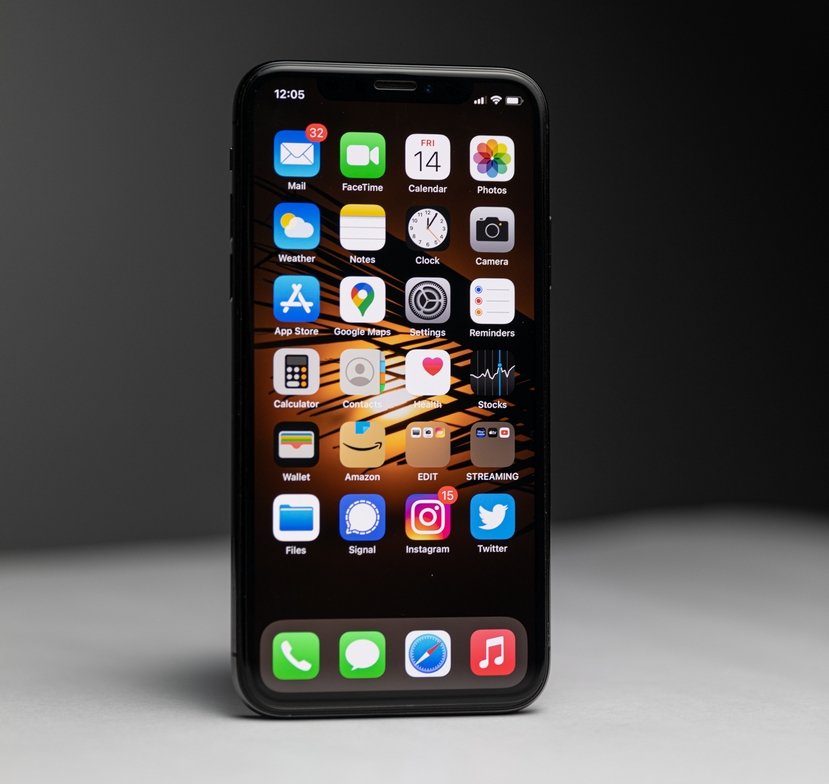
The Settings app on iPhone is identified by a gray gear icon.
There are several ways to open the Settings on an iPhone, so you can use whichever method works best for you. Personally, I use the Quick Settings panel to access the Settings menu on my iPhone, because it's the fastest and most convenient option. Need to open the Settings on another device ? Discover how to open Settings on a phone or any device, including smartphones, computers, tablets, and more.
1. How to open iPhone Settings
The Settings app comes pre-installed on every iPhone. Its icon looks like a gray gear. You can usually find it on the Home Screen or in the App Library.
The Settings app comes pre-installed on every iPhone and gives you access to all the device's main options and preferences. From Wi-Fi and Bluetooth settings to privacy, notifications, and software updates, it is the central hub for managing your iPhone.
The app is identified by a gray gear icon and is usually located on the Home Screen. If you cannot find it, check the App Library or use the iPhone's Search feature by swiping down on the Home Screen and typing "Settings".
Since it is an essential iOS app, Settings cannot normally be deleted, ensuring that you always have access to important device controls.
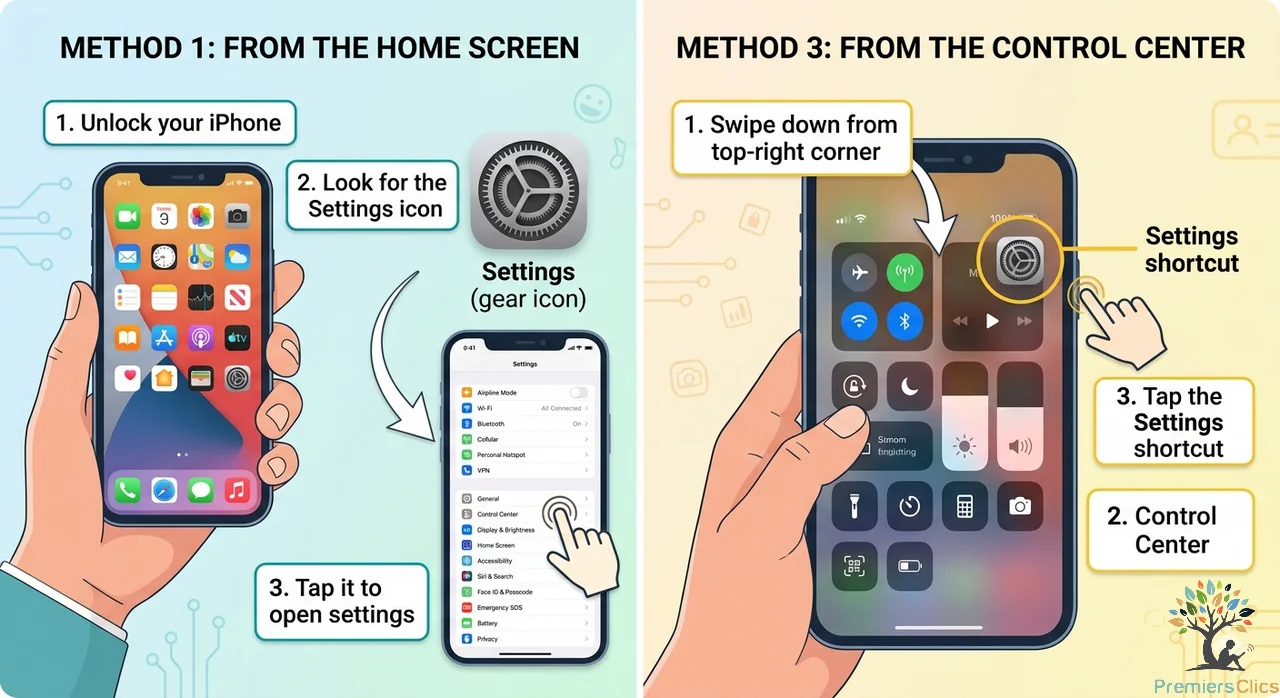
The 2 quickest ways to open Settings on an iPhone
2. Open Settings from the Home Screen
The easiest way to access your iPhone's settings is directly from the Home Screen. Most iPhone users open the Settings app this way because it only takes a few seconds.
Steps
- Unlock your iPhone using Face ID, Touch ID, or your passcode.
- Look for the gray gear icon labeled Settings.
- Tap the icon once to open the app.
Once inside the Settings app, you can manage a wide range of features, including Wi-Fi connections, Bluetooth devices, mobile data, display settings, sounds, privacy controls, and software updates. The menu is organized into categories, making it easy to find the option you need.
If you have many apps installed, the Settings icon may not be on the first Home Screen page. Swipe left or right through your pages until you find it.
3. Use iPhone Search
If you cannot locate the Settings icon, the built-in Search feature is the fastest way to find it.
Steps
- Go to any Home Screen page.
- Swipe down from the middle of the screen.
- Tap the Search bar that appears at the top.
- Type Settings.
- Tap the Settings app in the search results.
Search is particularly useful if your Home Screen contains many folders and applications. Instead of browsing through multiple pages, you can open the app instantly by typing its name.
You can also use Search to find specific settings. For example, typing Wi-Fi, Bluetooth, Battery, or Screen Time may take you directly to the relevant section of the Settings app.
4. If you can't find the Settings icon (Put the Settings icon back)
Sometimes, the Settings icon may disappear from your Home screen by accident. Don't worry, it is usually still available on your device. To put the Settings icon back, swipe down on the Home screen and use the search feature. Type Settings in the search box, then tap and hold the Settings app icon. Drag it back to your Home screen and place it wherever you want. If you still cannot find it, open the App Library and search for Settings there. This simple method allows you to restore the Settings icon and access your device settings normally again.
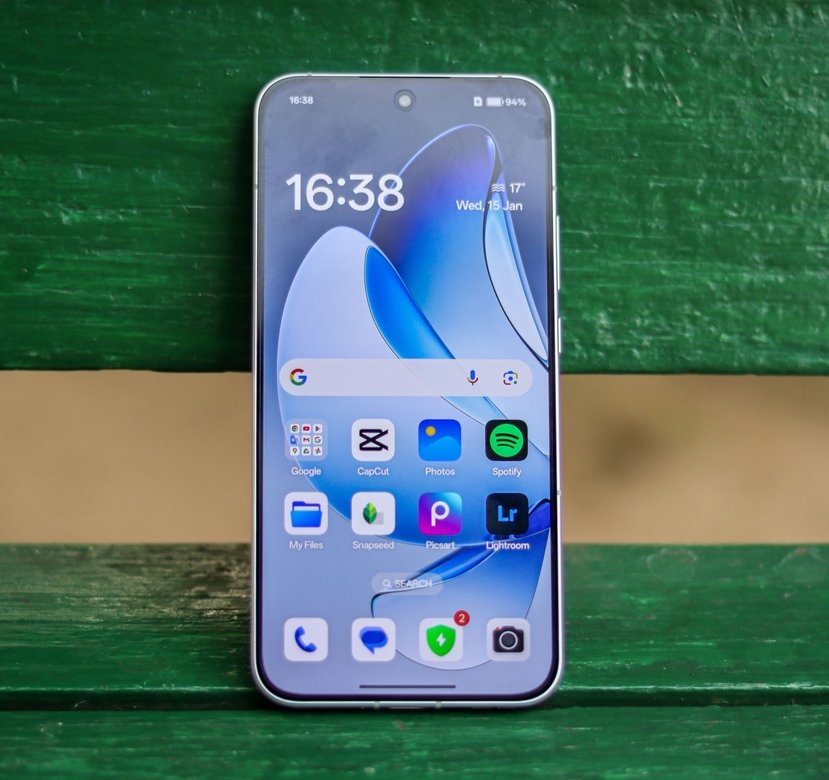
There are several ways to open the settings on an Android phone
For other brands, see : How to Open Phone Settings
5. What If the Settings App Is Missing?
If you can't find the Settings app on your iPhone, don't worry. The Settings app is a built-in part of iOS and cannot normally be deleted. In most cases, the icon has simply been moved to another Home Screen page, placed inside a folder, or overlooked. You can quickly locate it by swiping down on the Home Screen and searching for Settings, or by checking the App Library, where all installed apps are listed.
If the Settings app is missing from your Home Screen, restarting your iPhone or resetting the Home Screen layout may help restore the icon to an easier-to-find location without deleting your personal data. If you still can't locate it, follow our dedicated guide on how to fix a missing Settings app for more detailed troubleshooting steps.
FAQ : Frequently Asked Questions About Opening Settings on iPhone
How do I open Settings on my iPhone?
Locate the Settings app (the gray gear icon) on your Home Screen and tap it. If you cannot find it, swipe down on the Home Screen and type "Settings" in the search bar, then tap the result. Apple also recommends using App Library search if the icon is not immediately visible. :contentReference[oaicite:0]{index=0}
What does the Settings icon look like?
The Settings icon is a gray gear-shaped symbol. It comes pre-installed on every iPhone and allows you to manage Wi-Fi, Bluetooth, notifications, privacy, display settings, and many other options.
Why can't I find the Settings app on my iPhone?
The Settings app cannot be deleted from an iPhone. If you cannot find it, it may have been moved to another Home Screen page, a folder, or the App Library. Use Spotlight Search by swiping down and typing "Settings." :contentReference[oaicite:1]{index=1}
How do I open Settings using Spotlight Search?
Swipe down from the middle of the Home Screen to open Spotlight Search. Type "Settings" and tap the Settings app when it appears in the results. This is often the fastest method if the icon is difficult to locate. :contentReference[oaicite:2]{index=2}
Can I open Settings from the App Library?
Yes. Swipe left through your Home Screen pages until you reach the App Library. Use the search box at the top and type "Settings," then tap the app to open it. :contentReference[oaicite:3]{index=3}
Can I open Settings from the Control Center?
On some versions of iOS, certain settings shortcuts may be available through Control Center. However, the most reliable methods remain using the Settings icon, Spotlight Search, or the App Library. :contentReference[oaicite:4]{index=4}
Where is the Settings app located on an iPhone?
The Settings app is usually found on the Home Screen after initial setup. However, its location may vary if you have moved app icons or reorganized your Home Screens.
Can Siri open Settings for me?
Yes. Simply say, "Hey Siri, open Settings," and Siri will launch the Settings app automatically.
How do I restore the Settings icon to my Home Screen?
If the icon is missing from your Home Screen, open the App Library, find Settings, press and hold the icon, then drag it back to the Home Screen to create a shortcut. :contentReference[oaicite:5]{index=5}
What can I do in the iPhone Settings app?
The Settings app allows you to manage Wi-Fi, Bluetooth, mobile data, notifications, privacy, screen brightness, accessibility options, software updates, Apple ID settings, and much more.
Is the Settings app available on all iPhones?
Yes. Every iPhone includes the Settings app by default. It is a core part of iOS and cannot be permanently removed. :contentReference[oaicite:6]{index=6}
What is the fastest way to open Settings on iPhone?
For most users, the fastest method is to swipe down on the Home Screen, type "Settings," and tap the result. Alternatively, if the icon is already visible, simply tap the Settings app directly. :contentReference[oaicite:7]{index=7}
Conclusion
Opening the Settings app on an iPhone is quick and easy. Simply tap the gray gear icon on your Home Screen, or use the built-in Search feature to find it instantly. Once inside Settings, you can customize your device, manage connections, improve security, and personalize your iPhone experience.
I hope this guide helped you find your settings more easily than usual. If you'd like to learn some very useful tips for using your PC and smartphone, check out our free online computer courses for beginners, as well as our tutorials on how to get the most out of an Android smartphone. I look forward to helping you and assisting you whenever you need support.
Thibaut MATHIEU

Smartphone Tutorials & Windows Basics
Welcome to Premiers Clics, a free website designed to help beginners learn computer basics and use smartphones easily with our smartphone tutorials. Step-by-step guides, simple tutorials, and practical lessons for everyday use.

Thibaut MATHIEU
Editeur de Premiers Clics
Editor and writer of Premiers Clics, and author of the book “Getting Started with Computers” (only avalaible in french), I share all my computer knowledge to help you learn, using the Premiers Clics computer courses.
Also the manager of a computer support and repair company, I fully understand your needs in computer training and assistance. Every day, I answer my clients’ questions about their computers, phones, or tablets.
This experience has given me extensive knowledge in consumer digital technology, allowing me to separate fact from fiction in device protection, identify the most common user mistakes, and provide numerous tips to make the best use of PCs, smartphones, and tablets.

Create an email account (Gmail)
How to create a Gmail account to send and receive emails.

Decompress ZiP File
Learn how to compress and compress ZIP Files.




Mobile & Tablet Tutorials
We also offer lessons and practical guides for smartphones and tablets. You’ll learn how to:
Set up your device
- Send a photo with text message
- Adjust the volume of my phone
- Open settings
- Free up storage space
Install and use useful apps
- How to connect a Bluetooth speaker ?
Transfer photos
- Transfer contacts to new phone
- How to see my Google photos ?
- How to get wifi password
These lessons are ideal for users of Android smartphones and tablets.
Smartphone Problems: All Simple Step-by-Step Solutions
Other Tutorials

Send a voice message
Check out this tip if you want to learn how to send voice messages in WhatsApp or any other messaging app.

Windows Desktop Basics
Learn the Windows desktop basics, and personalize your screen.

How to use a Computer
Explore all our free computer courses for beginners and learn how to use a computer.

Adjust mobile's volume
Send a photo with text message
Speed up my phone
How to fix a slow phone ?

Access Netflix

Find wifi password with a phone
If you need to display the Wi-Fi password, you can do it with your smartphone.

Transfer contacts
Common Smartphone Problems

No internet on my phone

I can't make calls
Check this tips if you can't make calls anymore.

I can't receiving text messages
A troubleshooting tutorial if you ever do not receive or no longer receive messages (SMS).
My phone Freezing

My phone is not charging
What should you do if your phone no longer charges?
My battery is draining quickly
How to improve your phone battery life if your battery is draining quiclky.
Windows Basics
Change desktop background
How to change the Windows desktop background. Free online Windows Course.
Protect my computer using a password
How protect my computer with a password or a PIN code.

View download history
How to view the browser download history in Google.

0 commentaire