
Home / Computer Basics / Windows Course / Lesson 3
Windows Desktop Basics : organize Icons, Shortcuts and Personalize your Screen
Difficulty: Easy
Required OS: Windows 11 or another version

The Windows Desktop

Pour les lecteurs français
Consultez le cours en français : Le Bureau de Windows
Table of Contents
- Presentation of the Windows desktop
- Accessing the desktop from the taskbar
- Adding folders to the desktop
- Organizing, creating and deleting icons
- Changing the desktop background image
1. Presentation of the Windows desktop
Cleaner than the old Windows 10 desktop, its operation remains very similar. The desktop consists of the wallpaper, icons, the Start menu and the taskbar. Let’s see what these elements are used for.
- The wallpaper displays the image or photo of your choice.
- Icons provide access to essential Windows elements (Recycle Bin, File Explorer...) as well as your favorite programs.
- The taskbar allows you to display the Start menu, search your computer, display your favorite and open programs, and finally show system information through the quick access area (date, time, internet connection status, battery level, antivirus protection...) and notifications (updates to install...).
We will see the detailed operation of the taskbar and Start menu in future lessons. The Windows 11 desktop includes the Start menu and pinned applications centered on the taskbar.
I took a screenshot of the Windows 11 desktop for you, observe the different elements :
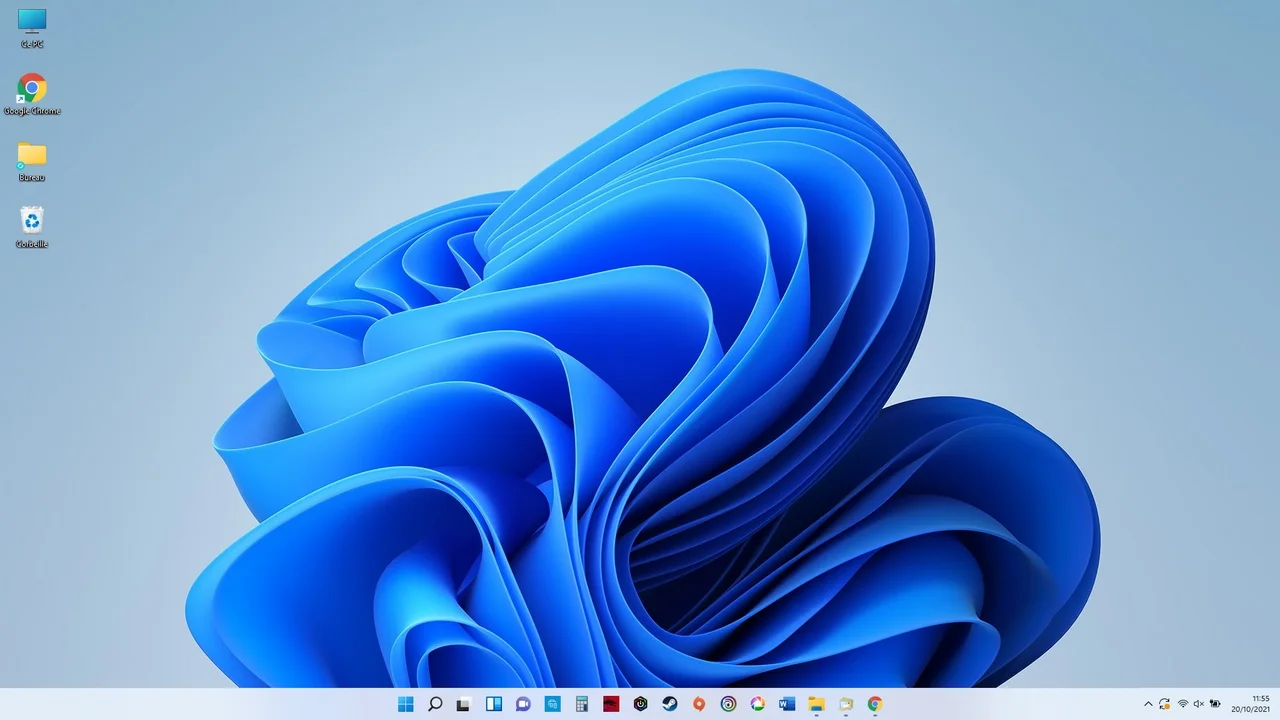
Do you dream of having such a well-organized desktop ?
Desktop Icons
Let’s take a closer look at the icons.
Several icons are present on the desktop : the Recycle Bin, File Explorer (also called This PC), and various shortcuts to your favorite programs. To open a program, file or folder present on the desktop, double-click its icon. In a future lesson we will see how to add shortcuts to your favorite files and folders. We will also see how the Recycle Bin works. Finally, it is very useful to create shortcuts, therefore icons, to your favorite programs, files or folders.
To create a shortcut on the desktop to a file or folder, simply do the following: right-click the file or folder / Send to / Desktop (create shortcut). Convenient ! We will see this in more detail in a next lesson.
Virtual Desktops: Working with Multiple Desktops
It is possible to create multiple desktops in Windows 11 by clicking the desktop management icon to the right of the search icon on the taskbar. Convenient if you multitask or if you use your PC for both personal and professional purposes. For example, you can create an additional desktop used only for personal tasks. Note that the display of icons will remain the same on the different created desktops. However, an application opened on desktop 1 will not appear on desktop 2, which is the whole point of virtual desktops. Virtual desktop management also exists in Windows 10.
2. Accessing the Desktop from the Taskbar
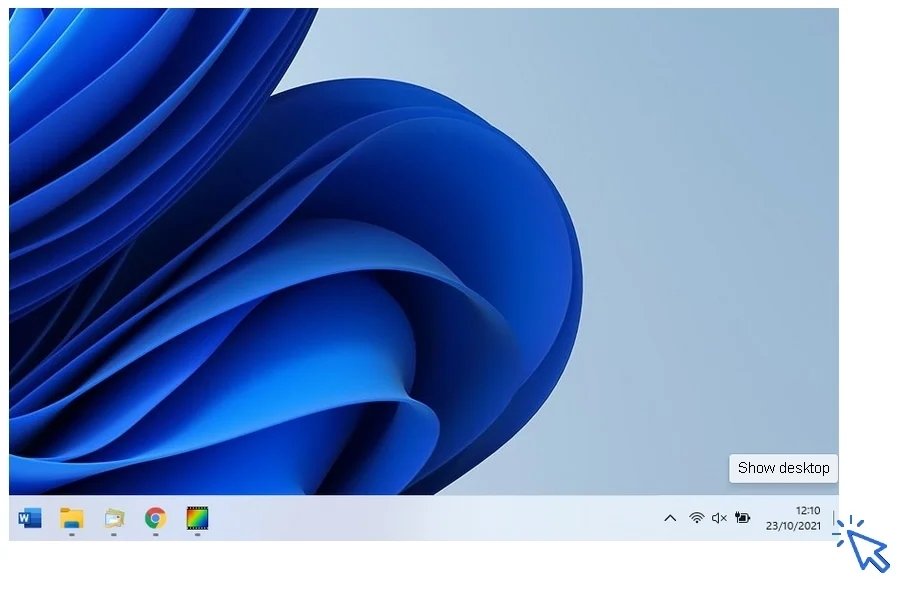
If you are working with several open windows and want to quickly display the desktop, click the far-right end of the taskbar.
3. Adding Folders to the Desktop
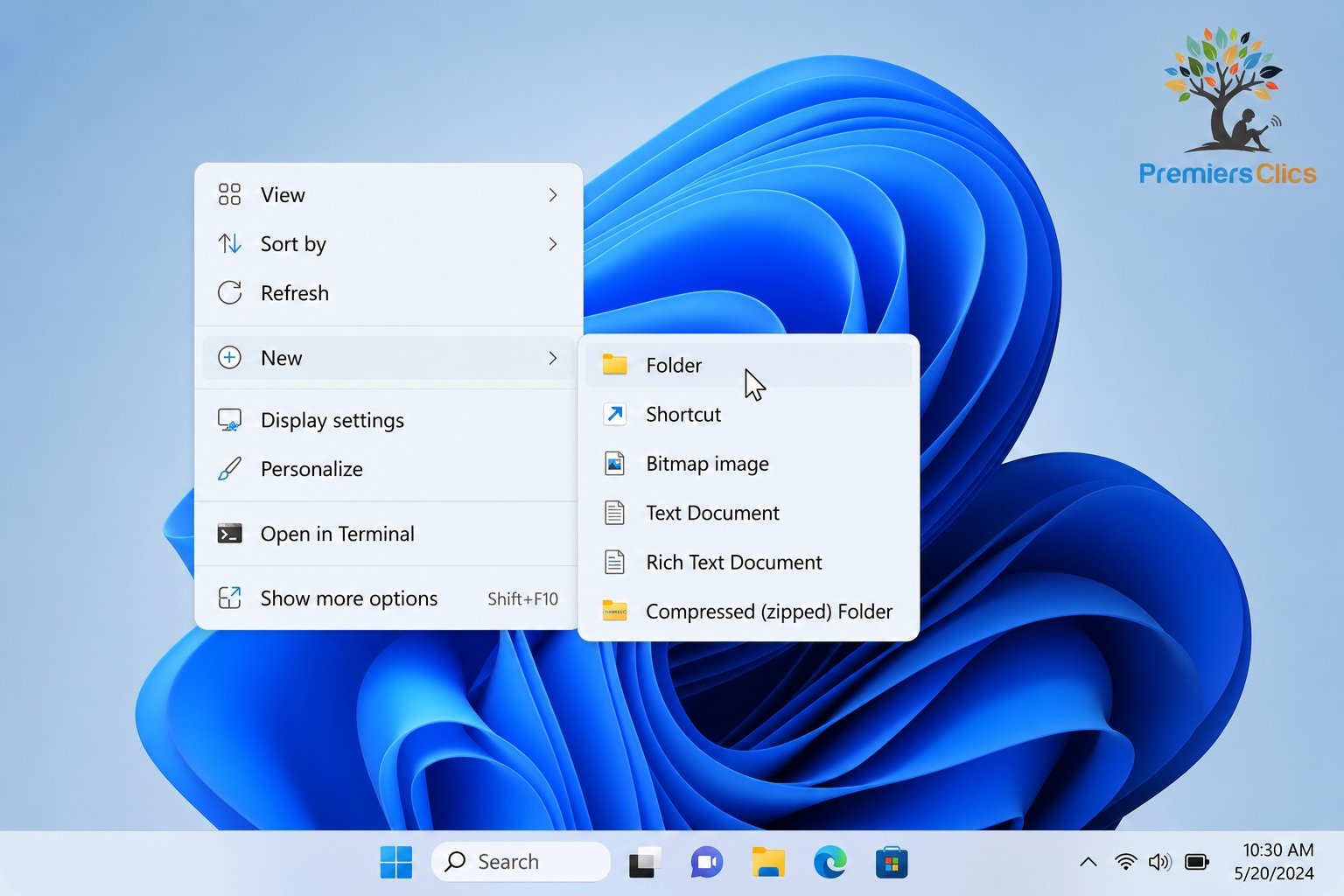
Nothing could be easier to add a new folder to your desktop ! Right-click the desktop and select New → Folder. All that remains is to give it a name and move it to the desired location.
To create a new folder, select New → Folder.
4. Organizing, Creating and Deleting Icons
To organize your icons (shortcuts, files or folders present on the desktop), move them while holding down the left mouse button. Release them in the desired location. The moved icon will automatically align "to the invisible grid". Create folders and move the desired icons into them by dragging the icon onto the folder and then releasing the mouse button.
To delete an icon, right-click it and select "Delete". You can also select an icon by clicking it once and pressing the "Delete" key on your keyboard.
To add icons to the desktop, refer to lesson : Create a desktop shortcut.
You can also store files on the desktop, but having too many icons, files and folders displayed is not recommended. A cluttered desktop is less practical to use and makes it harder to quickly find your programs and documents.
5. Changing the Desktop Background Image
To change the desktop background image, right-click the desktop and select "Personalize". Then click "Browse" and select the desired image or photo. You can then center or stretch the new image using the "Choose a fit" drop-down menu.
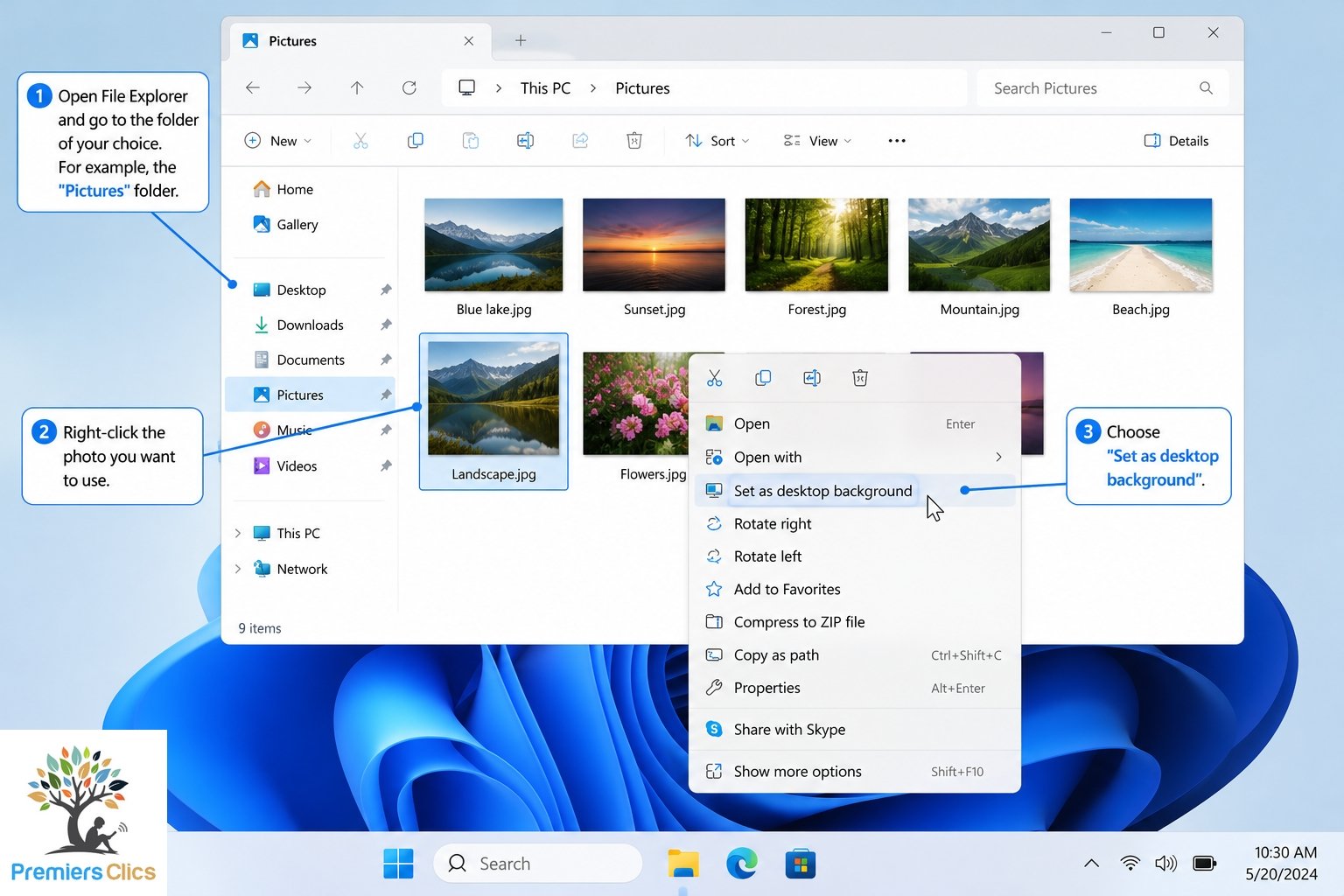
Another way to change your desktop background is to go to the folder of your choice using File Explorer, for example the "Pictures" folder, and right-click the desired photo. Then choose "Set as desktop background".
The new background is now in place !
Feel free to check out our dedicated tutorial to learn how to change your PC wallpaper.
6. FAQ - The Desktop
How do I organize icons on the Windows desktop?
To organize desktop icons in Windows 11 or Windows 10, click and drag the icons to the desired location. You can also right-click the desktop and use the “Sort by” or “View” options to automatically align icons and keep the desktop clean and organized.
How do I create a desktop shortcut in Windows?
To create a desktop shortcut, right-click a file, folder or program, then select Send to → Desktop (Create shortcut). The new shortcut will instantly appear on your desktop for quick access.
How do I change the desktop background in Windows?
Right-click the desktop and select Personalize. Then open the Background section and choose a new image or photo. You can also right-click any picture in File Explorer and select Set as desktop background.
Why are my desktop icons missing?
Desktop icons may be hidden accidentally. Right-click the desktop, select View, then make sure Show desktop icons is enabled. Restarting File Explorer can also solve the issue.
How do I add a new folder to the desktop?
Right-click an empty area of the desktop, select New → Folder, then type a name for the new folder. You can use folders to organize files, documents and shortcuts more easily.
Conclusion
You are now familiar with the Windows desktop and its main features. You have learned how to organize icons, create shortcuts, add folders and personalize your desktop background in Windows 11 and Windows 10.
Keeping your desktop clean and organized will make your computer easier and more enjoyable to use every day. These basic Windows skills are essential for beginners and will help you become more comfortable using a PC. In the next lesson, we are going to explore the Windows Start Menu.
Thibaut Mathieu
End of the lesson
You have become familiar with the Windows desktop.

Create a Folder

Create an email account (Gmail)
How to create a Gmail account to send and receive emails.
Send emails and attachments
How to send emails and attachments. Example with Gmail.

Recover deleted files
How to recover deleted files in the Windows Recycle Bin.

Change Google Chrome Homepage
Add a website to Favorites
How to add a website to your favorites (Google Chrome, Edge, Firefox, Opera...).

Take a Screenshot
See how taking a screenshot in Windows

Increase display size
Create desktop shorcuts
How to create shortcuts on the desktop.

Open iPhone Settings app
Tips to help you learn how to open the Settings app on an iPhone.

Connect a wifi printer
How connect a printer to your wifi network and how install it in Windows.
Smartphone Tips & Tricks

Connect Bluetooth speakers to phone
How connect a BT device like a speaker to your phone.

Solve internet issues
How to fix the main internet connections issues. Main troubleshooting steps.
Common Smartphone Problems

My phone is not charging
What should you do if your phone no longer charges?

I can't make calls
Check this tips if you can't make calls anymore.
No internet on my phone

My phone restarts by itself
Why does your phone restart by itself and how to fix it.
🔹 Computer Basics
🔹 Windows Course
- The Desktop
- The Sart Menu
- Empty Recycle Bin
- Recover deleted files
- Create and organize folders
- Create desktop shortcuts
- Pin a programm on the taskbar
- Compress a ZIP file
- Decompress a ZIP file
Organize files and folders
Customize your desktop
- Make a screenshot
- Make file and folder icons bigger
Understand the start menu and taskbar
- Open a downloaded file
- Change Windows Wallpaper
- Take a screenshot
🔹 Internet and Email
Open and use a web browser
- Creating a Gmail email
- How to send emails and attachments
- Browsing history in Chrome, Edge or Firefox
- Browsing download history in Chrome, Edge or Firefox
- Delete history in Chrome, Edge or Firefox
- Delete cookies and browsing data
- Set Google Chrome Homepage
Create and manage an email account
- How access Netflix from Phone, PC or Tablet
- What is a VPN ?
🔹 Computer Protection
🔹 Troubleshooting
🔹 Practical Life
Smartphone Problems: All Simple Step-by-Step Solutions

Thibaut MATHIEU
Editor of Premiers Clics
Editor and writer of Premiers Clics, and author of the book “Je me mets à l'informatique” (only avalaible in french), I share all my computer knowledge to help you learn, using the Premiers Clics computer courses.
Also the manager of a computer support and repair company, I fully understand your needs in computer training and assistance. Every day, I answer my clients’ questions about their computers, phones, or tablets.
This experience has given me extensive knowledge in consumer digital technology, allowing me to separate fact from fiction in device protection, identify the most common user mistakes, and provide numerous tips to make the best use of PCs, smartphones, and tablets.

0 commentaire