Home / Computer Courses & Windows Basics
Add a website to Favorites (Create a website shortcut)
Difficulty : Very Easy
Brower required : Chrome, Edge, Firefox, Opera...

General information about de Favorites
The Favorites Bar (also called the Bookmarks Bar) is very useful because it allows you to create quick shortcuts to your favorite websites. You can easily add bookmarks, delete bookmarks, move bookmarks, and organize your favorites as your collection grows over time.
Using website shortcuts also helps improve your online security. Instead of typing a web address into a search engine each time, you can click on a saved favorite and be sure that you are visiting the official website. This reduces the risk of landing on a fake website, a phishing page, or an online scam designed to steal your personal information.
By keeping your most visited websites in the Bookmarks Bar, you can save time, browse more efficiently, and enjoy a safer and more convenient internet experience.
Summary
- Show the favorites bar
- Add a website to the favorites bar
- Move a favorite
- Delete a favorite
- Organize your favorites
The quick solution 🙂
To add a website to Favorites :
1. Go to the internal website you want to pin.
1. Click the star icon in the top-right corner of the browser.
1. Show the Favorites Bar in Google Chrome
Before you can easily save and access your favorite websites, it is important to make sure that the Favorites Bar is visible in Google Chrome. This bar appears just below the address bar and allows you to store shortcuts to the websites you visit most often. Having it displayed can save you time every day, as your favorite sites remain accessible with a single click.
If the Favorites Bar is not currently visible in your browser, you will need to enable it. Google Chrome offers a simple option to display it permanently. To do this, open the Chrome menu by clicking the three vertical dots located in the upper-right corner of the browser window.
Once the menu is open, select "Favorites and lists", then click "Show favorites bar." The bar will immediately appear beneath the address bar. You can also access this setting through Chrome's Settings menu, under the Appearance section, where you will find an option to enable the Favorites Bar.
Path:
Menu → Favorites and lists → Show favorites bar
If your tutorial includes screenshots, users can click on the images to enlarge them and view each step in greater detail.
After enabling the Favorites Bar, you will notice a new horizontal area below the address bar. This is where Chrome stores shortcuts to your favorite websites. You can add websites, organize them into folders, and arrange them in any order you like.
One of the main advantages of the Favorites Bar is convenience. Because it remains visible while browsing, your favorite websites are always within reach. For example, you can open your email service, online banking, news website, or favorite shopping site with a single click, without having to search for them or return to your desktop.
The Favorites Bar is especially useful for beginners because it simplifies web navigation and reduces the number of steps required to access frequently used websites. Once you start using it, you will quickly find that it makes everyday browsing faster and more comfortable.
If you prefer to create a website shortcut directly on your Windows desktop instead of using the Favorites Bar, you can follow a separate tutorial dedicated to creating desktop shortcuts for websites.
2. Add a Website or Web Page to the Favorites Bar
Once the Favorites Bar is visible, adding favorite websites becomes quick and easy. Saving frequently visited websites in the Favorites Bar provides direct access to them with a single click, eliminating the need to type their address each time.
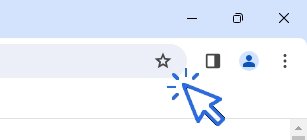
To add a website or web page, click the star icon located on the right side of the address bar. A window will appear, allowing the page to be saved as a favorite. For better organization, it is recommended to enter a short and descriptive name. Short names take up less space and allow more favorites to be displayed in the Favorites Bar.
Another quick method is to use the keyboard shortcut Ctrl + D. This shortcut instantly opens the window used to save the current page as a favorite.
If the name of a favorite needs to be changed later, simply right-click on it and select "Edit". The favorite can then be renamed at any time.
A useful detail to remember is that a yellow star in the address bar indicates that the current page has already been saved as a favorite.
Example
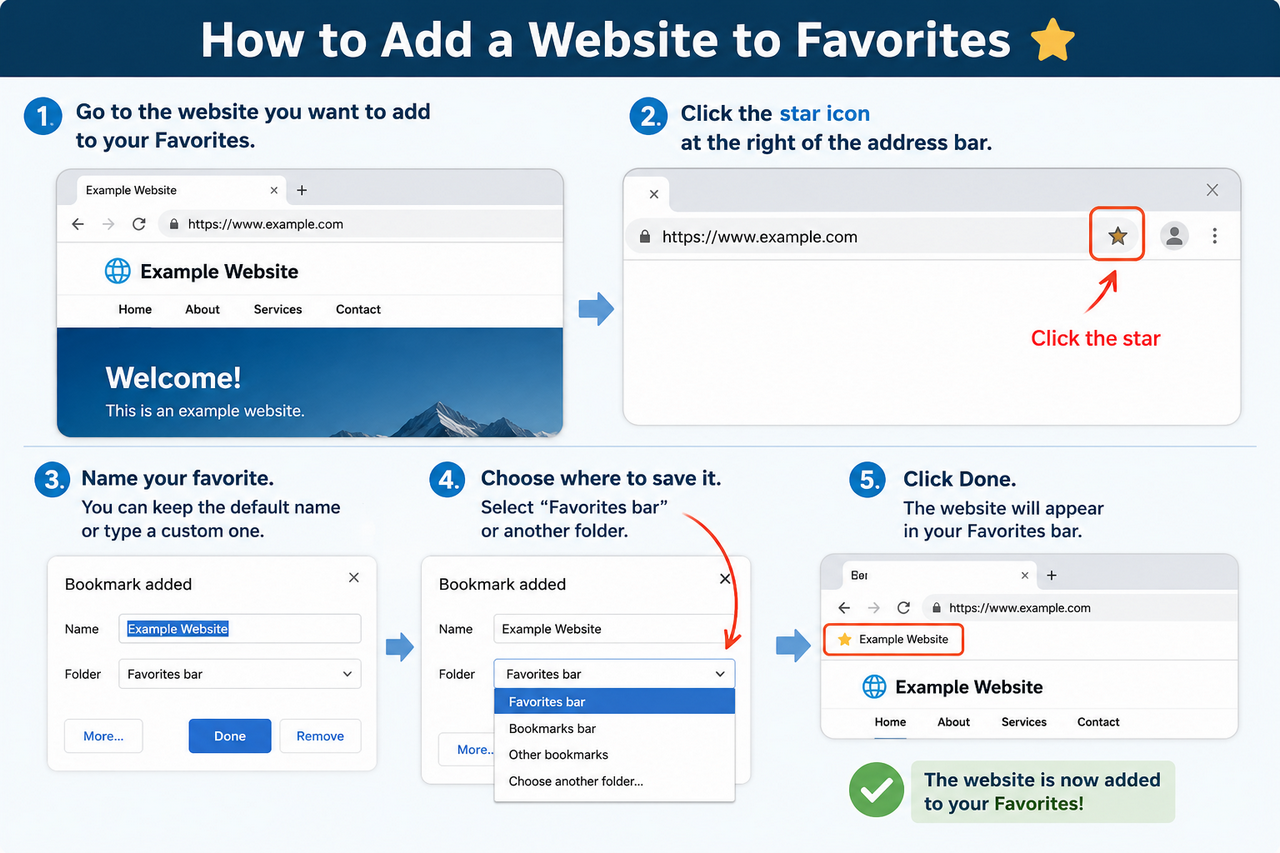
In this example, the Premiers Clics website will be added to the Favorites Bar. First, open a new browser tab and visit the website by typing its address into the address bar or by using a search engine such as Google.
To add the website :
Click the star icon on the right side of the address bar.
Enter a name for the favorite.
Select "Favorites bar" in the folder section.
Confirm to save the favorite.
The website will immediately appear in the Favorites Bar and can then be opened with a single click.
Let's see how it looks in images :
3. Move a Favorite
The Favorites Bar can be organized at any time by changing the position of saved favorites. This makes it easier to keep frequently visited websites within easy reach and arrange shortcuts in a logical order.
To move a favorite, simply click and hold it with the mouse. While keeping the mouse button pressed, drag the favorite to its new location on the Favorites Bar. Once the desired position is reached, release the mouse button to place it there.
This simple drag-and-drop feature allows favorites to be reorganized in seconds, helping to keep the Favorites Bar tidy and easy to use.
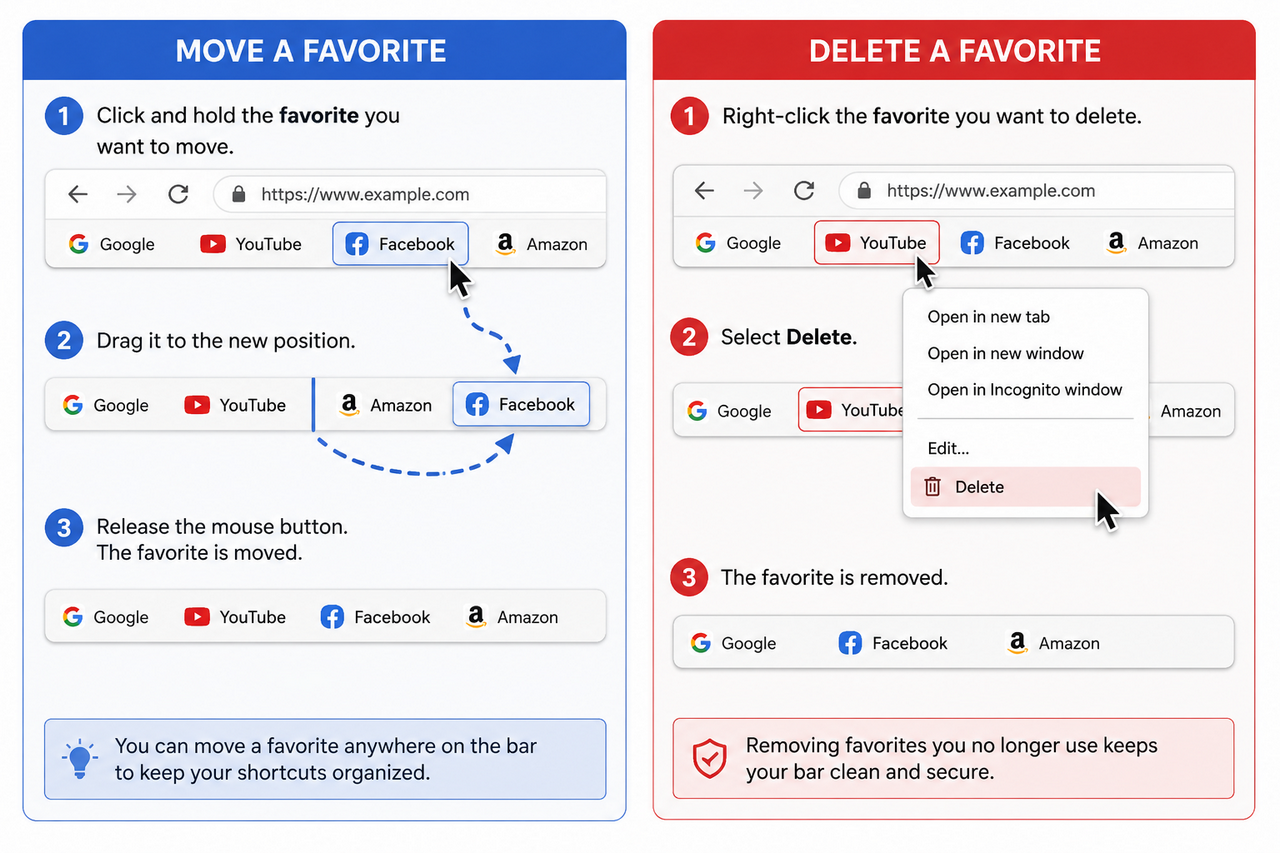
If you are using a PC, right-clicking gives you access to many useful options through a contextual menu
4. Delete or Rename a Favorite
Over time, some favorites may become unnecessary or need to be renamed. Google Chrome makes it easy to manage favorites directly from the Favorites Bar.
To delete a favorite, simply right-click on it and select "Delete". The favorite will be removed immediately from the Favorites Bar and will no longer appear among saved shortcuts.
If the favorite does not need to be deleted but only renamed, right-click on it and select "Edit". A window will open, allowing the name to be modified without removing the favorite itself.
Regularly organizing and updating favorites helps keep the Favorites Bar clear, tidy, and easy to use.
5. Organize Favorites with Folders
As the number of saved favorites grows, the Favorites Bar can quickly become crowded. Creating folders is an effective way to keep favorites organized and make websites easier to find.
Folders can be created for different categories depending on browsing habits. For example:
Recipes
Videos
Useful Websites
Fashion
Administrative Websites
Grouping similar websites together helps keep the Favorites Bar tidy and reduces the time spent searching for a particular favorite.
Create a Folder
To create a new folder, right-click on the Favorites Bar and select "Add folder...".
Path:
Right-click → Add folder...
A window will appear where a name can be entered for the new folder. Once confirmed, the folder will be added to the Favorites Bar and will be ready to store favorites.
Additional folders can be created at any time by repeating the same process. This makes it possible to organize favorites into as many categories as needed.
Save a Favorite in a Folder
When adding a new website to the Favorites Bar, Chrome allows a folder to be selected before saving the favorite.
This makes it easy to place websites directly into the appropriate category rather than leaving all favorites mixed together on the main bar.
Use the Bookmark Manager
When a large number of favorites have already been saved, the Bookmark Manager provides a convenient way to organize them.
The Bookmark Manager allows favorites and folders to be viewed in a dedicated window, making it easier to move, rename, delete, or reorganize them.
To open the Bookmark Manager:
Click Menu
Select "Favorites and lists"
Click "Bookmark Manager"
Path:
Menu → Favorites and lists → Bookmark Manager
The Bookmark Manager can also be opened by right-clicking on the Favorites Bar and selecting the corresponding option.
Using folders and the Bookmark Manager helps maintain a well-organized collection of favorites, even when dozens or hundreds of websites have been saved.
Conclusion
The Favorites Bar in Google Chrome is one of the simplest ways to access frequently visited websites more quickly. By displaying the bar, adding favorites, organizing them into folders, and using the Bookmark Manager, it becomes much easier to keep useful websites within easy reach.
Whether saving favorite news sites, online services, shopping websites, recipes, or administrative portals, a well-organized collection of favorites can save time every day. Taking a few minutes to organize favorites properly can make web browsing more efficient and more enjoyable in the long term.
Thibaut Mathieu
Votre contenu va ici. Modifiez ou supprimez ce texte en ligne ou dans les paramètres Contenu du module. Vous pouvez également styliser chaque aspect de ce contenu dans les paramètres Design du module et même appliquer du CSS personnalisé à ce texte dans les paramètres Avancés du module.
Frequently Asked Questions
How do I show the Favorites Bar in Google Chrome?
Open the Chrome menu, select "Favorites and lists", then click "Show favorites bar". The bar will appear directly below the address bar.
What is the keyboard shortcut to add a favorite?
The quickest way to save the current page as a favorite is to press Ctrl + D on the keyboard.
Why is the star icon yellow?
A yellow star indicates that the current page has already been saved as a favorite in Google Chrome.
How do I rename a favorite?
Right-click the favorite in the Favorites Bar, select "Edit", then enter the new name and confirm the change.
How do I delete a favorite?
Right-click the favorite and select "Delete". The shortcut will be removed immediately from the Favorites Bar.
Can favorites be organized into folders?
Yes. Folders can be created directly from the Favorites Bar by right-clicking and selecting "Add folder...". Favorites can then be sorted into categories for easier access.
What is the Bookmark Manager used for?
The Bookmark Manager provides a complete overview of all saved favorites and folders. It can be used to move, rename, delete, and organize favorites more efficiently.
Can the order of favorites be changed?
Yes. Favorites can be rearranged by clicking and dragging them to a different position on the Favorites Bar.
Are favorites synchronized between devices?
If Chrome is connected to a Google account and synchronization is enabled, favorites can be shared across multiple computers, smartphones, and tablets using the same account.
Is there a limit to the number of favorites that can be saved?
Google Chrome allows a very large number of favorites to be saved. Using folders is recommended to keep them organized and easy to find.
End of the Lesson
Know youknow how to add a website to the favorites bar.
Back to the Windows and Internet Basics



Reset your Gmail account

Recover a Steam Account
How to recover your lost or forgotten Steam account.

Thibaut MATHIEU
Editor of Premiers Clics
Editor and writer of Premiers Clics, and author of the book “Je me mets à l'informatique” (only avalaible in french), I share all my computer knowledge to help you learn, using the Premiers Clics's computer basics for beginners and seniors. I also offer tutorials to learn how to use a smartphone.
Also the manager of a computer support and repair company, I fully understand your needs in computer training and assistance. Every day, I answer my clients’ questions about their computers, phones, or tablets.
This experience has given me extensive knowledge in consumer digital technology, allowing me to separate fact from fiction in device protection, identify the most common user mistakes, and provide numerous tips to make the best use of PCs, smartphones, and tablets.

0 commentaire