
Home / Computer & Internet Basics / Gmail
How to reset your Gmail password ? 2026 easy guide
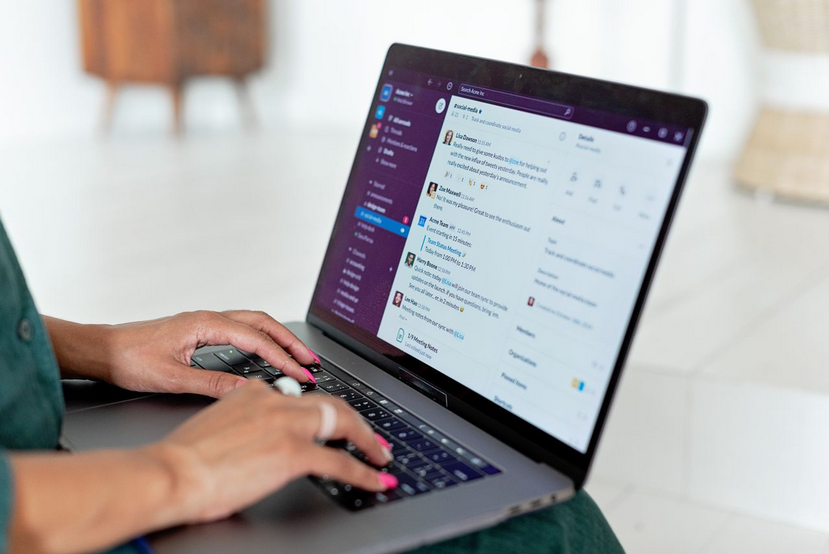

Reset Gmail Password
Forgetting a Gmail password is one of the most common problems faced by internet users. Whether you use Gmail for personal communication, work, online banking, social media accounts, or cloud storage, losing access to your Google account can quickly become stressful.
Fortunately, Google provides several ways to reset your Gmail password and regain access to your account. In this complete guide, you'll learn how to recover your Gmail account and change your Gmail password on a computer, Android phone, or iPhone, even if you no longer remember your old password.
This beginner-friendly tutorial includes detailed instructions, troubleshooting tips, and answers to the most frequently asked questions.
If you would like to improve your computer skills for seniors, you can also explore our step-by-step computer guides designed for beginners.
👍✅ Need help with a smartphone or tablet ? Our phone skills for beginners tutorials explain everyday tasks in a simple and easy-to-follow way.
Table of Contents
- Why You May Need to Reset Your Gmail Password ?
- How to Reset Your Gmail Password
- Gmail Account Recovery Troubleshooting
- Frequently Asked Questions
1. Why you may need to reset your Gmail password ?
Forgetting a password is one of the most common reasons users need to reset their Gmail password. Many people stay signed in for months or years and suddenly realize they no longer remember their credentials when switching devices.
Another common reason is account security. If you receive a suspicious login notification or think someone may have accessed your account, changing your Google Account password immediately is recommended.
A password reset may also be necessary after a data breach. If you use the same password on multiple websites, criminals could potentially gain access to your email account if one of those sites is compromised.
Because Gmail gives access to many Google services, including Google Drive, Google Photos, and YouTube, protecting your account with a strong password is essential.
2. How to reset your Gmail password
The easiest way to reset your Gmail password is through Google's official account recovery process. Open your browser and go to the Google sign-in page.
Enter your Gmail address and click Forgot Password?. Google will guide you through several verification steps designed to confirm that you are the legitimate owner of the account.
You may be asked to enter a previous password, verify a recovery email address, receive a text message verification code, or confirm a notification on another trusted device.
Once your identity has been verified, create a new strong Gmail password. For maximum security, use at least 12 characters and include uppercase letters, lowercase letters, numbers, and symbols.
Reset Gmail Password on Android
- Open Settings.
- Tap Google.
- Select Manage Your Google Account.
- Open the Security tab.
- Tap Password.
- Verify your identity.
- Enter your new password.
Reset Gmail Password on iPhone
- Open the Gmail app.
- Tap your profile picture.
- Select Manage Your Google Account.
- Open Security.
- Tap Password.
- Verify your identity.
- Create a new password.
Reset Gmail Password on a Computer
- Go to the Google sign-in page.
- Enter your Gmail address.
- Click Forgot Password?
- Complete the verification process.
- Choose a new password.
- Save your changes.
I have prepared an illustration that shows the steps to change your Gmail password :
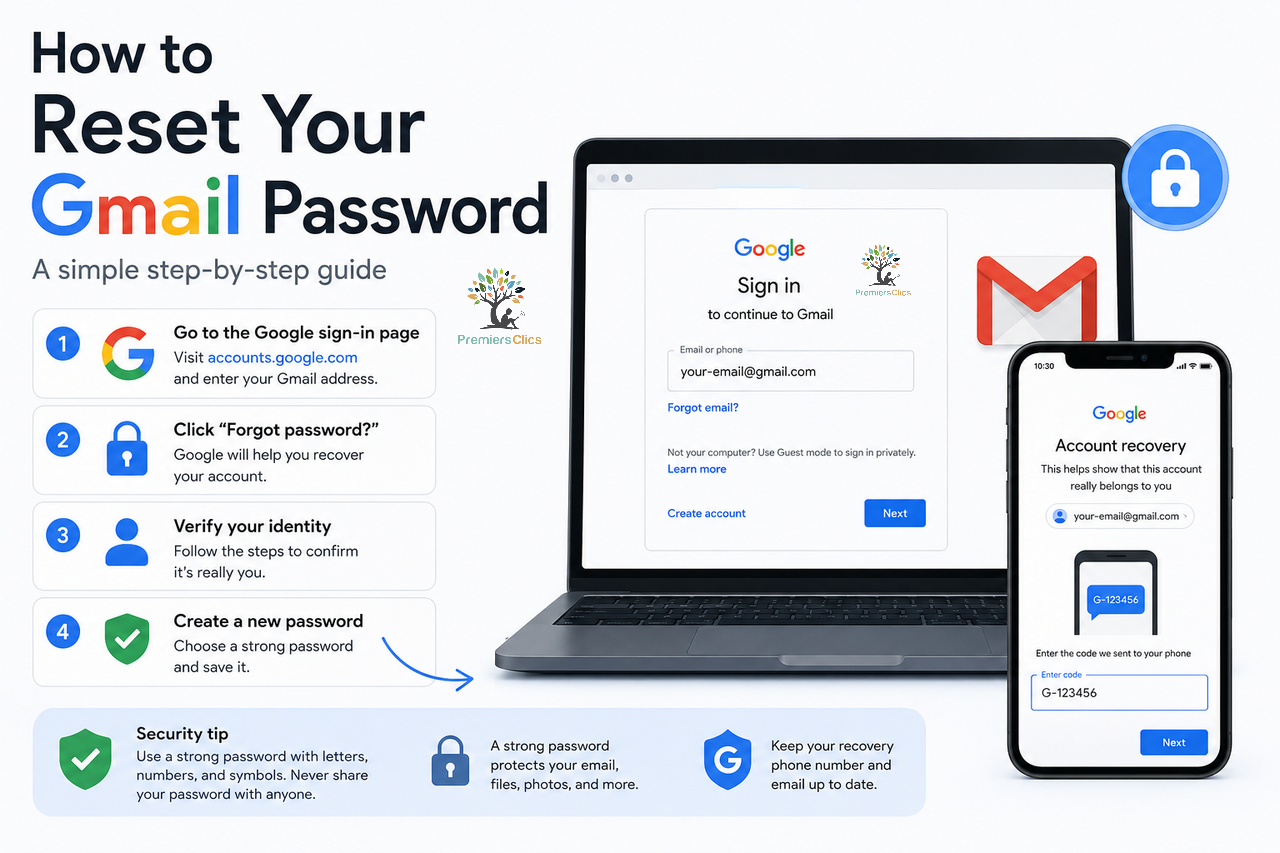
Resetting your Gmail password is easy if your recovery phone number or recovery email address is up to date
3. Gmail account recovery troubleshooting
Sometimes users cannot complete the standard Gmail password reset process. This usually happens when they no longer have access to their recovery phone number or recovery email address.
If this happens, try recovering your account from a device you regularly use. Google often recognizes trusted devices, locations, and Wi-Fi networks, which can improve your chances of successful account recovery.
If you forgot both your password and recovery information, Google's Account Recovery Tool may still allow you to regain access by answering security questions or confirming previous account activity.
If Google cannot verify your identity, wait a few days and try again using the same device and internet connection that you normally use to access Gmail. Consistent recovery attempts often produce better results.
4. FAQ
How do I reset my Gmail password if I forgot it?
Click Forgot Password? on the Google sign-in page and follow the account recovery instructions provided by Google.
Can I reset my Gmail password without a phone number?
Yes. Google may verify your identity using a recovery email address, a trusted device, or previous account activity.
How long does Gmail account recovery take?
Many users recover access within a few minutes. More complex cases may take several hours or even several days.
Will changing my Gmail password log me out?
Yes. After a password change, Google may require you to sign in again on some or all of your devices.
What is a strong Gmail password?
A strong password contains at least 12 characters and combines uppercase letters, lowercase letters, numbers, and special characters.
Can I recover a hacked Gmail account?
Yes. Use Google's Account Recovery process immediately and change your password as soon as access is restored.
Conclusion
Learning how to reset your Gmail password is essential for maintaining access to your Google Account and protecting your personal information. Whether you use Gmail on Android, iPhone, or a computer, Google's recovery tools make the process relatively simple when your recovery information is up to date.
To avoid future problems, keep your recovery phone number and recovery email current, use a strong Gmail password, and enable two-factor authentication whenever possible. These simple security measures greatly reduce the risk of losing access to your account and help keep your Google services protected.
I hope this guide helped you find your settings more easily than usual. If you'd like to learn some very useful tips for using your PC and smartphone, check out our free online computer courses for beginners, as well as our tutorials on how to get the most out of an Android smartphone. I look forward to helping you and assisting you whenever you need support.
Thibaut MATHIEU

Smartphone Tutorials & Windows Basics
Welcome to Premiers Clics, a free website designed to help beginners learn computer basics and use smartphones easily with our smartphone tutorials. Step-by-step guides, simple tutorials, and practical lessons for everyday use.

Thibaut MATHIEU
Editeur de Premiers Clics
Editor and writer of Premiers Clics, and author of the book “Getting Started with Computers” (only avalaible in french), I share all my computer knowledge to help you learn, using the Premiers Clics computer courses.
Also the manager of a computer support and repair company, I fully understand your needs in computer training and assistance. Every day, I answer my clients’ questions about their computers, phones, or tablets.
This experience has given me extensive knowledge in consumer digital technology, allowing me to separate fact from fiction in device protection, identify the most common user mistakes, and provide numerous tips to make the best use of PCs, smartphones, and tablets.

Create an email account (Gmail)
How to create a Gmail account to send and receive emails.
Decompress ZiP File
Learn how to compress and compress ZIP Files.
Mobile & Tablet Tutorials
We also offer lessons and practical guides for smartphones and tablets. You’ll learn how to:
Set up your device
- Send a photo with text message
- Adjust the volume of my phone
- Open settings
- Free up storage space
Install and use useful apps
- How to connect a Bluetooth speaker ?
Transfer photos
- Transfer contacts to new phone
- How to see my Google photos ?
- How to get wifi password
These lessons are ideal for users of Android smartphones and tablets.
Smartphone Problems: All Simple Step-by-Step Solutions
🔹 Computer Basics
🔹 Windows Course
- The Desktop
- The Sart Menu
- Empty Recycle Bin
- Recover deleted files
- Create and organize folders
- Create desktop shortcuts
- Pin a programm on the taskbar
- Compress a ZIP file
- Decompress a ZIP file
Organize files and folders
Customize your desktop
- Make a screenshot
- Make file and folder icons bigger
Understand the start menu and taskbar
- Open a downloaded file
- Change Windows Wallpaper
- Take a screenshot
🔹 Internet and Email
Open and use a web browser
- Creating a Gmail email
- How to send emails and attachments
- Browsing history in Chrome, Edge or Firefox
- Browsing download history in Chrome, Edge or Firefox
- Delete history in Chrome, Edge or Firefox
- Delete cookies and browsing data
- Set Google Chrome Homepage
Create and manage an email account
- How access Netflix from Phone, PC or Tablet
- What is a VPN ?
🔹 Computer Protection
Keep your computer safe from malware
- Protect my computer with a password
Install antivirus tools
Learn how to avoid scams online
🔹 Troubleshooting
🔹 Practical Life
Smartphone Problems: All Simple Step-by-Step Solutions


Similar Tutorials

Windows Desktop Basics
Learn the Windows desktop basics, and personalize your screen.

How to use a Computer
Explore all our free computer courses for beginners and learn how to use a computer.

Adjust mobile's volume
Send a photo with text message
Speed up my phone
How to fix a slow phone ?

Access Netflix

Find wifi password with a phone
If you need to display the Wi-Fi password, you can do it with your smartphone.

Transfer contacts

Send a voice message
Check out this tip if you want to learn how to send voice messages in WhatsApp or any other messaging app.
Common Smartphone Problems
Touchscreen not working
Read 10 fixes for a touchscreen problem. A troubleshooting guide for Android, iPhone or iPad.

No internet on my phone

I can't make calls
Check this tips if you can't make calls anymore.

I can't receiving text messages
A troubleshooting tutorial if you ever do not receive or no longer receive messages (SMS).
My phone Freezing

My phone is not charging
What should you do if your phone no longer charges?
My battery is draining quickly
How to improve your phone battery life if your battery is draining quiclky.
Windows Basics
Change desktop background
How to change the Windows desktop background. Free online Windows Course.
Protect my computer using a password
How protect my computer with a password or a PIN code.

View download history
How to view the browser download history in Google.

0 commentaire