
Home / Computer Basics / Windows Course / Lesson 1
Windows Course - The Mouse and Different Clicks
Difficulty: Easy
Required OS: Windows 11 or another version

How to use a Mouse or a TouchPad

Pour les lecteurs français
Consultez le cours en français : La souris et les différents clics
Table of Contents
- Click
- Double-click
- Right-click
- The Scroll wheel
- Middle-click
- Touchpad
- FAQ
1. Click
The “click” is performed using the left mouse button. It allows you to select a file or folder, move them, or rename them. On the internet, it allows you to navigate between different pages using the links found on websites.
To move an item (icon, file, folder...), click and hold the mouse button, move the item, then release the button.
A single click can also be used to rename a file or folder, as in this example where we rename the shortcut “Documents - Shortcut” by clicking once on the folder name :

2. Double-click
The double-click is also performed with the left mouse button. It allows you to open a file or folder and launch software (a program or application). Double-clicking is never used on the internet. Check the dedicated tutorial to adjust the double-click speed (if you have trouble double-clicking, reduce the double-click speed).
3. Right-click
Essentially important, the right-click opens the context menu. As its name suggests, the context menu displays all the actions available depending on the item you click : this can be a file, a folder, the desktop, a web page, or even inside the file explorer (the best-known example is creating a new folder in Windows: right-click in File Explorer / New / Folder). The right-click allows you to cut, copy, rename, delete, compress, send by email, scan, and more.
During the different lessons, some actions can be performed using either the mouse or the keyboard, but when possible, I will also explain how to perform them using the contextual menu - because for me, it is often the fastest and most practical way to work with files and folders.
Example of a right-click on a file (a picture). The context menu opens. Observe all the actions that can be performed on the file :
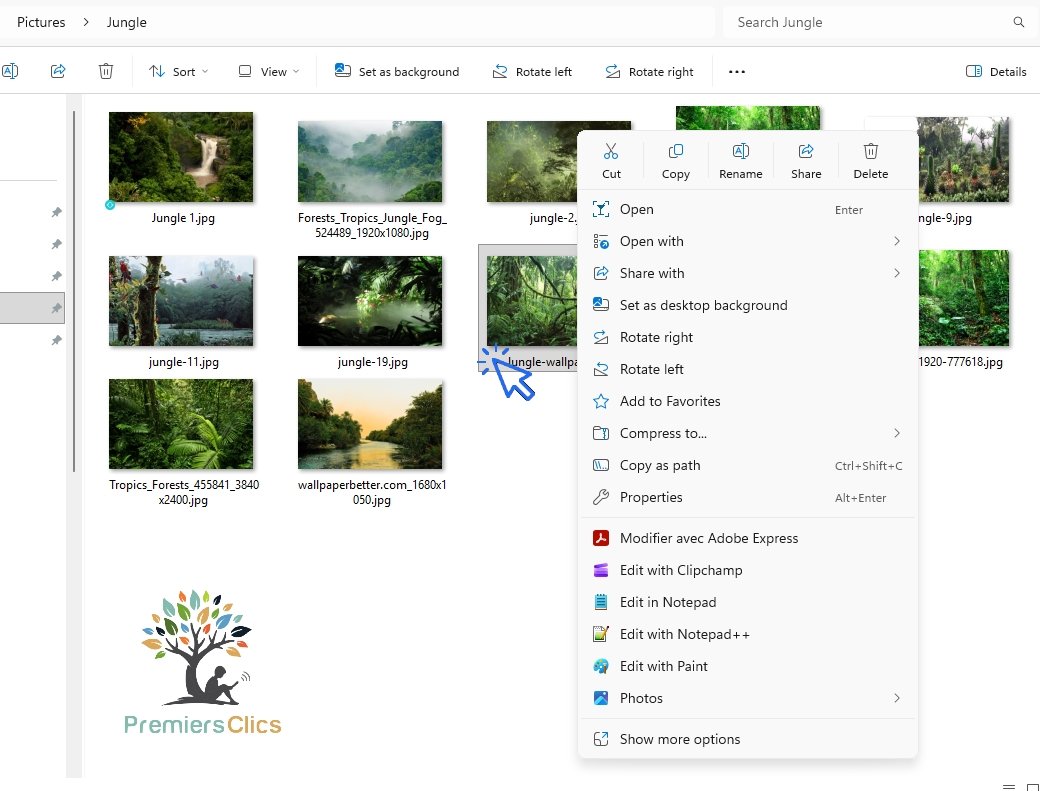
Right-clicking is very useful in Windows ; for example, it allows you to open the Windows context menu.
4. The Scroll wheel
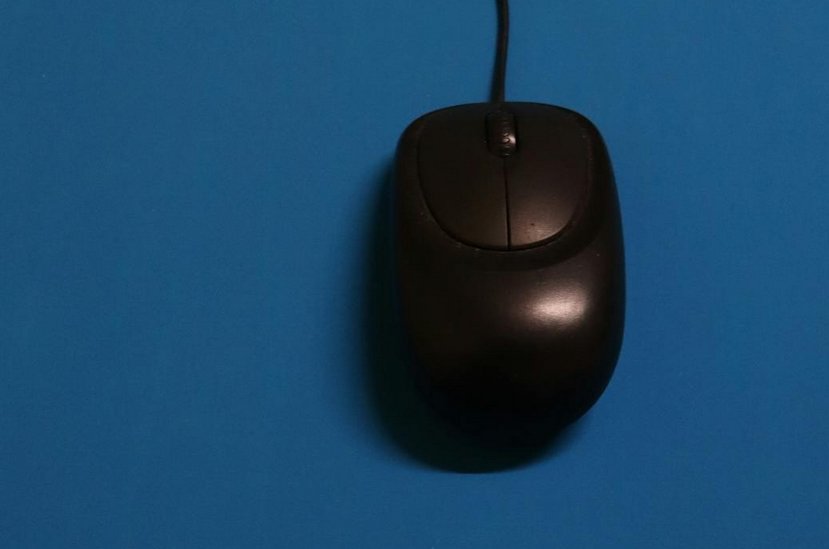
Also called the mouse wheel, the scroll wheel allows you to scroll through the contents of a window or internet page. This action is commonly called “scrolling”.
Combined with the “Ctrl” key on the keyboard, it allows you to zoom in and zoom out inside a window or web page. This is very useful for enlarging the display of files and folders inside a window.
Try it now! A small window will appear to show the zoom level, which is useful for returning to the normal 100% zoom display.
5. Middle click
If you use a mouse, it probably has a button located under the wheel. To check, try pressing the wheel itself.
Apart from professional software or games, few functions are associated with this button. In the Google Chrome browser, clicking the wheel makes it easier to scroll through pages. No need to rotate the wheel endlessly to reach the top or bottom of a page.
6. TouchPad
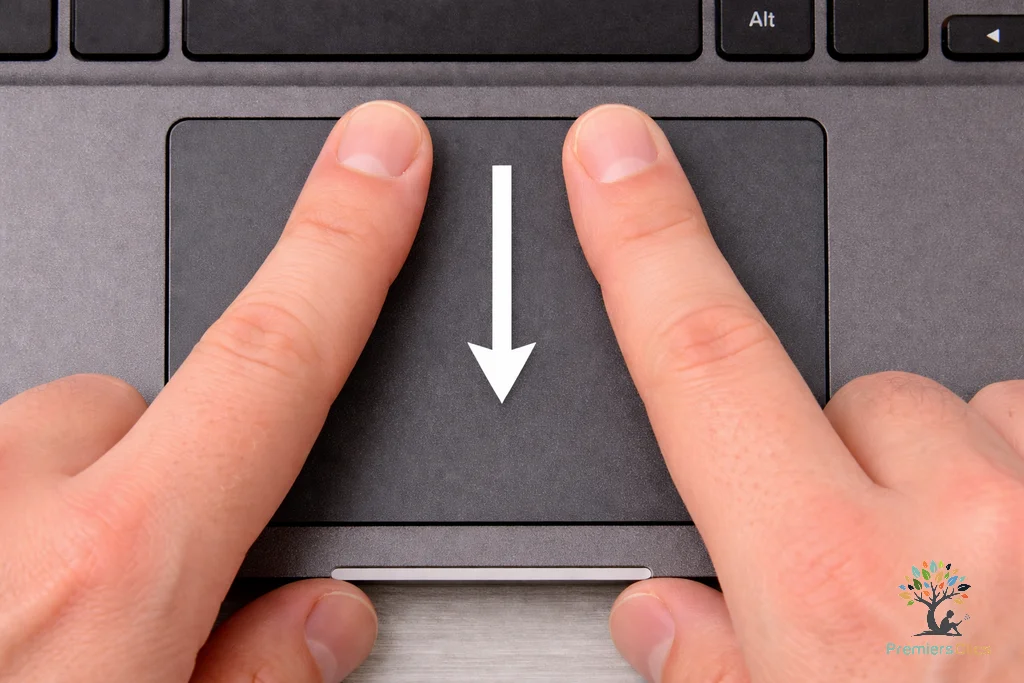
I use a Touchpad - How can i zoom in ?
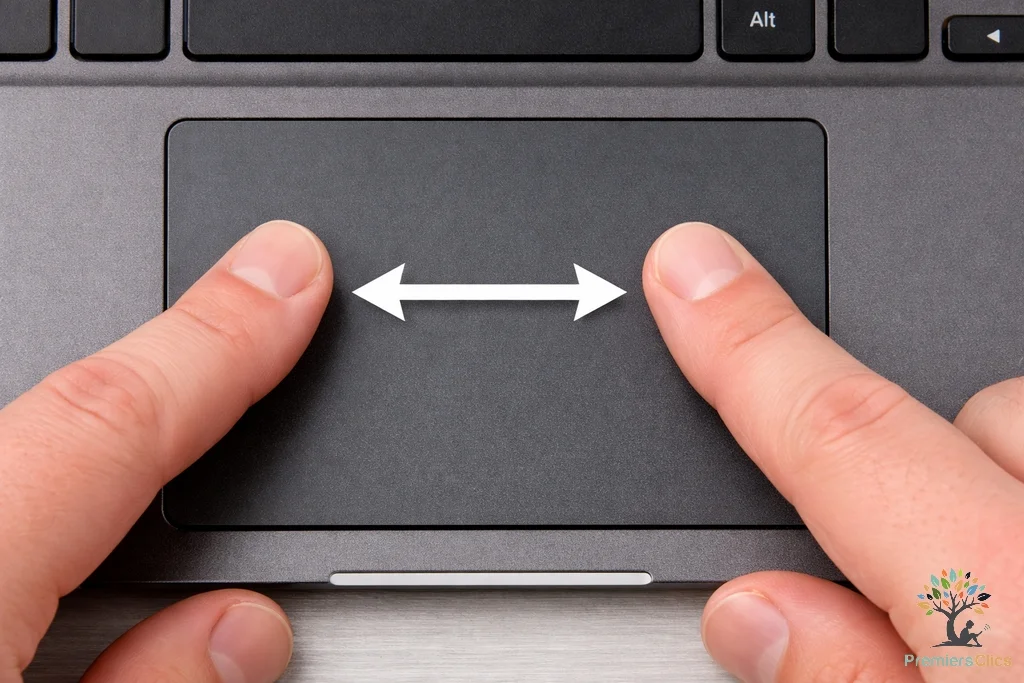
If you are not comfortable using a mouse, the touchpad also allows you to zoom in on your PC display (icons, files, web pages, etc.) and scroll a page up or down.
7. FAQ – Windows Lesson 1: The Mouse
Why is learning to use the mouse important on Windows?
The mouse is one of the most important tools on a computer. Learning how to use it correctly makes it easier to open files, browse the internet, move folders, select items, and navigate Windows more comfortably and efficiently.
Why do some people have difficulty using the mouse?
Many beginners find it difficult to control the pointer accurately or perform double-clicks correctly. This is completely normal when starting out with computers. With practice and a few settings adjustments, using the mouse quickly becomes easier.
Can I change the mouse sensitivity on Windows?
Yes. Windows allows you to adjust the mouse pointer speed to make movements slower or faster. Reducing the speed can help beginners gain better control and improve precision.
Is a wireless mouse different from a wired mouse?
Both types work in the same way. A wired mouse connects directly to the computer with a cable, while a wireless mouse uses Bluetooth or a USB receiver and requires batteries or charging.
What should I do if the mouse pointer moves too fast?
If the pointer is difficult to control, you can lower the pointer speed in Windows settings. A slower speed often makes the mouse easier to use, especially for beginners and seniors.
Why does the mouse pointer sometimes change shape?
The pointer changes appearance depending on the task being performed. For example, it may become a hand on a link, a text cursor when writing, or a loading symbol while Windows is processing an action.
What is the easiest way to improve mouse control?
The best way to improve is through regular practice. Simple actions such as moving icons, opening folders, selecting text, or browsing websites help develop better precision and confidence.
Can a touchpad fully replace a mouse?
Yes. Modern laptop touchpads allow you to perform almost all common actions, including clicking, scrolling, dragging files, and zooming in on web pages or documents.
Why is the mouse essential for internet browsing?
The mouse makes it easy to click links, open websites, scroll through pages, watch videos, and interact with buttons or menus online. It remains one of the simplest ways to navigate the internet.
Can using the wrong mouse settings make Windows harder to use?
Yes. If the pointer speed or double-click speed is poorly adjusted, simple actions may become frustrating. Proper mouse settings can greatly improve comfort and ease of use on Windows.
Conclusion
Using a mouse is generally more practical than using a touchpad, especially thanks to the scroll wheel, which is extremely useful for browsing the internet, reading web pages, and navigating through documents more comfortably.
It is also important to correctly configure your mouse settings in Windows, such as the pointer speed or double-click speed, in order to use your computer more efficiently and with greater ease. Proper settings can greatly improve comfort, precision, and overall ease of use on a PC.
Thibaut Mathieu
End of the lesson
You are now familiar with using the mouse.

This may interest you :

Create a Folder

10 Essential Windows Apps
Our Top 10 Windows Apps to Have.
Windows Desktop Basics
Learn how to organize shortcuts and folders, and personalize your screen.

Create an email account (Gmail)
How to create a Gmail account to send and receive emails.
Send emails and attachments
How to send emails and attachments. Example with Gmail.

Recover deleted files
How to recover deleted files in the Windows Recycle Bin.

Change Google Chrome Homepage

Take a Screenshot
See how taking a screenshot in Windows
Increase display size
Create desktop shorcuts
How to create shortcuts on the desktop.

Connect a wifi printer
How connect a printer to your wifi network and how install it in Windows.
Smartphone Tips & Tricks

Connect Bluetooth speakers to phone
How connect a BT device like a speaker to your phone.

Solve internet issues
How to fix the main internet connections issues. Main troubleshooting steps.
Common Smartphone Problems

My phone is not charging
What should you do if your phone no longer charges?

I can't make calls
Check this tips if you can't make calls anymore.
No internet on my phone

My phone restarts by itself
Why does your phone restart by itself and how to fix it.

Thibaut MATHIEU
Editor of Premiers Clics
Editor and writer of Premiers Clics, and author of the book “Je me mets à l'informatique” (only avalaible in french), I share all my computer knowledge to help you learn, using the Premiers Clics computer courses.
Also the manager of a computer support and repair company, I fully understand your needs in computer training and assistance. Every day, I answer my clients’ questions about their computers, phones, or tablets.
This experience has given me extensive knowledge in consumer digital technology, allowing me to separate fact from fiction in device protection, identify the most common user mistakes, and provide numerous tips to make the best use of PCs, smartphones, and tablets.

About Premiers Clics
Premiers Clics offers online computer courses for beginners and for people who want to deepen their knowledge. All our online computer courses for beginners are free and can be accessed without registration. Use Premiers Clics as free digital skills resources for seniors.
0 commentaire