
Home / Computer Basics / Windows Basics
How to Change Mouse and Touchpad Speed in Windows

The Speed Mouse

Pour les lecteurs français
Consultez le guide complet sur comment changer la vitesse de la souris
Table of Contents
- Change mouse speed pointer
- Change touchpad speed pointer
- Change double-click speed
- Change other mouse or touchpad settings
- FAQ
The quick solution 😉
To change mouse or touchpad speed :
Open Windows Settings
Go to the Bluetooth & Devices section
Change the Pointer Mouse Speed easily
1. Change mouse speed pointer
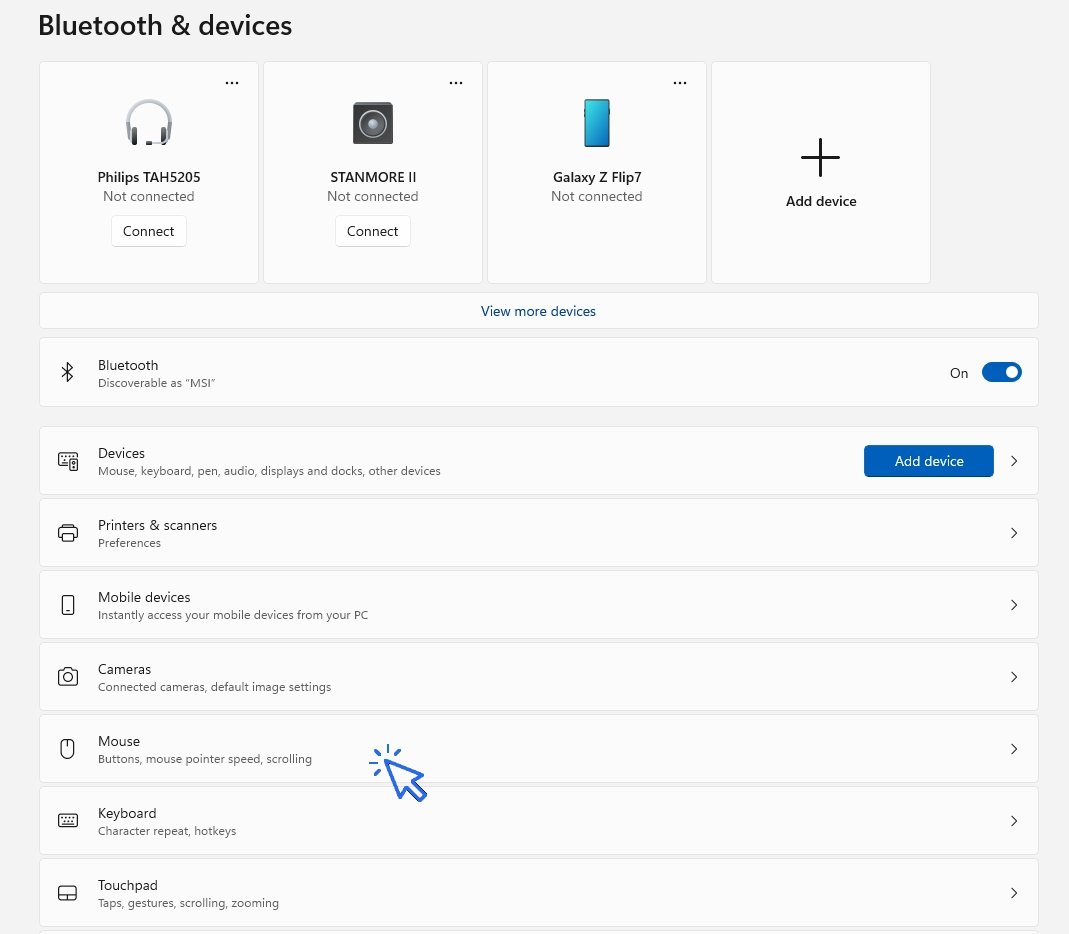
To change the mouse pointer speed and modify other settings, open the Windows Settings, click on “Bluetooth & devices”, then on “Mouse” :
Then adjust the pointer speed :
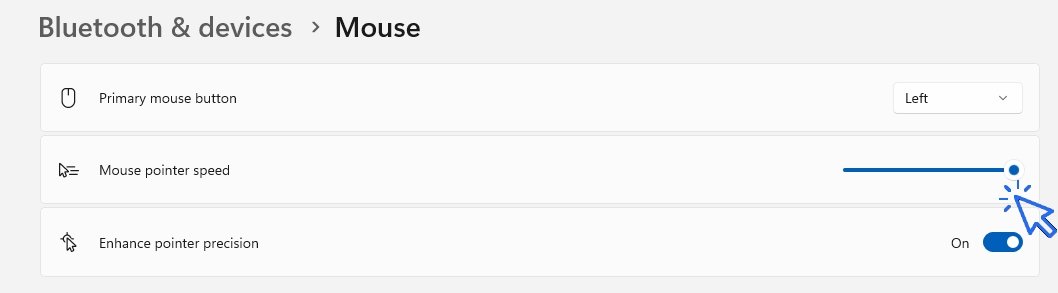
That's all ! You can test the difference in speed in real time — there’s no need to confirm or apply the changes.
2. Change touchpad speed pointer
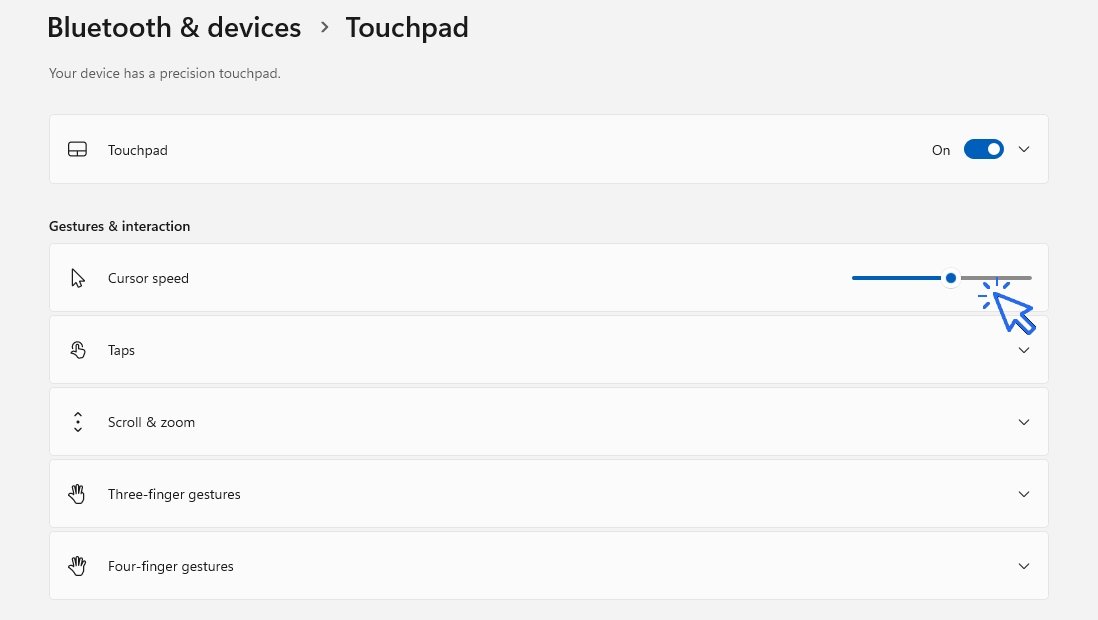
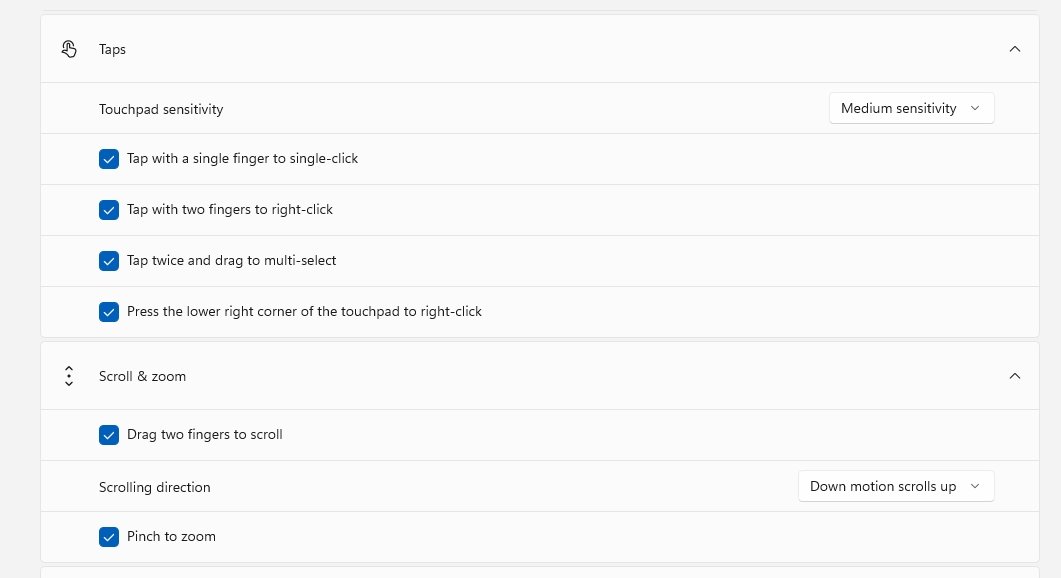
To change the pointer speed when using the trackpad, go to the “Bluetooth & devices” section, then click on “Touchpad”. You can then adjust the touchpad speed to your liking :
3. Change double-click speed
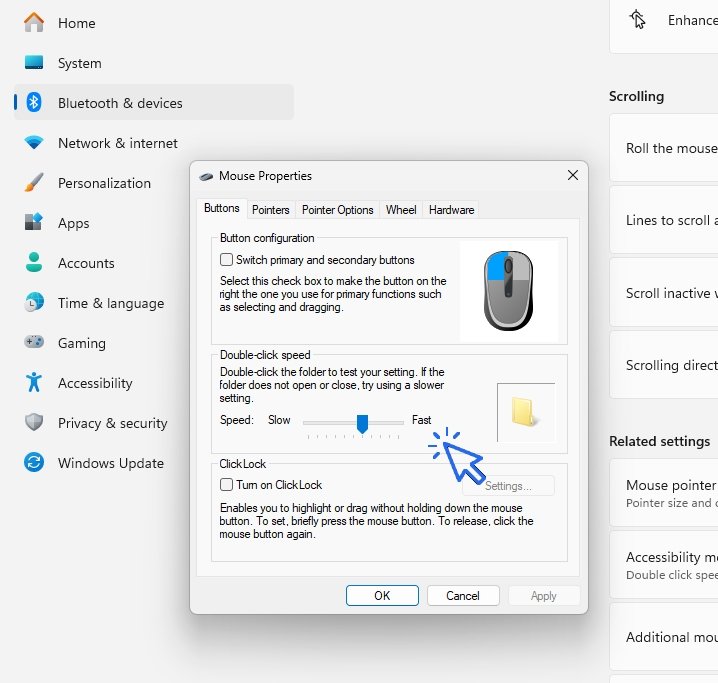
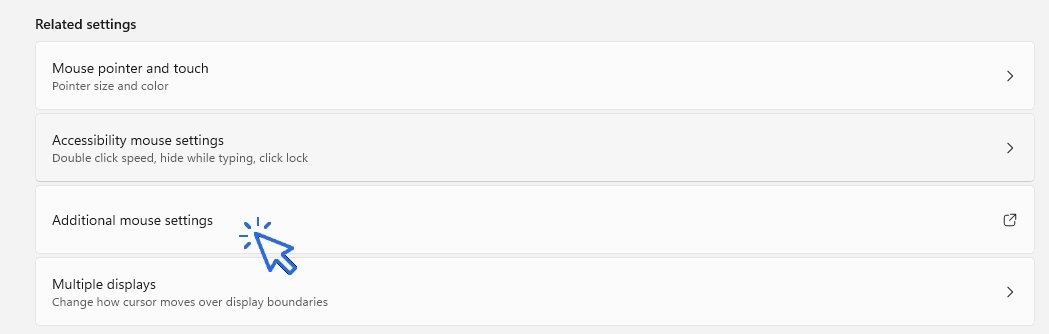
To change the double-click speed (for example, to slow it down if you find double-clicking difficult), click on “Additional mouse settings”, then adjust the double-click speed. The yellow folder lets you test the selected double-click speed :
4. Change other mouse or touchpad settings
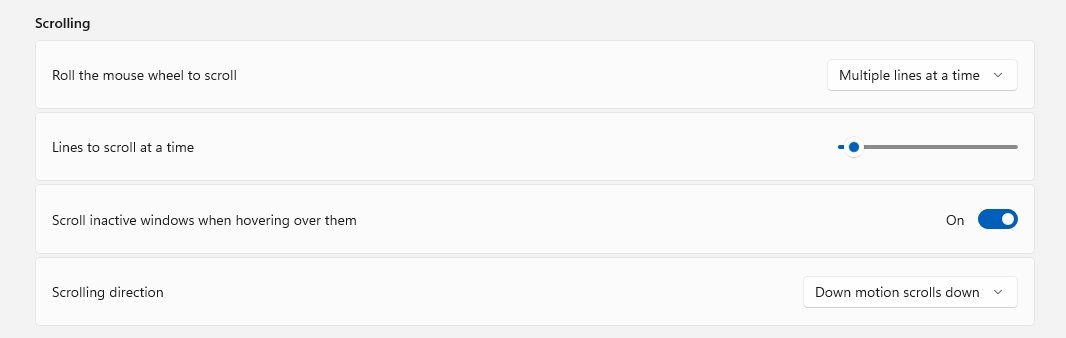
Besides pointer speed, Windows also lets you customize many other mouse settings to make your computer more comfortable and easier to use. For example, you can change the scrolling speed of the mouse wheel to scroll faster or slower through pages and documents. Left-handed users can also switch the main mouse buttons, so the right button becomes the primary click button. Other options allow you to modify the pointer appearance, enable click lock, or improve pointer visibility. These small adjustments can greatly improve comfort and ease of use in everyday computing.
5. FAQ
How do I change mouse speed in Windows 11?
To change mouse speed in Windows 11, open the Start menu and click Settings. Then go to Bluetooth & devices → Mouse. Use the Mouse pointer speed slider to make the cursor move faster or slower across the screen. Moving the slider to the right increases cursor speed, while moving it to the left slows it down for better precision.
How do I slow down my mouse cursor in Windows?
If your mouse cursor moves too quickly, you can reduce the pointer speed in Windows settings. Open Settings → Bluetooth & devices → Mouse and lower the pointer speed slider. A slower cursor can make clicking icons, selecting text and using small buttons much easier, especially on high-resolution screens.
How do I increase mouse sensitivity in Windows?
To increase mouse sensitivity, open the Windows mouse settings and raise the pointer speed slider. Higher sensitivity allows the cursor to travel farther with smaller hand movements. This can be useful for large monitors, gaming, or users who prefer faster navigation.
How do I change double-click speed in Windows 11?
Open Additional mouse settings from the Mouse settings page. In the Mouse Properties window, locate the Double-click speed slider. You can move the slider left or right to adjust how quickly Windows detects a double-click. Use the yellow folder icon to test the new setting before saving.
Why is my mouse double-clicking too fast?
If files or folders do not open correctly when double-clicking, the double-click speed may be set too high. Lowering the double-click speed in Windows settings gives you more time between clicks, making the mouse easier to use and reducing accidental mistakes.
How do I fix a mouse cursor that moves too slowly?
A slow mouse cursor can make computer use frustrating. Open the Mouse settings in Windows and increase the pointer speed slider. Also check your mouse batteries, USB connection or mouse pad surface if you use a wireless or optical mouse.
How do I change touchpad speed in Windows 11?
Laptop users can adjust touchpad speed by opening Settings → Bluetooth & devices → Touchpad. Move the cursor speed slider to increase or reduce touchpad sensitivity. Faster settings make the cursor move more quickly, while slower settings improve precision.
How do I make my laptop touchpad less sensitive?
If your touchpad reacts too easily or the cursor moves accidentally while typing, reduce the touchpad sensitivity in Windows settings. You can also disable features such as tap-to-click to avoid unwanted clicks and cursor movements.
Why does my touchpad cursor move too fast?
A touchpad cursor that moves too quickly is usually caused by high sensitivity settings. Lower the touchpad speed in Windows settings to gain better control. This is especially useful for beginners, seniors and users working on detailed tasks.
Can I change mouse speed in Windows 10?
Yes. In Windows 10, open Settings → Devices → Mouse. You can adjust pointer speed, scrolling options and access advanced mouse settings. The process is very similar to Windows 11.
Conclusion
Knowing how to adjust your mouse speed is essential for using your computer comfortably and efficiently. Whether you use a wireless mouse, a wired mouse, or your laptop’s touchpad, it is important to configure the main settings properly: pointer speed, double-click speed, scroll wheel speed, and cursor size. These adjustments can make everyday computer use much easier, more precise, and more comfortable. Want to learn more about Windows ? Check out all our Computer Courses for Beginners.
End of the lesson
You know now how to change your mouse or touchpad speed.



🔹 Computer Basics
🔹 Windows Course
- The Desktop
- The Sart Menu
- Empty Recycle Bin
- Recover deleted files
- Create and organize folders
- Create desktop shortcuts
- Pin a programm on the taskbar
- Compress a ZIP file
- Decompress a ZIP file
Organize files and folders
Customize your desktop
- Make a screenshot
- Make file and folder icons bigger
Understand the start menu and taskbar
- Open a downloaded file
- Change Windows Wallpaper
- Take a screenshot
🔹 Internet and Email
Open and use a web browser
- Creating a Gmail email
- How to send emails and attachments
- Browsing history in Chrome, Edge or Firefox
- Browsing download history in Chrome, Edge or Firefox
- Delete history in Chrome, Edge or Firefox
- Delete cookies and browsing data
- Set Google Chrome Homepage
Create and manage an email account
- How access Netflix from Phone, PC or Tablet
- What is a VPN ?
🔹 Computer Protection
🔹 Troubleshooting
🔹 Practical Life
Smartphone Problems: All Simple Step-by-Step Solutions
Windows Basics :

Windows Desktop Basics
Learn how to organize shortcuts and folders, and personalize your screen.

Create a Folder

Create an email account (Gmail)
How to create a Gmail account to send and receive emails.
Send emails and attachments
How to send emails and attachments. Example with Gmail.

Recover deleted files
How to recover deleted files in the Windows Recycle Bin.

Change Google Chrome Homepage
Add a website to Favorites
How to add a website to your favorites (Google Chrome, Edge, Firefox, Opera...).

Take a Screenshot
See how taking a screenshot in Windows
Increase display size
Create desktop shorcuts
How to create shortcuts on the desktop.

Connect a wifi printer
How connect a printer to your wifi network and how install it in Windows.
Smartphone Tips & Tricks

Connect Bluetooth speakers to phone
How connect a BT device like a speaker to your phone.

Solve internet issues
How to fix the main internet connections issues. Main troubleshooting steps.
Common Smartphone Problems

My phone is not charging
What should you do if your phone no longer charges?

I can't make calls
Check this tips if you can't make calls anymore.
No internet on my phone

My phone restarts by itself
Why does your phone restart by itself and how to fix it.

Thibaut MATHIEU
Editor of Premiers Clics
Editor and writer of Premiers Clics, and author of the book “Je me mets à l'informatique” (only avalaible in french), I share all my computer knowledge to help you learn, using the Premiers Clics computer courses.
Also the manager of a computer support and repair company, I fully understand your needs in computer training and assistance. Every day, I answer my clients’ questions about their computers, phones, or tablets.
This experience has given me extensive knowledge in consumer digital technology, allowing me to separate fact from fiction in device protection, identify the most common user mistakes, and provide numerous tips to make the best use of PCs, smartphones, and tablets.

0 commentaire