
Home / Phone Tutorials / Whatsapp Complete Guide
How to Send a Photo on WhatsApp
Difficulty : Easy

How to Send Photos and Videos Easily on WhatsApp
Sending a photo on WhatsApp has become part of everyday life for millions of people. Whether you want to share a special moment, send important information, or simply show someone a picture, it's one of the app's most useful features.
Thanks to its simple, user-friendly interface, WhatsApp lets you send photos in just a few taps on both Android phones and iPhones. One of WhatsApp's greatest strengths? Sending messages, photos, and videos to a group of people—like your family—all at once. No need to send the same message to each person individually!
WhatsApp also continues to add new features that improve the experience, such as sending photos in HD quality and giving you more privacy controls. Combined with group chats and its phone number-based messaging system, WhatsApp has become one of the world's most popular messaging apps. Learn with Premiers Clics how to use easily WhatsApp on your Phone or Tablet.
Table of Contents
1. Understanding How Photo Sharing Works on WhatsApp
2. How to Send a Photo from Your Gallery
3. How to Take and Send a New Photo
4. Photo Sharing Tips and Privacy Settings
1. Understanding How Photo Sharing Works on WhatsApp
WhatsApp is one of the easiest ways to share photos with friends, family, and colleagues. Whether you want to send a vacation picture, a document, or a photo you just took, you can do it in just a few seconds. Photo sharing is built directly into every chat, so there's no need to use another app. Everything is designed to be quick, simple, and easy to use, even if you're new to smartphones or WhatsApp.
You can also send photos and videos to group chats, making it easy to share memories, important information, or updates with several people at the same time. In fact, that's exactly what makes WhatsApp so useful 🙂
2. How to Send a Photo from Your Gallery
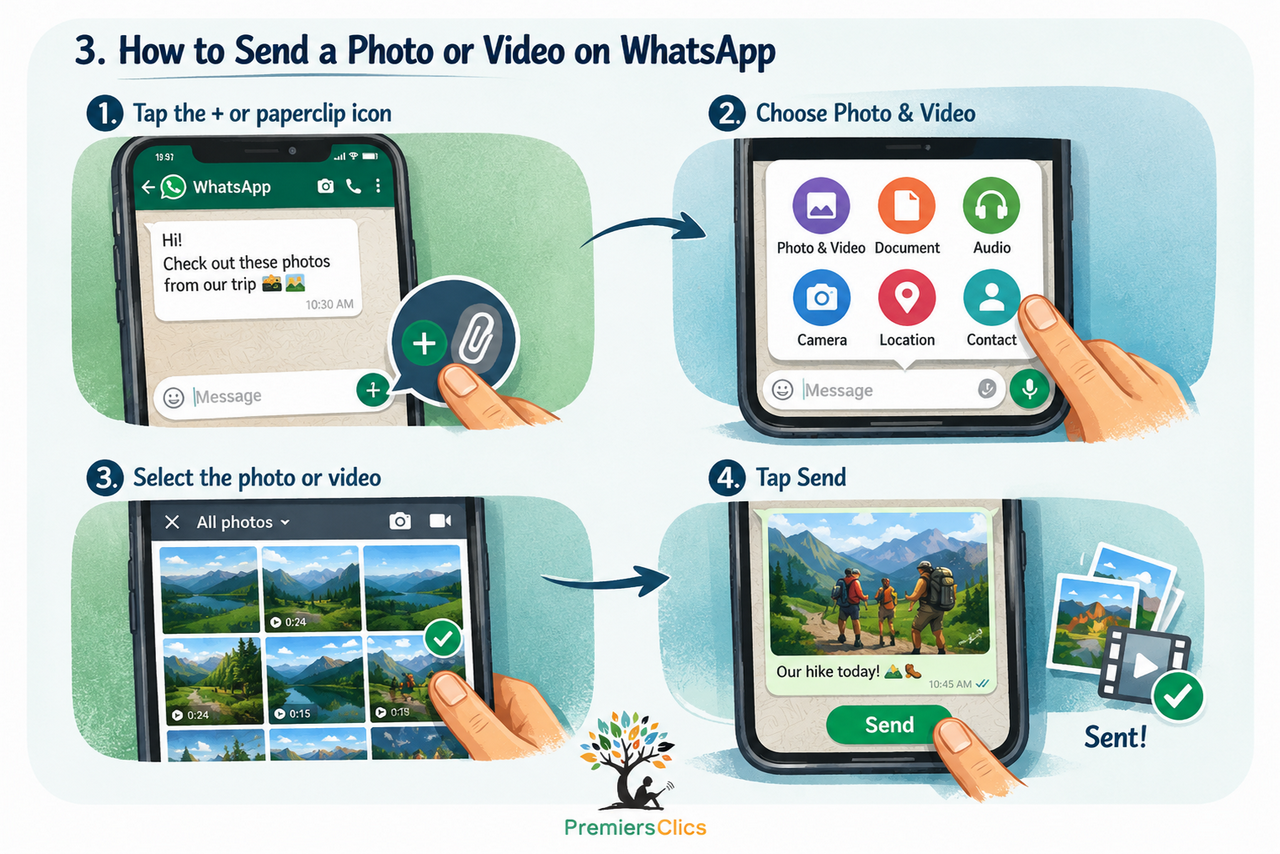
If the photo is already saved on your phone, sending it on WhatsApp only takes a few seconds :
1. Open the WhatsApp conversation where you want to send the photo.
2. Tap the paperclip icon (Android) or the + button (iPhone).
3. Select Gallery or Photos.
4. Choose the photo you want to send.
5. Tap the Send button.
Your photo will be sent immediately. Depending on your internet connection, it may arrive almost instantly or take a few seconds to upload.
3. Take and Send a New Photo
If you're already using WhatsApp and want to take a photo and send it immediately, there's no need to open your phone's Camera app first. WhatsApp lets you launch your camera directly from within the app. When you're about to send a photo, tap the Camera icon instead of the Gallery icon.
Here's how to take a photo and send it right away:
- Tap the Camera icon.
- Take your photo.
- Tap Send.
You can also send photos and videos directly from your phone's Camera app. Simply open the photo or video you just captured, tap the Share button located below it, and choose WhatsApp to send it to your contact.
Votre contenu va ici. Modifiez ou supprimez ce texte en ligne ou dans les paramètres Contenu du module. Vous pouvez également styliser chaque aspect de ce contenu dans les paramètres Design du module et même appliquer du CSS personnalisé à ce texte dans les paramètres Avancés du module.
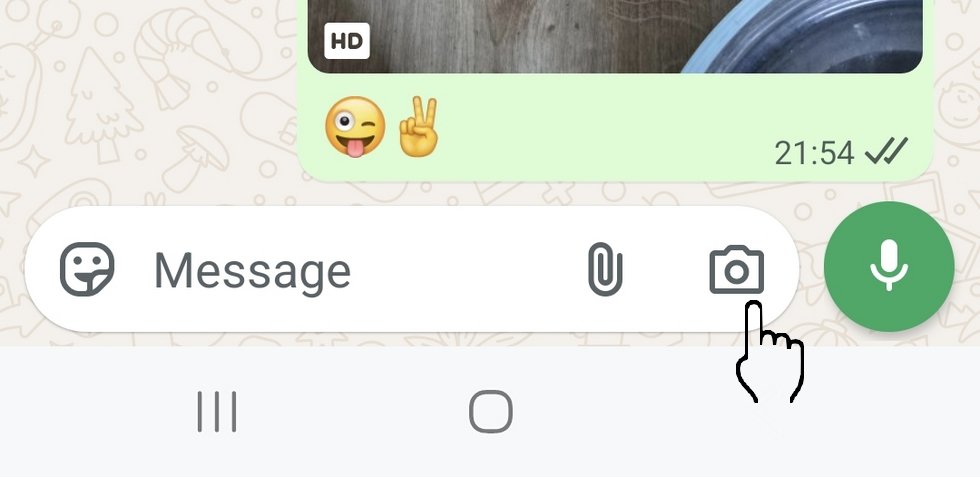
Use the paperclip to send an existing photo or video
Use the Camera to take a photo or video and send it right away
4. Best Practices and Privacy
Sending photos on WhatsApp is easy, but it's still important to be careful. Once a photo has been sent, you may not be able to get it back, especially if the recipient has already viewed it.
Always double-check that you're sending your photos to the right person. It's also a good idea to think twice before sharing personal or sensitive images. WhatsApp offers features such as disappearing messages, which can help limit how long shared content remains visible.
Finally, keep in mind that WhatsApp automatically compresses most photos, which can reduce image quality. If you want to preserve the highest possible quality, consider sending the file as a document instead. Although the HD Photo option significantly improves image quality, the image is still compressed to some extent.
Thibaut Mathieu
WhatsApp Complete User Guide
Check out the complete guide to using WhatsApp easily : create groups, send and save photos and videos, make a call, start a video call… and much more !
1. Install WhatsApp
2. Create an Account
3. Send a Message
4. Send a Voice Message
5. Send a Photo
6. Make a Call
7. Create a Group
8. Manage Notifications
9. Security & Tips
Course compatibility: Android tablets and smartphones (Samsung, Lenovo, Huawei, Xiaomi…), iPhone and iPad
Want to learn more ?
Would you like to learn more about how your smartphone works by reading guides and tutorials on smartphone use ? Visit the Smartphone Tutorials section ! Are you also curious about how to troubleshoot your phone ? Then check out the Smartphone Troubleshooting section. Finally, to improve your general computer knowledge—especially about Windows—take a look at my free computer courses, designed for seniors and beginners of all ages.
End of the WhatsApp Tutorial
You now know how to send photos and videos on WhatsApp.

Thibaut MATHIEU
Editor of Premiers Clics
Editor and writer of Premiers Clics, and author of the book “Je me mets à l'informatique” (only avalaible in french), I share all my computer knowledge to help you learn, using the Premiers Clics's computer basics for beginners and seniors. I also offer tutorials to learn how to use a smartphone.
Also the manager of a computer support and repair company, I fully understand your needs in computer training and assistance. Every day, I answer my clients’ questions about their computers, phones, or tablets.
This experience has given me extensive knowledge in consumer digital technology, allowing me to separate fact from fiction in device protection, identify the most common user mistakes, and provide numerous tips to make the best use of PCs, smartphones, and tablets.
WhatsApp Complete User Guide
Check out the complete guide to using WhatsApp easily : create groups, send and save photos and videos, make a call, start a video call… and much more !
1. Install WhatsApp
2. Create an Account
3. Send a Message
4. Send a Voice Message
5. Send a Photo
6. Make a Call
7. Create a Group
8. Manage Notifications
9. Security & Tips
Course compatibility: Android tablets and smartphones (Samsung, Lenovo, Huawei, Xiaomi…), iPhone and iPad
📱 Smartphone Tutorials
I also offer lessons and practical guides for Android or iPhone. You’ll learn how to :
Set up your device
- Send a photo with text message
- Adjust the volume of my phone
- Open settings
- Free up storage space
Install and use useful apps
- How to connect a Bluetooth speaker ?
Transfer photos
- Transfer contacts to new phone
- How to see my Google photos ?
- How to get wifi password
- How to get wifi password with a phone ?
- Recover a lost or forgotten password
- How to reset your Gmail account ?
- WhatsApp : complete user guide
These lessons are ideal for users of Android smartphones and tablets.
Smartphone Problems: All Simple Step-by-Step Solutions

WhatsApp Complete User Guide
Check out the complete guide to using WhatsApp easily : create groups, send and save photos and videos, make a call, start a video call… and much more !
1. Install WhatsApp
2. Create an Account
3. Send a Message
4. Send a Voice Message
5. Send a Photo
6. Make a Call
7. Create a Group
8. Manage Notifications
9. Security & Tips
Course compatibility: Android tablets and smartphones (Samsung, Lenovo, Huawei, Xiaomi…), iPhone and iPad

Install WhatsApp
Check out this guide if you want to learn how to install WhatsApp on your phone or tablet.
Create a WhatsApp Account
Check out this guide to create a WhatsApp Account whether it's for yourself or someone else.
Send a message
Check out this guide to learn how to send messages in WhatsApp.
Send a voice message
Check out this tip if you want to learn how to send voice messages in WhatsApp or any other messaging app.
🔹 Computer Basics
- Computer and internet glossary
- Connect à WiFi printer
- How to get wifi password
- Change desktop background
🔹 Windows Basics
- The Mouse
- The Keyboard
- The Desktop
- The Start Menu
- The Taskbar
- Open Windows settings
- Change mouse pointer speed
- Empty Recycle Bin
- Recover deleted files
- Create and organize folders
- Create desktop shortcuts
- Pin a programm on the taskbar
- Compress a ZIP file
- Decompress a ZIP fileMake file and folder icons bigger
- Open a downloaded file
- Change Windows Wallpaper
- Take a screenshot
- All our computer classes
🔹 Internet and Email
- Open and use a web browser
- Add a website to the favorites bar
- Creating a Gmail account
- How to send emails and attachments
- Browsing history in Chrome, Edge or Firefox
- Browsing download history in Chrome, Edge or Firefox
- Delete history in Chrome, Edge or Firefox
- Delete cookies and browsing data
- Set Google Chrome Homepage
- Create and manage an email account
- How access Netflix from Phone, PC or Tablet
- What is a VPN ?
- How to find the wifi password with a phone
🔹 Computer Protection
- Protect my computer with a password
- Install antivirus tools
- Learn how to avoid scams online
🔹 Troubleshooting
🔹 Practical Life

0 commentaire