Home / Windows & Computer Basics / Internet
How to Find your WiFi Password?
Difficulty: Easy to Medium

Find the WiFi Password Easily
In this guide, I'll show you the different ways to find or recover your Wi-Fi password. Don't worry—it's much easier than you might think, and most methods only take a few minutes. If you were unable to display the Wi-Fi key using the usual methods, you can also find the Wi-Fi key directly from your smartphone. Let's get started!
Table of Contents
1. Check the router label
2. Use your provider’s app or website
3. Check a device already connected
4. Look in your personal router settings
5. Reset the router if all else fails
6. FAQ
1. Look at the label on your router or modem
Most routers or modems have a sticker on the back or bottom. This is the simplest way to find your Wi-Fi password.
The label usually shows:
Wi-Fi Network Name (SSID)
Wi-Fi Password (Password, Wireless Key, or Network Key)
This method works for most internet providers, in both the USA and the UK.
Routers with a display
Some modern routers or modems have a small built-in display that shows the Wi-Fi network name and password. You may see the password directly on the screen, or navigate through a simple menu to find it. This feature is more common in Europe, but some providers in the USA and UK also offer routers with displays.
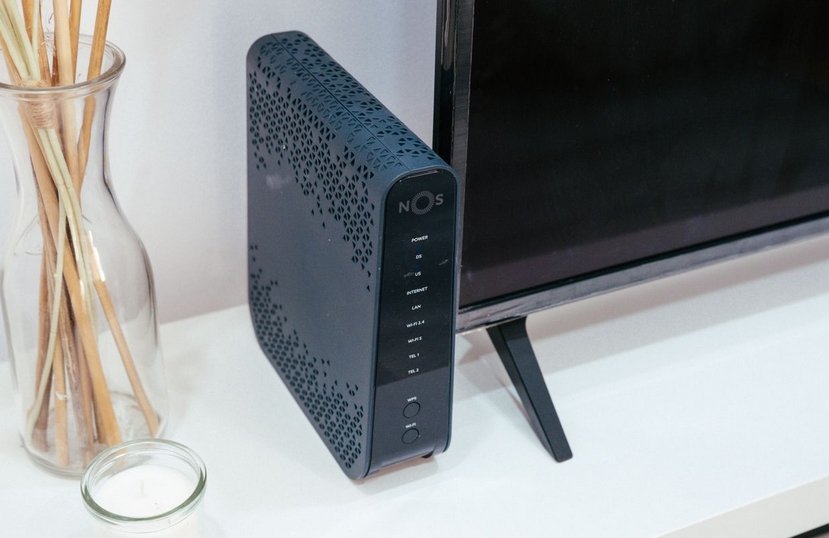
Most of the time, the Wi‑Fi password is written directly on the router (label or LCD screen)
2. Use your internet provider’s app or website
Many internet providers offer a mobile app or an online customer account that lets you manage your home Wi-Fi network. After signing in, you can usually view your Wi-Fi password, change your Wi-Fi password, or even share Wi-Fi access with family members and guests. This is one of the quickest and easiest ways to recover a forgotten Wi-Fi password without accessing your router settings.
In the United States, major providers such as Xfinity, AT&T, Verizon, Spectrum, and Cox offer these features. In the United Kingdom, you can usually do the same with BT, Sky, Virgin Media, TalkTalk, and Vodafone. In Australia, popular providers including Telstra, Optus, TPG, Aussie Broadband, and iiNet also allow customers to manage their Wi-Fi settings and Wi-Fi password through an app or online account.
I recommend checking your provider's app first, as it is a convenient, secure, and widely used solution.
3. Check a device already connected to Wi-Fi
If your computer or phone is already connected, you can often see the saved password.
On Windows
If your Windows computer is already connected to the network but you need to connect another device, like a tablet or phone, you can view the password directly in Windows:
1. Open the Control Panel (Type "control panel" in the search box on the taskbar.).
2. Click Network and Internet.
3. Click Network and Sharing Center.
4. On the right, click your Wi-Fi connection.
5. In the window that opens, click Wireless Properties.
6. Go to the Security tab.
7. Check Show characters. The password will appear immediately.
This is the method I use most often when helping my clients recover their Wi-Fi password. You can even copy and paste the password instead of typing it manually!
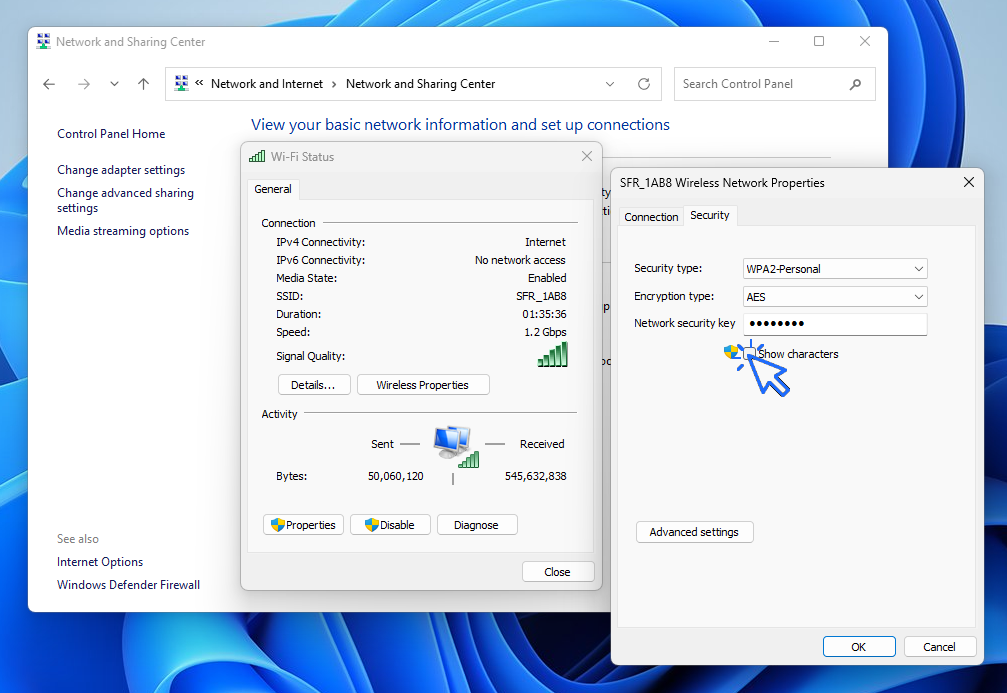
You can view your Wi-Fi password in plain text on Windows. Click to view the screenshot in full size.
On Mac
Open Keychain Access
Find your Wi-Fi network
Show the password
On iPhone or iPad
Go to Settings → Wi-Fi → Tap your network → Password (if using iCloud Keychain)
On Android
Go to Settings → Network & Internet → Wi-Fi → Saved networks → View password
4. Look in your personal router settings
Many households, especially in the United States, use a personal Wi-Fi router instead of relying only on the modem or gateway supplied by their internet provider. Popular brands include Netgear, TP-Link, Asus, Google Nest WiFi, and Eero.
Unlike an internet provider's router, the Wi-Fi password on these devices is usually chosen by the owner during the initial setup. If you have forgotten your Wi-Fi password, you can normally find it by signing in to your router's mobile app or by opening its web interface from any connected device.
I recommend checking your router's app before trying more complicated solutions. In most cases, you can view or change your Wi-Fi password in just a few clicks without resetting your router. You can also manage connected devices, create a guest network, and update other wireless settings from the same interface.
If you still cannot access your router or remember the administrator password, don't worry. The next methods will help you recover or reset your Wi-Fi password.
5. Resetting Your Router or Modem
If none of the previous methods work, resetting your router or modem is often the last solution. A factory reset deletes your current Wi-Fi settings and restores the device to its original configuration, including the default Wi-Fi network name and default Wi-Fi password printed on the router label.
To reset your router, locate the small Reset button on the back or bottom of the device. Press and hold it for about 10 to 15 seconds until the indicator lights begin to flash. The router will restart and return to its factory settings.
I recommend using this method only if you can no longer access your router settings or have completely forgotten both your Wi-Fi password and the administrator password. After the reset, you will need to reconnect all of your devices using the default Wi-Fi password or create a new one during the setup process.
Keep in mind that resetting your router removes any custom settings you previously configured, such as your Wi-Fi password, network name (SSID), parental controls, guest network, or port forwarding rules. If possible, try the previous methods before performing a factory reset.

6. FAQ
How can I find my Wi-Fi password without resetting my router?
If your device is already connected to the Wi-Fi network, you can usually view the saved Wi-Fi password in your computer or phone settings. You can also sign in to your internet provider's account or access your router settings to see the current password without resetting the router.
Where can I find the default Wi-Fi password?
The default Wi-Fi password is often printed on a label attached to the bottom or back of your router or modem. If the password has never been changed, you can use the one shown on the label to connect to your wireless network.
Can I see my Wi-Fi password on Windows 11?
Yes. If your Windows 11 PC is already connected to the network, you can view the saved Wi-Fi password through the Network and Sharing settings or by using a simple Command Prompt command.
How do I find my Wi-Fi password on my phone?
If you use an Android phone, you can often view or share your Wi-Fi password from the Wi-Fi settings. On an iPhone, you can also see the password for the connected network if your device is running a recent version of iOS and is unlocked.
What should I do if I forgot both my Wi-Fi password and router password?
If you cannot access your router settings because you forgot both passwords, you may need to perform a factory reset. This restores the router to its default settings, allowing you to reconnect using the default Wi-Fi password printed on the router.
Conclusion
Finding your Wi-Fi password is usually easier than you might think. In most cases, you can recover it by checking the router label, signing in to your internet provider's account, using a device that's already connected to your network, or accessing your router settings. A factory reset should only be considered as a last resort if you no longer have access to your router.
I recommend starting with the simplest methods first, as they only take a few minutes and won't affect your network. Once you've recovered your Wi-Fi password, consider storing it in a secure password manager or writing it down in a safe place to avoid the same problem in the future.
Want to learn more Computer Tips ?
End of the Tutorial
Now you know how to get your Wi-Fi Password.


🔹 Computer Basics
🔹 Windows Course
- The Desktop
- The Sart Menu
- Empty Recycle Bin
- Recover deleted files
- Create and organize folders
- Create desktop shortcuts
- Pin a programm on the taskbar
- Compress a ZIP file
- Decompress a ZIP file
Organize files and folders
Customize your desktop
- Make a screenshot
- Make file and folder icons bigger
Understand the start menu and taskbar
- Open a downloaded file
- Change Windows Wallpaper
- Take a screenshot
🔹 Internet and Email
Open and use a web browser
- Creating a Gmail email
- How to send emails and attachments
- Browsing history in Chrome, Edge or Firefox
- Browsing download history in Chrome, Edge or Firefox
- Delete history in Chrome, Edge or Firefox
- Delete cookies and browsing data
- Set Google Chrome Homepage
Create and manage an email account
- How access Netflix from Phone, PC or Tablet
- What is a VPN ?
🔹 Computer Protection
🔹 Troubleshooting
🔹 Practical Life
Smartphone Problems: All Simple Step-by-Step Solutions

10 Essential Windows Apps
Our Top 10 Windows Apps to Have.
View WiFi password on an Android Phone
Read this guide to find your WiFi password on your smartphone.

Solve internet issues
How to fix the main internet connections issues. Main troubleshooting steps.

Send emails and attachments
How to send emails and attachments. Example with Gmail.

How to transfert Contacts ?
Create desktop shorcuts
How to create shortcuts on the desktop.
Protect my computer using a password
How protect my computer with a password or a PIN code.

Connect a wifi printer
How connect a printer to your wifi network and how install it in Windows.

View Google browsing
How to check your Google browsing in Chrome, Edge or Firefox.
View Google browsing
How to check your Google browsing in Chrome, Edge or Firefox.

Restore contacts on a new phone
How to move contacts to a new Android phone. How to get easily your contacts on your new phone.
Windows Desktop Basics
Learn the Windows desktop basics, and personalize your screen.
📱 Smartphone Tutorials
I also offer lessons and practical guides for Android or iPhone. You’ll learn how to :
Set up your device
- Send a photo with text message
- Adjust the volume of my phone
- Open settings
- Free up storage space
Install and use useful apps
- How to connect a Bluetooth speaker ?
Transfer photos
- Transfer contacts to new phone
- How to see my Google photos ?
- How to get wifi password
- How to get wifi password with a phone ?
- Recover a lost or forgotten password
- How to reset your Gmail account ?
- WhatsApp : complete user guide
These lessons are ideal for users of Android smartphones and tablets.
Smartphone Problems: All Simple Step-by-Step Solutions

Thibaut MATHIEU
Editor of Premiers Clics
Editor and writer of Premiers Clics, and author of the book “Je me mets à l'informatique” (only avalaible in french), I share all my computer knowledge to help you learn the computer Basics.
Also the manager of a computer support and repair company, I fully understand your needs in computer training and assistance. Every day, I answer my clients’ questions about their computers, phones, or tablets.
This experience has given me extensive knowledge in consumer digital technology, allowing me to separate fact from fiction in device protection, identify the most common user mistakes, and provide numerous tips to make the best use of PCs, smartphones, and tablets.

0 commentaire