
Home / Phone Tutorials
How to Find the WiFi Password on an Android Phone
Difficulty : Easy

Find WiFi password on an Android Phone
It can be very useful to find the password of your WiFi network, especially if you want to share it with someone. Since Android 10, it is possible to view the saved WiFi password directly on your phone. Very convenient ! You just need to know where to look.
For me, the method that shows the Wi-Fi key through the modem is the one I use second most often, especially at my clients’ homes, when I need to quickly retrieve the Wi-Fi password (I provide computer troubleshooting and home IT support).
In this Android smartphone tutorial (Samsung, Oppo, Honor, Xiaomi, etc.), I’ll explain the steps to find your WiFi password directly from your phone settings. I’m almost certain you’ll succeed !
If you would like to improve your computer skills for seniors, you can also explore our step-by-step computer guides designed for beginners.
👍✅ Need help with a smartphone or tablet ? Our phone skills for beginners tutorials explain everyday tasks in a simple and easy-to-follow way.
Table of Contents
- Can I see the WiFi password on my phone ?
- How to find the WiFi password on Android
- What to do if the WiFi password is not show ?
1. Can I Find the WiFi Key on My Phone ?
Yes, it is absolutely possible to scan a document without a printer. A smartphone can easily replace a scanner thanks to its built-in camera.
The principle is simple:
you take a photo of the document and save it.
Some applications can even automatically improve the image. They can:
Correct perspective
Adjust brightness and contrast
Convert the photo into a PDF file
This produces a result that is very similar to a real scanned document.
Today, this method is widely used to send administrative documents, forms, invoices, or proof of identity, especially as fewer people own printers.
2. Display the WiFi Password on an Android Smartphone
The process is done directly from the WiFi settings and only takes a few seconds.
1. First, swipe down from the top of the screen to open the quick settings panel. Then press and hold the WiFi icon for a few seconds to access the WiFi settings.
2. Tap the network your phone is connected to.
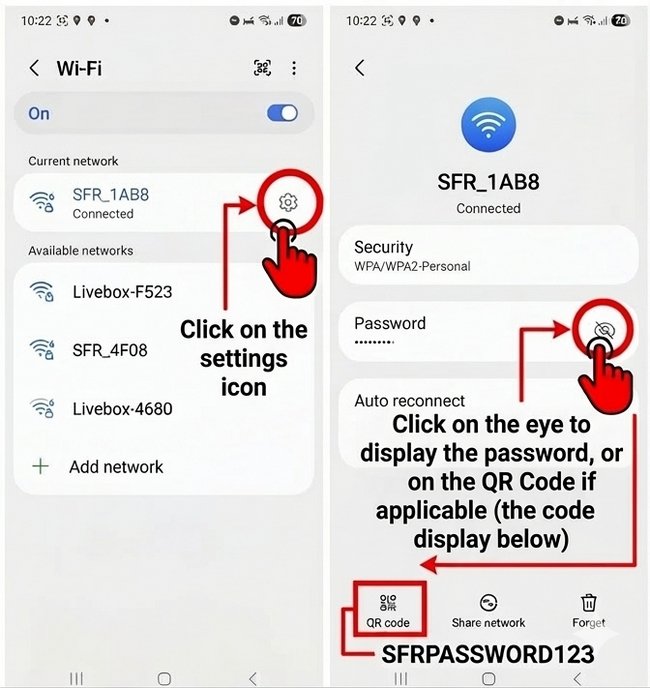
3. Next, open the network settings by tapping the gear icon.
4. On this screen, you will see the network information and can access the password by tapping the eye icon, or by selecting the option to display the QR Code. The WiFi password is usually shown just below the QR Code.
During this process, your phone may ask you to authenticate (PIN code, fingerprint, or pattern). This simply verifies that you are the owner of the device.
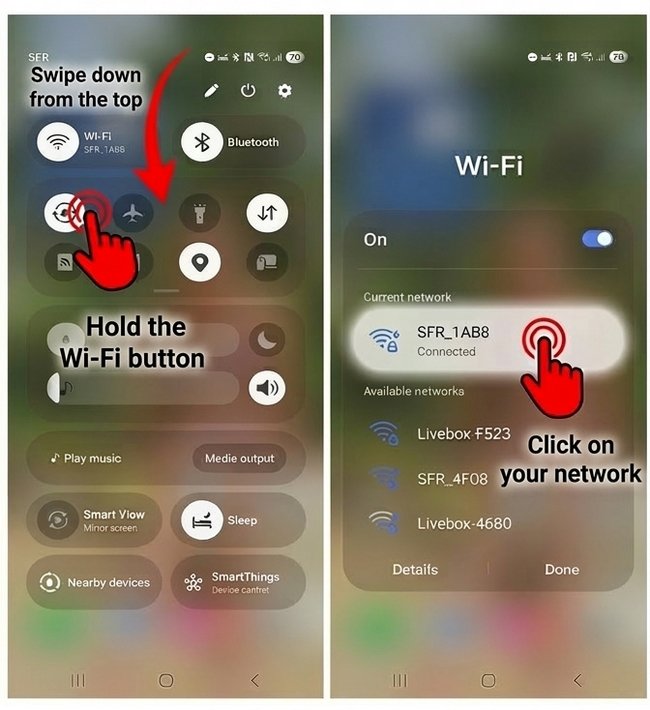
- Swip down then press end hold WiFi button
- Tap on your SSID (WiFi network name)
3. Tap on Settings icon of your WiFi
4. Tap on the eye to view the WiFi Code, or Tap on "Code QR"(The Wi-Fi key will appear below the QR code)
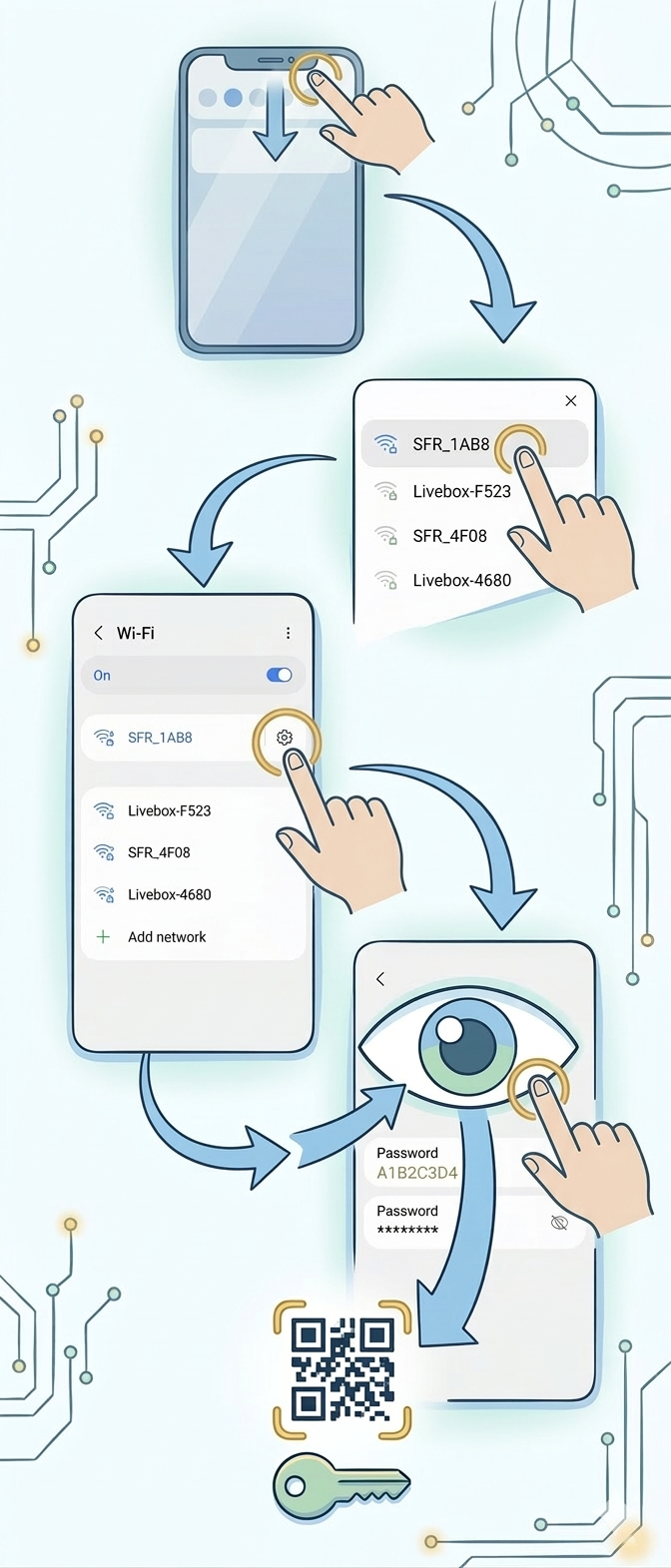
Another image i prepared to you to illustrate the manipulation :

3. What If the Password Does Not Appear ?
In some cases, the WiFi password may not be displayed directly in the settings. This can depend on the Android version or the phone manufacturer. In this situation, make sure your device is connected to the correct network and that the system is up to date.
If the password still does not appear, the QR Code sharing option is usually available and allows another device to connect easily, even if the password is not shown in plain text.
However, all is not lost! There are other ways to retrieve your WiFi security key, such as using your internet modem/router or a Windows computer.
FAQ - How to Find the WiFi Password on an Android Phone
🔐 Can you see the WiFi password on an Android phone?
Yes. Since Android 10, you can view saved WiFi passwords directly in your phone settings without any app.
⚙️ How to find the WiFi password on Android?
Open Settings
Go to WiFi or Network & Internet
Tap the connected network
Press the settings icon ⚙️
Tap Share or QR Code
The WiFi password will be shown or accessible via the QR code
You may need to confirm your identity (PIN, fingerprint, or pattern)
📱 How to find WiFi password on Samsung, Xiaomi, Oppo or Huawei?
Open Settings
Go to WiFi
Select your connected network
Tap Share or QR Code
The process is almost identical on most Android phones
📡 How to get WiFi password using a QR code?
Android can generate a WiFi QR code
Another device can scan it to connect automatically
In some cases, the password is displayed below the QR code
❌ Why is the WiFi password not showing?
Old Android version
Not connected to the network
Manufacturer restrictions
In this case, use the QR code or check your router
🧠 What are other ways to recover a WiFi password?
Check the label on your internet router
Use a Windows PC WiFi settings
Access your router admin page
These methods allow you to recover your WiFi key easily
Conclusion
Finding the WiFi password on an Android phone is now a simple and quick process. By going into the network settings, you can display the WiFi key or share the connection using a QR code. This feature makes it easy to connect other devices without having to look up the password for your internet router.
Want to learn more ?
Would you like to learn more about how your smartphone works by reading guides and tutorials on smartphone use ? Visit the Smartphone Tutorials section ! Are you also curious about how to troubleshoot your phone ? Then check out the Smartphone Troubleshooting section. Finally, to improve your general computer knowledge—especially about Windows—take a look at my free computer courses, designed for seniors and beginners of all ages.
End of the Tutorial
You now know how to find your WiFi Key with your Smartphone.

No internet on my phone

My phone is not charging
What should you do if your phone no longer charges?

My phone Freezing

Send a voice message
Check out this tip if you want to learn how to send voice messages in WhatsApp or any other messaging app.

Thibaut MATHIEU
Editor of Premiers Clics
Editor and writer of Premiers Clics, and author of the book “Je me mets à l'informatique” (only avalaible in french), I share all my computer knowledge to help you learn, using the Premiers Clics's computer basics for beginners and seniors. I also offer tutorials to learn how to use a smartphone.
Also the manager of a computer support and repair company, I fully understand your needs in computer training and assistance. Every day, I answer my clients’ questions about their computers, phones, or tablets.
This experience has given me extensive knowledge in consumer digital technology, allowing me to separate fact from fiction in device protection, identify the most common user mistakes, and provide numerous tips to make the best use of PCs, smartphones, and tablets.

Smartphone Tutorials & Windows Basics
Welcome to Premiers Clics, a free website designed to help beginners learn computer basics and use smartphones easily with our smartphone tutorials. Step-by-step guides, simple tutorials, and practical lessons for everyday use.

Open iPhone Settings app
Tips to help you learn how to open the Settings app on an iPhone.

Windows Desktop Basics
Learn the Windows desktop basics, and personalize your screen.
10 Essential Windows Apps
Our Top 10 Windows Apps to Have.

10 Essential Windows Apps
Our Top 10 Windows Apps to Have.
0 commentaire