
Home / Windows & Computer Basics
How to View Your Google Browsing History (Chrome, Firefox, Edge…)

The Browsing History
Browsing history is very useful because it allows you to easily find a page you visited. In a future lesson, we will show you how to delete your PC’s browsing history. This lesson applies to almost all web browsers: Chrome, Edge, Firefox, Avast Browser… and any search engine you use: Google, Bing, Qwant…
Note: This lesson includes screenshots from Windows, but you can also follow this tutorial if you want to view your Google search history on an Android phone or tablet.
Let’s get started!

Table of Contents
1. View Your Browsing History
2. Search Your Browsing History
3. View History on Multiple Devices
4. Delete History Browsing
1. View Your Browsing History
In Google Chrome, as in many other browsers, browsing history can be accessed from the menu. In Chrome:
- Click Menu, then History > History
- You can easily find a website or page you visited recently—or even a long time ago!
- You can also open history using the keyboard shortcut Ctrl + H (“H” for History).
- To view download history, use Ctrl + J (we will cover this in the next lesson).
Menu path: Menu → History
Access the Chrome menu by clicking the three dots (or the gear icon depending on your version), then click History.
Let's look at this in a screenshot. To display history in Google, click Menu (the 3 dots), then "History" :
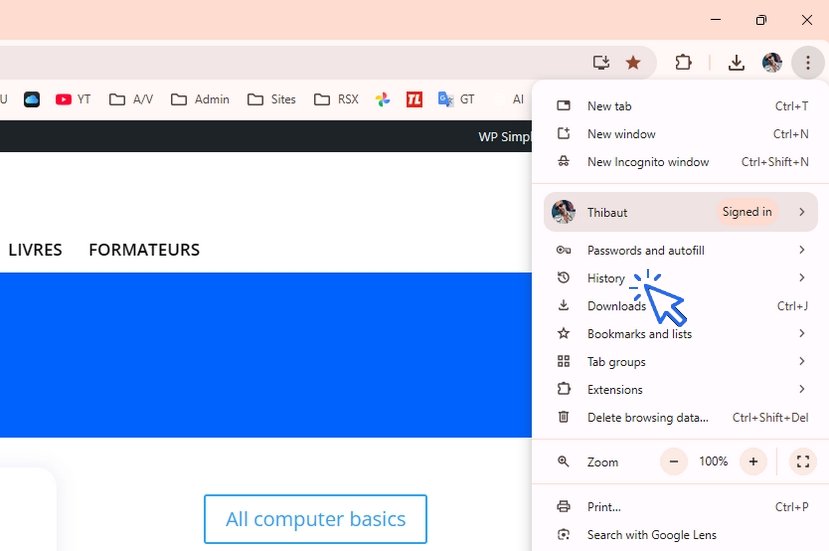
And click on "History" again. The history will then be displayed.
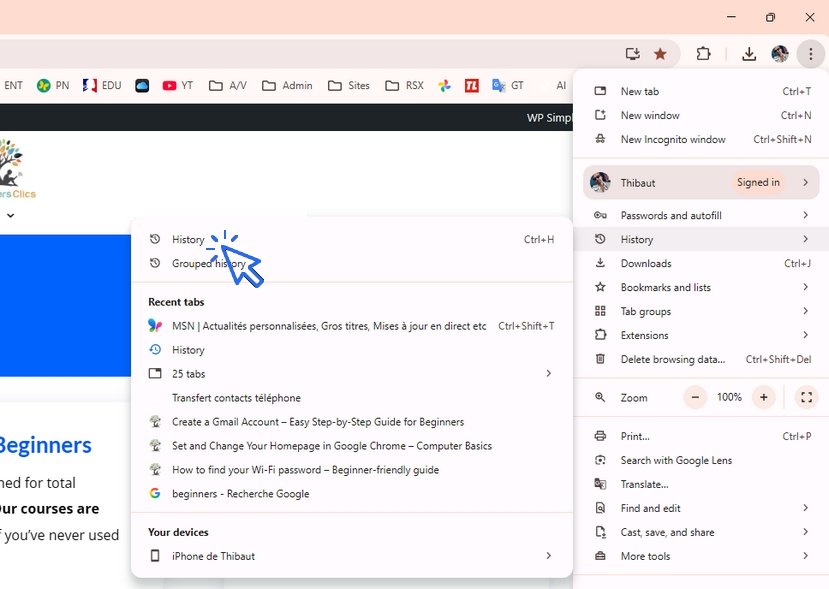
The procedure is the same regardless of which browser you use: Chrome, Edge, Firefox, Opera…
2. Search Your Browsing History
You can search your history using the search bar at the top of the history page.
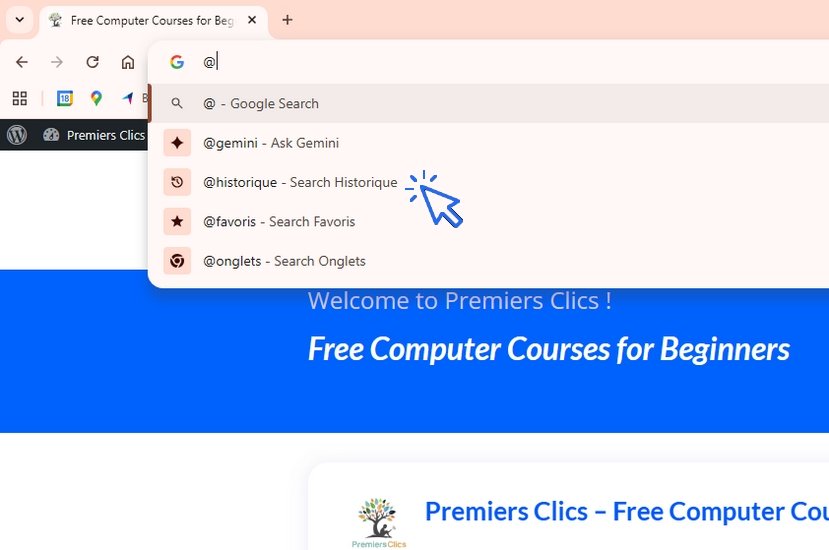
In Chrome’s address bar, type @ and select @bookmarks to quickly search your browsing history.
You can also use @ to access AI search: type @ and select @gemini.
The @ shortcut allows different types of searches: with Google search, Gemini (AI), bookmarks, history, or open tabs.
3. View History on Multiple Devices
You can view your browsing history across multiple devices by using synchronization.
If you search the internet on your laptop, you can later view the same history on your smartphone.
To have a single, unified history, you must be signed in to the same Google account on all your devices by clicking the round avatar at the top right of your preferred browser (Chrome, Edge, Firefox…).
4. Delete History
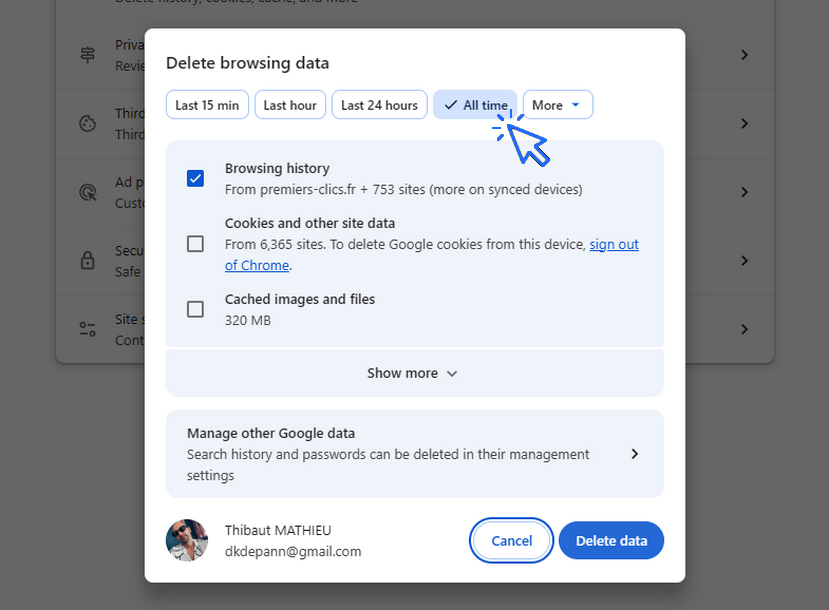
To delete your browsing history, whether you use Google Chrome, Edge, Firefox, or Opera, open the history and then select "Delete browsing data" on the left :
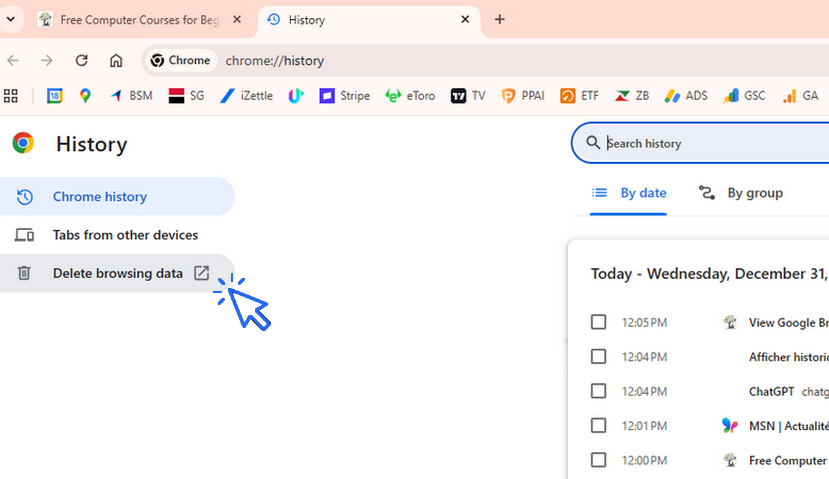
Click on "All time", choose the items you want to remove from your device (computer, phone, tablet), and confirm. Your history is cleared!
Also check the lessons "How to View Download History in Google Chrome" and "How to delete my browsing personal data as cookies or google history".
Thibaut MATHIEU
End of the lesson
You now know how to access to your internet browsing history.
🔹 Computer Basics
🔹 Windows Basics
How to use the mouse and keyboard
- Empty Recycle Bin
- Recover deleted files
- Create and organize folders
- Create desktop shortcuts
- Pin a programm on the taskbar
- Compress a ZIP file
- Decompress a ZIP file
Organize files and folders
Customize your desktop
- Make a screenshot
- Make file and folder icons bigger
Understand the start menu and taskbar
- Open a downloaded file
- Change Windows Wallpaper
- Take a screenshot
🔹 Internet and Email
Open and use a web browser
- Creating a Gmail email
- How to send emails and attachments
- Browsing history in Chrome, Edge or Firefox
- Browsing download history in Chrome, Edge or Firefox
- Delete history in Chrome, Edge or Firefox
- Delete cookies and browsing data
- Set Google Chrome Homepage
Create and manage an email account
- How access Netflix from Phone, PC or Tablet
- What is a VPN ?
🔹 Computer Protection
Keep your computer safe from malware
- Protect my computer with a password
Install antivirus tools
Learn how to avoid scams online
🔹 Troubleshooting & Practical Life
📱 Mobile & Tablet Tutorials
We also offer lessons and practical guides for smartphones and tablets. You’ll learn how to:
Set up your device
- Send a photo with text message
- Adjust the volume of my phone
- Open settings
- Free up storage space
Install and use useful apps
- How to connect a Bluetooth speaker ?
Transfer photos
- Transfer contacts to new phone
- How to see my Google photos ?
These lessons are ideal for users of Android smartphones and tablets.
Smartphone Problems: All Simple Step-by-Step Solutions
View download history
How to view the browser download history in Google.

Open a downloaded attachment
How do I open a file that I just downloaded.

Empty Recycle Bin
How to empty the Windows Recycle Bin to permanently delete my files and folders.
Recover deleted files
How to recover deleted files in the Windows Recycle Bin.

Create desktop shorcuts
How to create shortcuts on the desktop.
Connect a wifi printer
How connect a printer to your wifi network and how install it in Windows.
Solve internet issues
How to fix internet issues. Main troubleshooting steps.
Create a Google account
How to create a Gmail account to use Google services as Gmail.

How to get the wifi password
How to get the wifi password in order to connect a new device (phone, tablet, PC..)

No internet on my phone
Check this link if you have no internet on your phone.
Change Google Chrome Homepage

Restore contacts on a new phone
How to move contacts to a new Android phone. How to get easily your contacts on your new phone.

Change desktop background
How to change the desktop background of a computer.

My phone is not charging
What should you do if your phone no longer charges?
View WiFi password on an Android Phone
Read this guide to find your WiFi password on your smartphone.
Add a website to the favorites bar
How to add a website to favorites.

Thibaut MATHIEU
Editeur de Premiers Clics
Editor and writer of Premiers Clics, and author of the book “Getting Started with Computers” (only avalaible in french), I share all my computer knowledge to help you learn, using the Premiers Clics computer courses.
Also the manager of a computer support and repair company, I fully understand your needs in computer training and assistance. Every day, I answer my clients’ questions about their computers, phones, or tablets.
This experience has given me extensive knowledge in consumer digital technology, allowing me to separate fact from fiction in device protection, identify the most common user mistakes, and provide numerous tips to make the best use of PCs, smartphones, and tablets.

0 commentaire