Computer courses / Internet & Email Course
Delete Browsing History, Cookies and Temporary Files (Chrome, Edge, Firefox, Opera...)
Difficulty : Easy
Browser needed : Microsoft Edge, Google Chrome, Mozilla Firefox, Opera...

General Information About Personal Data
Web browsers store a large amount of information that makes browsing the internet easier. For example, what would we do without browsing history? We would waste a lot of time trying to find a previously visited page or website on our own.
Many types of data are stored on your computer, so it is important to delete them regularly. Over time, they can take up disk space and may even cause display issues on websites if they are not cleared occasionally. These include cookies, browsing history, download history, autofill data, and temporary files. This lesson will show you how to delete these files. See also all our free online computer courses.
Table of Contents
- Delete browsing history, cookies and temporary files
1. Delete History, Cookies and Temporary Files
To delete data stored by Chrome, click on Menu, then Settings, then Advanced settings, and click Clear browsing data in the Privacy and security section.
Next, click Advanced and check the items you want to delete: browsing history, download history, cookies, cached images and files (temporary files), autofill form data, and more.
Path: Menu → Settings → Advanced → Clear browsing data
Delete browsing personal data (4 easy steps)
1. Open your browser, then click on Settings.
2. Next, click on Advanced.
3.Now click Clear browsing data in the Privacy and security section.
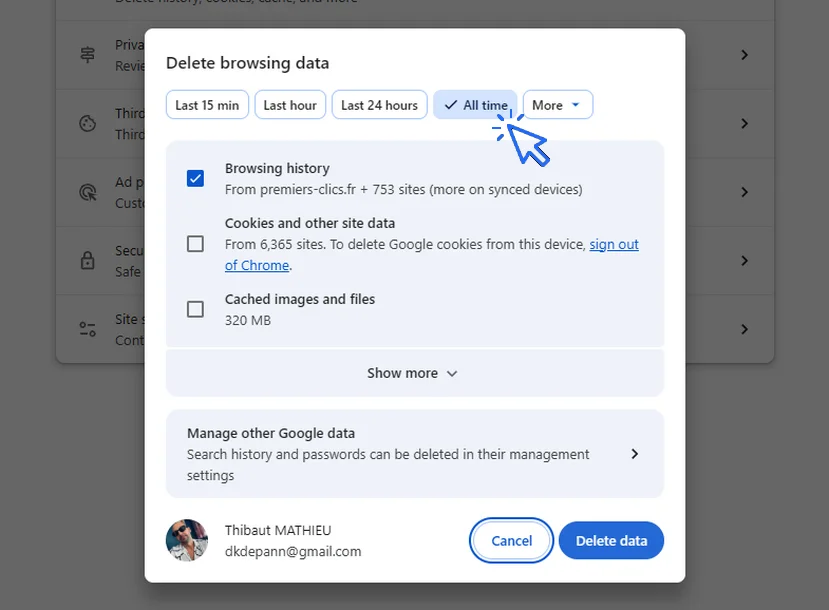
4. Click Advanced and select Browsing history, Cookies and other site data, and Cached images and files, then confirm.
You can also click Basic and check all options.
You can also go through the history to delete this data. Let's see this in picture. Settings / "History" :
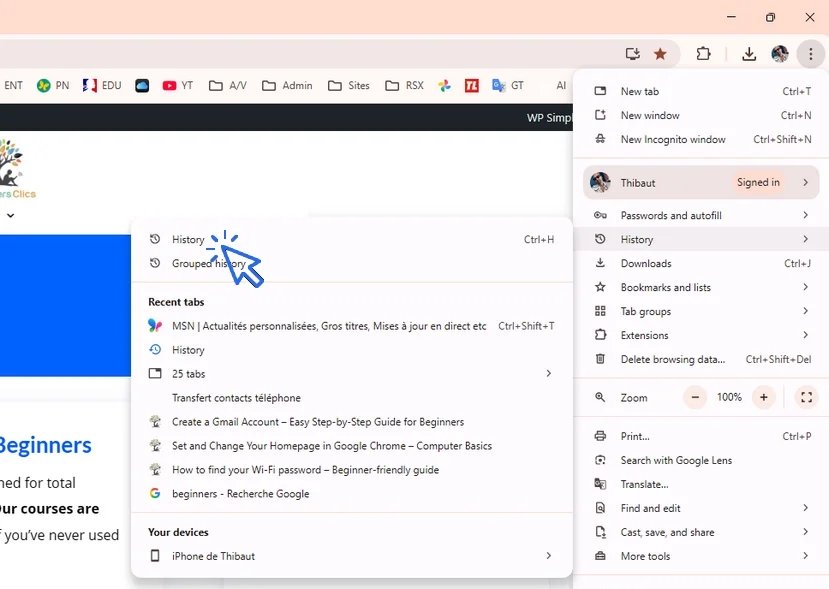
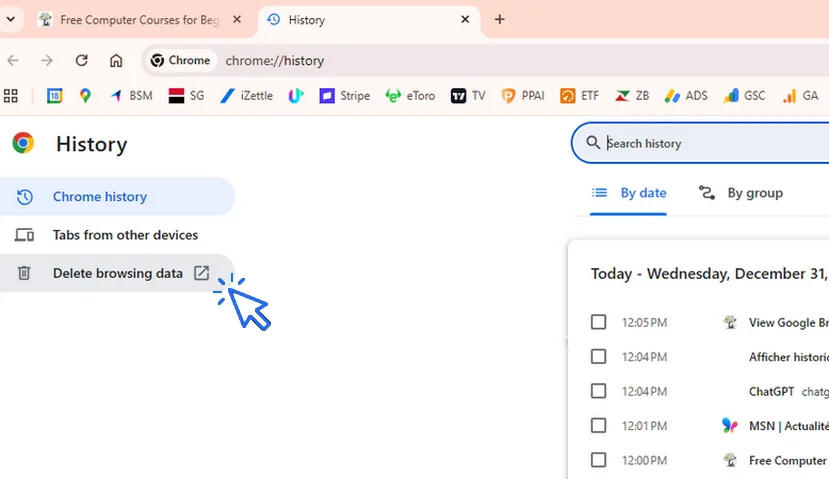
click again on "History" :
Click "Delete browsing data" :
Choose the time period and the items you want to remove :
About Cookies
Deleting cookies will sign you out of websites that use a customer area or personal account. However, since autofill data is not deleted, Chrome will still remember your usernames and passwords, which will automatically fill in when needed.
Deleting cookies mainly results in being logged out of personal accounts.
About Downloads
Clearing the download history does not delete the downloaded files or programs. To remove them, go to the Downloads folder on your computer using File Explorer. To see your downloaded history click here.
Thibaut Mathieu
End of the lesson
Now you know delete personal data in your internet browser (Chrome, Edge, Firefox...)

Create desktop shorcuts
How to create shortcuts on the desktop.
Change Wallpaper
How to change the Windows Wallpaper. Windows Course
Increase display size

Connect a wifi printer
How connect a printer to your wifi network and how install it in Windows.

No internet on my phone
Check this link if you have no internet on your phone.

Adjust mobile's volume

Create an email account (Gmail)
How to create a Gmail account to send and receive emails.
Send emails and attachments
How to send emails and attachments. Example with Gmail.

Change Google Chrome Homepage

Access Netflix

Contact Vinted
How to contact Vinted Customer Service.

0 commentaire