
Premiers Clics / Smartphone Tutorials
Phone Storage Full? Here's How to Free Up Space Fast
Difficulty : medium

My Phone Storage is Full !
Is your phone running out of space ? Photos, videos, apps, and system files can quickly fill up your device’s memory, especially on older models. Fortunately, there are several simple solutions to free up space and optimize your smartphone.
In this article, I will explain how to check available storage, clean your phone, and increase its storage capacity if necessary. This is a problem I frequently encounter with customers I assist or troubleshoot.
Table of Contents
- Check used storage
- Free up space: cleaning and deletion
- Increase storage space
1. Check used storage
Before deleting anything, it’s important to know how much space is already being used.
For recent phones:
If your smartphone has 64 GB, 128 GB, 256 GB, or more, you probably still have plenty of free space. Photos, apps, and system files have not yet filled up the storage.
For older phones:
Devices with 16 GB or 32 GB can quickly become full due to apps and system files. In this case, even a factory reset will not permanently solve the issue, as future updates will consume storage again. If your phone is old and has limited memory, replacing it with a model that offers more storage may be the most effective solution.
Viewing Free and Used Storage on iPhone or Android
To check used storage:
1. Go to Settings > Device care (or General management) > Storage.
2. You will see total storage, available space, and what is taking up space (apps, photos, videos, etc.).
3. If some apps take up a lot of space, you can uninstall them. For photos and videos, it’s best to transfer them to your computer before deleting them from your phone.
Let’s look at screenshots showing how to display this information. Go to Settings / “Device care” / “Storage”.
On an Android phone such as Samsung, Oppo, or Google, go to Settings / Device care / Storage to view free space, used space, and stored items.
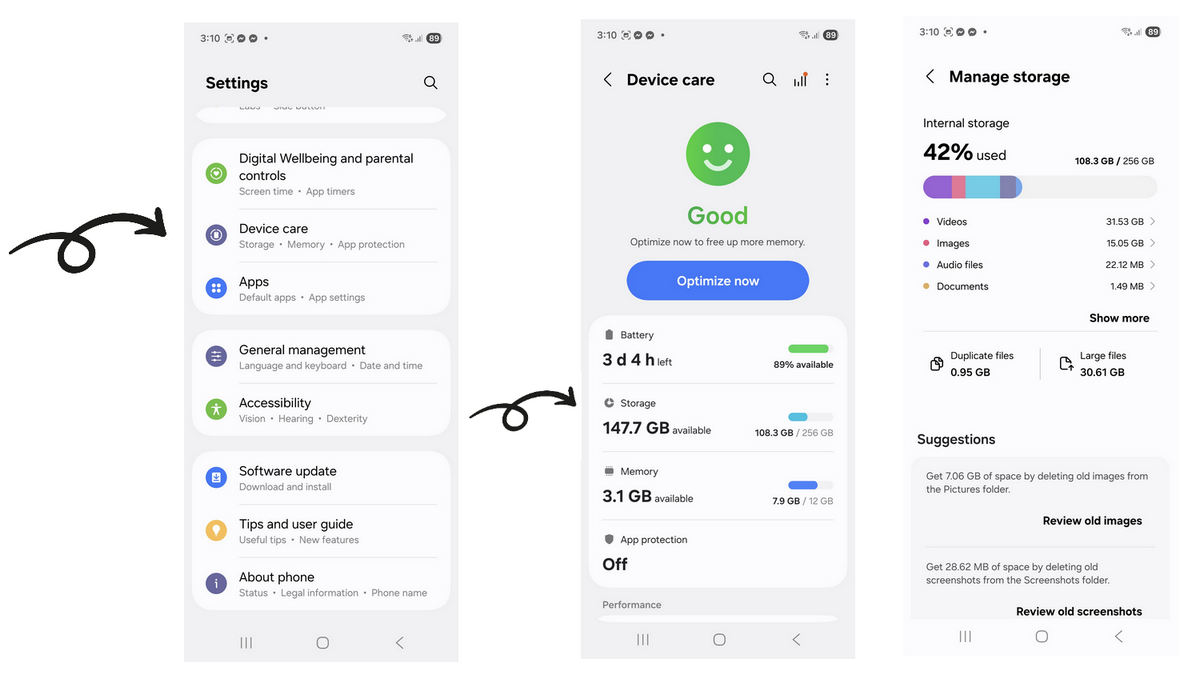
On an Android phone such as Samsung, Oppo, or Google, go to Settings / Device Care / Storage to view free space, used space, and stored items.
2. Free up space : cleaning and deleting
Once you know what’s taking up space, it’s time to clean:
Delete large apps you no longer use.
You can usually sort apps by size to quickly identify the biggest ones. Go to Settings / General management / Storage, then tap Apps to view the list and their sizes.Clear app cache if you want to keep the app but recover storage space.
Go to Settings / Apps / App name / Storage, then clear the cache.Transfer photos and videos to a computer to free up memory. Good news: I’ve prepared a step-by-step tutorial just for that!
Good to know:
It is not possible to significantly reduce the size of the Android operating system unless you reset the phone. However, the problem will return, as updates are installed regularly.
These steps can free up several gigabytes on a full smartphone and improve overall performance.
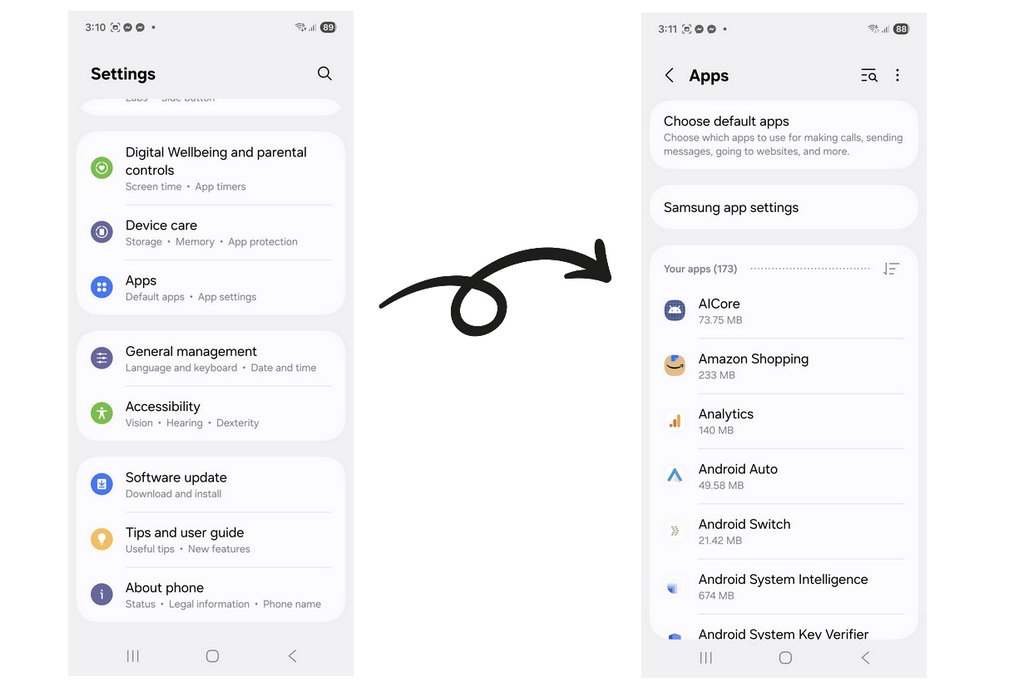
In Settings / Apps, you can view the size of each application. Sorting apps by size is often available and helps you quickly identify which apps take up the most space.
Move Apps to a microSD car
For some apps, it’s also possible to move them to a microSD card. To do this, see my tutorial on how to move an app to an SD card.
3. Increase storage with a microSD card
If your phone has a microSD card slot, you can significantly increase its storage capacity:
Check SD card usage in the settings.
Enable the option “Save photos and videos to SD card” to free up internal memory.
If you don’t have one yet, a 64 GB or 128 GB microSD card costs less than €20 and allows you to store photos, videos, and even some apps.
This solution is ideal for older smartphones or devices with limited internal storage.
My Conclusion
Storage space should be a key criterion when buying a smartphone, especially if you use social apps like WhatsApp, which accumulate photos and videos in conversations. Regularly checking storage usage, cleaning your device, and adding a microSD card are the best ways to keep your phone running smoothly and avoid “storage full” warning messages. Today's smartphones come with much more storage than they used to.
If your phone is old, it may be time to upgrade to a new one. When choosing a new device, make storage capacity one of your top priorities, alongside the processor and camera. I don't recommend trying to save $50 by buying a model with half the storage. Social media and messaging apps can quickly take up a lot of space, especially WhatsApp (for more information, check out our guide on how to install and use WhatsApp).
FAQ
Why is my phone storage always full?
Your phone storage fills up over time because of photos, videos, downloaded files, installed apps, and system updates. Some apps, such as WhatsApp, Facebook, Instagram, and TikTok, automatically save photos, videos, and other media, which can quickly consume several gigabytes of storage. Even if you rarely install new apps, your available space can gradually decrease as existing apps store more data.
How do I check my phone's storage?
Open the Settings app and tap Storage, Device care, or Battery and device care, depending on your phone model. You'll see how much storage is used and how much remains available. The storage breakdown also shows which categories—such as apps, photos, videos, documents, or system files—are taking up the most space, making it easier to identify what you can safely remove.
What should I delete first to free up space?
Start by uninstalling apps you no longer use, especially large games or streaming apps. Then review your photos, videos, and Downloads folder, where large files often accumulate unnoticed. You can also clear the cache of apps like Chrome or social media apps to recover space without deleting your personal data or accounts.
Does deleting photos permanently remove them?
Yes. If your photos are not backed up, deleting them permanently removes them from your phone. Before deleting important pictures, check whether they have already been backed up to a cloud service such as Google Photos or iCloud, or copied to a computer or external drive. This helps prevent accidental data loss.
Can I free up space without deleting apps?
Yes. You can free up storage by clearing app cache, deleting temporary files, removing old downloads, or moving photos and videos to cloud storage or a computer. Many Android phones also include a built-in storage cleanup tool that recommends files you can safely remove without affecting your apps.
What is a microSD card and how does it help?
A microSD card is a removable memory card supported by many Android phones. It increases your available storage, allowing you to save more photos, videos, music, and documents. Some phones also let you move compatible apps to the card, although this feature depends on the manufacturer and Android version. Keep in mind that most iPhones do not support microSD cards.
Why is my phone slow when storage is full?
When your phone has very little free storage left, it struggles to create temporary files needed by Android or iOS and installed apps. This can lead to slower performance, longer app loading times, delayed updates, and occasional crashes. Keeping at least 10–20% of your storage free helps your phone run more smoothly.
Should I reset my phone to free up space?
A factory reset completely erases your phone and restores it to its original settings, which will free up storage. However, this should only be considered as a last resort after trying other methods, such as deleting unnecessary files or uninstalling unused apps. Before performing a reset, always back up your photos, contacts, and other important data to avoid losing them.
End of tutorial

Smartphone Tutorials & Windows Basics
Welcome to Premiers Clics, a free website designed to help beginners learn Windows basics and use smartphones easily with our smartphone tutorials. Step-by-step guides, simple tutorials, and practical lessons for everyday use.

Thibaut MATHIEU
Editor of Premiers Clics
Editor and writer of Premiers Clics, and author of the book “Je me mets à l'informatique” (only avalaible in french), I share all my computer knowledge to help you learn, using the Premiers Clics computer courses.
Also the manager of a computer support and repair company, I fully understand your needs in computer training and assistance. Every day, I answer my clients’ questions about their computers, phones, or tablets.
This experience has given me extensive knowledge in consumer digital technology, allowing me to separate fact from fiction in device protection, identify the most common user mistakes, and provide numerous tips to make the best use of PCs, smartphones, and tablets.


Other Tutorials

Scan a document without printer
How to scan a document with a phone, without printer or scanner.

Find wifi password with a phone
If you need to display the Wi-Fi password, you can do it with your smartphone.
Speed up my phone
How to make my phone faster because it’s getting slower and slower
Send a photo with text message
Reset Phone Settings
How to reset the settings on an Android or iPhone.

Create an email account (Gmail)
How to create a Gmail account to send and receive emails.

Open iPhone Settings app
Tips to help you learn how to open the Settings app on an iPhone.
Common Smartphone Problems

I can't make calls
Check this tips if you can't make calls anymore.

My phone is not charging
What should you do if your phone no longer charges?
Phone or Tablet Touchscreen not working
Read 10 fixes for a touchscreen phone issue. A troubleshooting guide for Android, iPhone or iPad.
My phone restarts by itself
Why does your phone restart by itself and how to fix it.

Access Netflix
Windows Basics

Windows Desktop Basics
Learn the Windows desktop basics, and personalize your screen.

Take a Screenshot
See how taking a screenshot in Windows.

How to use a Computer
Explore all our free computer courses for beginners and learn how to use a computer.
Decompress ZiP File
Learn how to compress and compress ZIP Files.

Recover deleted files
How to recover deleted files in the Windows Recycle Bin.
Change Wallpaper
How to change the Windows Wallpaper. Windows Course

View download history
How to view the browser download history in Google.
