
Home / Computer, Windows & Internet Basics / Computer Tutorials
How to Reset a Windows 11 or Windows 10 PC

Reset Windows 11 (or Any Other Version)
Has your Windows PC become slow, started showing errors (blue screen, black screen, freezing, malware or adware infections—see my guide on How to Fix an Infected Web Browser), or do you simply want to start over with a clean installation of Windows? Whether you're keeping your computer, selling it, or giving it to a friend or family member, resetting Windows is often the quickest way to get your PC running like new again.
The good news is that both Windows 11 and Windows 10 include a built-in tool that lets you reset your computer in just a few clicks. You can choose to keep your personal files or completely erase the drive and start from scratch.
In this tutorial, I'm going to show you—step by step and in plain English—how to reset a Windows 10 or Windows 11 PC. Yes, it really is that easy! Although the process is simple, I know it can seem intimidating, especially if you're worried about keeping your personal files, such as your Desktop, Documents, Pictures, or Downloads folders.
As for the time required, resetting a laptop or desktop PC is usually quite fast on modern computers equipped with an SSD. Since I regularly perform this procedure for customers whose computers I repair, I've seen some PCs finish the entire reset process in as little as 10 minutes—for example, a recent Intel Core i5 or i7 computer with an SSD. If your computer still uses a traditional hard disk drive (HDD), expect the process to take around 30 to 45 minutes on average.
Let's get started!
Quick Steps 😉
To reset a Windows 11 or Windows 10 PC :
- Open Windows Settings.
- Click System > Recovery > Reset this PC.
Note: In Windows 10, the path is Settings > Update & Security > Recovery > Reset this PC.
Table of Contents
- Why reset your Windows PC?
- Reset Windows while Keeping your Files
- Reset Windows and Removing Everything
- What if Windows won't start ?
- FAQ
1. Why Reset Your Windows PC?
Resetting a Windows PC is an effective solution when your computer has become slow (especially older computers still using a traditional hard disk drive (HDD)), keeps running into errors, or simply isn't working as it should anymore. Over time, installed programs, temporary files, and certain Windows settings can slow the system down. Some Windows system files may become corrupted or go missing, and the Windows Registry can fill up with invalid entries, causing all kinds of problems. Resetting your PC gives you a clean installation of Windows while still allowing you to keep your personal files if you choose.
I recommend resetting Windows whenever you're dealing with recurring problems or poor performance. It's also the ideal solution before selling or giving away your computer, since it removes all your personal data and leaves the PC ready for its next owner, just like it was when it left the factory.
There's also a third situation. Maybe Windows still starts normally and you can access your Windows Desktop, but you want to erase everything and start with a clean installation of Windows. That's absolutely possible—you can reinstall Windows simply by resetting your PC.
Whether you want to reset a Windows 11 PC, reset Windows 10, or simply restore your computer to its factory settings, Windows includes an easy-to-use built-in tool that can reinstall the operating system in most cases without requiring a bootable USB drive.
2. Reset Windows while Keeping Your Files
If your computer is having problems but you want to keep your documents, photos, videos, and other personal files, Windows lets you reset the operating system without deleting them. However, installed apps and some Windows settings will be removed so you can start with a cleaner, more stable system.
To begin the reset process, open Windows Settings, then go to System > Recovery. Click Reset this PC, select Keep my files, and follow the on-screen instructions. Once the process is complete, Windows will be reinstalled, and your personal files will still be on your computer.
Windows 10:
Settings > Update & Security > Recovery > Reset this PC
Windows 11:
Settings > System > Recovery > Reset this PC
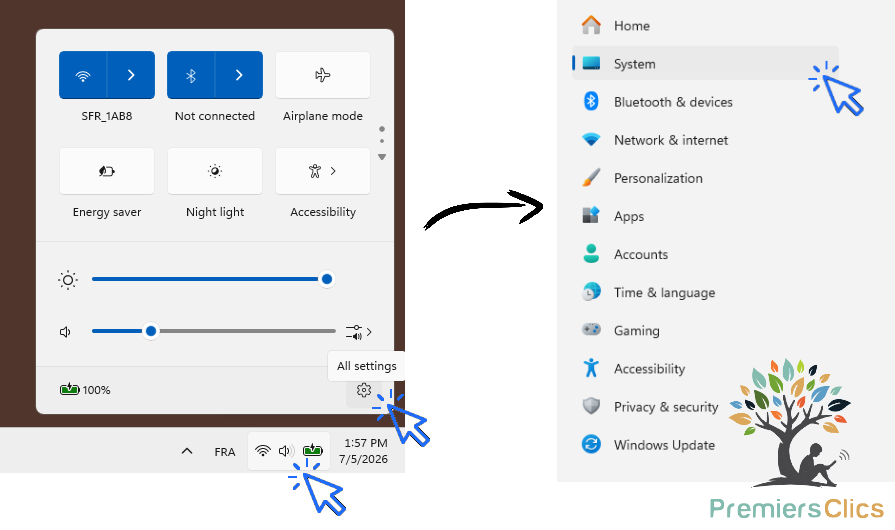
Let's go through the process step by step with screenshots. Start by opening Windows Settings. Click one of the system icons in the bottom-right corner of the taskbar (Wi-Fi, sound, or battery), then click the Settings icon (the gear icon). Next, click System :
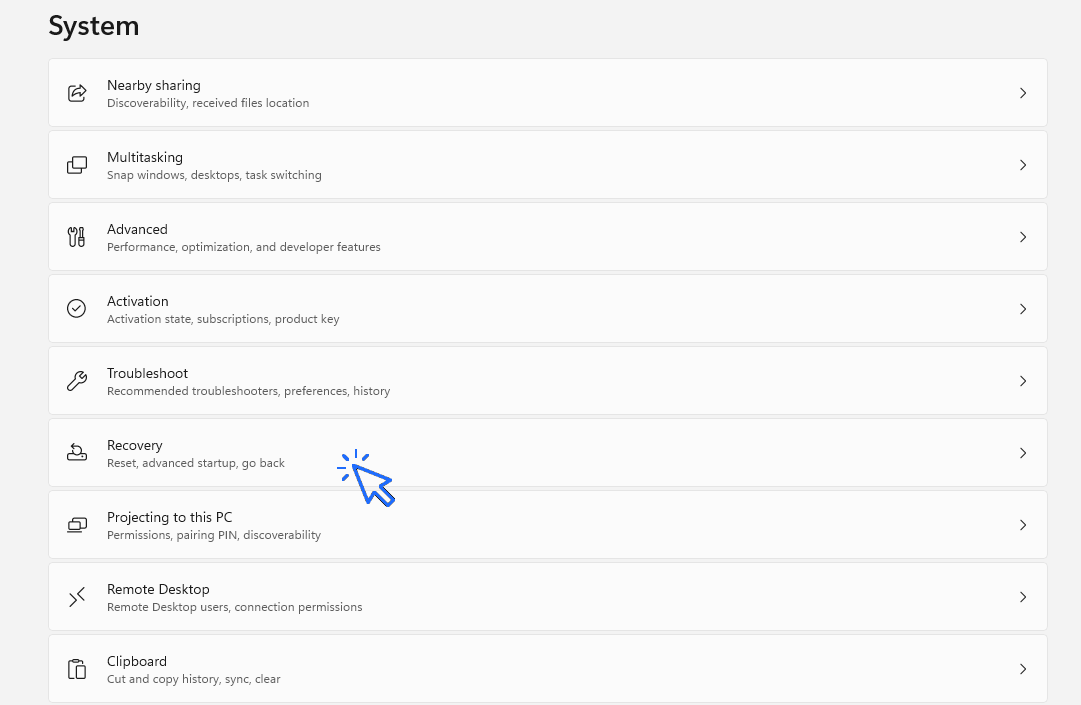
Now click Recovery :
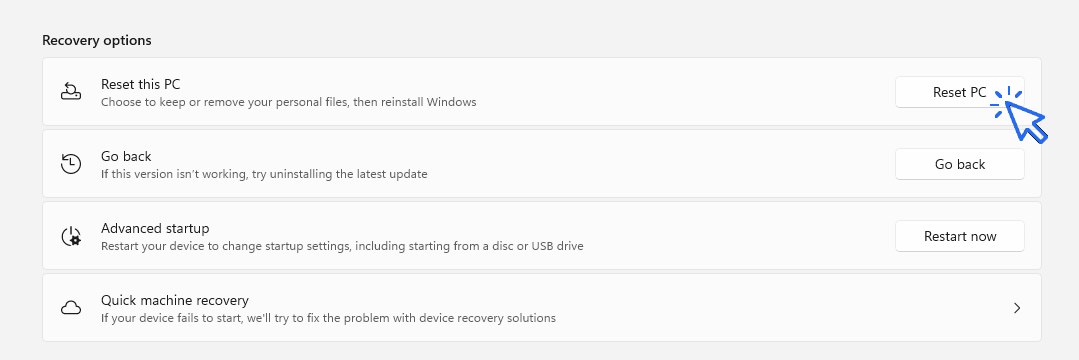
Next, click Reset PC :
Finally, choose Keep my files :
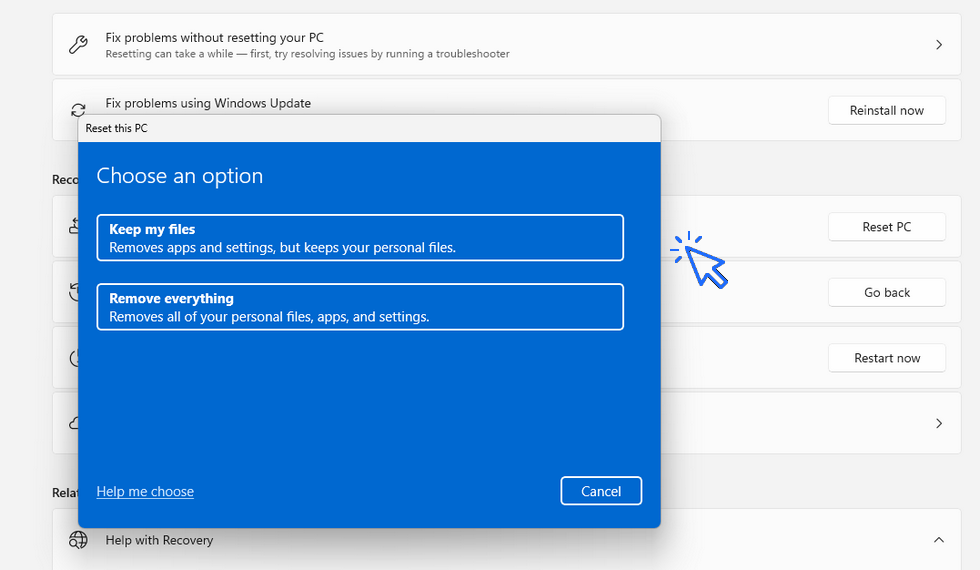
Wait a few moments while Windows prepares your PC for the reset. Confirm the operation one last time in the next window, and that's it! On a modern PC with an SSD, the reset process is usually quite fast and often takes around 15 minutes.
Good to know (about software and apps)
Even if you choose Keep my files, all installed programs and applications will be removed. Unfortunately, it's not possible to keep your installed software when resetting Windows.
3. Reset Windows and Remove Everything
If you want to start from scratch, sell your computer, or fix a serious Windows problem, you can choose to remove all your files, apps, and settings. This option reinstalls Windows and restores your PC to a like-new condition. Before you begin, I strongly recommend backing up your important files, as they will be permanently deleted.
To perform a full Windows reset, open Windows Settings, then go to System > Recovery. Click Reset this PC, select Remove everything, and choose either a Local reinstall or a Cloud download. Then simply follow the on-screen instructions. Once the process is complete, your computer will be ready to be set up again just like a brand-new PC.
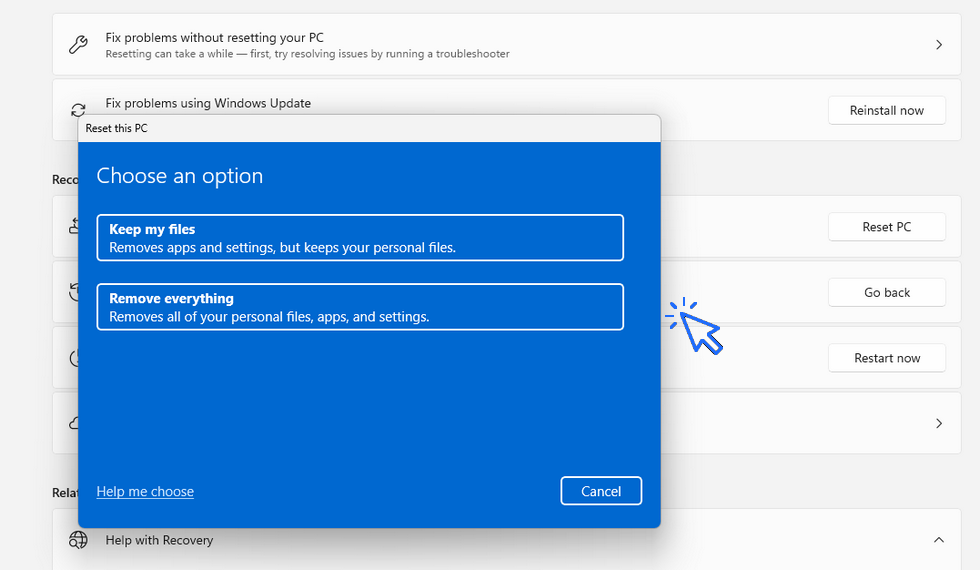
Let's go through the process step by step with screenshots. Open Windows Settings, then go to System > Recovery > Reset this PC. Finally, select Remove everything :
4. What If Windows Won't Start?
If your computer won't boot properly or is stuck on a black screen, you can still reset your Windows PC. Windows includes a Recovery Environment (Windows RE) that gives you access to troubleshooting tools, even if the operating system can no longer start normally.
To open the Windows Recovery Environment, turn on your PC and force it to shut down as soon as the Windows logo appears. Repeat this process three times in a row. On the next startup, Windows will automatically display the Recovery Options screen. Click Troubleshoot, then Reset this PC, and choose whether you want to Keep my files or Remove everything.
If this method doesn't work, or if the Recovery Environment is unavailable, you'll need to create a bootable Windows installation USB drive to repair or completely reinstall Windows.
5. Windows Reset FAQ
Will resetting Windows delete my files?
No, if you choose Keep my files. However, all installed programs and applications will be removed during the reset process.
How long does a Windows reset take?
The time required depends on the speed of your computer. In most cases, a Windows reset takes between 15 minutes and 1 hour.
If your PC isn't very old, it most likely has an SSD (Solid State Drive), which makes the process much faster than on computers still equipped with a traditional HDD (Hard Disk Drive). In my experience, 10 to 15 minutes is common on a modern PC with an SSD, while older computers with an HDD can take much longer.
Will I lose Windows?
No. Windows is automatically reinstalled during the reset process. The procedure replaces all Windows system files with fresh copies, so you don't lose your operating system.
Do I need an Internet connection?
Not necessarily. If you choose a Local reinstall, an Internet connection isn't required. However, if you select Cloud download, your PC will need to be connected to the Internet to download the Windows installation files.
Does resetting Windows remove viruses?
In most cases, yes. For the best chance of completely removing viruses, malware, and other unwanted software, I recommend choosing Remove everything.
Would you like to check whether your computer is currently protected by an antivirus program?
Can I keep Windows but delete all my personal data?
Yes, you can erase all your personal files by resetting your PC. However, this will also remove every program and application you've installed.
I usually recommend creating a new Windows user account instead. Once you've copied everything you need, simply delete the old account. This way, you'll keep all your installed programs and won't have to reinstall devices such as your printer (link : how to connect your wifi printer).
Conclusion
Resetting a Windows PC is one of the best ways to fix a slow computer, resolve Windows errors, or prepare your PC for a new owner. Thanks to the built-in tools in Windows 10 and Windows 11, the process is straightforward enough for beginners. In just a few clicks, you can restore your computer to its factory settings and get it running like new again. If Windows still starts normally, this procedure is also an easy way to reinstall Windows without using a bootable USB drive.
Before getting started, I always recommend backing up your important files to avoid any risk of data loss. In my experience, a Windows reset is successful in about 90% of cases. However, there are situations where it may not work—for example, if your computer doesn't have a recovery partition. In that case, if your goal is simply to remove all your personal files, you can create a new Windows user account and delete the old one. If your goal is to reinstall Windows, you'll need to create a bootable Windows USB drive and perform a clean installation instead.
Thibaut MATHIEU

Smartphone Tutorials & Windows Basics
Welcome to Premiers Clics, a free website designed to help beginners learn computer basics and use smartphones easily with our smartphone tutorials. Step-by-step guides, simple tutorials, and practical lessons for everyday use.

Thibaut MATHIEU
Editeur de Premiers Clics
Editor and writer of Premiers Clics, and author of the book “Getting Started with Computers” (only avalaible in french), I share all my computer knowledge to help you learn, using the Premiers Clics computer courses.
Also the manager of a computer support and repair company, I fully understand your needs in computer training and assistance. Every day, I answer my clients’ questions about their computers, phones, or tablets.
This experience has given me extensive knowledge in consumer digital technology, allowing me to separate fact from fiction in device protection, identify the most common user mistakes, and provide numerous tips to make the best use of PCs, smartphones, and tablets.

Create an email account (Gmail)
How to create a Gmail account to send and receive emails.
Decompress ZiP File
Learn how to compress and compress ZIP Files.
Mobile & Tablet Tutorials
We also offer lessons and practical guides for smartphones and tablets. You’ll learn how to:
Set up your device
- Send a photo with text message
- Adjust the volume of my phone
- Open settings
- Free up storage space
Install and use useful apps
- How to connect a Bluetooth speaker ?
Transfer photos
- Transfer contacts to new phone
- How to see my Google photos ?
- How to get wifi password
These lessons are ideal for users of Android smartphones and tablets.
Smartphone Problems: All Simple Step-by-Step Solutions
🔹 Computer Basics
🔹 Windows Course
- The Desktop
- The Sart Menu
- Empty Recycle Bin
- Recover deleted files
- Create and organize folders
- Create desktop shortcuts
- Pin a programm on the taskbar
- Compress a ZIP file
- Decompress a ZIP file
Organize files and folders
Customize your desktop
- Make a screenshot
- Make file and folder icons bigger
Understand the start menu and taskbar
- Open a downloaded file
- Change Windows Wallpaper
- Take a screenshot
🔹 Internet and Email
Open and use a web browser
- Creating a Gmail email
- How to send emails and attachments
- Browsing history in Chrome, Edge or Firefox
- Browsing download history in Chrome, Edge or Firefox
- Delete history in Chrome, Edge or Firefox
- Delete cookies and browsing data
- Set Google Chrome Homepage
Create and manage an email account
- How access Netflix from Phone, PC or Tablet
- What is a VPN ?
🔹 Computer Protection
Keep your computer safe from malware
- Protect my computer with a password
Install antivirus tools
Learn how to avoid scams online
🔹 Troubleshooting
🔹 Practical Life
Smartphone Problems: All Simple Step-by-Step Solutions



Other Tutorials

Windows Desktop Basics
Learn the Windows desktop basics, and personalize your screen.

How to use a Computer
Explore all our free computer courses for beginners and learn how to use a computer.

Adjust mobile's volume
Send a photo with text message
Speed up my phone
How to fix a slow phone ?

Access Netflix

Find wifi password with a phone
If you need to display the Wi-Fi password, you can do it with your smartphone.

Transfer contacts
Common Smartphone Problems

No internet on my phone

I can't make calls
Check this tips if you can't make calls anymore.

I can't receiving text messages
A troubleshooting tutorial if you ever do not receive or no longer receive messages (SMS).
My phone Freezing

My phone is not charging
What should you do if your phone no longer charges?
My battery is draining quickly
How to improve your phone battery life if your battery is draining quiclky.
Windows Basics
Change desktop background
How to change the Windows desktop background. Free online Windows Course.
Protect my computer using a password
How protect my computer with a password or a PIN code.

View download history
How to view the browser download history in Google.

0 commentaire