Smartphones & Tablets / Common issues
No Internet on My Phone – What Should I Do?
Difficulty : Easy

No internet on your phone? This article explains how to get it back easily.

Internet Connection Problems on Smartphones
You are using your phone and suddenly, nothing works anymore: your apps no longer update, your messages do not send, and you cannot browse the internet. This type of issue is very common, whether you are using an Android smartphone or an iPhone, and it can have several causes: a network problem, incorrect settings, or even a temporary bug.
This page guides you step by step to understand why your phone no longer has internet access and shows you simple solutions to restore the connection. I will explain how to check your network, restart your device, reset the settings if necessary, and when to contact your mobile carrier. Even if you are a beginner, you will be able to follow these steps easily and quickly regain access to the internet.
1. Identify the Problem
Losing internet access on your phone can be frustrating, especially when you need to check messages, emails, or apps. The first step is to observe your situation: does the problem affect only mobile data, Wi-Fi, or both?
Check that your phone is not in airplane mode, that mobile data is enabled, and that you are connected to a working Wi-Fi network. Very often, the solution starts with a simple check of the basic settings.
When you are outside, you usually rely on 4G or 5G. Make sure mobile data is enabled in your phone settings (icon with two arrows, accessible via the quick settings menu by swiping down from the top of the screen).
At home, your phone can access the internet via both Wi-Fi and mobile data. Your phone will automatically switch to Wi-Fi because it is unlimited, unlike your mobile data plan.
Indoors, tap the Wi-Fi button in the quick settings to activate Wi-Fi. This prevents unnecessary use of your mobile data. If your phone does not automatically reconnect, press and hold the Wi-Fi icon, select your network, and enter the Wi-Fi password.
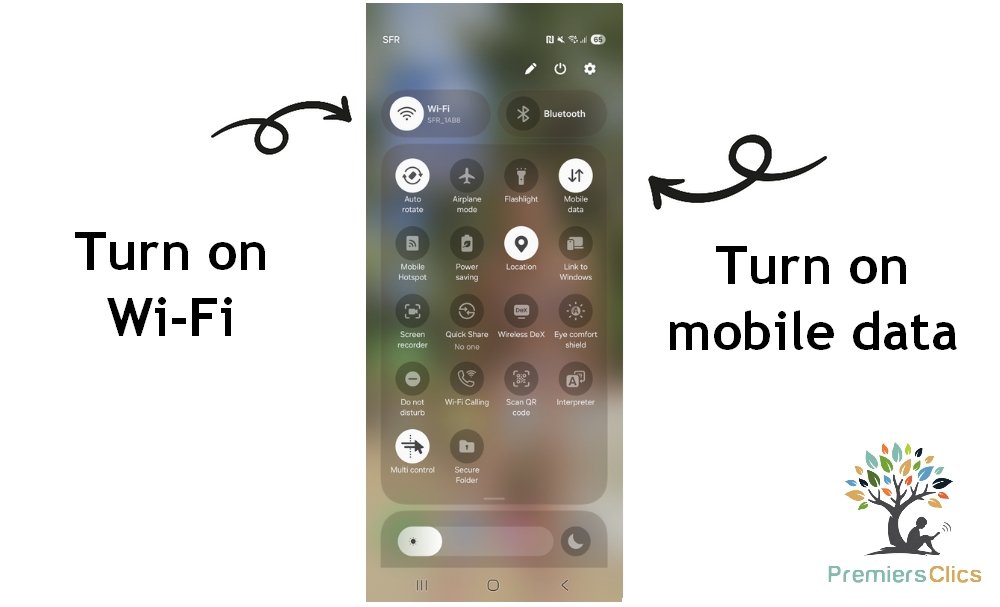
To access the quick settings icons, swipe your finger from the top to the bottom of the screen. The quick settings panel will then open. Next, press and hold an icon to adjust the selected setting: Wi-Fi, Bluetooth, airplane mode, mobile data, power-saving mode, silent mode…
2. Restart and Check the Network
Sometimes, the problem is temporary and caused by a phone or network glitch. Turning your phone off and on again after a few seconds can be enough to restore the connection. Then check network coverage in your area. If you are in a basement, remote location, or inside a building with thick walls, the signal may be weak. For mobile data, make sure your plan is active and that you have not exceeded your data limit.
You should see one small upward arrow and one downward arrow next to the signal icon at the top of your screen. This indicates that mobile internet is active. Because smartphones and tablets are touch-based, accidental misclicks are very common!
3. Reset Network Settings and SIM Card
If the problem continues, you may need to reset the network settings.
On Android, go to Settings → System → Reset options → Reset network settings.
On iPhone, go to Settings → General → Transfer or Reset iPhone → Reset → Reset Network Settings.
This deletes saved Wi-Fi networks and mobile settings but often fixes connection problems. Also check your SIM card: a badly inserted or damaged SIM can prevent internet access.

4. Advanced Solutions and Contacting Your Carrier
If your phone still has no internet, the issue may come from your mobile carrier or a local outage. Contacting customer service by phone allows them to check the status of your line and plan.
While waiting, you can use public Wi-Fi or share internet from another phone using hotspot tethering. These temporary solutions allow you to stay connected without waiting for repairs.
5. Full Memory or Faulty Storage
If your phone’s storage is almost full or if there is a problem with the internal memory, it can cause serious malfunctions, including internet connection issues. When storage space is insufficient, the system may no longer be able to manage temporary files, updates, or background processes correctly.
Start by checking your available storage space in your phone’s settings. If it is nearly full, delete unnecessary files such as old photos, videos, unused applications, and downloaded documents. You can also move photos and videos to cloud storage or transfer them to a computer to free up space.
Sometimes, a faulty or aging storage component can also cause slowdowns, freezes, or connection problems. If your phone becomes very slow, restarts unexpectedly, or shows frequent errors, the internal memory may be failing. In this case, backing up your data as soon as possible is strongly recommended.
After freeing up space and restarting your phone, check if the internet connection has improved. In many cases, cleaning up storage is enough to restore normal performance and fix network-related issues.
Conclusion
Losing internet access on your phone is never pleasant, but most problems can be fixed quickly with simple checks and a few easy steps. In reality, and I see this almost daily when helping customers, the cause is often incorrect settings due to accidental actions or unfamiliarity with icons and phone functions. This is largely due to the absence of a real user manual with modern devices.
Always keep mobile data and Wi-Fi enabled. There is no point in turning Wi-Fi off at home, especially if your internet box is always on, as it provides your Wi-Fi network.
Also, your phone automatically switches from mobile data to your home Wi-Fi whenever possible. Wi-Fi is unlimited, unlike your mobile data plan.
For beginners, it is important to follow the steps in order: check the network, restart the phone, reset settings, and check the SIM card. With these solutions, the connection usually returns within minutes, and you can resume your online activities stress-free 🙂
Related Articles
Thibaut Mathieu
End of the troubleshooting guide
Now you know how to restore internet access on your phone, both via Wi-Fi and mobile data.
Other Tutorials

My phone is not charging
What should you do if your phone no longer charges?

I can’t make calls
Check this tips if you can’t make calls anymore.
Smartphone Tips & Tricks

Send a photo with text message
Adjust mobile’s volume

Connect Bluetooth speakers to phone
How connect a BT device like a speaker to your phone.

Access Netflix
Windows Tips & Tricks

Protect my computer using a password
How protect my computer with a password or a PIN code.
Change desktop background
How to change the Windows desktop background. Free online Windows Course.
Increase display size

Decompress ZiP File
Learn how to compress and compress ZIP Files.

Create an email account (Gmail)
How to create a Gmail account to send and receive emails.
Send emails and attachments
How to send emails and attachments. Example with Gmail.

View download history
How to view the browser download history in Google.
Delete browsing personal data
How to delete cookies, history and other personal data in Chrome or Edge.

Thibaut MATHIEU
Editor of Premiers Clics
Editor and writer of Premiers Clics, and author of the book “Je me mets à l’informatique” (only avalaible in french), I share all my computer knowledge to help you learn, using the Premiers Clics computer courses.
Also the manager of a computer support and repair company, I fully understand your needs in computer training and assistance. Every day, I answer my clients’ questions about their computers, phones, or tablets.
This experience has given me extensive knowledge in consumer digital technology, allowing me to separate fact from fiction in device protection, identify the most common user mistakes, and provide numerous tips to make the best use of PCs, smartphones, and tablets.

0 commentaires