
Home / Windows & Computer Basics
Taking a Screenshot on Your PC (Using Windows “Snipping Tool”)
Difficulty: Easy
Required OS: Windows (all versions)
Required Software: PhotoFiltre

Overview of Screenshots
Taking a screenshot can be useful for illustrating a presentation, slideshow, text document, or sending it to someone. Windows provides a very simple tool or a convenient keyboard shortcut that automatically captures and saves your screen. If you want to edit or crop your screenshot, the easiest way is to use PhotoFiltre after taking it.
Table of contents
- Taking a screenshot
- Saving a screenshot
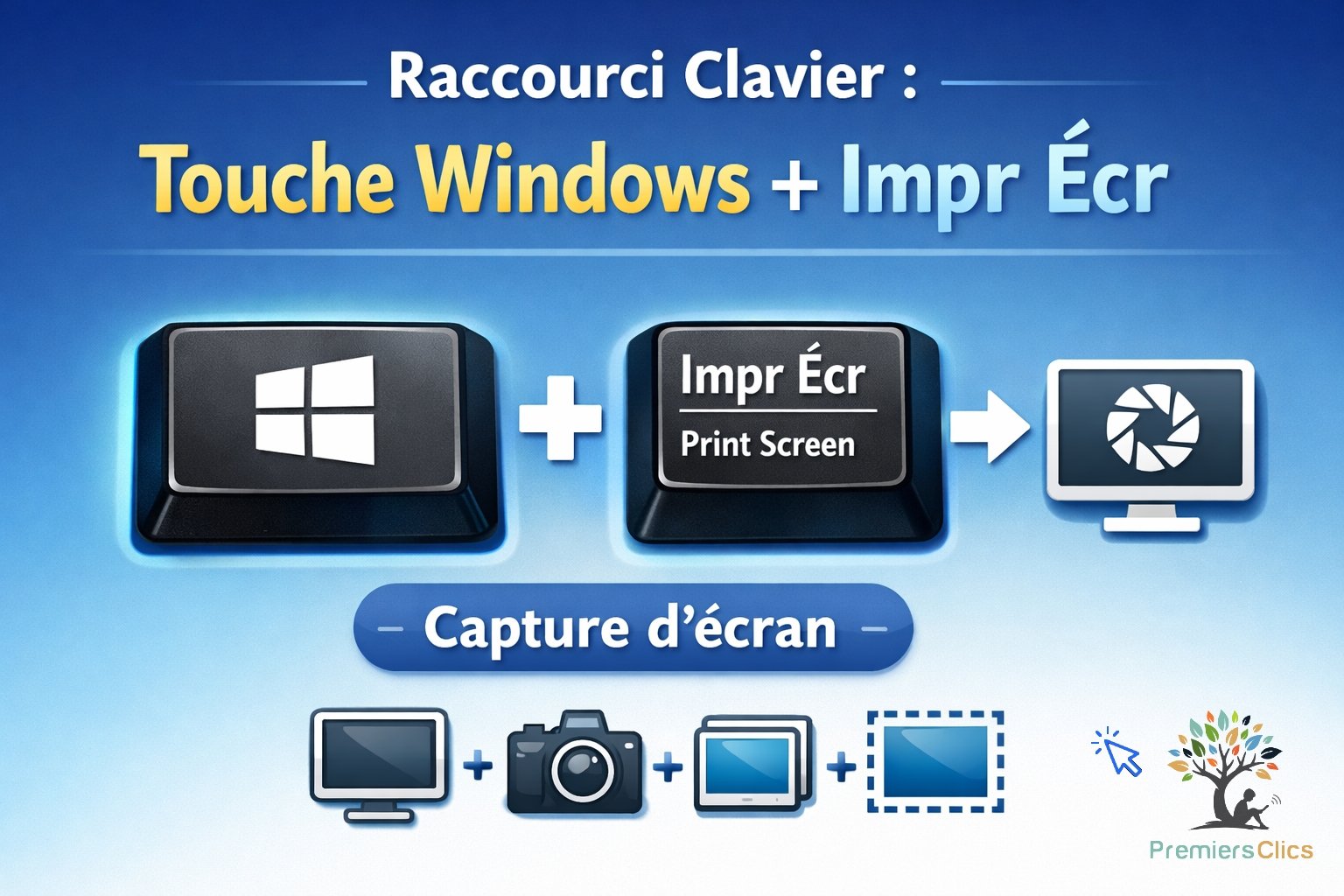
On Windows, taking a screenshot is very easy. Use the keyboard combination Windows + Print Screen. The screenshot will be automatically saved in the Pictures/Screenshots folder. To capture a specific window or area of your screen, you will need to use the Windows Snipping Tool or a photo editing program (or Paint).
Another way to take a screenshot on Windows is to use Windows + Shift + S. Then select the type of screenshot you want: rectangular area, freeform shape, open window, or full screen. Click the corresponding icon, and the screenshot will be automatically saved in the Pictures/Screenshots folder.
Keyboard shortcut to take a screenshot on your Windows PC – Online computer lessons for beginners
Using Windows Snipping Tool to Take a Screenshot
If you want more options for capturing your screen, you can also use the Windows Snipping Tool, which lets you capture a freeform area, a rectangular area, a window, or the entire screen. To open it, type “snipping tool” in the search bar on the taskbar.
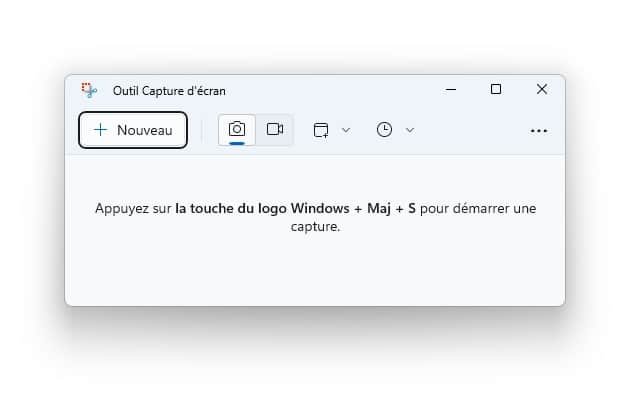
Click New to create a screenshot using the Snipping Tool. Choose the type of screenshot you want to capture. The file will automatically be saved in Pictures/Screenshots.
Taking a Screenshot with Photo Editing Software
To take a screenshot and crop it afterwards, press the Print Screen key on your keyboard. The captured image is now in Windows’ clipboard but cannot be used directly. You need to open it and save it as an image, as explained in the next section. Note: Screenshots do not capture the mouse cursor (special software is required for that).
In the example below, we will create a screenshot of the desktop. First, display your desktop and press Print Screen:

2. Save the Screenshot
Now open PhotoFiltre (click the green button above to download it freely), then click Edit → Paste as Image:

The screenshot will appear in the software. Immediately set the zoom to 100% using the mouse wheel or the toolbar settings:

You will get:

Next, resize the image and save it. The screenshot currently has the same dimensions as your screen resolution, which may be too large to send by email. Click Image → Image Size, enter 1280 in the width field, then validate:

Now save your screenshot. Click File → Save As…, select your preferred location, and choose the JPEG file format:

Finish saving the screenshot by setting the compression level to 100 and click Ok.
Video tutorial
Watch a video showing how to take a screenshot on Windows. Use the Windows + Print Screen shortcut. Hold down the Windows key while pressing Print Screen!
End of the lesson
Now you know taking a screenshot in Windows

No internet on my phone

View WiFi password on an Android Phone
Read this guide to find your WiFi password on your smartphone.
🔹 Computer Basics
🔹 Windows Basics
How to use the mouse and keyboard
- Empty Recycle Bin
- Recover deleted files
- Create and organize folders
- Create desktop shortcuts
- Pin a programm on the taskbar
- Compress a ZIP file
- Decompress a ZIP file
Organize files and folders
Customize your desktop
- Make a screenshot
- Make file and folder icons bigger
Understand the start menu and taskbar
- Open a downloaded file
- Change Windows Wallpaper
- Take a screenshot
🔹 Internet and Email
Open and use a web browser
- Add a website to the favorites bar
- Creating a Gmail email
- How to send emails and attachments
- Browsing history in Chrome, Edge or Firefox
- Browsing download history in Chrome, Edge or Firefox
- Delete history in Chrome, Edge or Firefox
- Delete cookies and browsing data
- Set Google Chrome Homepage
Create and manage an email account
- How access Netflix from Phone, PC or Tablet
- What is a VPN ?
- How to find the wifi password with a phone
🔹 Computer Protection
Keep your computer safe from malware
- Protect my computer with a password
Install antivirus tools
Learn how to avoid scams online
🔹 Troubleshooting & Practical Life
📱 Mobile & Tablet Tutorials
We also offer lessons and practical guides for smartphones and tablets. You’ll learn how to:
Set up your device
- Send a photo with text message
- Adjust the volume of my phone
- Open settings
- Free up storage space
Install and use useful apps
- How to connect a Bluetooth speaker ?
Transfer photos
- Transfer contacts to new phone
- How to see my Google photos ?
These lessons are ideal for users of Android smartphones and tablets.
Smartphone Problems: All Simple Step-by-Step Solutions

Thibaut MATHIEU
Editor of Premiers Clics
Editor and writer of Premiers Clics, and author of the book “Je me mets à l'informatique” (only avalaible in french), I share all my computer knowledge to help you learn, using the Premiers Clics computer courses.
Also the manager of a computer support and repair company, I fully understand your needs in computer training and assistance. Every day, I answer my clients’ questions about their computers, phones, or tablets.
This experience has given me extensive knowledge in consumer digital technology, allowing me to separate fact from fiction in device protection, identify the most common user mistakes, and provide numerous tips to make the best use of PCs, smartphones, and tablets.

www.premiers-clics.fr
0 commentaire