
Home / Windows & Computer Basics
Create a Desktop shortcut

General informations about shortcuts
Creating shortcuts on the Windows desktop allows quick access to your programs, files, and folders. You can create shortcuts for items you use frequently. Some shortcuts already exist by default in Windows, such as the Recycle Bin or File Explorer.
Most newly installed software automatically creates a shortcut. There is no need to keep all of them on your desktop, as it can quickly become cluttered with unused shortcuts. If you want to learn more, check out all our free IT courses for beginners online.
Table of contents
- Create a shorcut
- Rename a shortcut
- Move a shortcut
1. Create a shortcut
There are two types of shortcuts:
Program shortcuts (apps and software)
File and folder shortcuts
To create a shortcut for a program in Windows 11, search for the program using the Start menu. Once you find the program, right-click on it and select Open file location. Then copy the program shortcut that appears in the File Explorer window. Finally, paste the shortcut onto the desktop.
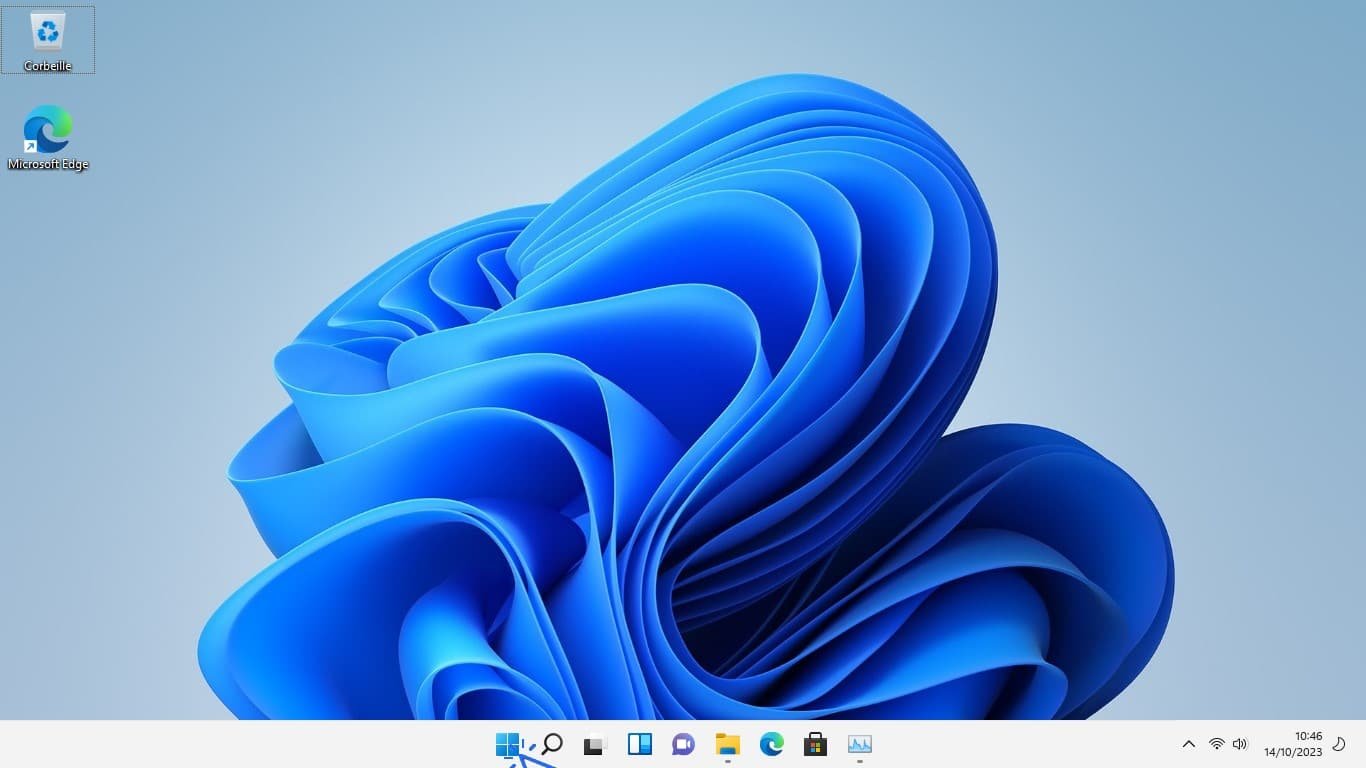
Let’s look at this step by step. Feel free to enlarge the screenshots. Open the Start menu by clicking the Windows icon in the taskbar, at the bottom left of the screen.
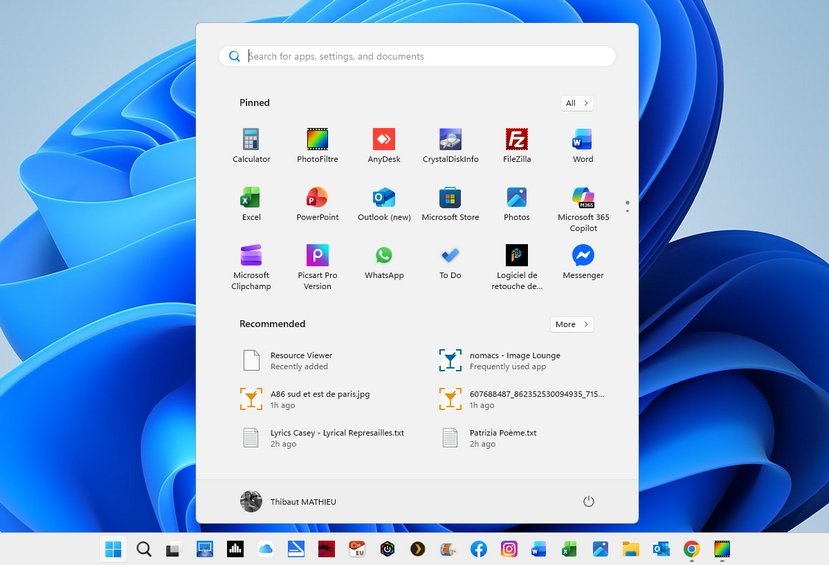
Search for the program or app you want to add as a desktop shortcut. You can click All apps or use the search bar at the top of the Start menu.
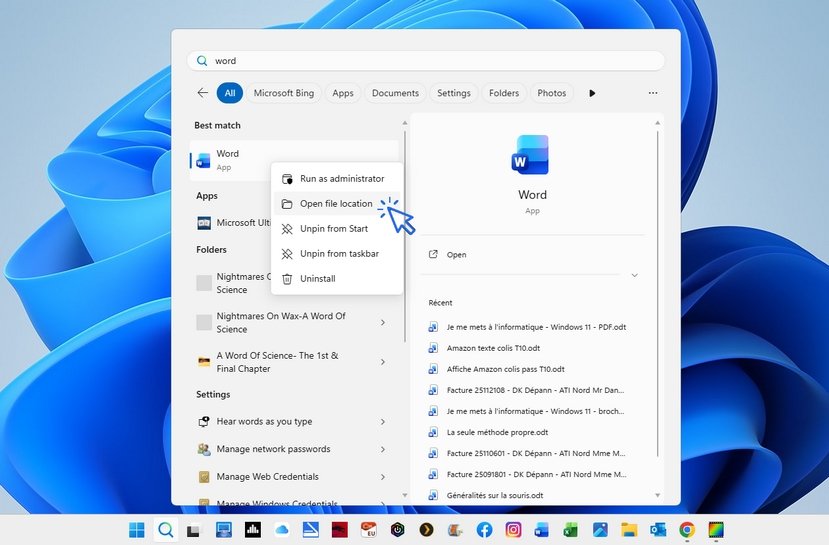
On the app or program you want to add to the desktop, right-click on it and select “Open file location”.
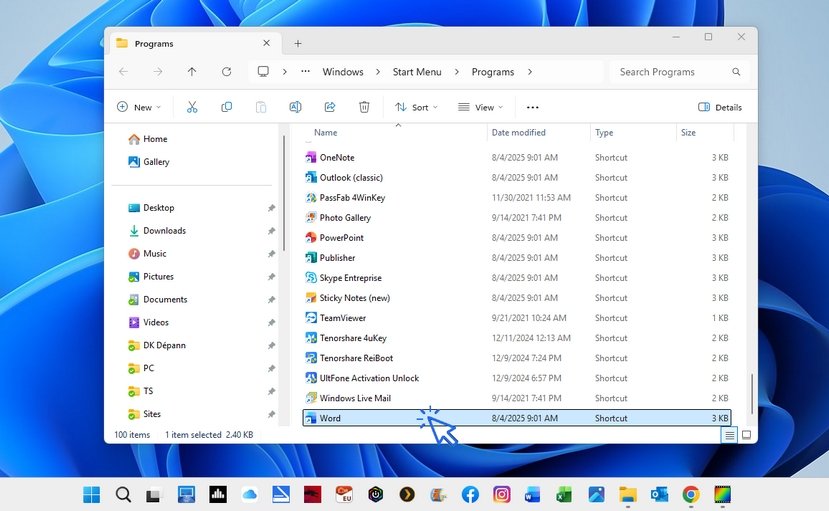
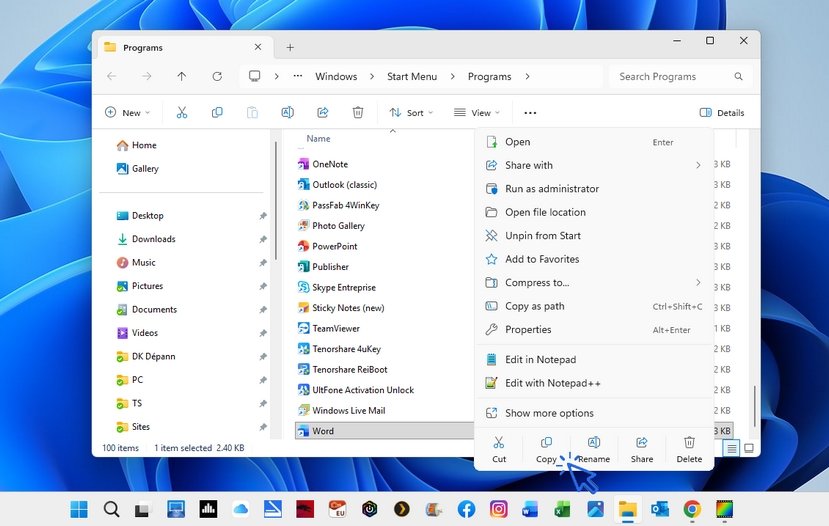
Next, right-click again on the program that appears in the Windows File Explorer window :
Then, click Copy. In the example below, I have selected several programs at once. I want to add shortcuts to Outlook, Word, Excel, and PowerPoint on my desktop. If you are completely new to computers, learn how to copy and paste in Windows, or check out our computer courses. Here, I select multiple items and copy them.
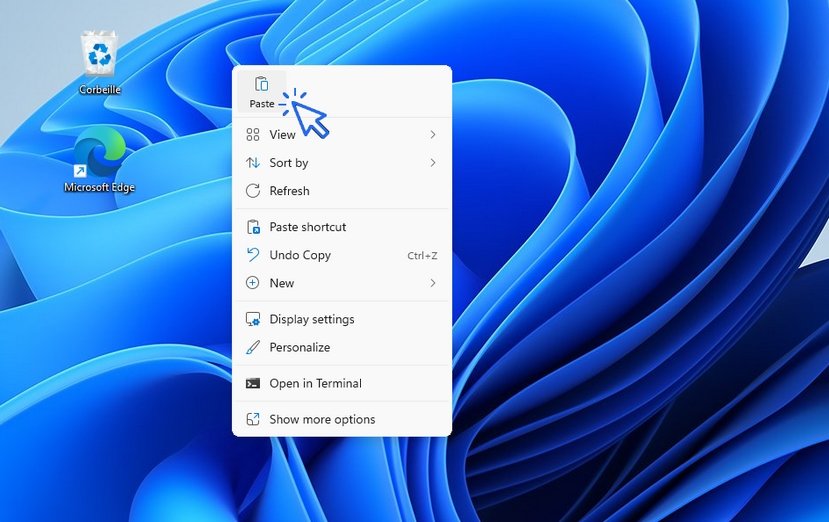
Now, on the desktop, simply right-click and select Paste :
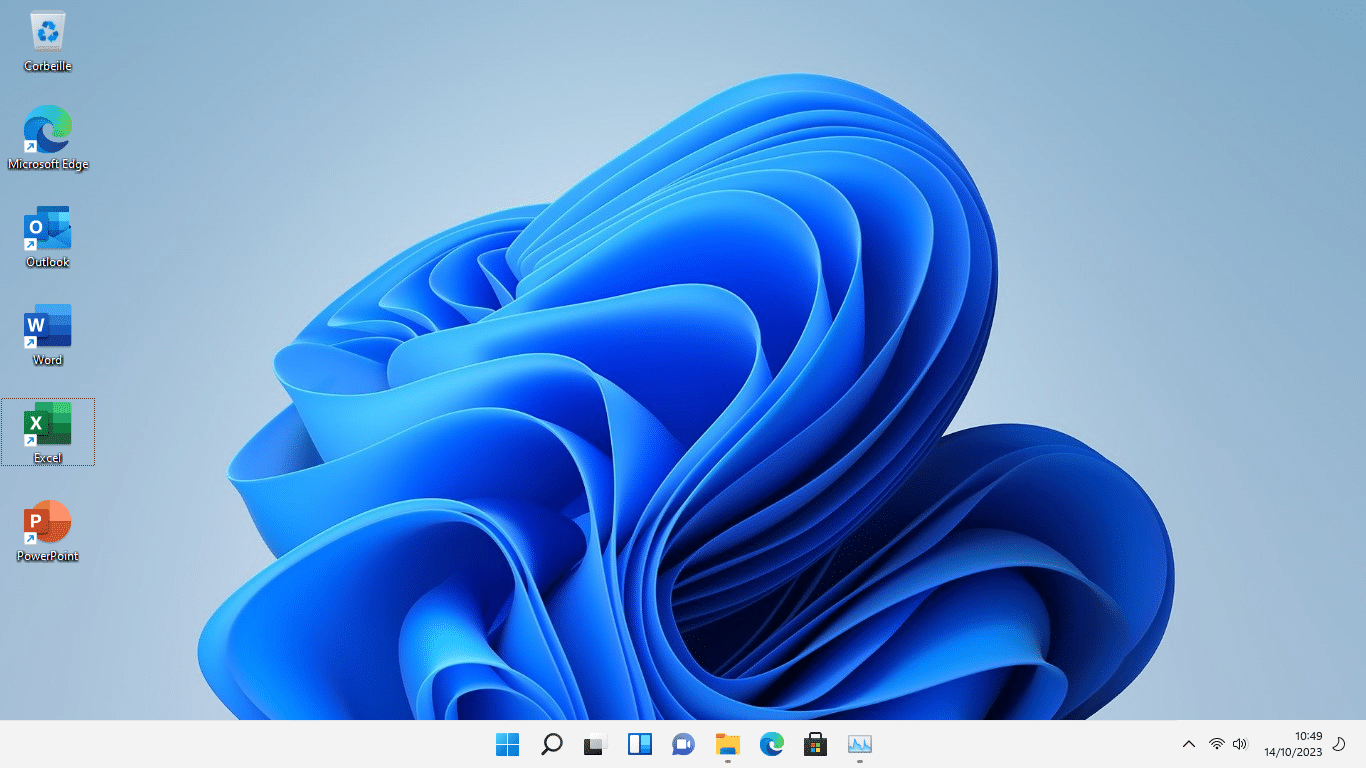
Your shortcuts to your programs, software, or apps are now in place!
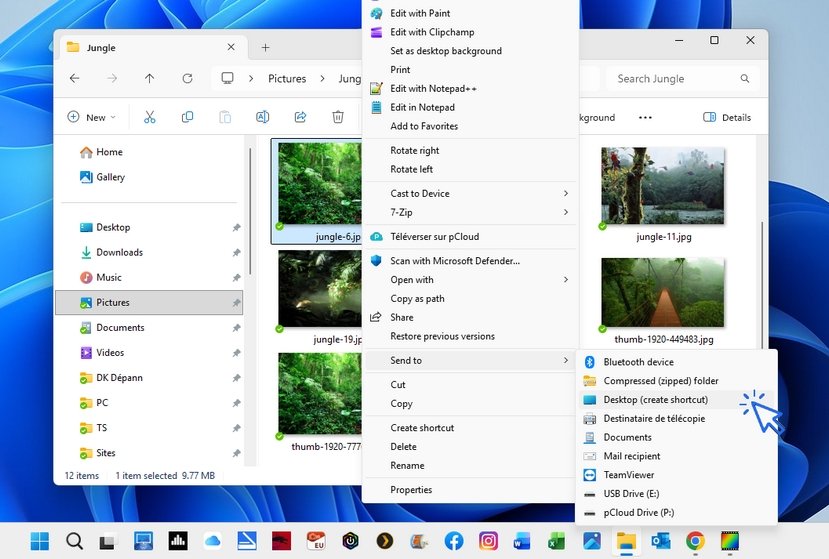
- To create a shortcut for a folder or file, you will need to create it manually, as explained in this lesson. To create a desktop shortcut in Windows, open File Explorer and right-click on the file or folder you want to create a shortcut for to open the context menu. Then select Send to → Desktop. Finally, you can rename and move the shortcut.
Path: Show more options → Right-click on a file or folder → Send to → Desktop (create shortcut)
Let’s look at this step by step with images.
In the example below, we will create a shortcut for a folder located in the Pictures folder, accessible via File Explorer. You can create a desktop shortcut for any file or folder! Right-click on the file or folder of your choice, then select Show more options.
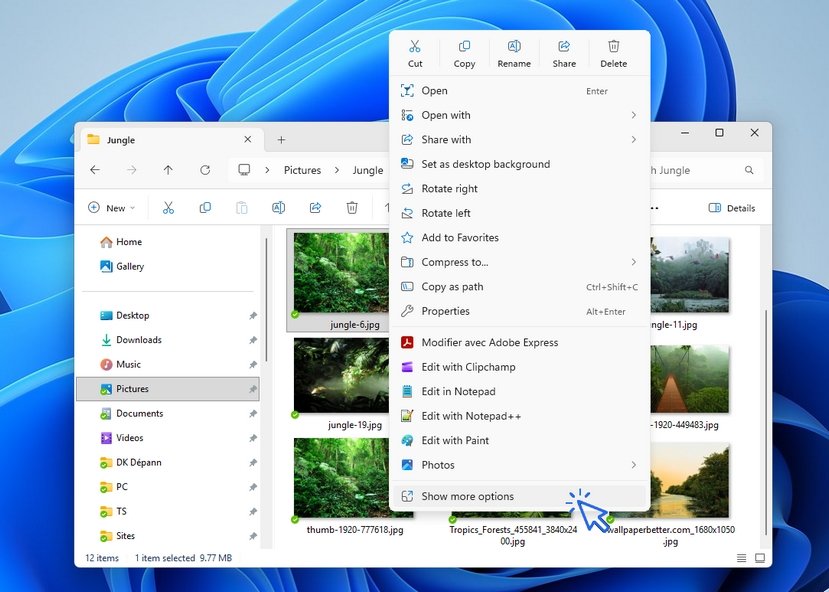
Then click Send to → Desktop (create shortcut).
Shortcuts to my most-used websites? Yes, but not on the desktop!
You can create shortcuts to your favorite websites on the desktop, but we recommend using your browser’s Bookmarks Bar instead, to avoid cluttering your desktop. The bookmarks bar in Chrome, Edge, or Firefox is designed for this purpose, allowing you to create shortcuts for hundreds of web pages, which you can organize as you like: recipes, personal, work, children, etc.
If you still want to create this type of shortcut, right-click on the desktop, select New → Shortcut, then enter the URL* of the page or website. Click Next to give the shortcut a name, and then confirm.
*Example URL: https://www.google.com
2. Rename a shortcut
You now need to give a custom name to the newly created shortcut, simply to give it a name that makes sense to you. To do this, click on the icon’s text. Once it is highlighted, type the new name using your keyboard and press Enter. You can also rename desktop shortcuts by right-clicking on them and selecting Rename.
Let’s look at this with images. In this example, the shortcut is called “Documents – Shortcut”. Let’s remove the “– Shortcut” part, which is unnecessary. To do this, select an icon on your desktop and click on its text. The text will be highlighted. Type the new name for the folder and press Enter.

3. Move a shortcut
To move a desktop icon, click on the icon, hold the mouse button, and drag it to the desired location. Release the mouse button to place it.
To delete a desktop icon (shortcut) that you no longer use, click on it to select it and press the Delete key on your keyboard. You can also use the context menu: right-click the shortcut → Delete. Even easier, you can drag the shortcut to the Recycle Bin.
We recommend pinning your favorite programs directly to the taskbar. This way, you won’t need to access the desktop to open them! This is exactly what we will cover in the next lesson.
End of the lesson
You now know how to create shortcuts on your desktop.
Other Tutorials

Protect my computer using a password
How protect my computer with a password or a PIN code.
Increase display size

Take a Screenshot
See how taking a screenshot in Windows
Add a website to the favorites bar
How to add a website to favorites.

Access Netflix

Connect a wifi printer
How connect a printer to your wifi network and how install it in Windows.
Create a Gmail account
How create a Gmail account to send and receive emails.

Send emails and attachments
How to send emails and attachments. Example with Gmail.
View Google browsing
How to check your Google browsing in Chrome, Edge or Firefox.
How to use easily Google Photos
How to view my photos with Google Photos on a PC.

Backup your computer
How to backup your file and folder in Windows.

How to get the wifi password
How to get the wifi password in order to connect a new device (phone, tablet, PC..)

How to contact Vinted customer service
How to contact Vinted if you have a problem.
Smartphone Tips & Tricks

Adjust mobile's volume
Send a photo with text message

Free up space

Connect a wifi printer
How connect a printer to your wifi network and how install it in Windows.
Common Smartphone Problems

No internet on my phone

I can't make calls
Check this tips if you can't make calls anymore.

My phone is not charging
What should you do if your phone no longer charges?
My phone restarts by itself
Why does your phone restart by itself and how to fix it.
🔹 Computer Basics
🔹 Windows Basics
How to use the mouse and keyboard
- Empty Recycle Bin
- Recover deleted files
- Create and organize folders
- Create desktop shortcuts
- Pin a programm on the taskbar
- Compress a ZIP file
- Decompress a ZIP file
Organize files and folders
Customize your desktop
- Make a screenshot
- Make file and folder icons bigger
Understand the start menu and taskbar
- Open a downloaded file
- Change Windows Wallpaper
- Take a screenshot
🔹 Internet and Email
Open and use a web browser
- Add a website to the favorites bar
- Creating a Gmail email
- How to send emails and attachments
- Browsing history in Chrome, Edge or Firefox
- Browsing download history in Chrome, Edge or Firefox
- Delete history in Chrome, Edge or Firefox
- Delete cookies and browsing data
- Set Google Chrome Homepage
Create and manage an email account
- How access Netflix from Phone, PC or Tablet
- What is a VPN ?
- How to find the wifi password with a phone
🔹 Computer Protection
Keep your computer safe from malware
- Protect my computer with a password
Install antivirus tools
Learn how to avoid scams online
🔹 Troubleshooting & Practical Life
📱 Mobile & Tablet Tutorials
We also offer lessons and practical guides for smartphones and tablets. You’ll learn how to:
Set up your device
- Send a photo with text message
- Adjust the volume of my phone
- Open settings
- Free up storage space
Install and use useful apps
- How to connect a Bluetooth speaker ?
Transfer photos
- Transfer contacts to new phone
- How to see my Google photos ?
These lessons are ideal for users of Android smartphones and tablets.
Smartphone Problems: All Simple Step-by-Step Solutions

Thibaut MATHIEU
Editeur de Premiers Clics
Editor and writer of Premiers Clics, and author of the book “Je me mets à l'informatique” (only avalaible in french), I share all my computer knowledge to help you learn, using the Premiers Clics computer courses.
Also the manager of a computer support and repair company, I fully understand your needs in computer training and assistance. Every day, I answer my clients’ questions about their computers, phones, or tablets.
This experience has given me extensive knowledge in consumer digital technology, allowing me to separate fact from fiction in device protection, identify the most common user mistakes, and provide numerous tips to make the best use of PCs, smartphones, and tablets.

LEGAL NOTICE – TERMS OF USE – GDPR
About Premiers Clics
Premiers Clics was created as a citizen initiative to reduce digital exclusion. It offers beginner computer courses, training materials, digital and printed books, as well as IT support and troubleshooting services.
Hosting and Publisher
Website host: OVH, 2 rue Kellermann, 59100 Roubaix, France.
Author and publisher: Thibaut Mathieu.
The Premiers-clics.fr website uses a secure SSL connection to protect users.
The domain name is protected with DNSSEC technology.
Copyright – Intellectual Property – Photo Credits – Comments
All content on this website is the exclusive property of Mr. Thibaut Mathieu. All screenshots belong exclusively to Premiers Clics. Copying and reproduction are strictly prohibited.
Any full or partial reproduction of texts is forbidden. All images used in the courses are the property of the publisher and cannot be reused on any other website or communication medium. They come from screenshots taken by the webmaster and authors. Some illustrations come from free image banks, with respect for copyright.
Comments
Comments are moderated by the webmaster. Users can request deletion of their personal data at any time.
Cookies – Advertising
Premiers-clics.fr informs users that cookies (small text files) may automatically be stored on their device. These cookies may come from analytics systems or other services.
Cookies are stored for 12 months and include:
- Performance cookies (Google Analytics)
- Advertising cookies (Google Adsense, Ezoic)
These cookies collect browsing data to provide personalized advertising.
By clicking “OK” on the cookie banner, you consent to:
- Providing your IP address
- Providing personal data (username, email for comments)
- Data collection for Google Analytics, Adsense, and Facebook
- Third-party cookies for videos, sharing buttons, and social content
You can manage or refuse cookies in compliance with European laws.
GDPR – Personal Data Collection
To learn more about how Google uses collected data, please refer to its privacy policies and GDPR regulations. The contact form and voting system collect data such as email and username, stored in a secure database. These data are not used for marketing purposes (e.g., no newsletters). You can request deletion at any time. The consent system used is Google’s consent solution, configured by the Premiers Clics webmaster.
0 commentaire