Home / Smartphone Tutorials
Open Settings on Android, iPhone, Windows or Tablet (Easy Guide)

Device Settings on a Smartphone or Tablet (Android or iOS)
Settings allow you to adjust almost everything on your tablet or smartphone: ringtones, notifications, apps, storage management, WiFi and Bluetooth settings… But sometimes, after an accidental tap or swipe, the Settings icon may no longer be easily accessible. Here’s how to open your device’s settings and how to restore the Settings icon if needed.
The steps described here work for Android tablets and smartphones (Samsung, Huawei, Xiaomi, Oppo…), as well as iPhones and iPads (Apple devices running iOS). Screenshots were taken on an iPhone and an Android tablet.

Table of Contents
1. How to Open Settings on any Device
2. How to Open Settings on Android
3. How to Open Settings on iPhone
4. How to Open Settings on Windows
5. How to Open Settings on a Tablet
1. How to Open Settings on Any Device
The Settings app lets you control how your device works. From this menu, you can change Wi-Fi connections, manage apps, adjust notifications, control Bluetooth devices, or modify display and sound options.
On most smartphones, tablets and computers, the Settings app is represented by a gear icon. This icon usually appears on the home screen, in the app list, or inside the quick access panel.
If you cannot find the Settings icon, don’t worry. There are several easy ways to open it depending on the device you are using.
In most cases, you can open Settings by:
- tapping the Settings (gear) icon
- using the search function
- opening the quick settings panel
- accessing the app list or start menu
The exact method depends on your device and operating system. In the sections below, we explain how to open Settings on:
- Android phones
- iPhones
- Windows computers
- tablets
Follow the instructions for your device to quickly access your Settings menu.
2. Android – How to Open Settings
On most Android phones (Samsung, Xiaomi, Huawei, Oppo, Motorola…), the Settings app is available in the app list and in the quick settings panel.
Method 1: From the App List
1. Swipe up from the bottom of the screen.
2. The full list of apps will appear.
3. Find the Settings app (gear icon).
4. Tap the icon to open your device settings.
This method works on almost all Android phones.
Method 2: From Quick Settings (Fastest Method)
1. Swipe down from the top of the screen.
2. The quick settings panel will appear.
3. Tap the gear icon in the corner.
This is the fastest way to open settings on Android.
Method 3: Search for Settings
If you cannot find the icon:
1. Open the app list.
2. Use the search bar at the top.
3. Type Settings.
The app will immediately appear.
I’ve prepared an image to better illustrate this :
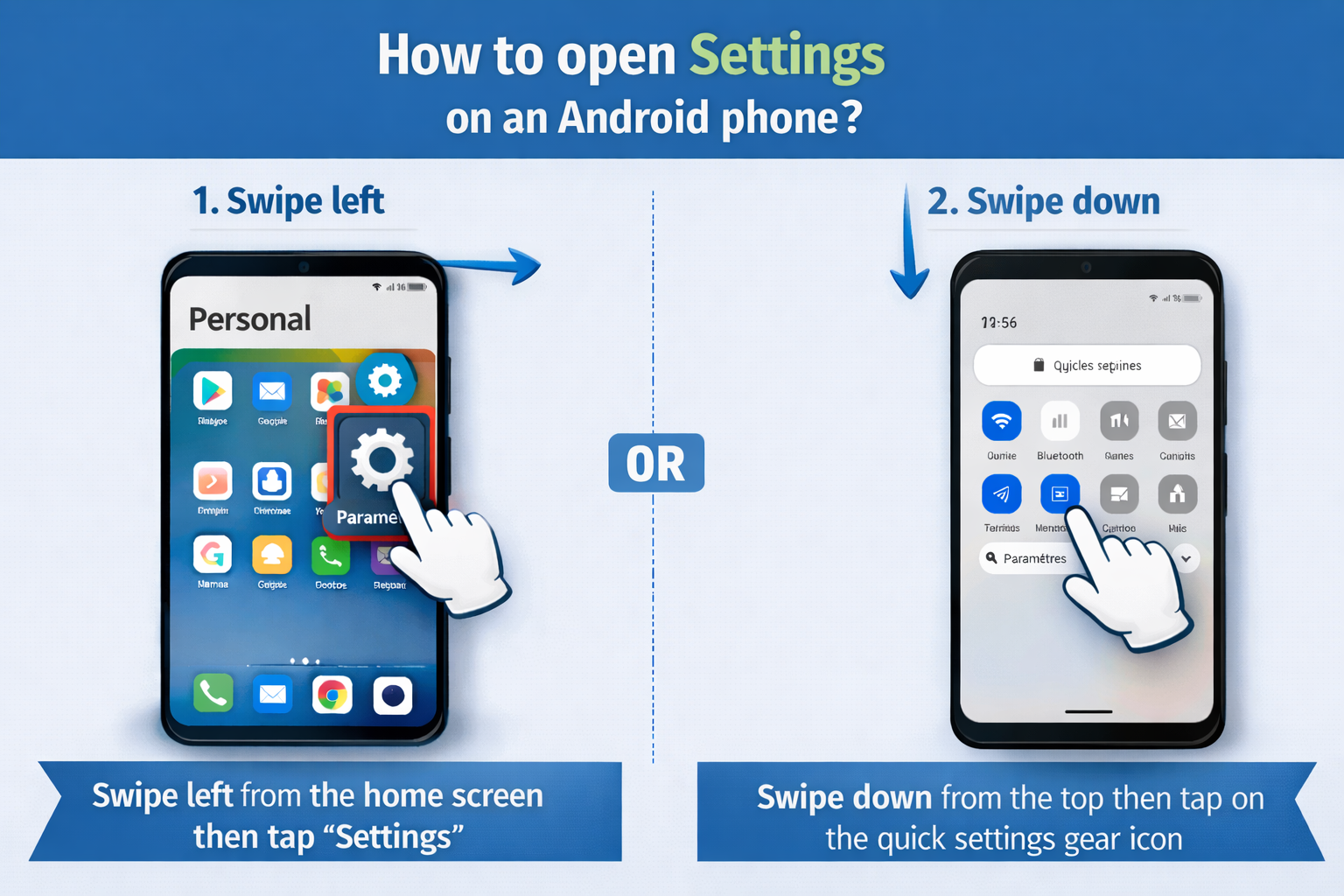
There are several ways to open the settings on a phone.
3. iPhone – How to Open Settings
On an iPhone or iPad, the Settings app is installed by default and cannot be removed.
Method 1: From the Home Screen
- Unlock your iPhone.
- Look for the Settings icon (gear icon).
- Tap it to open the settings menu.
Method 2: Using Search (Spotlight)
If you cannot find the icon:
- Swipe down from the middle of the home screen.
- The search bar will appear.
- Type Settings.
- Tap the result.
This method works on all recent versions of iOS.
Method 3: From the Control Center
- Swipe down from the top-right corner of the screen.
- The control center opens.
- Tap the settings shortcut if available.
4. Windows - How to Open Settings
On a Windows computer, settings allow you to configure:
- Wi-Fi and internet
- screen resolution
- notifications
- user accounts
- system updates
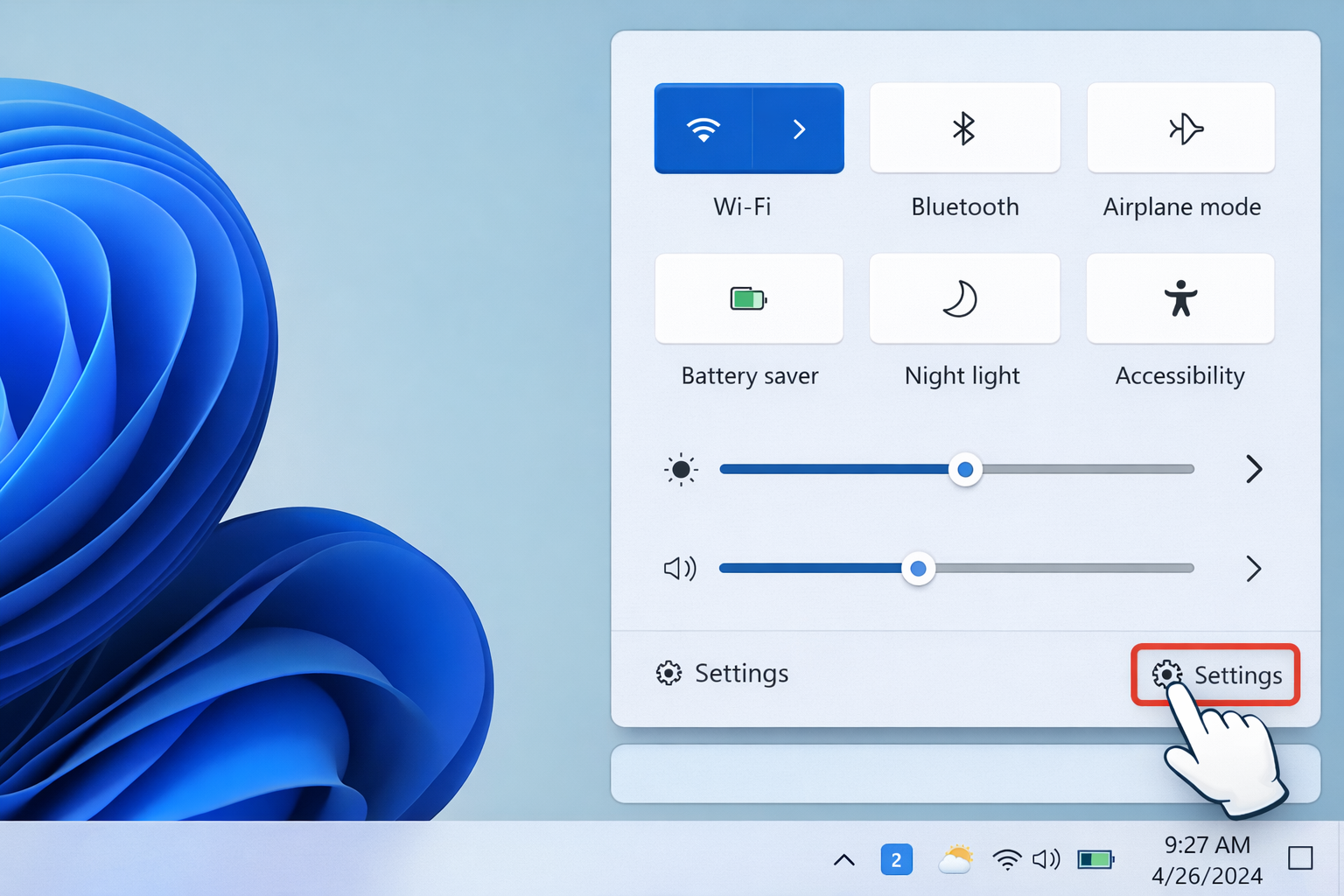
Using the Quick Settings Panel
- Click one of the system icons in the bottom-right corner of the screen (battery, sound, or network).
- The Quick Settings panel will open.
- Click the Settings icon (gear symbol) to open the Windows settings.
Method 2: Keyboard Shortcut
You can open Windows settings instantly:
Press:
Windows key + I
The Settings window will open immediately.
Method 3: Search
- Click the search bar in the taskbar.
- Type Settings.
- Click the result.
5. Tablet - How to Open Settings
Tablets work very similarly to smartphones.
Android Tablets
- Swipe down from the top of the screen.
- Tap the gear icon to open settings.
or
- Swipe up to open the app list.
- Tap the Settings app.
iPad
- Go to the home screen.
- Tap the Settings icon.
or
- Swipe down on the screen.
- Search for Settings.
If the Settings Icon Disappeared
Sometimes the Settings icon may disappear from the home screen. This can happen if the icon was moved accidentally.
To restore it:
- Open the app list.
- Find the Settings app.
- Press and hold the icon.
- Drag it to the home screen.
This will create a shortcut so the Settings icon is always easy to access.
The Fastest Way to Open Settings
On most devices, the fastest method is:
Swipe down from the top of the screen → tap the gear icon.
This works on:
- Android phones
- Android tablets
- Samsung devices
- many modern smartphones
Let’s see this in a picture !
With a smartphone or tablet, swipe down from the top of the screen. The quick access panel for main functions will appear :

Then simply tap the gear icon to open your device’s settings :
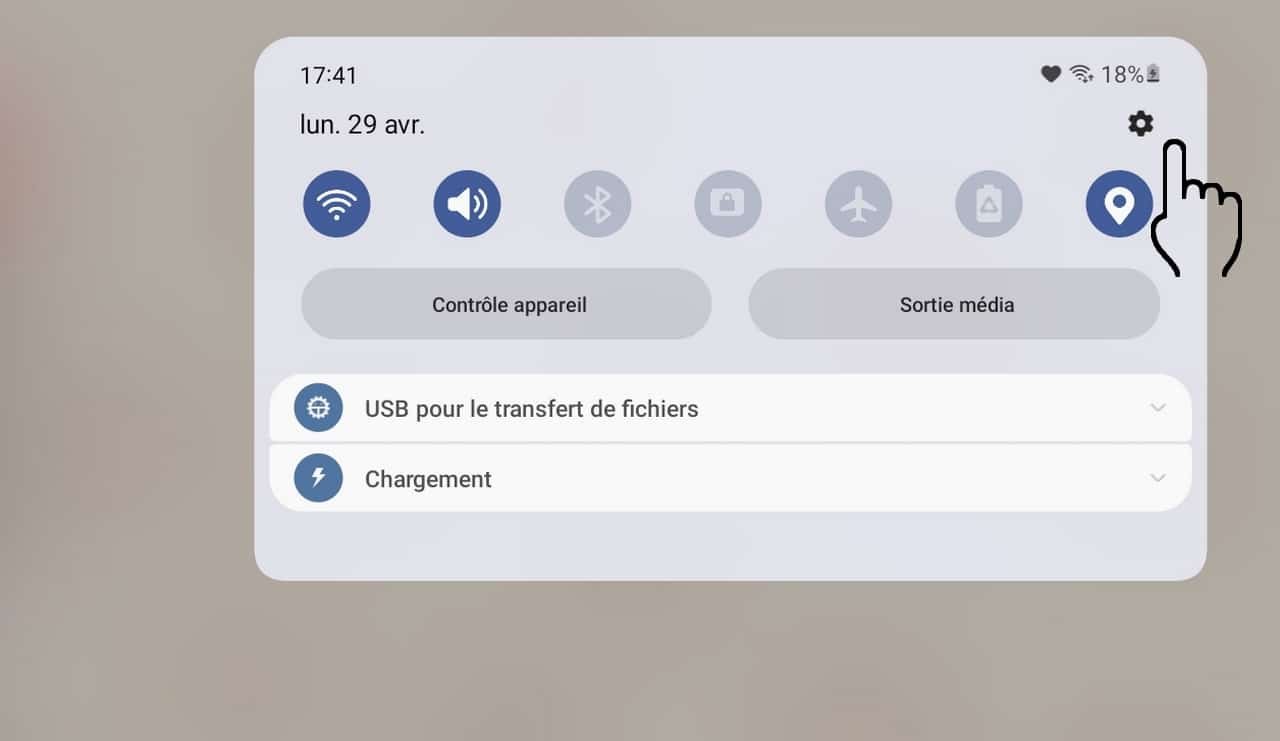
This is the fastest way to open the settings! (Android, iPhone, iPad). Exemple with a Samsung Z Flip 7 :

Thibaut MATHIEU

Thibaut MATHIEU
Editeur de Premiers Clics
Editor and writer of Premiers Clics, and author of the book “Getting Started with Computers” (only avalaible in french), I share all my computer knowledge to help you learn, using the Premiers Clics computer courses.
Also the manager of a computer support and repair company, I fully understand your needs in computer training and assistance. Every day, I answer my clients’ questions about their computers, phones, or tablets.
This experience has given me extensive knowledge in consumer digital technology, allowing me to separate fact from fiction in device protection, identify the most common user mistakes, and provide numerous tips to make the best use of PCs, smartphones, and tablets.
📱 Mobile & Tablet Tutorials
We also offer lessons and practical guides for smartphones and tablets. You’ll learn how to:
Set up your device
- Send a photo with text message
- Adjust the volume of my phone
- Open settings
- Free up storage space
Install and use useful apps
- How to connect a Bluetooth speaker ?
Transfer photos
- Transfer contacts to new phone
- How to see my Google photos ?
- How to get wifi password
These lessons are ideal for users of Android smartphones and tablets.
Smartphone Problems: All Simple Step-by-Step Solutions
🔹 Computer Basics
🔹 Windows Basics
How to use the mouse and keyboard
- Empty Recycle Bin
- Recover deleted files
- Create and organize folders
- Create desktop shortcuts
- Pin a programm on the taskbar
- Compress a ZIP file
- Decompress a ZIP file
Organize files and folders
Customize your desktop
- Make a screenshot
- Make file and folder icons bigger
Understand the start menu and taskbar
- Open a downloaded file
- Change Windows Wallpaper
- Take a screenshot
🔹 Internet and Email
Open and use a web browser
- Creating a Gmail email
- How to send emails and attachments
- Browsing history in Chrome, Edge or Firefox
- Browsing download history in Chrome, Edge or Firefox
- Delete history in Chrome, Edge or Firefox
- Delete cookies and browsing data
- Set Google Chrome Homepage
Create and manage an email account
- How access Netflix from Phone, PC or Tablet
- What is a VPN ?
🔹 Computer Protection
Keep your computer safe from malware
- Protect my computer with a password
Install antivirus tools
Learn how to avoid scams online
🔹 Troubleshooting & Practical Life
📱 Mobile & Tablet Tutorials
We also offer lessons and practical guides for smartphones and tablets. You’ll learn how to:
Set up your device
- Send a photo with text message
- Adjust the volume of my phone
- Open settings
- Free up storage space
Install and use useful apps
- How to connect a Bluetooth speaker ?
Transfer photos
- Transfer contacts to new phone
- How to see my Google photos ?
These lessons are ideal for users of Android smartphones and tablets.
Smartphone Problems: All Simple Step-by-Step Solutions
Other Tutorials

Adjust mobile's volume
Send a photo with text message
Speed up my phone
How to fix a slow phone ?

Access Netflix
Common Smartphone Problems

No internet on my phone

I can't make calls
Check this tips if you can't make calls anymore.

I can't receiving text messages
A troubleshooting tutorial if you ever do not receive or no longer receive messages (SMS).

My phone Freezing

My phone is not charging
What should you do if your phone no longer charges?
Windows Basics

Change desktop background
How to change the Windows desktop background. Free online Windows Course.
Protect my computer using a password
How protect my computer with a password or a PIN code.

Create an email account (Gmail)
How to create a Gmail account to send and receive emails.

View download history
How to view the browser download history in Google.

Decompress ZiP File
Learn how to compress and compress ZIP Files.

0 commentaire