
Home / Computer & Windows Basics
Update Windows Easily – Practical Guide


Windows Updates

Pour les lecteurs français
Consultez le guide complet sur comment mettre à jour Windows
Table of Contents
- Access Windows Update
- Start checking for updates
- Install and restart the computer
- Best practices
- FAQ (Frequently Asked Questions)
The quick solution 😉
To update Windows :
Open Windows Settings
Go to the Windows Update section and check the update status
Install any pending updates
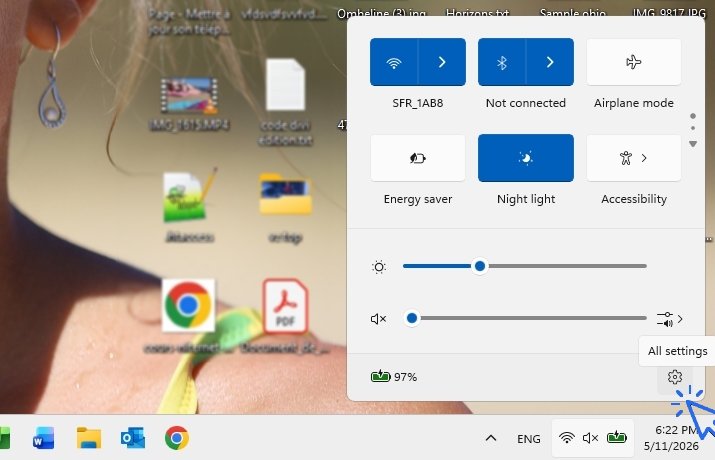
Let's look at this with pictures. Open the Windows settings via the Windows quick settings, at the bottom right of the screen. Start by clicking the sound, battery, or Wi-Fi icon, then click the Settings icon :
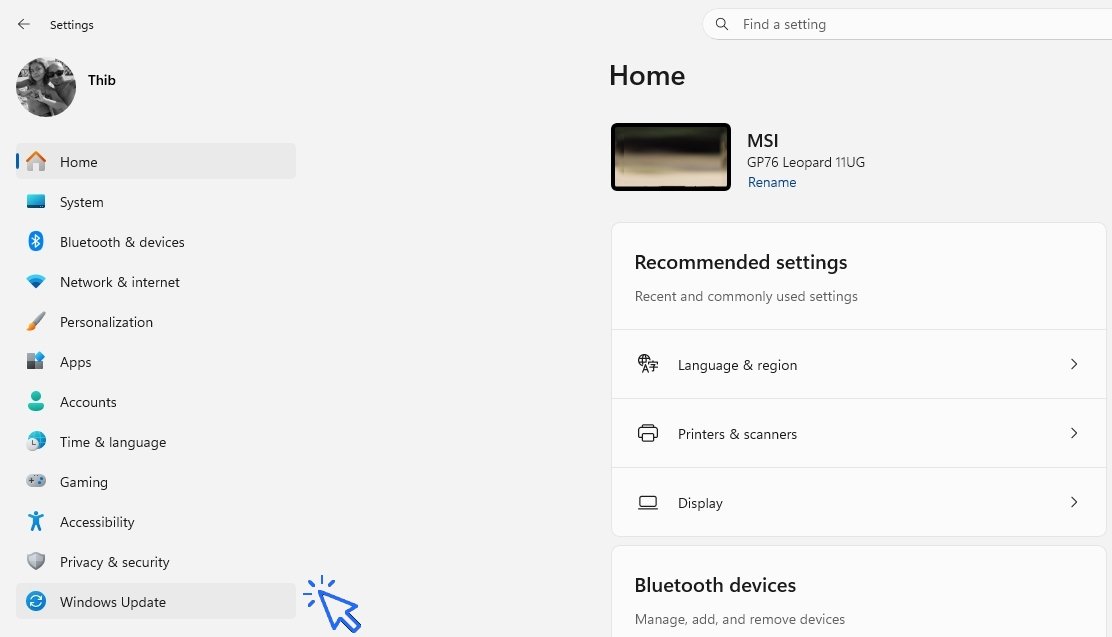
In the Settings side menu, go to the Windows Update section :
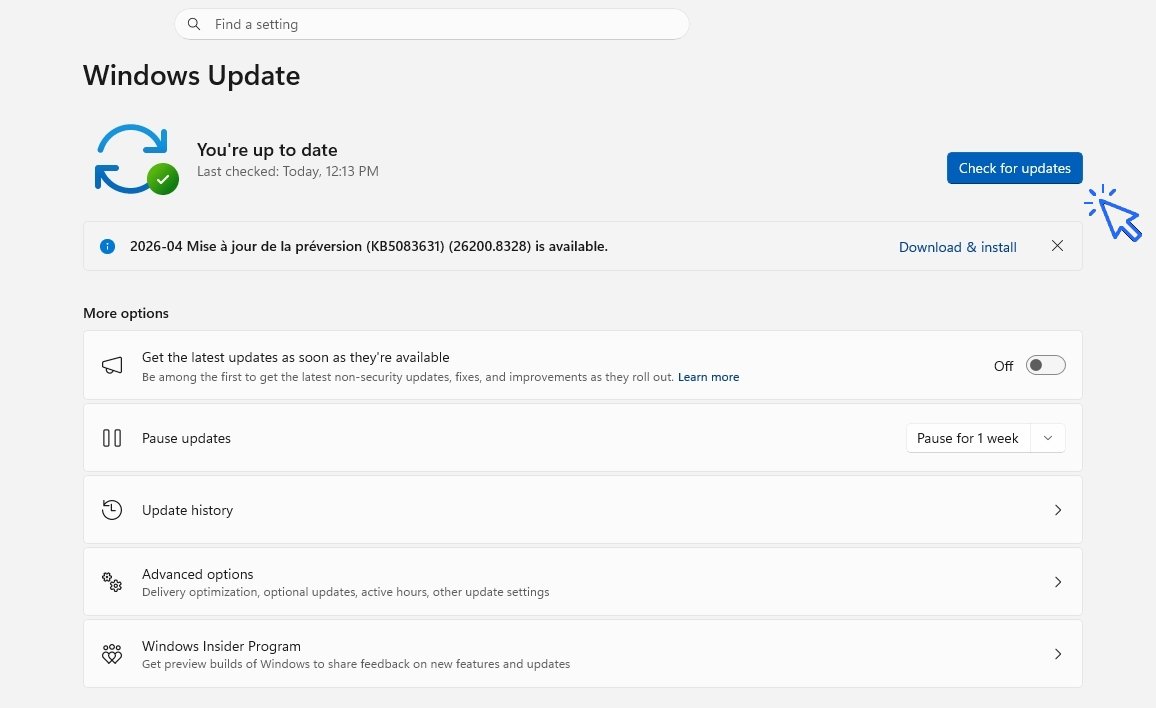
Here is a screenshot ; click on “Check for updates” once a month in Windows Update :
3. Install and restart the computer
If updates are found, they will download automatically. Here are the 3 steps to install the update :
Download : You can continue using your PC during this step.
Installation : Sometimes a button “Install now” will appear.
Restart : This is the crucial step. If Windows asks you to restart, do it as soon as you no longer need your computer. This is when changes are actually applied.
4. Best practices
Never force shutdown: If you see a message saying “Update in progress, do not turn off your computer”, be patient. Turning it off may damage it. Plug in your charger : If you use a laptop, plug it in before starting an update to avoid shutdown due to low battery. Check “Optional updates” : These are sometimes hidden in advanced options and often concern devices like printers or mice.
5. FAQ – Windows Update
How long does an update take?
It depends on the update size and your internet connection. It can take from 2 minutes to over 30 minutes for major updates.
Will my files be deleted?
No, Windows updates change the system but do not affect your documents, photos, or personal folders.
Can I use my PC during the update?
Yes during download. No during the restart phase when the screen may turn blue or black with a progress percentage.
What if the update fails?
Simply restart your computer and try again. If the problem persists, check your internet connection.
Conclusion
Updating Windows should not be a concern. It is like a health check for your computer, similar to a car service. By following these simple steps, you ensure your PC remains secure and performs well over time. Knowing how to check Windows Update and install updates manually are two essential skills for any Windows user. Want to learn more about Windows? Check out all our Computer Courses for Beginners.
End of the lesson
You know now how to update Windows 11.

Thibaut MATHIEU
Editor of Premiers Clics
Editor and writer of Premiers Clics, and author of the book “Je me mets à l'informatique” (only avalaible in french), I share all my computer knowledge to help you learn, using the Premiers Clics computer courses.
Also the manager of a computer support and repair company, I fully understand your needs in computer training and assistance. Every day, I answer my clients’ questions about their computers, phones, or tablets.
This experience has given me extensive knowledge in consumer digital technology, allowing me to separate fact from fiction in device protection, identify the most common user mistakes, and provide numerous tips to make the best use of PCs, smartphones, and tablets.
Windows Basics

Create a Folder

Create an email account (Gmail)
How to create a Gmail account to send and receive emails.
Send emails and attachments
How to send emails and attachments. Example with Gmail.

Recover deleted files
How to recover deleted files in the Windows Recycle Bin.

Change Google Chrome Homepage

Take a Screenshot
See how taking a screenshot in Windows

Increase display size
Create desktop shorcuts
How to create shortcuts on the desktop.

Connect a wifi printer
How connect a printer to your wifi network and how install it in Windows.
Smartphone Tips & Tricks

Connect Bluetooth speakers to phone
How connect a BT device like a speaker to your phone.

Solve internet issues
How to fix the main internet connections issues. Main troubleshooting steps.
Common Smartphone Problems

My phone is not charging
What should you do if your phone no longer charges?

I can't make calls
Check this tips if you can't make calls anymore.
No internet on my phone

My phone restarts by itself
Why does your phone restart by itself and how to fix it.


0 commentaire