Smartphones & Tablets / Common issues
My phone is plugged in but not charging.
Difficulty : Medium
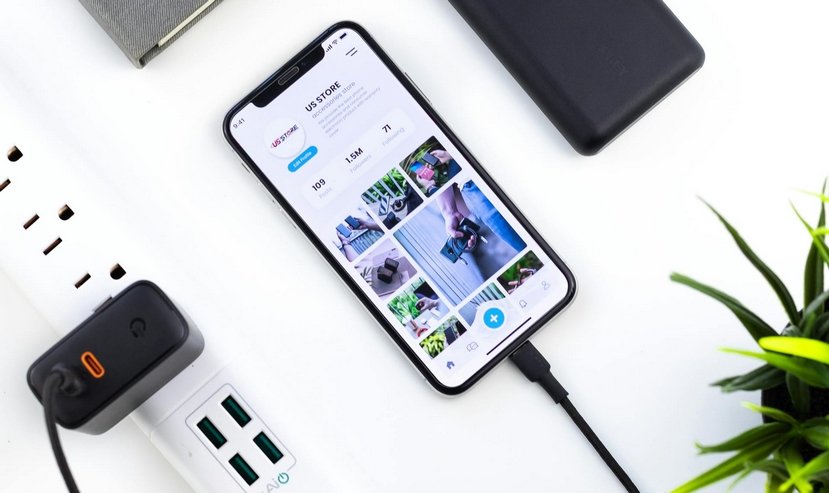
Is your phone charging but the battery percentage isn’t increasing? Discover the causes and solutions.

Mon téléphone ne charge plus, que faire ?
Does your smartphone seem to be connected to the charger, but the battery percentage stays stuck? Don’t worry! This is a very common problem, especially on older devices or after a software update.
It can be caused by hardware issues, software glitches, or even problems with the battery itself. The goal of this tutorial is to guide you step by step to identify the cause and get your phone back to normal, whether you are using an Android or an iPhone.
By following these simple, illustrated tips, you’ll quickly restore proper battery charging and avoid having to visit a store or buy a new device.
1. Understanding the Problem
When your phone isn’t charging properly, it can show different symptoms: it might indicate that it’s charging but the battery percentage remains stuck, or it may show nothing at all, even when plugged in. In both cases, several causes are possible.
1.1 Common Hardware Issues
Defective cable or charger: A damaged cable or incompatible charger may not transmit electricity correctly, even if the phone displays the charging icon.
Dirty or damaged charging port: Dust, fibers, or bent connectors can prevent the current from passing. In this case, the phone may show nothing or display an intermittent charging signal.
1.2 Software and Power Consumption Issues
Power-hungry apps: Some applications can consume more power than the charger provides, blocking the battery from charging properly.
Bugs or faulty updates: Outdated software or bugs after an update can prevent the battery status from displaying correctly or stop the charging process.
1.3 Battery Wear
Lithium-ion batteries gradually lose their capacity over time. This can result in a stuck battery percentage or a phone that doesn’t detect charging correctly.
1.4 Practical Tips
If your phone turns on but remains stuck at 0% or 1%, or doesn’t respond at all when plugged in, it is often a hardware or software problem rather than just a faulty cable. Testing another charger, checking the port, and restarting the phone are the first steps before considering battery replacement or repair.
If your phone or tablet has been completely drained for a long time, you may need to wait a few minutes before turning it on. Plug in your device, wait about 10 minutes, and then switch it on.
If the phone shows the charging logo (lightning icon on the battery at the top right) but the battery doesn’t increase, it could be due to an Android operating system bug or a defective charger that can no longer provide the necessary current for charging.
2. Simple Step-by-Step Solutions
The first step is to check the charger and cable you are using. It is highly recommended to use official or certified chargers for your device, as generic or old cables may not provide enough current to charge the battery properly. Testing another cable or charger will help ensure that the problem isn’t coming from them. A phone or tablet charger, when connected to your device and plugged into a wall outlet, should feel slightly warm. If the charger stays cold, it is most likely defective. For reference, a 25W USB-C charger is usually sufficient, while devices that support fast charging require a 45W USB-C charger.
Next, inspect your phone’s charging port. Dust, lint, or oxidation can prevent the proper flow of current. Carefully clean the port with a dry cotton swab or a small soft brush, taking care not to damage the internal components.
If the problem persists, restarting your device can resolve many charging bugs. This simple action allows the system to reset and correct certain issues caused by background processes. Sometimes, certain apps consume a lot of battery without you realizing it. Checking your battery settings to identify these apps and closing them during charging can help the battery fill up normally.
If you suspect the charging port is damaged (loose connection or no contact at all), a technician or smartphone repair specialist can replace it. Over time, solder joints wear out, causing the contact between the phone’s charging port and the charger to fail.
Another tip is to enable Airplane Mode while charging. By reducing your phone’s power consumption, the battery percentage may increase faster. It is also important to check the device’s temperature. A battery that is too hot or too cold can block charging to protect the hardware. If necessary, let your phone return to room temperature before plugging it in again.
In rarer cases, an aging battery may no longer charge normally. Typically, you’ll notice the battery drains very quickly, but this can also affect charging. Likewise, the battery can be replaced by a mobile repair specialist if needed.
3. Specific Cases: Android / iPhone
For Android users, certain actions can be particularly effective. A force restart, achieved by holding the Power button and the Volume Down button, can reboot the system and resolve battery percentage issues. It is also crucial to ensure that the system and apps are up to date, as updates can fix charging bugs. Finally, battery calibration can help: let the phone fully discharge, then recharge it to 100% without interruption. This recalibrates the battery percentage display and provides a more accurate reading.
For iPhone users, the method for a force restart varies depending on the model, but it often helps unlock charging issues. You can also check the Battery Health in Settings to see if the maximum capacity is low. In some cases, a replacement may be necessary. If you use the Optimized Battery Charging feature, it can be helpful to temporarily disable it to see if the battery percentage increases normally.

A phone that won’t charge properly can seem worrying, but in most cases, it’s a simple problem to fix. By checking the cable, the charging port, and the device temperature, and by following the steps specific to Android or iPhone, you can often restore a fully working battery quickly. In the majority of cases, the issue comes from the charger or cable. On phones that have been used for several months or years, the charging port may be worn or damaged, preventing proper charging. Software bugs or Android system issues are less common, and a simple restart usually resolves the problem.
To go further, don’t hesitate to explore my other tutorials dedicated to smartphones and tablets. They explain how to optimize your battery, extend its lifespan, and identify apps that consume too much power. With these tips, you’ll become more independent and confident in using your mobile device!
Thibaut Mathieu
End of the troubleshooting guide
You now know how to fix a charging problem with your phone.

My phone restarts by itself
Why does your phone restart by itself and how to fix it.

No internet on my phone

I can’t make calls
Check this tips if you can’t make calls anymore.

Thibaut MATHIEU
Editor of Premiers Clics
Editor and writer of Premiers Clics, and author of the book “Je me mets à l’informatique” (only avalaible in french), I share all my computer knowledge to help you learn, using the Premiers Clics computer courses.
Also the manager of a computer support and repair company, I fully understand your needs in computer training and assistance. Every day, I answer my clients’ questions about their computers, phones, or tablets.
This experience has given me extensive knowledge in consumer digital technology, allowing me to separate fact from fiction in device protection, identify the most common user mistakes, and provide numerous tips to make the best use of PCs, smartphones, and tablets.

0 commentaires