Smartphones & Tablets / Practical Guides
How to Send a Photo by Text Message (SMS) on Android – Easy Guide
Difficulty : Easy
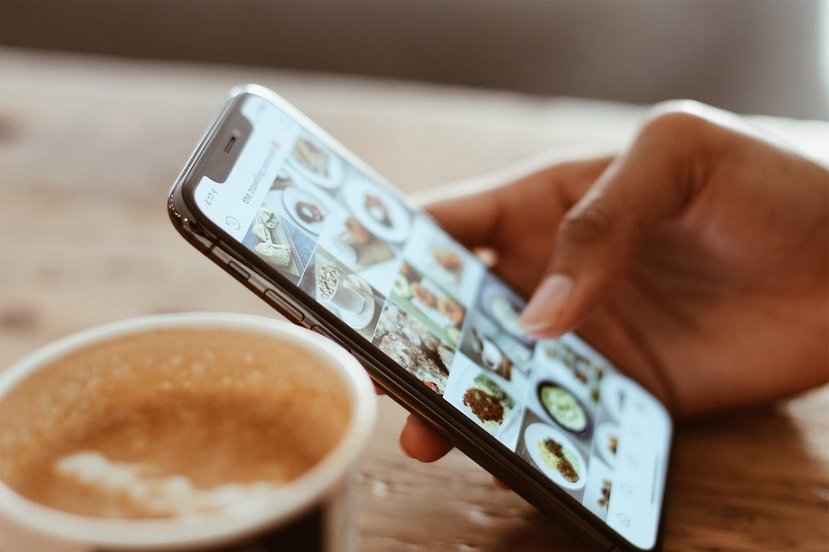

Sending Photos or Videos by Text Message (MMS)
Sending a photo by text message is very useful: to share a family photo, send a document, or show something to a loved one. On an Android phone, this is very easy—even if you’re a beginner. In this guide, I’ll show you two simple methods to send a photo by text message. Let’s get started!
👉 Good to know: when a text message contains a photo, it’s technically called an MMS (we explain this below).
Table of Contents
- Send a photo from the Gallery
- Send a photo from the Messages app
1. Send a photo from the Photo Gallery
This is the easiest and most practical method, especially for beginners. Why? Because you start directly from the photo you want to send—no need to search for it later. The second method works more like an attachment: you create a new message, then add the photo. If you’re not very comfortable with smartphones, this first method is recommended.
✅ Steps to send a photo from the Gallery
- Open the Gallery app and tap the photo you want to send
- Tap the Share button
3. Tap Messages
4. Choose the contact
5. Tap Send
Open the Gallery app (or Google Photos, if you use it), tap the Share icon at the bottom of the screen (similar to iPhone), then select the Messages app. Select one or more contacts, write a message if you want, and send the MMS. That’s it!
📶 Important: Mobile data (4G / 5G) must be enabled.
You can activate it quickly by swiping down from the top of the screen and tapping Mobile Data.
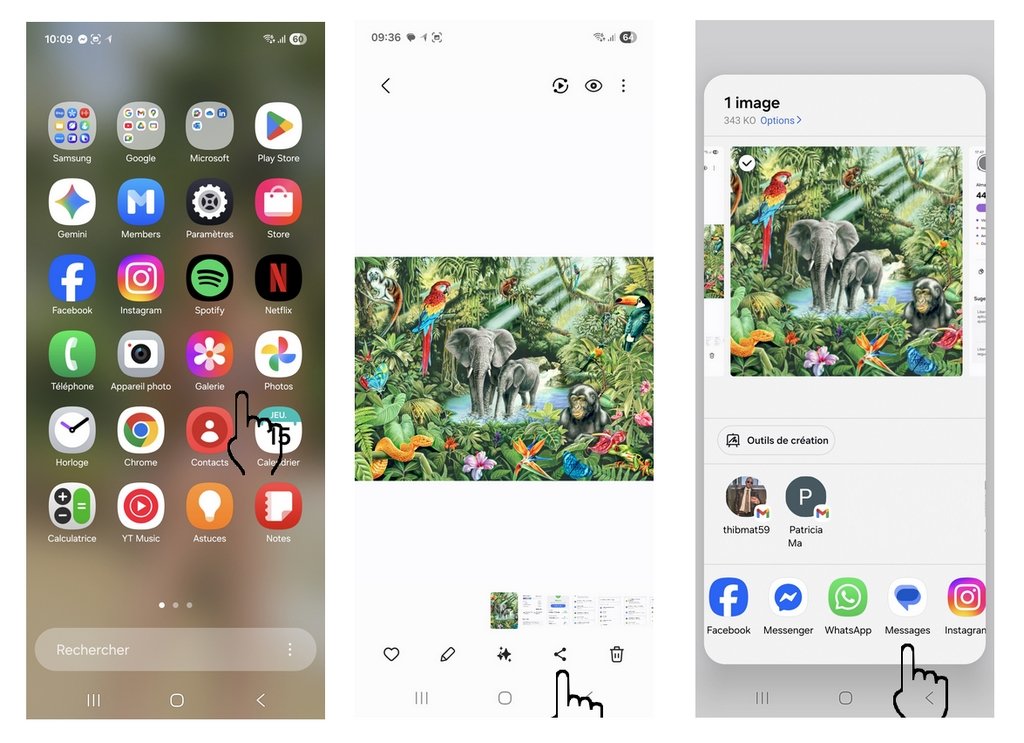
Then select one or more contacts of your choice, write a message, and send the MMS. That’s all!
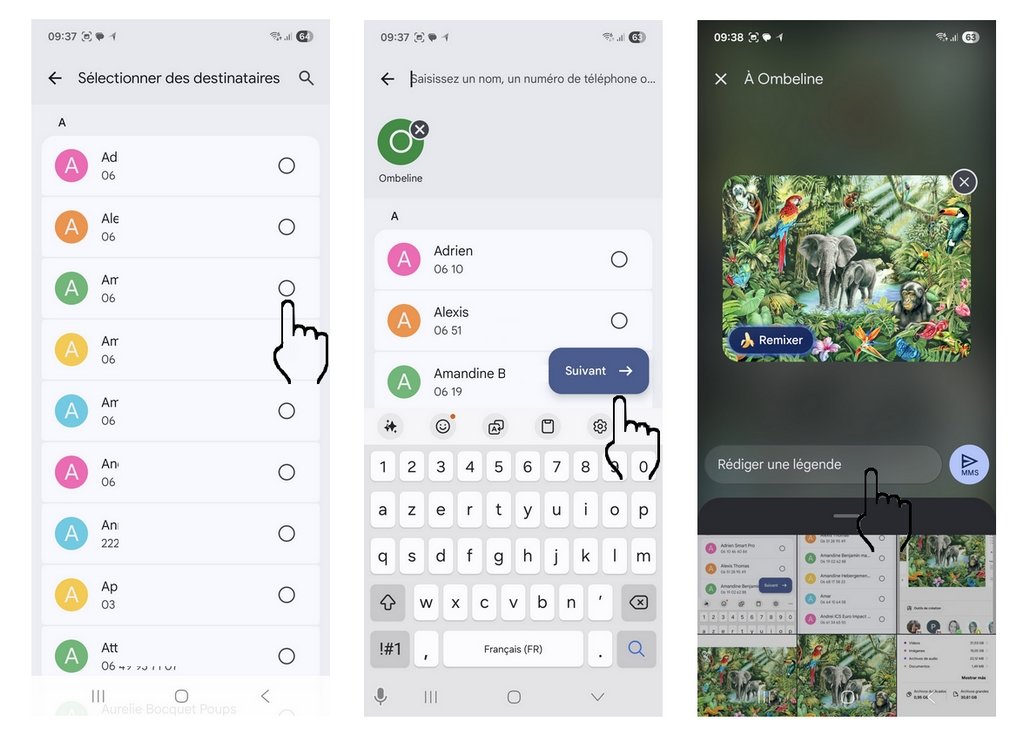
The MMS will be sent right away. Please note that mobile data (4G, 5G, etc.) must be enabled on your phone. You can easily turn it on using the quick settings by swiping down from the top of the screen.
2.Send a Photo from the “Messages” App (SMS)
This method is also very common.
✅ Steps:
1. Open the Messages app
2. Open an existing conversation or create a new one
3. Tap the + button or the paperclip icon
4. Select one or more photos
5. Type your message and tap Send
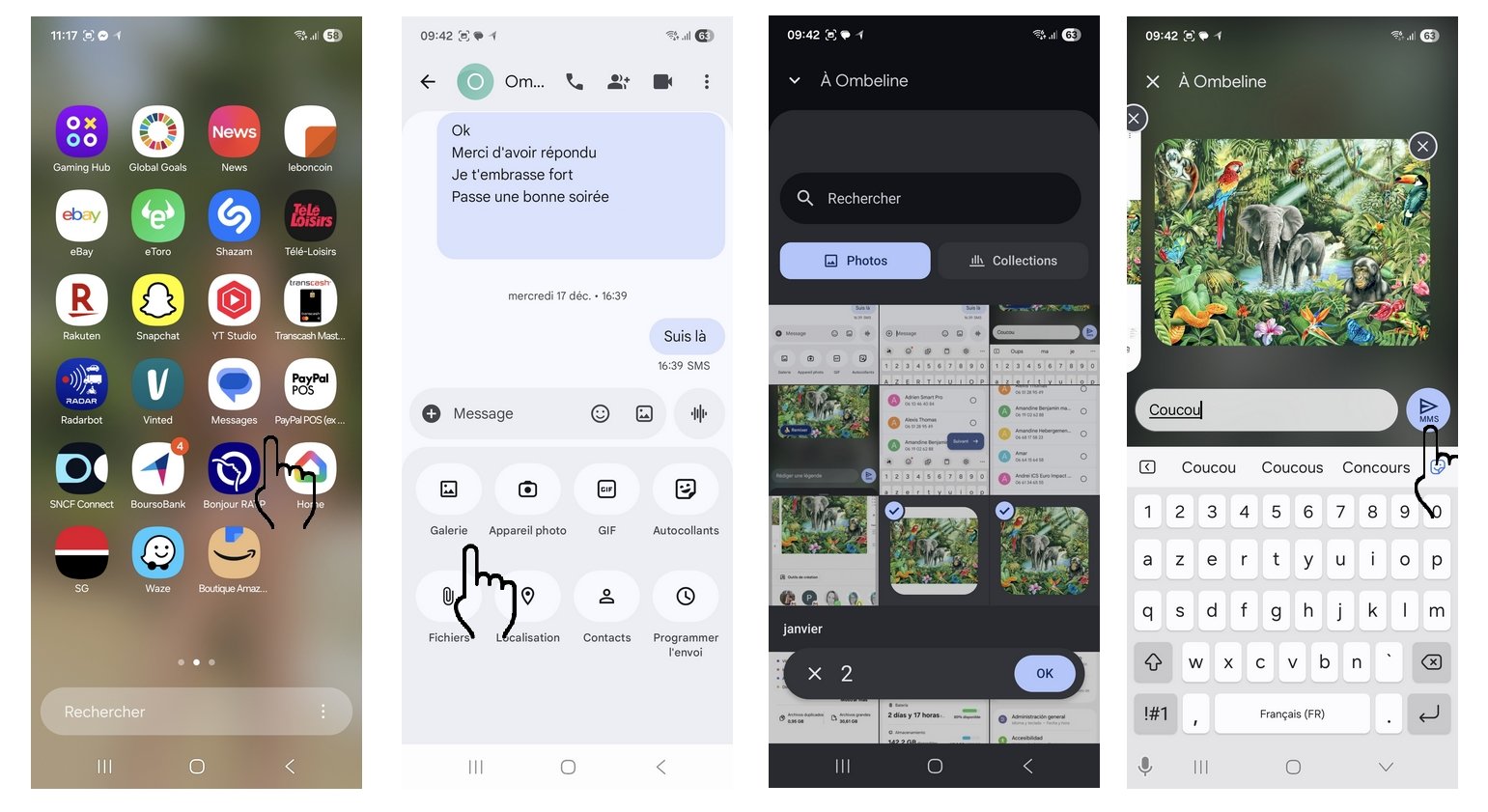
Click to view the screenshots in full size
❓ Frequently Asked Questions
How many photos can I send by text message?
Usually 1 to 5 photos per message.
If you need to send more photos or larger files, use WhatsApp or another messaging app.
Can I send a video by MMS?
Only very short videos (a few seconds).
Longer videos are too large for MMS. Use WhatsApp instead.
Why does sending the photo fail?
There can be several reasons:
The file is too large
Too many photos are selected
Mobile data is turned off
Turn mobile data back on and tap Resend.
📷 Google Photos: What Is It?
Google Photos is an app that stores your photos online on Google’s servers.
It lets you:
Sync photos between devices
Automatically back up your pictures
Recover photos on a new Android phone or tablet
To learn more, check out our guide:
“How to view and manage your photos with Google Photos”
✅ Conclusion
Sending a photo by text message on an Android phone is simple and accessible to everyone—even beginners.
Whether you use the Gallery or the Messages app, just follow a few easy steps.
Want to learn more about using your phone?
👉 Check out all our beginner-friendly phone tutorials.
Thibaut Mathieu
End of Tutorial
You know now send a photo by text message.
Other Tutorials

Connect Bluetooth speakers to phone
How connect a BT device like a speaker to your phone.

Speed up my phone
How to make my phone faster because it’s getting slower and slower
Adjust mobile's volume

Access Netflix
Common Smartphone Problems

I can't make calls
Check this tips if you can't make calls anymore.

Solve internet issues
How to fix the main internet connections issues. Main troubleshooting steps.

My phone is not charging
What should you do if your phone no longer charges?

My phone restarts by itself
Why does your phone restart by itself and how to fix it.
Computer Basics

Make file and folder icons bigger
How to change the size of files and folders icons.
Increase display size

Take a Screenshot
See how taking a screenshot in Windows
Decompress ZiP File
Learn how to compress and compress ZIP Files.
Change Wallpaper
How to change the Windows Wallpaper. Windows Course

Empty Recycle Bin
How to empty the Windows Recycle Bin to permanently delete my files and folders.
Recover deleted files
How to recover deleted files in the Windows Recycle Bin.

Create an email account (Gmail)
How to create a Gmail account to send and receive emails.

Delete browsing personal data
How to delete cookies, history and other personal data in Chrome or Edge.
View download history
How to view the browser download history in Google.

0 commentaire