
Home / Phone Tutorials / Whatsapp User Guide
How to Send a Message on WhatsApp
Difficulty : Easy

Send text message, vocal message and photos
WhatsApp is one of the most widely used messaging apps in the world. Simple and fast, it allows you to communicate with your loved ones in seconds—whether by text, voice, or by sending images. In this lesson, you’ll discover step by step how to send a message using WhatsApp, even if you’re a complete beginner.
Back to the Complete WhatsApp User Guide
Table of Contents
- Start a conversation
- Send a text message
- Send photos and videos
- Send a voice message
1. Start a conversation
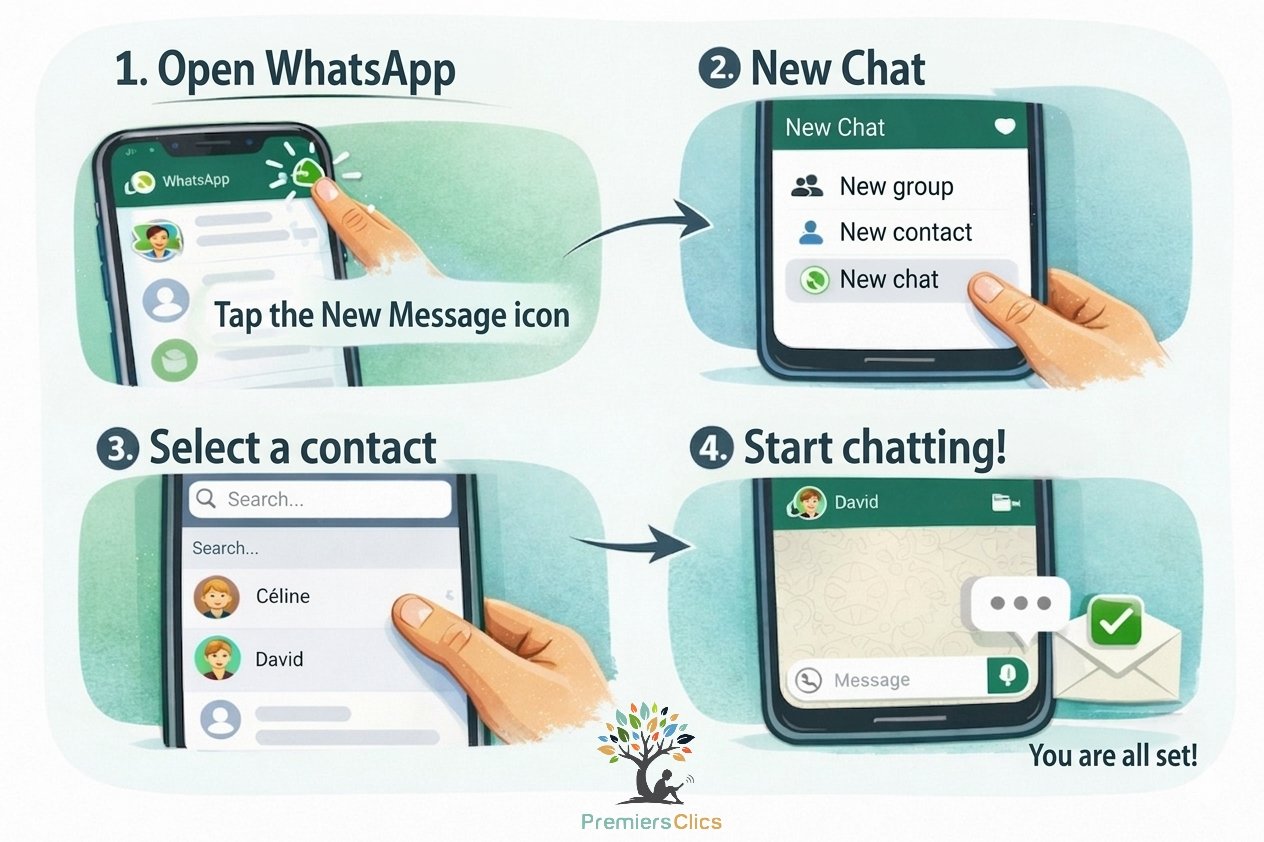
Before sending a message, you need to open a conversation. WhatsApp organizes chats into conversations—one per contact or group. Simply tap a conversation to open it, or create a new one by starting a new message. You’ll then be asked to choose a contact (recipient).
To start a new conversation:
- Open WhatsApp
- Tap the new message icon
- Select a contact from the list
Once the conversation is open, you’ll see a text input field at the bottom of the screen. This is where you can type or record your messages.
2. Send a text message
Sending text messages is the core feature of WhatsApp. You can start a new conversation or reply to existing ones - just like sending an SMS.
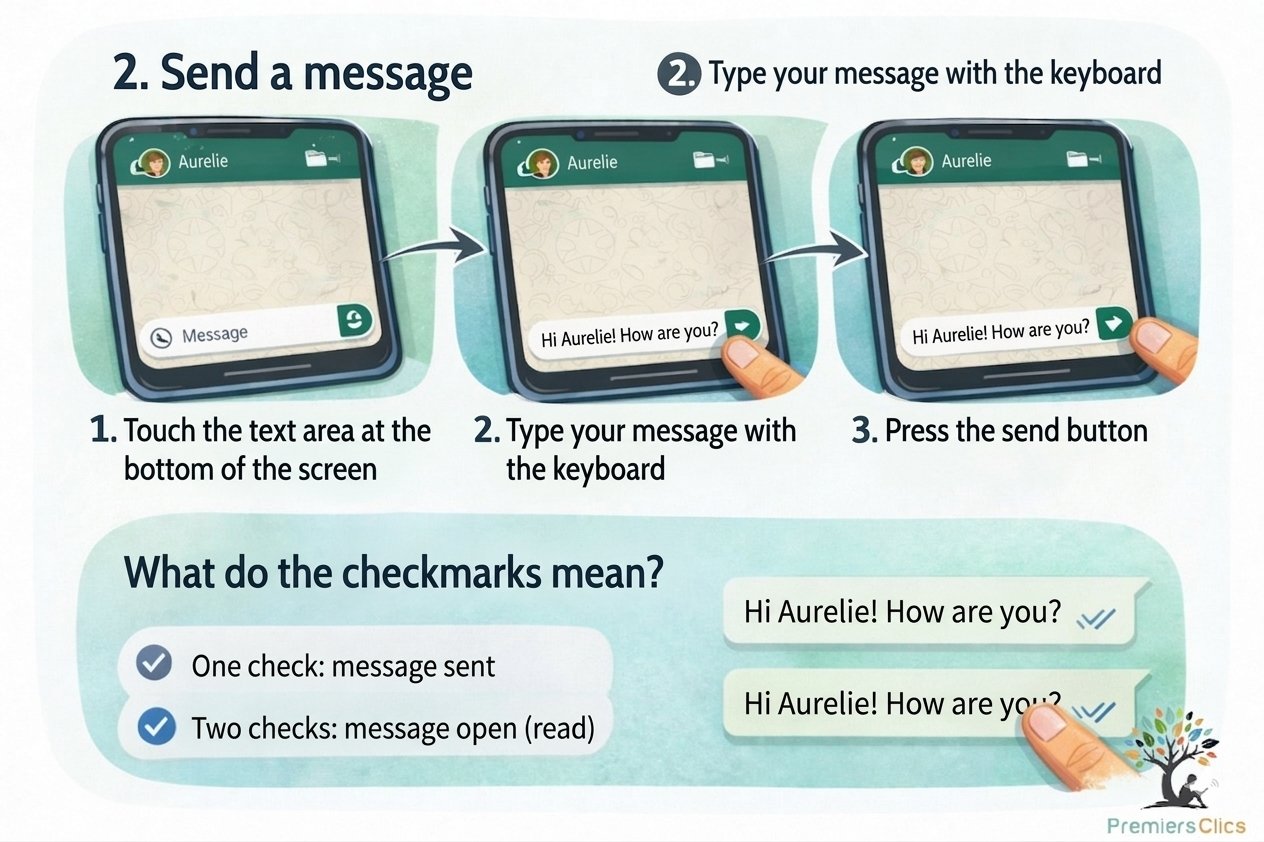
To send a message on WhatsApp:
- Tap the text input field at the bottom of the screen
- Type your message using the keyboard
- Tap the send button (arrow icon)
Your message will appear instantly in the conversation.
What do the check marks mean?
One or two check marks next to your message indicate its status:
- One check: message sent
- Two checks: message delivered/read
3. Send Photos and Videos
WhatsApp isn’t just for text—you can also share images, videos, and documents. Along with video calls, this is one of the most popular features, as it allows you to share moments easily with family and friends in a single conversation. Group chats make sharing even easier and more convenient.
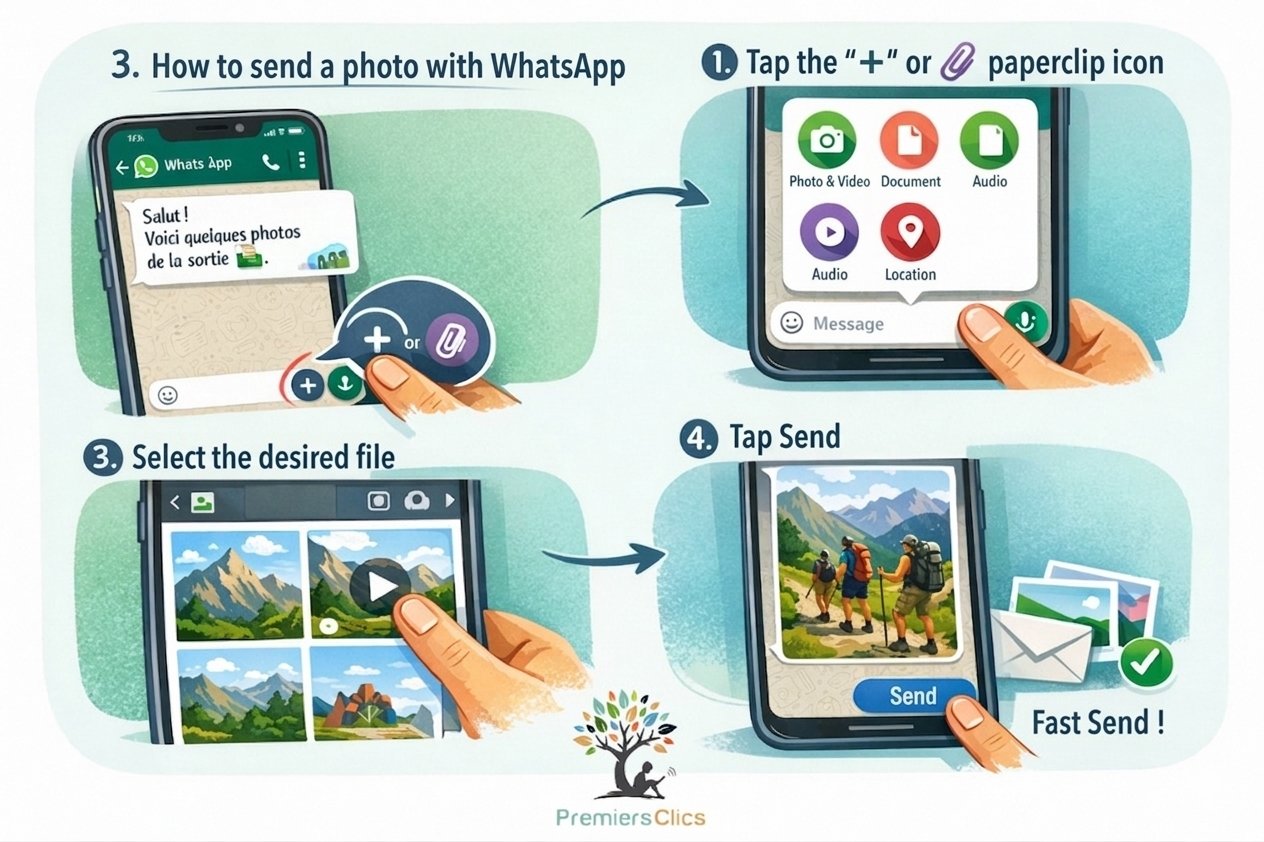
To send a photo, video, or file on WhatsApp:
- Tap the “+” icon or paperclip
- Choose the type of content (photo, video, document)
- Select the file
- Tap send
Your contact will receive it within seconds. It’s very useful for sharing memories or important documents.
4. Send a Voice Message
If you don’t want to type, WhatsApp lets you send voice messages. It’s quick and often more natural—though it can feel intrusive, so use it wisely depending on the person.
To send a voice message:
- Press and hold the microphone button
- Speak clearly
- Release to send
The message is sent automatically. You can cancel by sliding your finger to the side before releasing.
Conclusion
Sending a message on WhatsApp is simple and quickly becomes second nature. Whether you’re typing, sharing photos, or sending voice messages, the app offers multiple ways to communicate based on your needs. With a bit of practice, you’ll be able to stay connected with your loved ones every day. Over time, you’ll especially appreciate its ease of use and the convenience of group chats 😉
Next Step : Send a Voice Message
Back to the WhatsApp User Guide
Thibaut Mathieu
Want to learn more ?
Would you like to learn more about how your smartphone works by reading guides and tutorials on smartphone use ? Visit the Smartphone Tutorials section ! Are you also curious about how to troubleshoot your phone ? Then check out the Smartphone Troubleshooting section. Finally, to improve your general computer knowledge—especially about Windows—take a look at my free computer courses, designed for seniors and beginners of all ages.
End of the summary of WhatsApp tutorials
You now know how to use WhatsApp on your Smartphone or your Tablet.

Thibaut MATHIEU
Editor of Premiers Clics
Editor and writer of Premiers Clics, and author of the book “Je me mets à l'informatique” (only avalaible in french), I share all my computer knowledge to help you learn, using the Premiers Clics computer courses.
Also the manager of a computer support and repair company, I fully understand your needs in computer training and assistance. Every day, I answer my clients’ questions about their computers, phones, or tablets.
This experience has given me extensive knowledge in consumer digital technology, allowing me to separate fact from fiction in device protection, identify the most common user mistakes, and provide numerous tips to make the best use of PCs, smartphones, and tablets.
🔹Mobile & Tablet Tutorials
We also offer lessons and practical guides for smartphones and tablets. You’ll learn how to:
Set up your device
- Send a photo with text message
- Adjust the volume of my phone
- Open settings
- Free up storage space
Install and use useful apps
- How to connect a Bluetooth speaker ?
Transfer photos
- Transfer contacts to new phone
- How to see my Google photos ?
- How to get wifi password
- How to get wifi password with a phone ?
These lessons are ideal for users of Android smartphones and tablets.
Smartphone Problems: All Simple Step-by-Step Solutions
🔹 Computer Basics
🔹 Windows Basics
How to use the mouse and keyboard
- Empty Recycle Bin
- Recover deleted files
- Create and organize folders
- Create desktop shortcuts
- Pin a programm on the taskbar
- Compress a ZIP file
- Decompress a ZIP file
Organize files and folders
Customize your desktop
- Make a screenshot
- Make file and folder icons bigger
Understand the start menu and taskbar
- Open a downloaded file
- Change Windows Wallpaper
- Take a screenshot
🔹 Internet and Email
Open and use a web browser
- Add a website to the favorites bar
- Creating a Gmail email
- How to send emails and attachments
- Browsing history in Chrome, Edge or Firefox
- Browsing download history in Chrome, Edge or Firefox
- Delete history in Chrome, Edge or Firefox
- Delete cookies and browsing data
- Set Google Chrome Homepage
Create and manage an email account
- How access Netflix from Phone, PC or Tablet
- What is a VPN ?
- How to find the wifi password with a phone
🔹 Computer Protection
Keep your computer safe from malware
- Protect my computer with a password
Install antivirus tools
Learn how to avoid scams online
🔹 Troubleshooting & Practical Life
WhatsApp Complete User Guide
Check out the complete guide to using WhatsApp easily : create groups, send and save photos and videos, make a call, start a video call… and much more !
1. Install WhatsApp
2. Create an Account
3. Send a Message
4. Send a Voice Message
5. Send a Photo
6. Make a Call
7. Create a Group
8. Manage Notifications
9. Security & Tips
Course compatibility: Android tablets and smartphones (Samsung, Lenovo, Huawei, Xiaomi…), iPhone and iPad

No internet on my phone

My phone is not charging
What should you do if your phone no longer charges?

My phone Freezing

0 commentaire