
Home / Phone Tutorials / Whatsapp User Guide
Whatsapp User Guide (for seniors or beginners)
Difficulty : Easy

A complete User Guide for WhatsApp
WhatsApp is now one of the most widely used applications in the world for free communication. One of WhatsApp’s main strengths is its contact groups. Want to share a photo with your whole family? Create a group with your family members and post the photo. That way, everyone will see it! No need to send the photo to each person individually.
If you are new to using a smartphone, it’s normal to feel a bit lost at first. In this guide, I will show you how to use WhatsApp in a simple way, with the help of detailed tutorials. Sending messages, creating groups, sharing photos and videos, saving them, making calls…
In this guide, I explain the basics to help you get the most out of the app. For each feature, you will find a link to a detailed tutorial. Finally, the FAQ (at the end of the page) also answers the main questions about using WhatsApp.
Table of Contents
- Install WhatsApp
- Create an Account
- Send a Message
- Send a Voice Message
- Send a Photo
- Make a Call
- Create a Group
- Manage Notifications
- Security & Tips
1. Install WhatsApp
First, install the app on your phone. Go to the Google Play Store (Android) or the App Store (iPhone), search for “WhatsApp,” and tap Install. Wait a few seconds, then open the app once installation is complete.
View full tutorial
2. Create an Account
When using WhatsApp for the first time, enter your phone number and wait for the SMS verification code. Enter the code in the app. You can then add your name and a profile picture if you wish.
View full tutorial
3. Send a Message
To send a message, open WhatsApp, tap New Chat, select a contact, type your message, and tap send. WhatsApp works like SMS but uses the internet, making messages essentially free.
View full tutorial
4. Send a Voice Message
Prefer speaking instead of typing ? Open a chat, press and hold the microphone icon, speak your message, and release to send. Voice messages are convenient but can sometimes annoy recipients, so use them wisely.
View full tutorial
5. Send a Photo
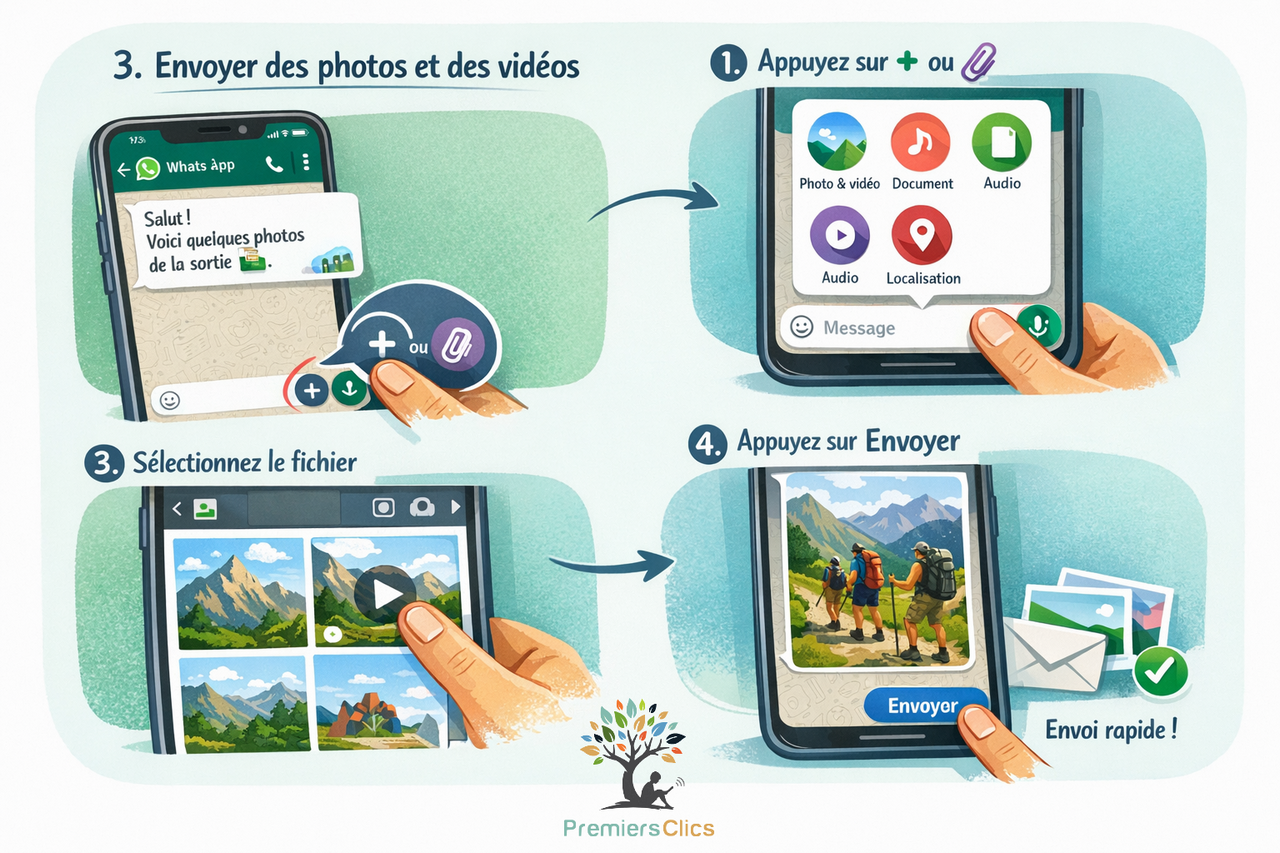
You can easily share photos by opening a conversation, tapping the attachment icon (paperclip or +), choosing a photo from your gallery or taking a new one, and tapping send.
View full tutorial
6. Make a Free Call
With WhatsApp, you can call contacts for free by tapping the phone icon for a voice call or the camera icon for a video call. All you need is an internet connection, either WiFi or mobile data.
View full tutorial
7. Create a WhatsApp Group
To chat with multiple people at the same time, select several contacts, give your group a name, and start chatting together. Everyone in the group can send messages in the same conversation.
View full tutorial
8. Manage Notifications
If WhatsApp sends too many notifications, go to Settings, tap Notifications, and customize or disable sounds according to your preferences.
View full tutorial
9. Security & Tips
Stay cautious while using WhatsApp by avoiding suspicious links and not replying to unknown messages, as scams can circulate through the app. For better security, you can enable two-step verification in the settings to protect your account
View full tutorial
Conclusion
WhatsApp is a simple and powerful app for staying in touch with friends and family. With a little practice, you’ll quickly be able to send messages, share media, and make calls with ease.
Thibaut Mathieu
Want to learn more ?
Would you like to learn more about how your smartphone works by reading guides and tutorials on smartphone use ? Visit the Smartphone Tutorials section ! Are you also curious about how to troubleshoot your phone ? Then check out the Smartphone Troubleshooting section. Finally, to improve your general computer knowledge—especially about Windows—take a look at my free computer courses, designed for seniors and beginners of all ages.
End of the summary of WhatsApp tutorials
You now know how to use WhatsApp on your Smartphone or your Tablet.

Thibaut MATHIEU
Editor of Premiers Clics
Editor and writer of Premiers Clics, and author of the book “Je me mets à l'informatique” (only avalaible in french), I share all my computer knowledge to help you learn, using the Premiers Clics computer courses.
Also the manager of a computer support and repair company, I fully understand your needs in computer training and assistance. Every day, I answer my clients’ questions about their computers, phones, or tablets.
This experience has given me extensive knowledge in consumer digital technology, allowing me to separate fact from fiction in device protection, identify the most common user mistakes, and provide numerous tips to make the best use of PCs, smartphones, and tablets.
🔹Mobile & Tablet Tutorials
We also offer lessons and practical guides for smartphones and tablets. You’ll learn how to:
Set up your device
- Send a photo with text message
- Adjust the volume of my phone
- Open settings
- Free up storage space
Install and use useful apps
- How to connect a Bluetooth speaker ?
Transfer photos
- Transfer contacts to new phone
- How to see my Google photos ?
- How to get wifi password
- How to get wifi password with a phone ?
These lessons are ideal for users of Android smartphones and tablets.
Smartphone Problems: All Simple Step-by-Step Solutions
🔹 Computer Basics
🔹 Windows Basics
How to use the mouse and keyboard
- Empty Recycle Bin
- Recover deleted files
- Create and organize folders
- Create desktop shortcuts
- Pin a programm on the taskbar
- Compress a ZIP file
- Decompress a ZIP file
Organize files and folders
Customize your desktop
- Make a screenshot
- Make file and folder icons bigger
Understand the start menu and taskbar
- Open a downloaded file
- Change Windows Wallpaper
- Take a screenshot
🔹 Internet and Email
Open and use a web browser
- Add a website to the favorites bar
- Creating a Gmail email
- How to send emails and attachments
- Browsing history in Chrome, Edge or Firefox
- Browsing download history in Chrome, Edge or Firefox
- Delete history in Chrome, Edge or Firefox
- Delete cookies and browsing data
- Set Google Chrome Homepage
Create and manage an email account
- How access Netflix from Phone, PC or Tablet
- What is a VPN ?
- How to find the wifi password with a phone
🔹 Computer Protection
Keep your computer safe from malware
- Protect my computer with a password
Install antivirus tools
Learn how to avoid scams online
🔹 Troubleshooting & Practical Life
WhatsApp Complete User Guide
Check out the complete guide to using WhatsApp easily : create groups, send and save photos and videos, make a call, start a video call… and much more !
1. Install WhatsApp
2. Create an Account
3. Send a Message
4. Send a Voice Message
5. Send a Photo
6. Make a Call
7. Create a Group
8. Manage Notifications
9. Security & Tips
Course compatibility: Android tablets and smartphones (Samsung, Lenovo, Huawei, Xiaomi…), iPhone and iPad

No internet on my phone

My phone is not charging
What should you do if your phone no longer charges?

My phone Freezing

0 commentaire