Computer courses / Internet
How to Send an Email - how to send an email with an attachment - Example with Gmail
Difficult : easy
OS needed : Windows 10, Windows 11

Overview of sending emails
To send and receive emails, you need to have an email address. If you don’t have one yet, check the previous lesson, which explains how to create an email address (if needed check this tuto that I have written for you with screenshots : How create a Gmail account). Here, we’ll use Gmail as an example, but most online email services work in a very similar way.
In this lesson, you will learn how to send an email, attach files, check your "Spam" folder and mark an email as spam, delete emails… Your email account will hold no secrets for you! This lesson is essentially a small user guide for using an online mailbox.
Just before we start, I encourage you to read the definition of an inbox if that term is still unfamiliar to you…
Table of Contents
1. Send an email
2. Delete an email
3. The "Trash", "Spam", "Sent", and "Drafts" folders
4. Mark an email as spam
5. Send an email with an attachment
1. Send an email
If you followed the previous lesson, you now have an email address. Don’t have an email address yet? Create an email account right away!
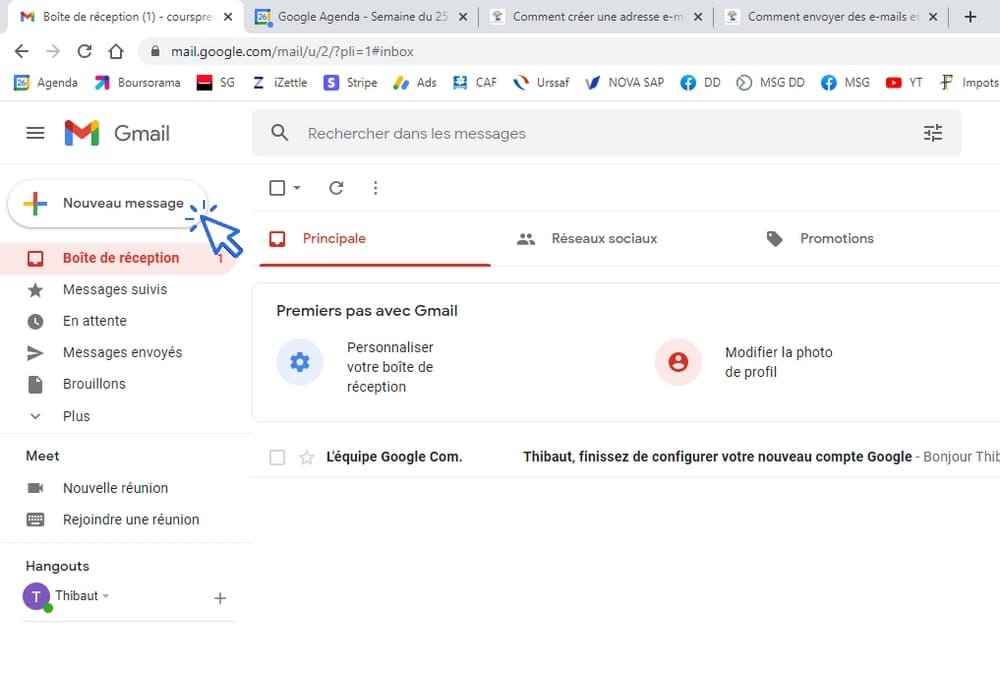
Open your email inbox and click on the "New Message" button:
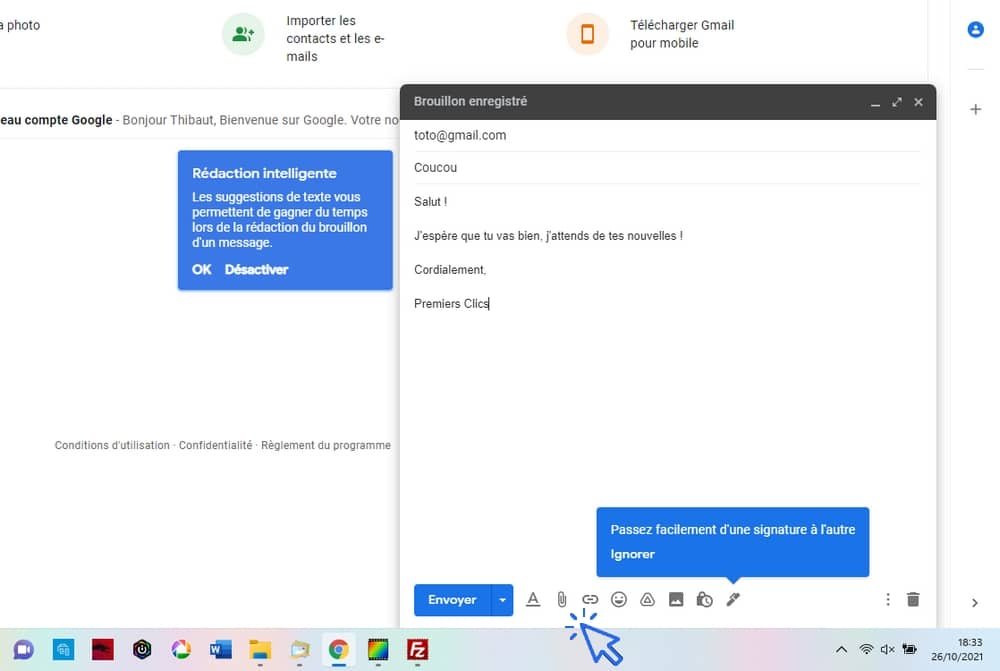
Fill in the To, Subject fields and type your email in the large white area:

Then click on "Send" :

The email has been sent! You will find it in the Sent folder.
2. Delete an email
To delete an email from your inbox, select the email(s) using the checkbox you want to delete:

then click on the Trash icon in your email toolbar:

3. The "Trash", "Spam", "Sent", and "Drafts" folders
- The Trash works the same way as the Trash on your desktop. Deleted items are kept there just in case. Empty it regularly.
- Gmail automatically sorts unwanted emails into the Spam folder. Spam is usually an advertising email, often unwanted. However, some legitimate emails may still be categorized as spam. So, if your sender tells you that they have sent the email you are expecting but you don’t see it in your Inbox (unread messages), check the Spam folder. This happens frequently. For all senders you have marked as "spammers" (see the next chapter 4), their emails will automatically go to this folder. Empty it regularly.
- The Sent folder contains, as its name suggests, all the emails you have sent. Empty it regularly.
- The Drafts folder contains messages that you started creating and saved as drafts (click "Save as draft" at the bottom of your screen).
4. Mark an email as spam
To mark an email—and its associated email address—as spam, select or open the email and click the "Spam" button, located just to the left of the Trash icon:

This will not stop you from receiving spam from that email address, but it tells Gmail that you no longer want to see these emails in your Primary inbox.
How to stop receiving spam
The only way to completely stop receiving spam is to unsubscribe from each sender individually. At the bottom of each spam email, you will usually find a link labeled "Unsubscribe". It can be long and tedious if you receive a lot of spam, but it is effective: your email address will be removed from the sender’s mailing list.
5. Send an email with attachment
To attach one or more files to your message, click on the paperclip icon while composing your email. Then select the file or files in the window that opens and confirm..
Good to know
You can add multiple recipients; just confirm one recipient before entering the next one (no "," or ";").
The cc and bcc fields allow you to add recipients in copy (cc) or blind copy (bcc). Sending in blind copy means the primary recipient will not see the names of the other recipients entered in the bcc field.
You can create folders to organize your emails.
Thibaut Mathieu
End of the lesson
Now you now how to send emails and attachments.

Free up space

Create desktop shorcuts
How to create shortcuts on the desktop.

Open a downloaded attachment
How do I open a file that I just downloaded.
Protect my computer using a password
How protect my computer with a password or a PIN code.

Empty Recycle Bin
How to empty the Windows Recycle Bin to permanently delete my files and folders.
Increase display size
View download history
How to view the browser download history in Google.
View Google browsing
How to check your Google browsing in Chrome, Edge or Firefox.

Connect a wifi printer
How connect a printer to your wifi network and how install it in Windows.

Change Google Chrome Homepage

Solve internet issues
How to fix the main internet connections issues. Main troubleshooting steps.
No internet on my phone
Check this link if you have no internet on your phone.

Access Netflix

0 commentaire