Computer courses / Windows course
How to create and organize folders in Windows ?
Difficulty : easy
OS needed : Windows (all version)

About folders in Windows
Folders allow you to group a set of files. To make an analogy, a folder is like a drawer, and the files are the documents inside it. To easily find your documents, nothing beats having a piece of furniture with the right number of drawers!
Table of Contents
- Create folders
- Organize folders
1. How to create a folder
To create a folder on the Desktop or in Windows File Explorer, right-click to open the context menu, then click “New” → “Folder”. Give it a name and press Enter to confirm.
You can create folders inside your personal folders accessible from File Explorer (Documents, Pictures, Videos, etc.), but also on the Desktop, as shown here:
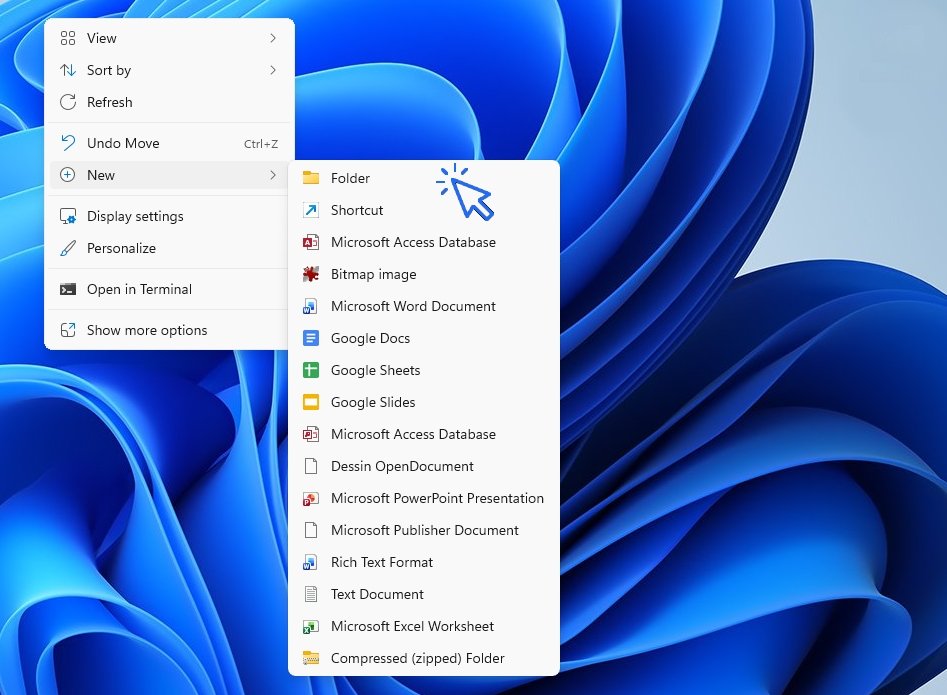
All that’s left is to give it a name. Press Enter on your keyboard or click to the side of the folder to confirm.
In file explorer
To create folders inside your personal folders (Documents, Pictures, Videos, Music, Downloads, etc.), open File Explorer and right-click → “New” → “Folder”, as explained above.
Here, you can also use the File Explorer toolbar. Click “+ New” on the toolbar (in Windows 10, there is also a “New Folder” icon available on the File Explorer toolbar):
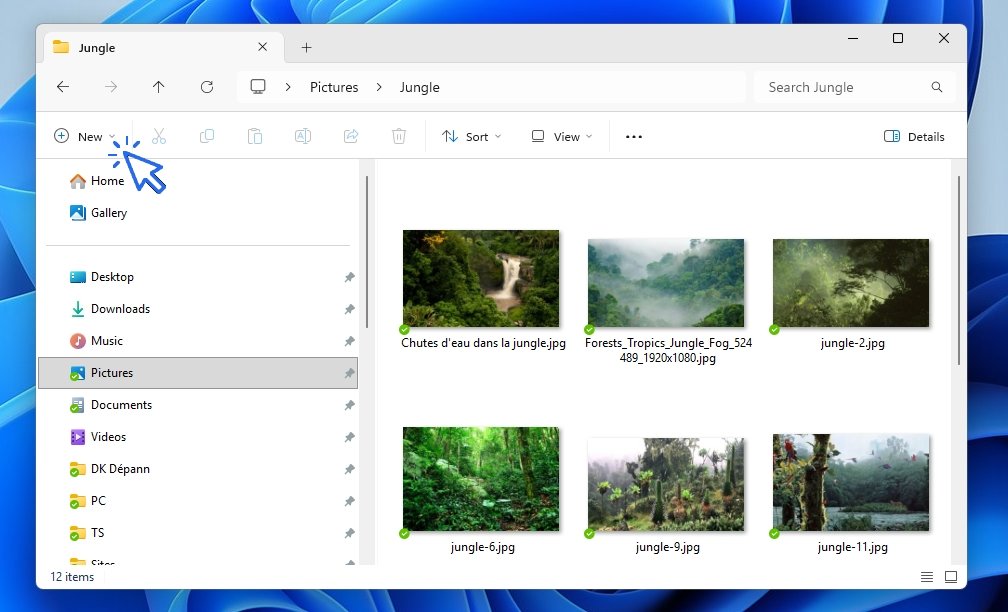
Then select “Folder”:
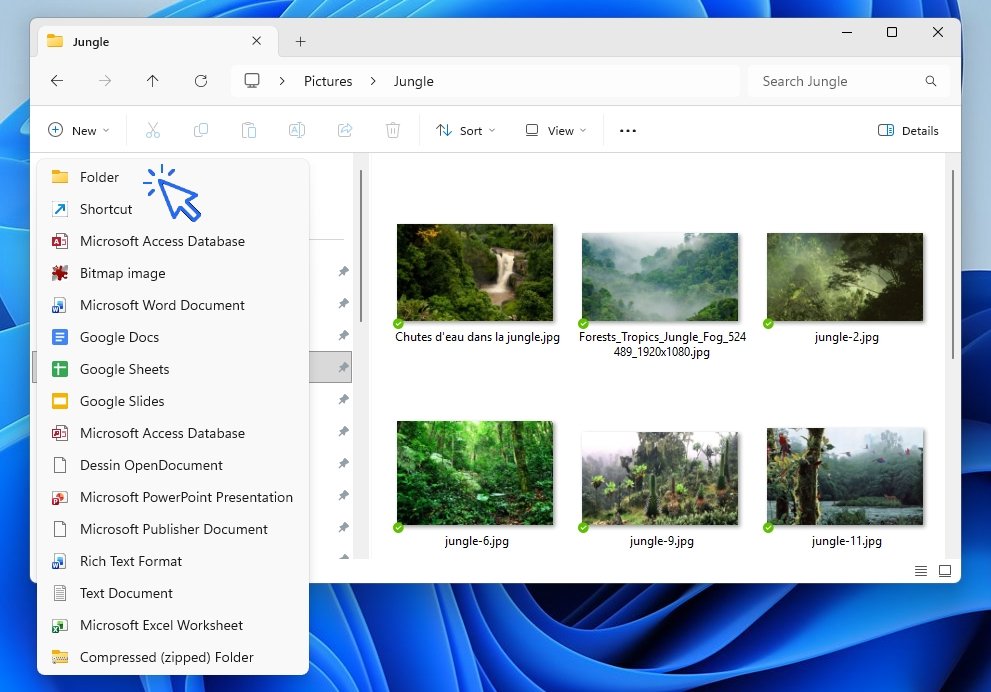
All that’s left is to give it a name. Press Enter on your keyboard or click to the side of the folder to confirm.
2. How to organize folders
To keep your files organized and easy to find, it is essential to organize your folders. Organizing folders means creating subfolders and placing your files inside them (by dragging and dropping or using the Cut/Copy and Paste method). This way, you will create a folder structure.
Let’s take an example. We are going to create several nested folders. The folder structure we will set up is as follows:
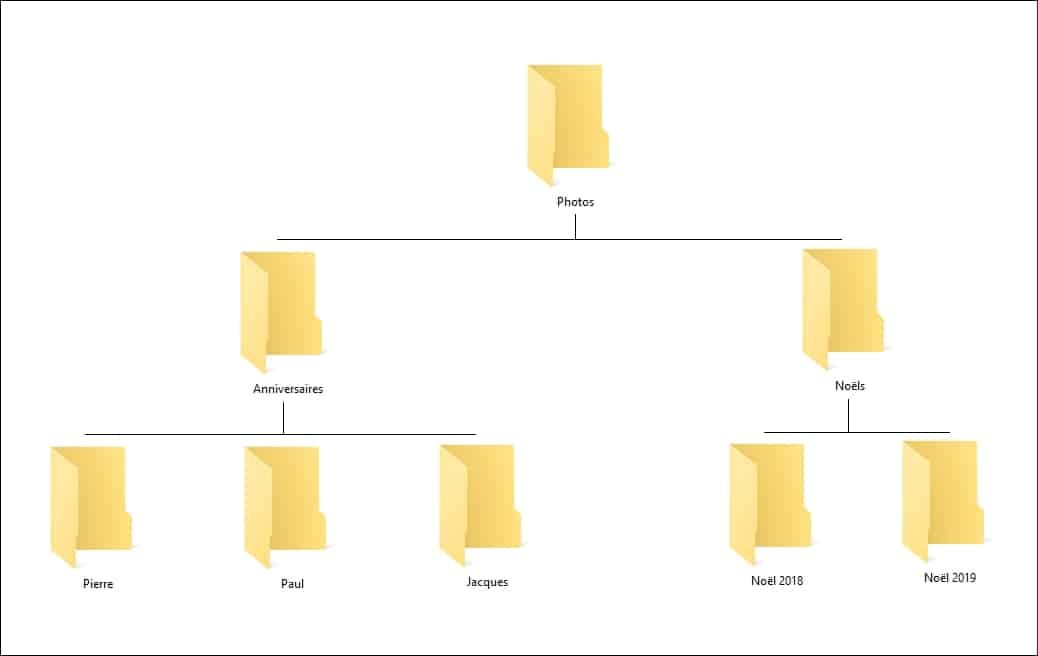
- Open File Explorer and go to the folder of your choice, for example, the Pictures folder.
Start by creating a folder and name it “Photos”. Go into this folder, which will be the parent folder. - Now create 2 subfolders. Name the first folder “Birthdays” and the second “Christmas”.
- Inside the “Birthdays” folder, create 3 new folders: “Peter”, “Paul”, and “James”.
- Go back using the navigation arrow to reach the parent folder, which is the “Photos” folder.
- Now go into the “Christmas” folder, and create 2 folders: “Christmas 2021” and “Christmas 2022”.
You can now check the folder structure you created using the side navigation pane:

Change Folder Display Size
To change the display size of your folders, click on the “View” menu.
You can also use the keyboard/mouse shortcut Ctrl + Mouse Wheel.
Move a Folder
To move a folder in File Explorer, click on it and hold down the mouse button. Drag it to the desired location after making sure the target folder is visible in the left-hand navigation pane. When you are over the target folder, release the mouse button. The folder will be moved.
If you want to move a folder to a different drive, Windows will copy it instead of moving it. In that case, you will need to use Cut and Paste to move your folder. The same applies to files.
Create a ZIP Folder (Archive)
If you want to know how create compressed folders, you can read this Windows course
End of the lesson
Now you know how to create and organize folders in Windows.

Take a Screenshot
See how taking a screenshot in Windows

Decompress archive
How to decompress an archive in Windows (ZIP file).

Create desktop shorcuts
How to create shortcuts on the desktop.

Recover deleted files
How to recover deleted files in the Windows Recycle Bin.

Create an email account (Gmail)
How to create a Gmail account to send and receive emails.
Send emails and attachments
How to send emails and attachments. Example with Gmail.

0 commentaire