Computer courses / Windows course
How to Compress and Decompress ZIP Files in Windows
Difficulty : Easy
OS needed : Windows (all versions)

About ZIP files
If you are using a fairly recent version of Windows, such as Windows 11 or even Windows 10, you no longer need special software to extract compressed files (as long as they use common formats like ZIP or RAR files).
Windows is perfectly capable of extracting several types of compressed files, but it can only create ZIP files when you ask it to create a compressed file.
In this tutorial, I will explain very simply how to extract files or folders, but also how to create compressed files. If you are using an older PC, don’t worry — I haven’t forgotten about you!
Vocabulary
- Archive : a folder that has been compressed to reduce its size..
- ZIP file : a compressed file format, and the most commonly used one.
Table of Contents
1. How to Compress a File in Windows
2. How to Decompress a File in Windows
3. How to Compress or Decompress Files Using 7-Zip

1. How to compress a file Windows
Before getting started, please note that you can compress both files and folders. The purpose of compression is, as the name suggests, to create a file that takes up less space, but also to have a single file that contains several files and/or folders. This is especially useful when you want to send multiple files to someone in certain situations.
Windows creates *.ZIP files, but it can extract several types of compressed files.
To create a compressed file, start by gathering all the files and folders you want to include in the same archive. You can place them on the Windows desktop or inside a new folder that you create.
Once your files are grouped together, select all of them using the mouse, then right-click and choose "Compress to... ZIP file":
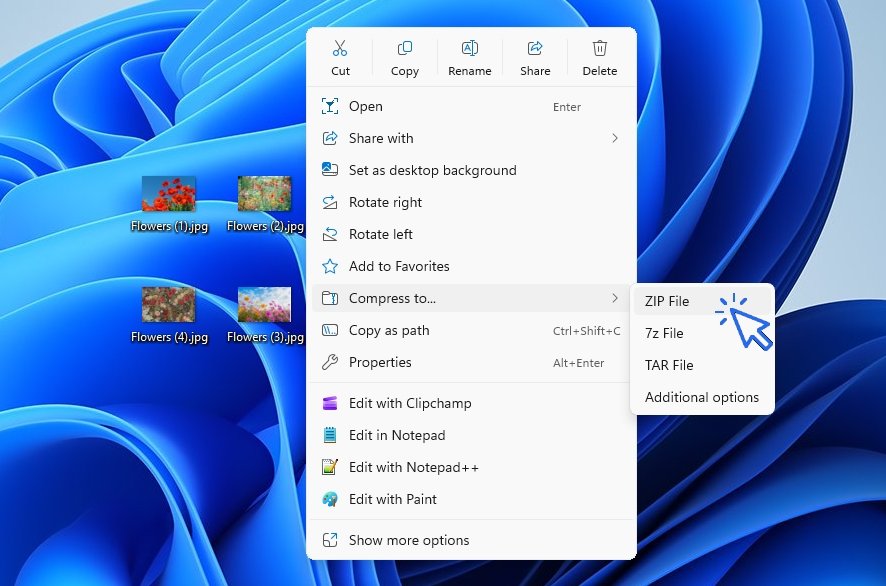
The created folder will be placed in the same location you are currently in: Desktop, Documents, etc.
Please note that Windows automatically assigns a name to the created ZIP archive (it usually uses the name of the file you right-clicked on when creating the compressed file).
To change the name of the compressed file, right-click on it and choose Rename.
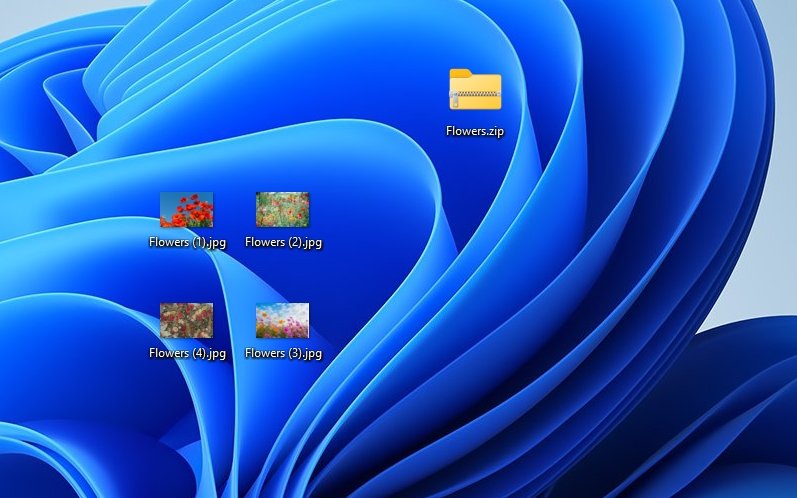
The archive is created more or less quickly depending on the number and size of the files being compressed, as well as the performance of your computer.
2. How to decompress a file in Windows
If you have a ZIP or RAR file to extract, Windows can decompress it without any problem, without using third-party software.
If you are using Windows 11 (version 23H2 or later), you can even extract 12 different compressed file formats (RAR, 7-Zip, Tar.gz, etc.).
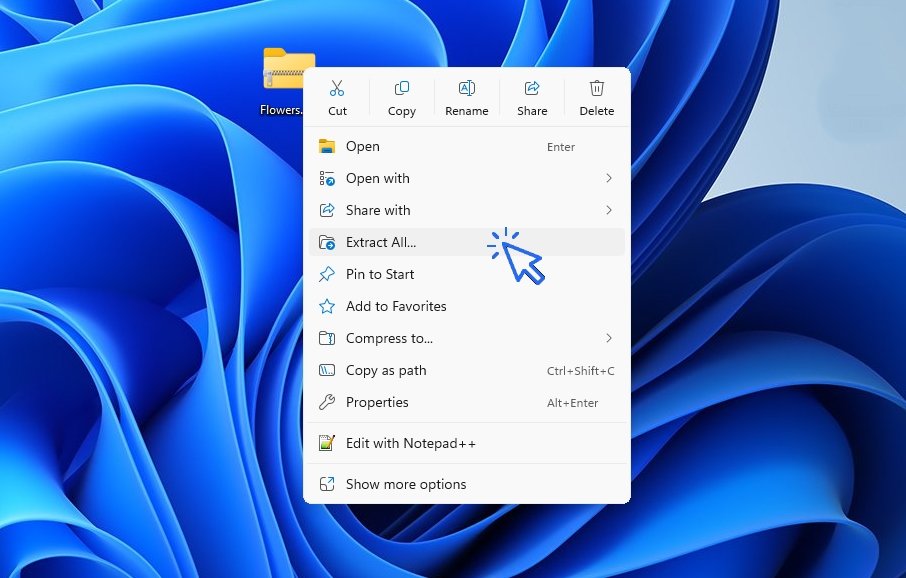
To extract a compressed file, simply right-click on it and choose “Extract All…”:
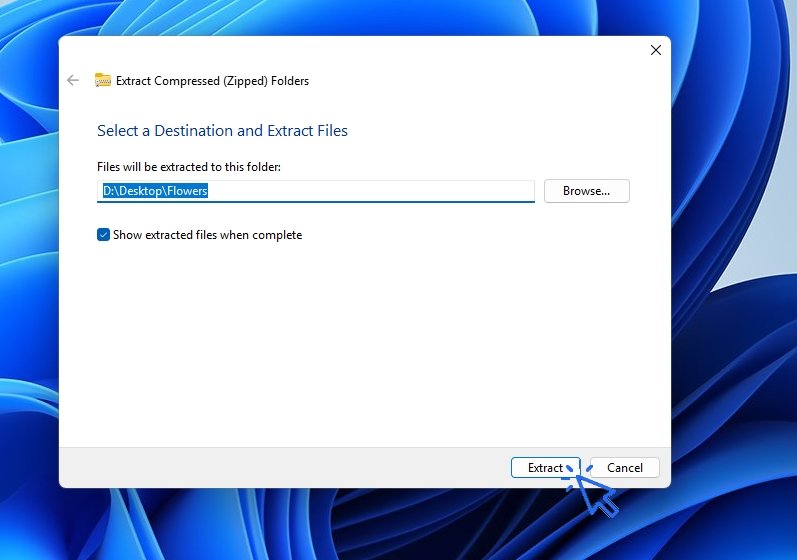
In the window that opens, choose the destination folder where the extracted folder will be placed.
Here, a folder named “Paysage 2” will be created on the Desktop. Then click “Extract”:
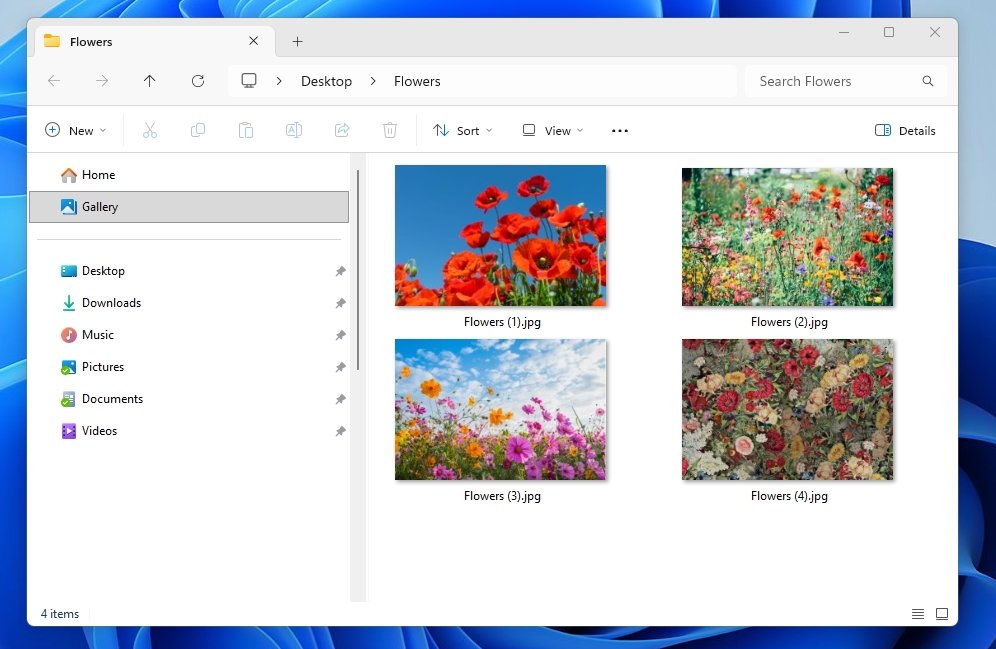
You can now access your files freely: open them, edit them, or print them:
3. How to Compress or Decompress Files Using 7-Zip
If you are using an older version of Windows, such as Windows 7 or 8, you may not be able to compress or extract files using the Windows context menu (right-click on a file). Likewise, if you want to extract compressed files that are not ZIP or RAR files, you won’t be able to do it without third-party software.
The free software 7-Zip allows you to create compressed files in the *.7z format, as well as in several other formats, such as *.ZIP. 7-Zip also lets you extract many types of compressed files.
You can download the software from the official website by selecting the Windows X64 version. Once the software is installed on your PC, select the files you want to compress and click “Show more options” if you are using Windows 11. If you are using an older version of Windows, proceed to the next step.
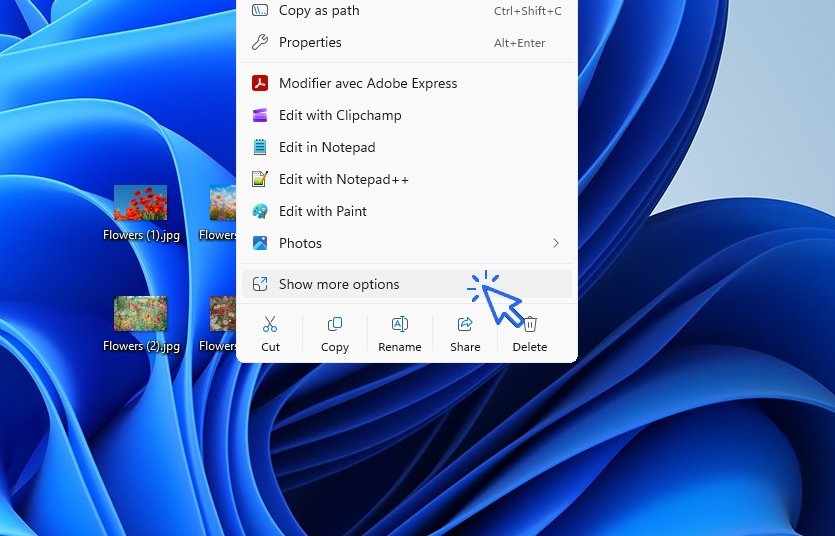
In the context menu that appears, select 7-Zip, then choose “Add to Desktop.zip”:
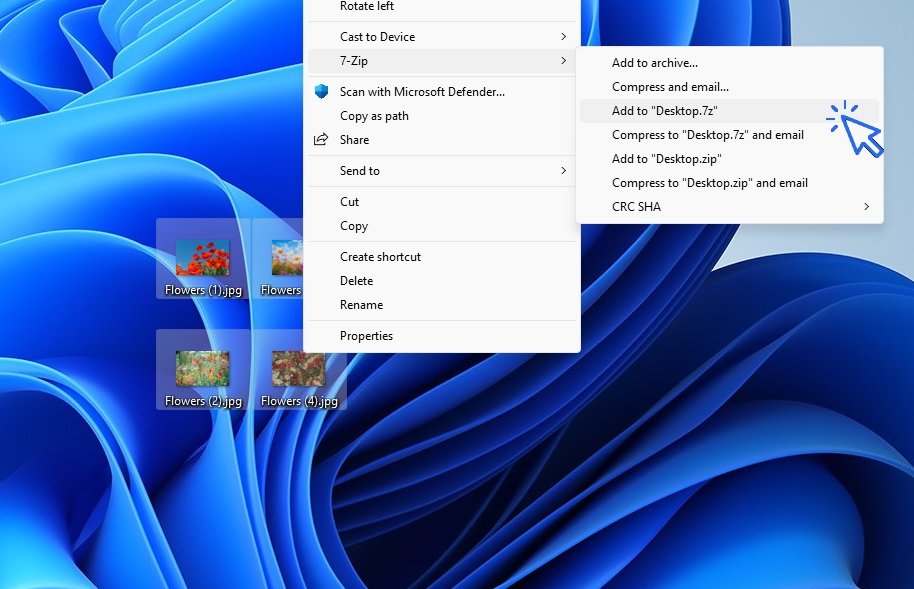
The compressed folder will then appear on the Desktop or in the location you are currently in within File Explorer.
To extract a compressed file with 7-Zip, right-click on it, select 7-Zip, then choose “Extract to”:
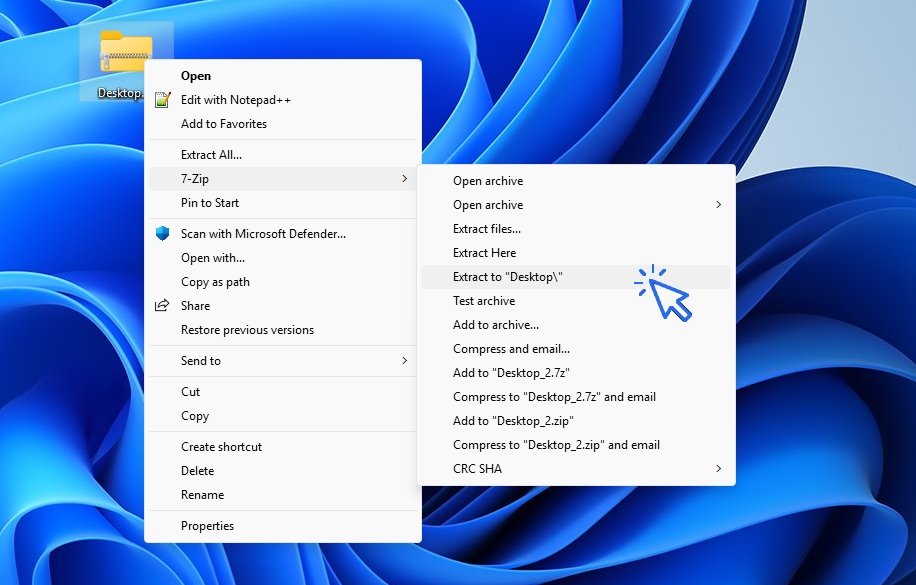
You can now use your files. See also how to create a folder easily in Windows 10 or 11.
End of the lesson
You know now how to use ZIP files in Windows
Windows Basics

Create folders
Learn how to create and organize folders in Windows.

Create an email account (Gmail)
How to create a Gmail account to send and receive emails.
Send emails and attachments
How to send emails and attachments. Example with Gmail.

Recover deleted files
How to recover deleted files in the Windows Recycle Bin.

Change Google Chrome Homepage

Take a Screenshot
See how taking a screenshot in Windows

Increase display size
Create desktop shorcuts
How to create shortcuts on the desktop.

Connect a wifi printer
How connect a printer to your wifi network and how install it in Windows.
Smartphone Tips & Tricks

Connect Bluetooth speakers to phone
How connect a BT device like a speaker to your phone.

Solve internet issues
How to fix the main internet connections issues. Main troubleshooting steps.
Common Smartphone Problems

My phone is not charging
What should you do if your phone no longer charges?

I can't make calls
Check this tips if you can't make calls anymore.
No internet on my phone

My phone restarts by itself
Why does your phone restart by itself and how to fix it.

Thibaut MATHIEU
Editor of Premiers Clics
Editor and writer of Premiers Clics, and author of the book “Je me mets à l'informatique” (only avalaible in french), I share all my computer knowledge to help you learn, using the Premiers Clics computer courses.
Also the manager of a computer support and repair company, I fully understand your needs in computer training and assistance. Every day, I answer my clients’ questions about their computers, phones, or tablets.
This experience has given me extensive knowledge in consumer digital technology, allowing me to separate fact from fiction in device protection, identify the most common user mistakes, and provide numerous tips to make the best use of PCs, smartphones, and tablets.

0 commentaire