
Home / Common Smartphones Problems
How to Improve your Smartphone Battery Life
Difficulty : Medium
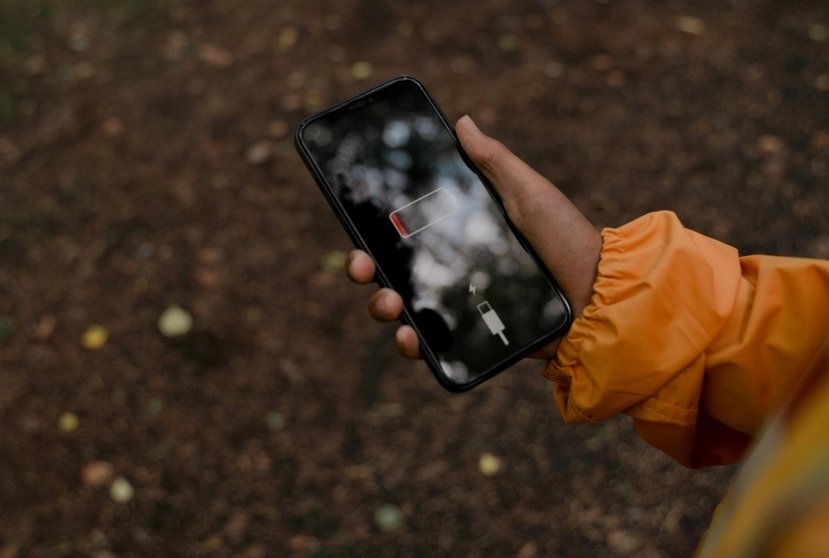
Is your phone draining quickly ? This article explains the main causes and the best solutions!
Improve Battery Life
A smartphone battery can sometimes drain very quickly. Between apps, screen brightness, and connections that stay active all the time, battery life can decrease without really knowing why.
It’s important to understand that battery life is the weak point of many technologies: electric vehicles, smartphones, laptops, and more. Even with the latest smartphones, devices have become so powerful that they consume a lot of energy. The ever-increasing size of phone screens also contributes to this higher consumption. In this guide, I will explain all of this in detail: how to identify the cause or causes, and how to adjust your smartphone settings in the best possible way.
Fortunately, there are several simple solutions to save your phone’s battery and improve its battery life. By changing a few settings and adopting good habits, it’s possible to gain several additional hours of use.
Table of Contents
- Understanding why the battery drains quickly
- Essential settings to save battery
3. Apps that consume the most power
4. Good habits to preserve your battery
1. Understanding why the battery drains quickly
Before trying to improve your phone’s battery life, it is useful to understand what consumes the most energy. On a smartphone, several elements can reduce battery life without you even noticing. The screen is often the component that uses the most energy, especially when the brightness is set high. Applications running in the background can also continuously use the battery.
Connections such as Wi-Fi, Bluetooth, or GPS can also drain the battery when they remain active all day. Frequent notifications, automatic updates, or certain very demanding applications can also speed up the phone’s battery drain. From experience, GPS apps (Waze, Google Maps...) consume a lot of power because they calculate several things in real time.
To identify what uses the most energy, you can check the battery statistics directly in your phone’s settings.
On Android:
Settings → Battery → Battery usage
On iPhone:
Settings → Battery → Battery usage
This information helps identify the applications or functions that consume the most energy.
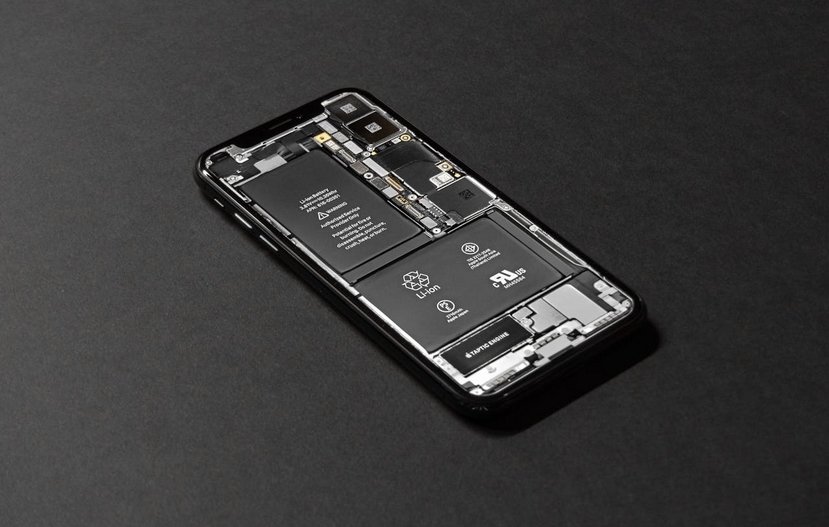
Checking battery usage data allows you to quickly identify the apps responsible.
3. Apps that consume the most battery
Some applications use much more energy than others. Social media, video apps, mobile games, or GPS navigation apps are often among the most battery-intensive services. Some applications also continue running in the background even when you are not actively using them.
Over time, it is also common to keep applications on your phone that you no longer really use. These apps may continue to consume energy to update themselves or send notifications. To limit this consumption, it can be useful to regularly check the installed applications and remove those that are no longer used. It is also possible to limit background refresh for certain applications.
On iPhone:
Settings → General → Background App Refresh
On Android:
Settings → Apps → Battery
These settings help reduce app activity when they are not open.
3. Apps that consume the most battery
Some applications use much more energy than others. Social media, video apps, mobile games, or GPS navigation apps are often among the most battery-intensive services. Some applications also continue running in the background even when you are not actively using them.
Over time, it is also common to keep applications on your phone that you no longer really use. These apps may continue to consume energy to update themselves or send notifications. To limit this consumption, it can be useful to regularly check the installed applications and remove those that are no longer used. It is also possible to limit background refresh for certain applications.
On iPhone:
Settings → General → Background App Refresh
On Android:
Settings → Apps → Battery
These settings help reduce app activity when they are not open.
Conclusion
A battery that drains quickly is not always a sign of a serious problem. In many cases, a few simple settings and good usage habits can improve your phone’s battery life.
By reducing screen brightness, limiting applications running in the background, and using power saving mode, it is often possible to gain several extra hours of battery life each day.
If, despite these settings, the battery continues to drain very quickly, it may be useful to check the battery’s condition or have the phone diagnosed. A battery that charges poorly, charges slowly, and drains very quickly should be replaced. All of my advice aims to help preserve and manage a functional phone battery in good condition. Replacing a battery at a professional repair shop is usually not very expensive, but make sure they install an original battery or a good-quality generic one.
Curious to learn more?
Would you like to learn more about how your smartphone works by reading guides and tutorials on smartphone use ? Visit the Smartphone Tutorials section ! Are you also curious about how to troubleshoot your phone ? Then check out the Smartphone Troubleshooting section. Finally, to improve your general computer knowledge—especially about Windows—take a look at my free computer courses, designed for seniors and beginners of all ages.
Related Articles
End of the troubleshooting guide
You now know how to fix a smartphone that is draining battery quickly.

No internet on my phone

My phone is overheating

My phone is not charging
What should you do if your phone no longer charges?

My phone Freezing

Thibaut MATHIEU
Editor of Premiers Clics
Editor and writer of Premiers Clics, and author of the book “Je me mets à l'informatique” (only avalaible in french), I share all my computer knowledge to help you learn, using the Premiers Clics computer courses.
Also the manager of a computer support and repair company, I fully understand your needs in computer training and assistance. Every day, I answer my clients’ questions about their computers, phones, or tablets.
This experience has given me extensive knowledge in consumer digital technology, allowing me to separate fact from fiction in device protection, identify the most common user mistakes, and provide numerous tips to make the best use of PCs, smartphones, and tablets.

0 commentaire