Internet and Email Courses
Set and Change Your Homepage in Google Chrome
Difficulty: Easy
Required Browser: Google Chrome
[yoast_breadcrumb]
Overview of the Browser Homepage
Setting the homepage is the first thing to do when configuring your web browser (Edge, Chrome, Firefox…). Usually, a search engine like Google is set, but you can set any site or webpage (another search engine, email service, news website, MSN… etc.).
Table of contents
1. Set the Homepage
2. Display the Homepage
3. Display the Homepage when Opening a New TabDownload Google Chrome
1. Set the Homepage in Google Chrome
You can set your browser’s homepage by choosing which site to open: the Google search engine, your favorite website… You are free to specify any website of your choice! To set your homepage, go to Chrome’s settings by clicking on the menu represented by 3 small dots (or a gear icon, depending on your version). Let’s go through it with images.
Target: Menu -> Settings -> Appearance -> Show Home Button
First, launch Google Chrome (if you haven’t installed it yet, click the « Download Google Chrome » button above the table of contents). Your browser will then open:

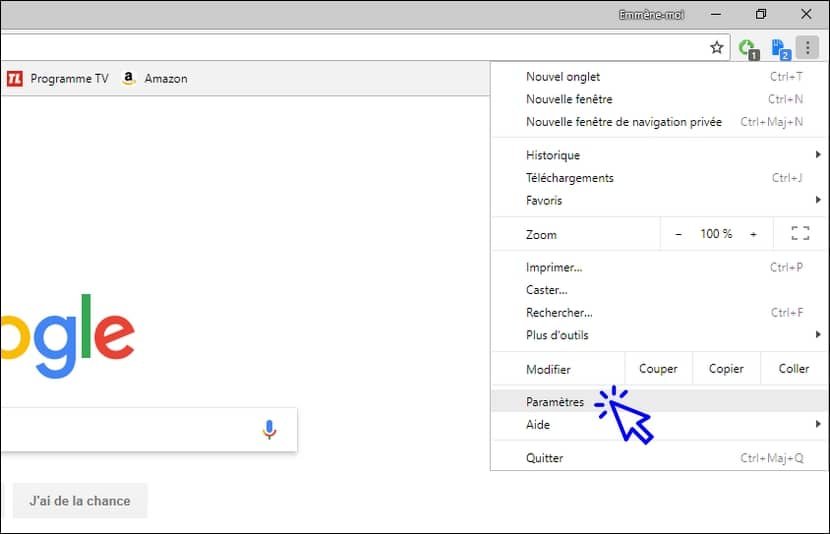
Find the menu access represented by 3 small dots at the top right of the window and click on it :

Click on « Settings »:
The Chrome settings page will appear. In the « Appearance » section, start by enabling the display of the Home button if it’s not already done:

Then enter the URL of your choice (a site or a webpage). To set Google as your homepage, type the URL « https://www.google.fr » (without quotes). Click next to the field to confirm, and close the tab.

2. Display the Home page in Google Chrome
To display the homepage, look for the home icon located at the top left of your browser:

then simply click on it :

3. Display the Home page on a new tab
This is less commonly used but still good to know. Opening a new tab in your preferred browser (Chrome, Firefox, Edge…) allows you to keep certain sites open. Chrome automatically displays its search engine when opening a new tab. To open a custom homepage, first click on the small gray thumbnail located just to the right of the open tab to open a new tab:

Then click on the « Home » icon. This will open the website you have set in Chrome’s settings (see the previous section).
End of the lesson
You now know how to set and display the homepage in Google Chrome.
Delete browsing history
How to delete your browsing history in Chrome, Edge…

Transfer contacts on a new phone
How to transfer contacts to a new phone. How to get easily your contacts on your new phone.

No internet on my phone
Check this link if you have no internet on your phone.

Thibaut MATHIEU
Editor of Premiers Clics
Editor and writer of Premiers Clics, and author of the book “Je me mets à l’informatique” (only avalaible in french), I share all my computer knowledge to help you learn the computer Basics.
Also the manager of a computer support and repair company, I fully understand your needs in computer training and assistance. Every day, I answer my clients’ questions about their computers, phones, or tablets.
This experience has given me extensive knowledge in consumer digital technology, allowing me to separate fact from fiction in device protection, identify the most common user mistakes, and provide numerous tips to make the best use of PCs, smartphones, and tablets.

0 commentaires