Home / Windows & Computer Basics / Internet
How to find your WiFi password ?
Difficulty: Easy

Overview of the Browser Homepage
This guide is written for beginners, seniors, and anyone who is not comfortable with technology. The explanations are simple, step by step, just like the pages on Premiers Clics.
The Wi-Fi password (also called Wi-Fi key or network key) is the code you need to connect your devices (phone, tablet, or computer) to the internet at home. Without it, your devices cannot connect to Wi-Fi.
If you were unable to display the Wi-Fi key using the usual methods, you can also find the Wi-Fi key directly from your smartphone.

Most of the time, the Wi‑Fi password is written directly on the router (label or LCD screen).
If necessary, write it down so you don’t forget it.
1. Look at the label on your router or modem
Most routers or modems have a sticker on the back or bottom. This is the simplest way to find your Wi-Fi password.
The label usually shows:
Wi-Fi Network Name (SSID)
Wi-Fi Password (Password, Wireless Key, or Network Key)
This method works for most internet providers, in both the USA and the UK.
Routers with a display
Some modern routers or modems have a small built-in display that shows the Wi-Fi network name and password. You may see the password directly on the screen, or navigate through a simple menu to find it.
This feature is more common in Europe, but some providers in the USA and UK also offer routers with displays.
2. Use your internet provider’s app or website
Many providers have a mobile app or online account where you can:
View your Wi-Fi password
Change the password
Share Wi-Fi access
Examples:
USA: Xfinity, AT&T, Verizon, Spectrum, Cox
UK: BT, Sky, Virgin Media, TalkTalk, Vodafone
This is a convenient and widely used method.
3. Check a device already connected to Wi-Fi
If your computer or phone is already connected, you can often see the saved password.
On Windows
If your Windows computer is already connected to the network but you need to connect another device, like a tablet or phone, you can view the password directly in Windows:
1. Open the Control Panel (Type "control panel" in the search box on the taskbar.).
2. Click Network and Internet.
3. Click Network and Sharing Center.
4. On the right, click your Wi-Fi connection.
5. In the window that opens, click Wireless Properties.
6. Go to the Security tab.
7. Check Show characters. The password will appear immediately.
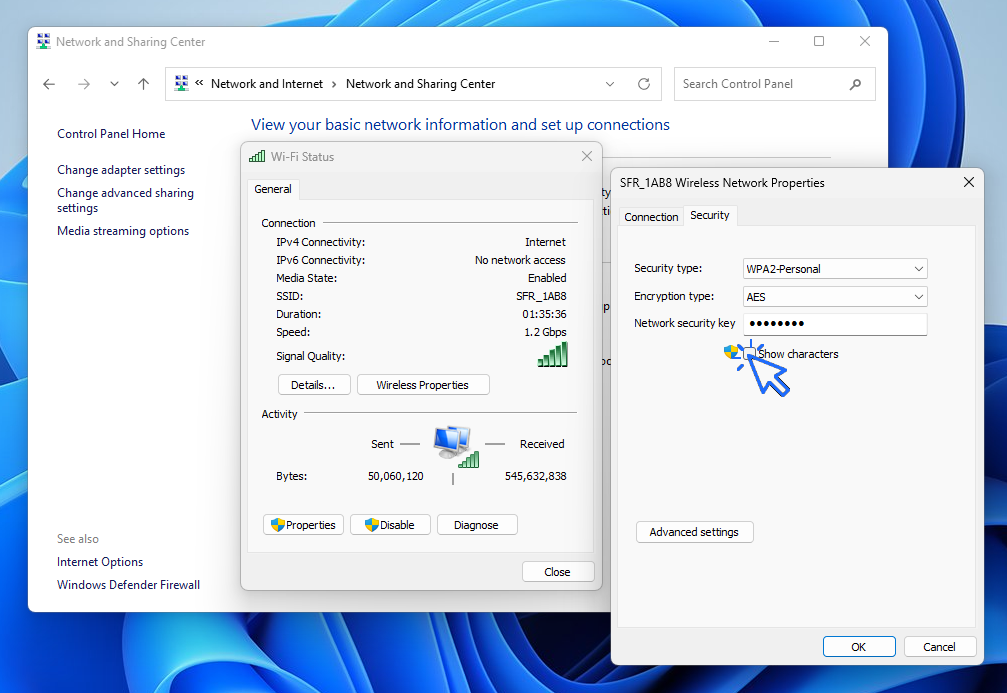
You can view your Wi-Fi password in plain text on Windows. Click to view the screenshot in full size.
On Mac
Open Keychain Access
Find your Wi-Fi network
Show the password
On iPhone or iPad
Go to Settings → Wi-Fi → Tap your network → Password (if using iCloud Keychain)
On Android
Go to Settings → Network & Internet → Wi-Fi → Saved networks → View password
4. Personal or third-party routers
In many homes, especially in the USA, people use their own Wi-Fi routers instead of only the provider’s box. Popular brands include:
Netgear, TP-Link, Asus, Google Nest WiFi, Eero
For these routers:
The password is set by the user
It can be found in the router app or web interface
5. Resetting your router if needed
If you changed the Wi-Fi key, for example to have an easy-to-remember password, but you no longer remember it, reset the modem to restore the Wi-Fi settings to their default values. This will reinstate the original key.
If you cannot find your password:
Press the reset button on your router
A new Wi-Fi password will be created
⚠️ All devices will need to reconnect with the new password.
Summary
1. Check the router label
2. Use your provider’s app or website
3. Check a device already connected
4. Look in your personal router settings
5. Reset the router if all else fails
End of the tutorial
Now you know how to get your Wi-Fi password.
View WiFi password on an Android Phone
Read this guide to find your WiFi password on your smartphone.

Solve internet issues
How to fix the main internet connections issues. Main troubleshooting steps.

Send emails and attachments
How to send emails and attachments. Example with Gmail.

Transfer contacts

Create desktop shorcuts
How to create shortcuts on the desktop.
Protect my computer using a password
How protect my computer with a password or a PIN code.

Connect a wifi printer
How connect a printer to your wifi network and how install it in Windows.

View Google browsing
How to check your Google browsing in Chrome, Edge or Firefox.
View Google browsing
How to check your Google browsing in Chrome, Edge or Firefox.

Restore contacts on a new phone
How to move contacts to a new Android phone. How to get easily your contacts on your new phone.
🔹Mobile & Tablet Tutorials
We also offer lessons and practical guides for smartphones and tablets. You’ll learn how to:
Set up your device
- Send a photo with text message
- Adjust the volume of my phone
- Open settings
- Free up storage space
Install and use useful apps
- How to connect a Bluetooth speaker ?
Transfer photos
- Transfer contacts to new phone
- How to see my Google photos ?
- How to get wifi password
- How to get wifi password with a phone ?
These lessons are ideal for users of Android smartphones and tablets.
Smartphone Problems: All Simple Step-by-Step Solutions

Thibaut MATHIEU
Editor of Premiers Clics
Editor and writer of Premiers Clics, and author of the book “Je me mets à l'informatique” (only avalaible in french), I share all my computer knowledge to help you learn the computer Basics.
Also the manager of a computer support and repair company, I fully understand your needs in computer training and assistance. Every day, I answer my clients’ questions about their computers, phones, or tablets.
This experience has given me extensive knowledge in consumer digital technology, allowing me to separate fact from fiction in device protection, identify the most common user mistakes, and provide numerous tips to make the best use of PCs, smartphones, and tablets.

0 commentaire