Smartphones & Tablets / Practical Guides
How to Free Up Storage Space on My Phone? Practical Guide
Difficulty : medium

The problem of full storage on a phone
Is your phone running out of space? Photos, videos, apps, and system files can quickly fill up your device’s memory, especially on older models. Fortunately, there are several simple solutions to free up space and optimize your smartphone.
In this article, I will explain how to check available storage, clean your phone, and increase its storage capacity if necessary. This is a problem I frequently encounter with customers I assist or troubleshoot.
Table of Contents
- Check used storage
- Free up space: cleaning and deletion
- Increase storage space
1. Check used storage
Before deleting anything, it’s important to know how much space is already being used.
For recent phones:
If your smartphone has 64 GB, 128 GB, 256 GB, or more, you probably still have plenty of free space. Photos, apps, and system files have not yet filled up the storage.
For older phones:
Devices with 16 GB or 32 GB can quickly become full due to apps and system files. In this case, even a factory reset will not permanently solve the issue, as future updates will consume storage again. If your phone is old and has limited memory, replacing it with a model that offers more storage may be the most effective solution.
Viewing Free and Used Storage on iPhone or Android
To check used storage:
1. Go to Settings > Device care (or General management) > Storage.
2. You will see total storage, available space, and what is taking up space (apps, photos, videos, etc.).
3. If some apps take up a lot of space, you can uninstall them. For photos and videos, it’s best to transfer them to your computer before deleting them from your phone.
Let’s look at screenshots showing how to display this information. Go to Settings / “Device care” / “Storage”.
On an Android phone such as Samsung, Oppo, or Google, go to Settings / Device care / Storage to view free space, used space, and stored items.
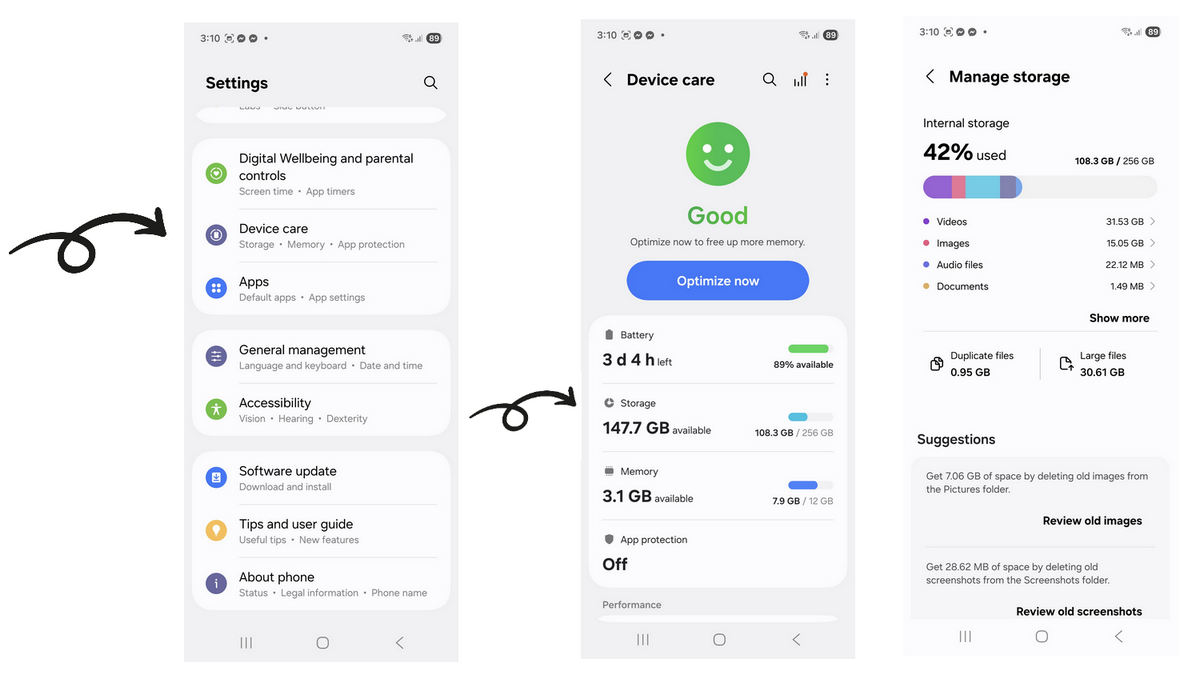
On an Android phone such as Samsung, Oppo, or Google, go to Settings / Device Care / Storage to view free space, used space, and stored items.
2. Free up space : cleaning and deleting
Once you know what’s taking up space, it’s time to clean:
Delete large apps you no longer use.
You can usually sort apps by size to quickly identify the biggest ones. Go to Settings / General management / Storage, then tap Apps to view the list and their sizes.Clear app cache if you want to keep the app but recover storage space.
Go to Settings / Apps / App name / Storage, then clear the cache.Transfer photos and videos to a computer to free up memory. Good news: I’ve prepared a step-by-step tutorial just for that!
Good to know:
It is not possible to significantly reduce the size of the Android operating system unless you reset the phone. However, the problem will return, as updates are installed regularly.
These steps can free up several gigabytes on a full smartphone and improve overall performance.
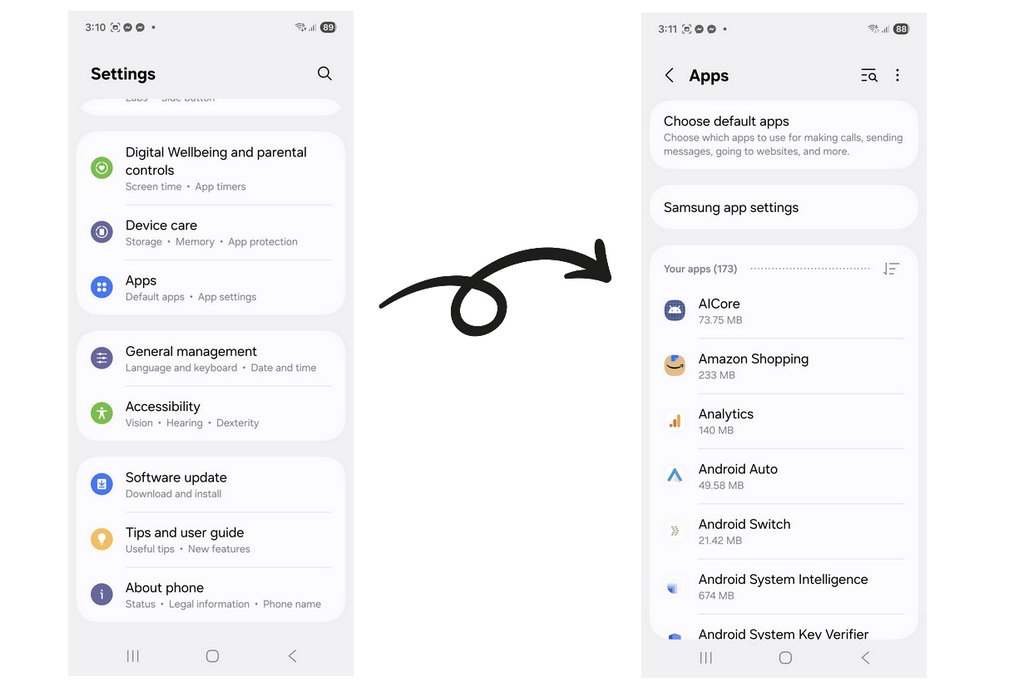
In Settings / Apps, you can view the size of each application. Sorting apps by size is often available and helps you quickly identify which apps take up the most space.
Move Apps to a microSD car
For some apps, it’s also possible to move them to a microSD card. To do this, see my tutorial on how to move an app to an SD card.
3. Increase storage with a microSD card
If your phone has a microSD card slot, you can significantly increase its storage capacity:
Check SD card usage in the settings.
Enable the option “Save photos and videos to SD card” to free up internal memory.
If you don’t have one yet, a 64 GB or 128 GB microSD card costs less than €20 and allows you to store photos, videos, and even some apps.
This solution is ideal for older smartphones or devices with limited internal storage.
Conclusion
Storage space should be a key criterion when buying a smartphone, especially if you use social apps like WhatsApp, which accumulate photos and videos in conversations. Regularly checking storage usage, cleaning your device, and adding a microSD card are the best ways to keep your phone running smoothly and avoid “storage full” warning messages.
Thibaut Mathieu
End of tutorial
Other Tutorials

Access Netflix
Speed up my phone
How to make my phone faster because it’s getting slower and slower
Send a photo with text message

Create an email account (Gmail)
How to create a Gmail account to send and receive emails.
Common Smartphone Problems

I can't make calls
Check this tips if you can't make calls anymore.

My phone is not charging
What should you do if your phone no longer charges?
My phone restarts by itself
Why does your phone restart by itself and how to fix it.
Windows Basics

Take a Screenshot
See how taking a screenshot in Windows.
Decompress ZiP File
Learn how to compress and compress ZIP Files.

Recover deleted files
How to recover deleted files in the Windows Recycle Bin.

Change Wallpaper
How to change the Windows Wallpaper. Windows Course

View download history
How to view the browser download history in Google.

Thibaut MATHIEU
Editor of Premiers Clics
Editor and writer of Premiers Clics, and author of the book “Je me mets à l'informatique” (only avalaible in french), I share all my computer knowledge to help you learn, using the Premiers Clics computer courses.
Also the manager of a computer support and repair company, I fully understand your needs in computer training and assistance. Every day, I answer my clients’ questions about their computers, phones, or tablets.
This experience has given me extensive knowledge in consumer digital technology, allowing me to separate fact from fiction in device protection, identify the most common user mistakes, and provide numerous tips to make the best use of PCs, smartphones, and tablets.

0 commentaire