
Premiers Clics / Free online computer courses & Phone tutorial
How to find your TPG Wi-Fi Password (Australia)
Difficulty: Easy
[yoast_breadcrumb]

Find your TPG Wi-Fi password
If your internet provider is TPG (Australia), this easy step-by-step guide will show you how to find your Wi-Fi password quickly and stress-free.
This tutorial is perfect for beginners, seniors, or anyone who isn’t very comfortable with technology. You’ll discover simple ways to locate your TPG Wi-Fi password, whether it’s by checking your modem, using the TPG My Account portal, or viewing a device that’s already connected. Also check the following page if needed, more general: How to view my Wi-Fi password?
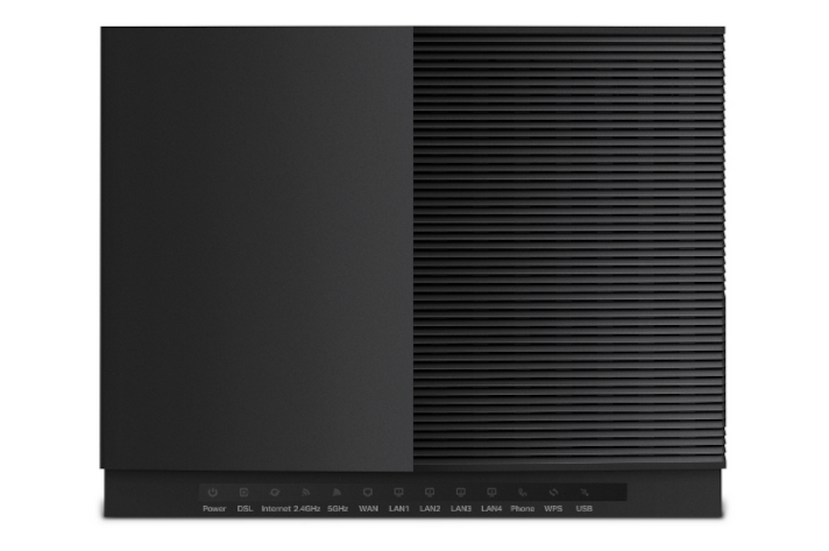
I usually start by checking the modem label or using the Optus app. These are the easiest methods.
How to Find Your Wi-Fi Password – TPG Modems & Routers
The easiest ways to find your TPG Wi-Fi password are by checking your modem or using the TPG online tools.
1. Check the label on your TPG modem
Most TPG modems have a sticker on the back or bottom showing:
Wi-Fi Network Name (SSID)
Wi-Fi Password (also called Wireless Key or Network Key)
👉 This is usually the fastest way. Write down the password for safe keeping.
2. Use the TPG My Account portal or app
Log in to the TPG My Account portal on desktop or mobile to:
View your Wi-Fi password
Change the Wi-Fi password
Manage connected devices
This is useful if the modem label is unreadable or missing.
3. Devices already connected
If one of your devices is already connected to the Wi-Fi, you can retrieve the password from it.
On Windows
Settings → Network & Internet → Wi-Fi → Network properties → View saved password
On Mac
Keychain Access → Find your network → Show password
On iPhone / iPad
Settings → Wi-Fi → Tap the network → View password (iCloud Keychain required)
On Android
Settings → Network & Internet → Wi-Fi → Saved networks → View password
4. Reset your TPG modem (last resort)
If none of the above works:
Press and hold the reset button on the back of your modem for 10 seconds
Your modem will reset to factory settings
A new Wi-Fi password will be generated
⚠️ All devices will need to reconnect using the new password.
Summary
1. Check the label on your TPG modem
2. Use the TPG My Account portal or app
3. Look at a device already connected
4. Reset the modem if necessary
Thibaut Mathieu
End of the tutorial
Now you know how to get your Wi-Fi password with a TPG modem.

Solve internet issues
How to fix the main internet connections issues. Main troubleshooting steps.

Create desktop shorcuts
How to create shortcuts on the desktop.
Protect my computer using a password
How protect my computer with a password or a PIN code.

Connect a wifi printer
How connect a printer to your wifi network and how install it in Windows.

View Google browsing
How to check your Google browsing in Chrome, Edge or Firefox.
View Google browsing
How to check your Google browsing in Chrome, Edge or Firefox.

Adjust mobile’s volume

Thibaut MATHIEU
Editor of Premiers Clics
Editor and writer of Premiers Clics, and author of the book “Je me mets à l’informatique” (only avalaible in french), I share all my computer knowledge to help you learn the computer Basics.
Also the manager of a computer support and repair company, I fully understand your needs in computer training and assistance. Every day, I answer my clients’ questions about their computers, phones, or tablets.
This experience has given me extensive knowledge in consumer digital technology, allowing me to separate fact from fiction in device protection, identify the most common user mistakes, and provide numerous tips to make the best use of PCs, smartphones, and tablets.

0 commentaires