Computer Basics / Windows Course
How to empty the Recycle Bin and recover deleted files in Windows
Difficult : easy
OS needed : Windows 10, Windows 11

General information about the Recycle Bin
When you delete a file or folder from your computer, it is actually moved to the Windows Recycle Bin. This process allows you to recover your file or folder in case of accidental deletion, for example. The Recycle Bin is therefore essential, but it needs to be emptied regularly to avoid unnecessarily cluttering your computer!
This beginner's lesson on the Windows Recycle Bin will explain how the Windows Recycle Bin works.
Table of Contents
1. Empty the Recycle Bin
2. Remove a Shortcut from the Taskbar
3. Prevent accidental deletions
1. Empty the Recycle Bin
Emptying your Recycle Bin only takes a few seconds. Right-click the Recycle Bin icon on your desktop, then select Empty Recycle Bin and confirm. Once the Recycle Bin is emptied, the files cannot be recovered. Emptying the Recycle Bin helps free up disk space.
Step-by-Step:
1. Right-click on the Recycle Bin icon.
2. Click Empty Recycle Bin.
3. Confirm the action.
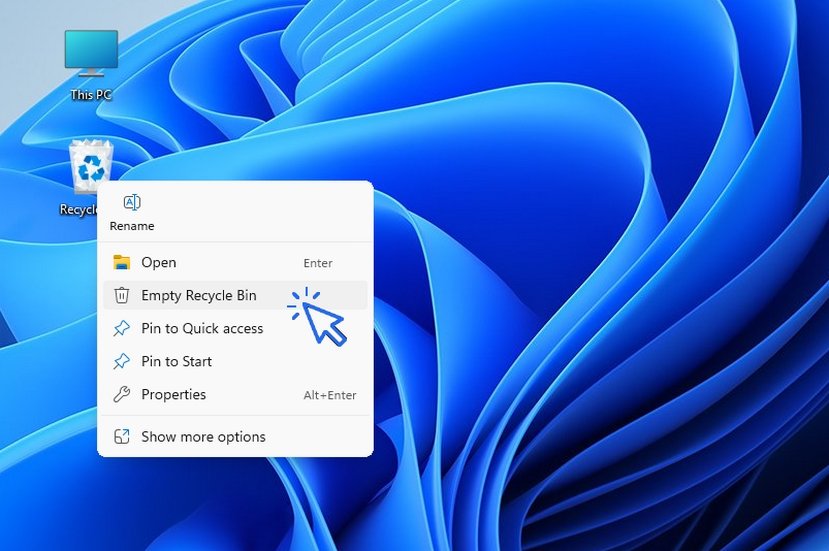
Right Click, Empty Recycle Bin.
2. Recover a deleted file
To recover a deleted file:
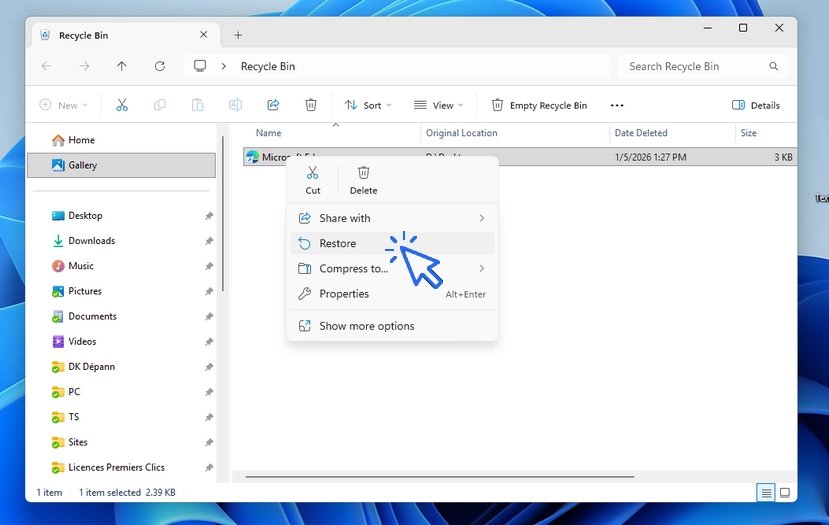
1. Double-click the Recycle Bin to open it.
2. Locate your file.
3. Right-click the file and select Restore.
You can restore a file as long as the Recycle Bin has not been emptied. If the Recycle Bin has been emptied, specialized recovery software can help retrieve your files.
What if my Recycle Bin is empty?
If you have accidentally emptied the Recycle Bin, you can use recovery software such as Recuva (link). Download Recuva or another recovery program to restore lost files.
3. Prevent accidental deletion
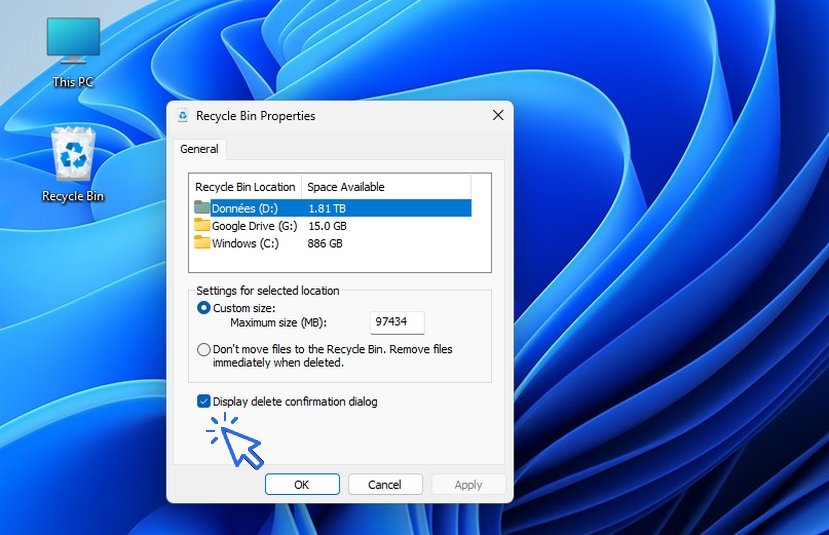
By default, Windows does not ask for confirmation when you delete a file. We recommend enabling it:
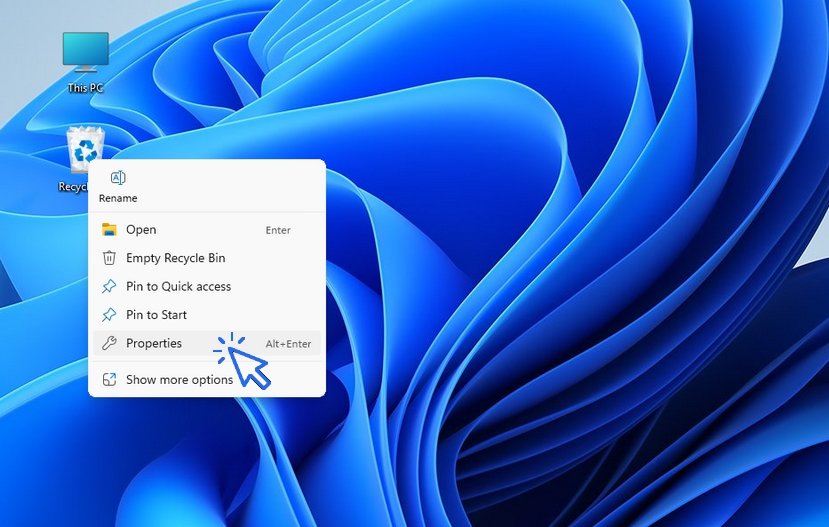
Right-click the Recycle Bin → Properties → check Display delete confirmation dialog.
This will prevent accidental deletion by warning you each time you delete a file or folder. Let see this in pictures. On the Recycle Bin : right click / Properties :
Then check the corresponding box :
End of the Windows lesson
Now you know empty the Recycle Bin.
Other Tutorials

Take a Screenshot
See how taking a screenshot in Windows

Change desktop background
How to change the Windows desktop background. Free online Windows Course.
Create desktop shorcuts
How to create shortcuts on the desktop.
Pin a programm on the taskbar
Protect my computer using a password
How protect my computer with a password or a PIN code.

Connect a wifi printer
How connect a printer to your wifi network and how install it in Windows.

View Google browsing
How to check your Google browsing in Chrome, Edge or Firefox.

Create an email account (Gmail)
How to create a Gmail account to send and receive emails.

Open a downloaded attachment
How do I open a file that I just downloaded.
Smartphone Tips & Tricks

Send a photo with text message

Connect Bluetooth speakers to phone
How connect a BT device like a speaker to your phone.
Smartphone Common Problems

My phone restarts by itself
Why does your phone restart by itself and how to fix it.

No internet on my phone

0 commentaire