Computer courses / Windows course
How to change Wallpaper (Desktop background) in Windows ?
Difficult : easy
Needed OS : Windows (all versions)

General informations about the Wallpaper
The desktop background, also called wallpaper, can be customized very easily on Windows. You can choose to display a solid color, a single image, or even a photo slideshow. This tutorial is designed for beginners and explains everything step by step.

Spoil Alert (Resume in 5 steps)
How to change the Windows Wallpaper in 5 steps :
- Right-click on the desktop
- Click Personalize
- Select Background
- Click Browse
- Choose your image
Table of Contents
- Change the Wallpaper
1. Change the Wallpaper of a computer (Windows)
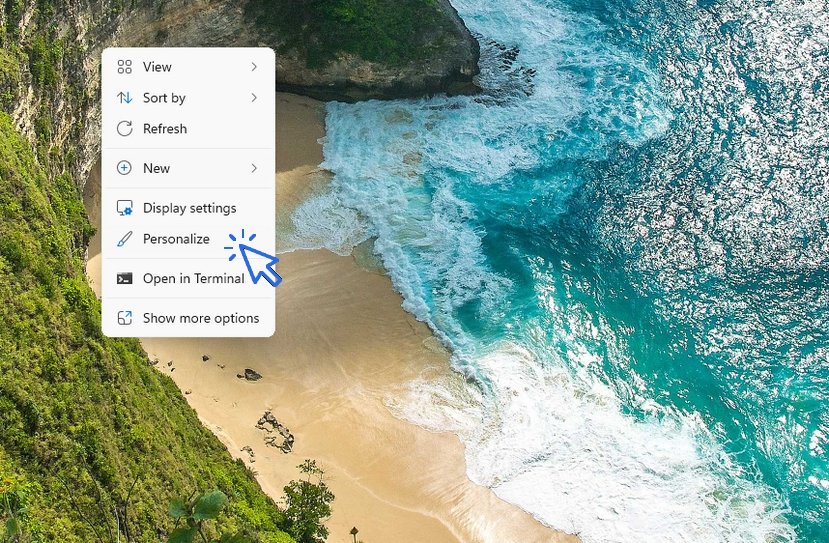
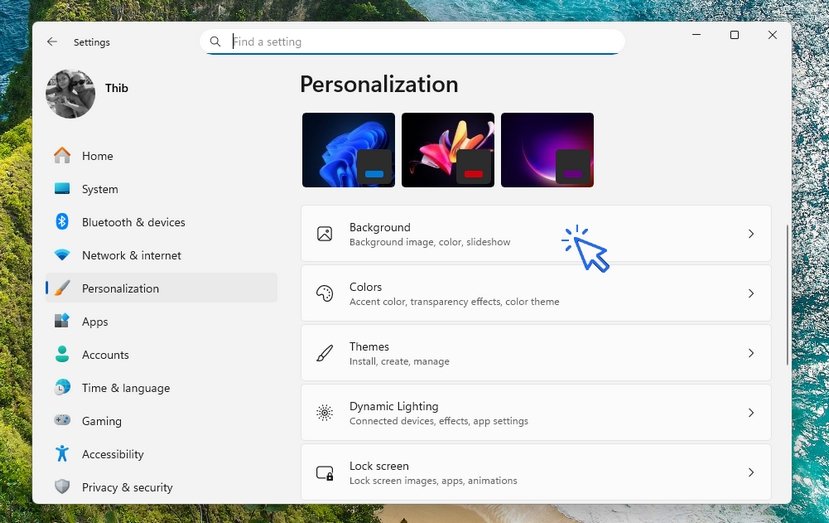
To change the desktop background image, right-click on the desktop and select “Personalize”. Then click “Browse” and choose the image or photo you want. You can adjust how the image is displayed by using the “Choose a fit” dropdown menu (center, fill, stretch, etc.). Let’s look at this step by step with images.
Click “Personalize” using a right-click on the desktop:
Then click on “Background” :
Finally, click on “Browse photos” to select the image of your choice :

Create a slideshow
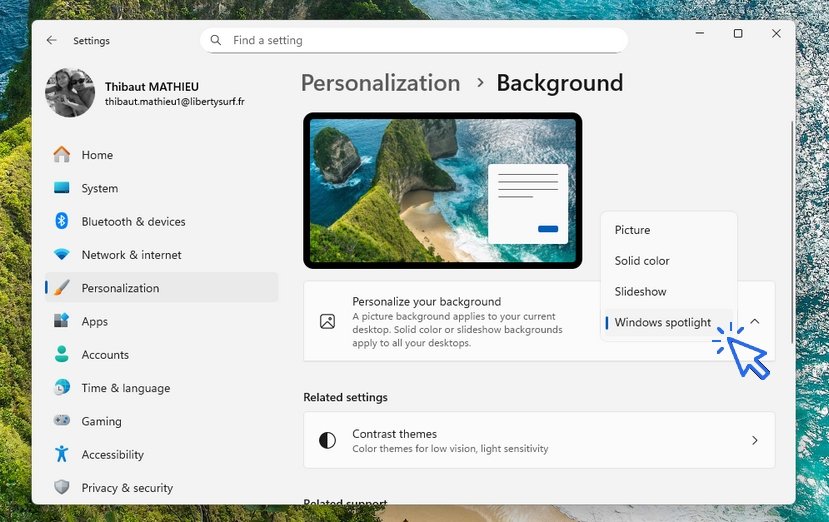
You can select an entire folder by choosing “Slideshow” instead of “Picture” in the “Personalize your background” section. This is a great way to automatically display several photos you like.
We recommend creating a “Wallpapers” folder, copying your favorite images into it, and using that folder as your slideshow source.
Change background type
You can also change the type of background: Windows Spotlight images, a picture from your photo library, a solid color, or a slideshow :
Another way to change your desktop background is to open the folder of your choice using File Explorer—for example, the “Pictures” folder—and right-click on the image you want. Then select “Set as desktop background”. Note: With this method, you cannot adjust the image’s display size.

My experience leads me to recommend this method, as it is the most convenient. If you go through Windows settings, you first need to know the location of the photo you want. Here, you simply find a photo you like in File Explorer and immediately set it as your wallpaper. Picture / Right Click on the file / Set as desktop background
Also, check out the course “How to make your file and folder icons bigger on a PC” to properly set up your display. This is the focus of the next lesson. If you’ve just purchased a new PC, the final lesson will be especially useful, helping you set up your new computer easily, particularly the display settings. You can also change the wallpaper on your Android smartphone or tablet.
Where to find free dekstop wallpapers ?
Looking for free desktop wallpapers to customize your Windows PC? You can download high-quality images from popular sites like:
1. Unsplash – thousands of free HD wallpapers for personal use. (link)
2. Pinterest – browse creative wallpaper collections and trending styles. (link)
3. Google Images – find any type of wallpaper, from landscapes to abstract designs. (link)
To save a wallpaper you like:
1. Click the image to open it in full size.
2. Right-click → “Save image as…” to download it.
3. To set it as your desktop background, right-click the downloaded image and select “Set as desktop background”.
Tip : Organize your favorite images in a folder called “Wallpapers” and use it for a slideshow in Windows for automatic rotation.
Want to learn more about customizing and personalizing your computer? Also read my article explaining how to change display size on a PC. On Premiers Clics, you will find courses on Windows and using a computer, but also tutorials to better use your smartphone.
End of the lesson
Now you know how to change the Windows Wallpaper

Create desktop shorcuts
How to create shortcuts on the desktop.
Protect my computer using a password
How protect my computer with a password or a PIN code.

Empty Recycle Bin
How empty and manage the Windows Recycle Bin.

View Google browsing
How to check your Google browsing in Chrome, Edge or Firefox.

Create an email account
How to create an email account to send and receive emails. Step by step guide.

Access Netflix

Speed up my phone
How to make my phone faster because it’s getting slower and slower

Thibaut MATHIEU
Editor of Premiers Clics
Editor and writer of Premiers Clics, and author of the book “Je me mets à l’informatique” (only avalaible in french), I share all my computer knowledge to help you learn, using the Premiers Clics free online computer courses.
Also the manager of a computer support and repair company, I fully understand your needs in computer training and assistance. Every day, I answer my clients’ questions about their computers, phones, or tablets.
This experience has given me extensive knowledge in consumer digital technology, allowing me to separate fact from fiction in device protection, identify the most common user mistakes, and provide numerous tips to make the best use of PCs, smartphones, and tablets.

www.premiers-clics.fr
0 commentaires