
Computer Basics / Windows / Protection
Protecting your computer with a password
Difficulty : easy
OS needed : Windows (all versions)

Protecting Your Windows PC with a Password or a PIN Code
You can restrict access to your computer by adding a password to your user account. Depending on how your computer is used, it can also be useful to create one user account per person (so that each family member has their own desktop and personal documents – see “How to add a user in Windows”).
For some time now, Windows has also allowed you to create a PIN code as an alternative to a password. A PIN code is often made up of only 4 digits, making it easier to unlock your computer while keeping your session protected by default.
Important: creating a PIN code requires that you already have a password set for your Windows session.
Table of contents
1. Add a password to my Windows account
2. Add a PIN code to my Windows account
3. Lock my Windows session
1. Add a password to my Windows account
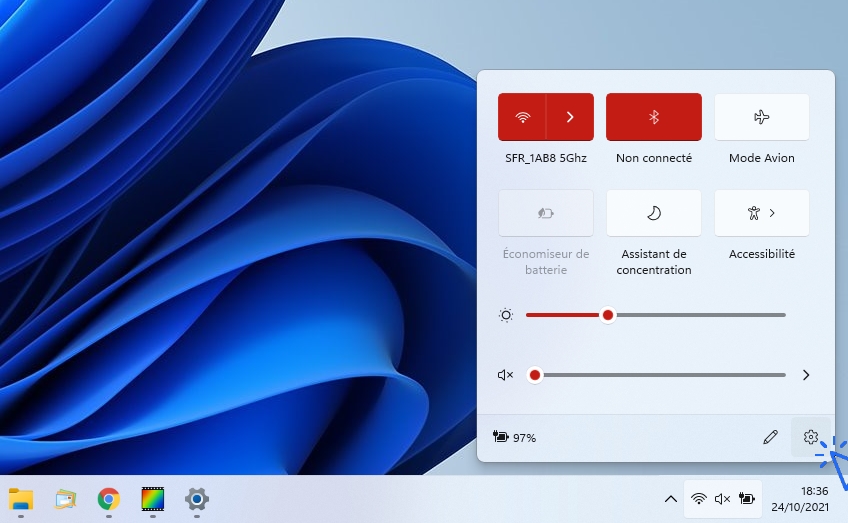
To add a password to your Windows account, open Settings (the gear icon).
In Windows 10, type Settings in the search bar,
Or use the keyboard shortcut Windows key + I.
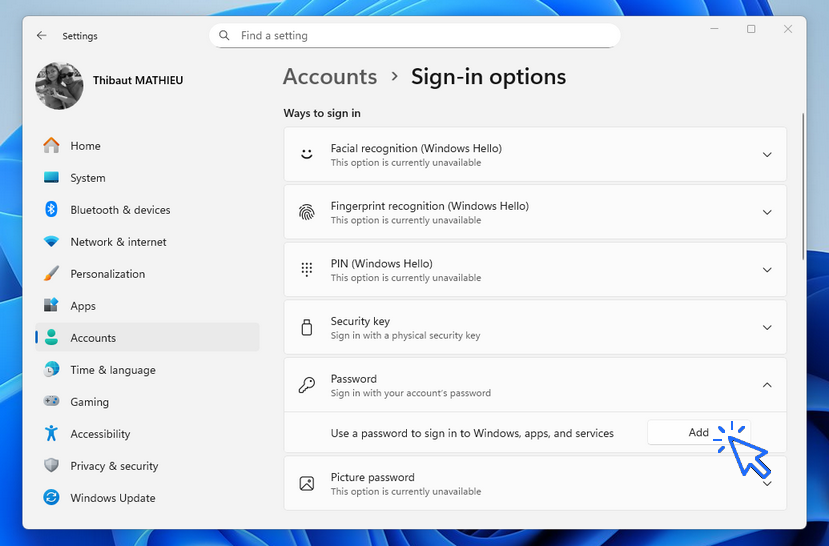
Then click on Accounts in the left menu, and select Sign-in options. Click the Add button in the Password section.
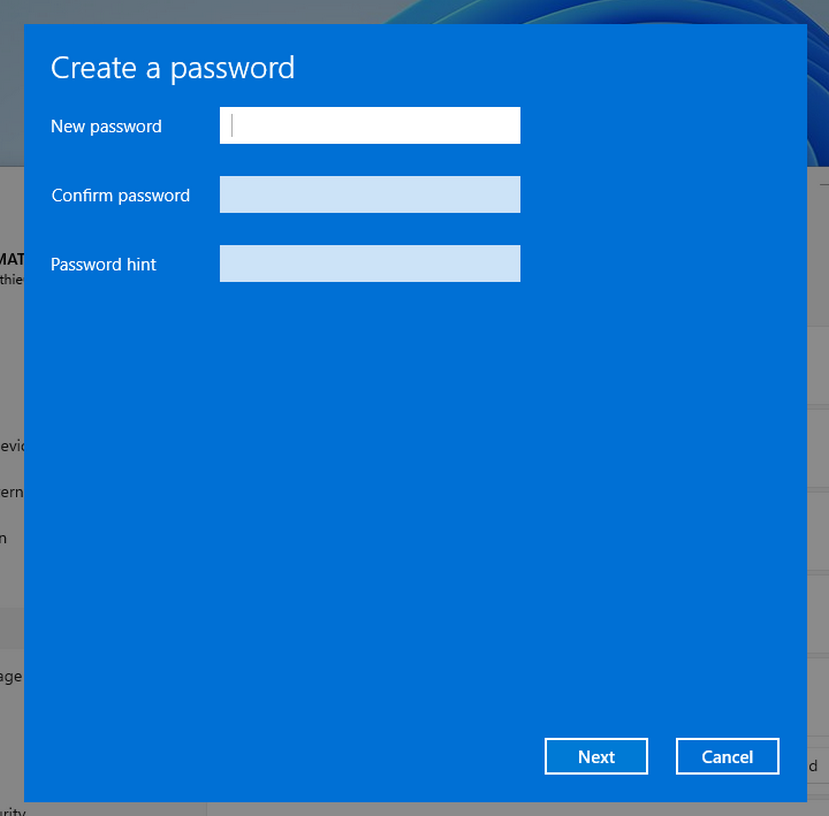
Enter the password of your choice. Do not make it too long or too complicated, as you will need to type it almost every day. I strongly recommend writing down your passwords in a small notebook that you keep safely at home. Enter a Password hint to help you to recover your password :
2. Ajouter a PIN code to my Windows account
Let’s look at the advantage of using a PIN code instead of a password. A password is often complex and made up of letters, numbers, uppercase and lowercase characters, and special symbols. This is secure, but not always practical for everyday use. Windows allows you to create a PIN code as an alternative. A PIN code makes it easier to lock and unlock your computer because it is made up only of numbers. You can choose a 4- or 6-digit PIN, which is easier to remember and faster to type each time you turn on your PC.
Summary
Password: can be long and complex, with letters, numbers and special characters
PIN code: numbers only
To create a PIN code, you must already have a password
When you start your computer (your Windows session), you can choose to sign in using either your password or your PIN code. By default, Windows will remember the last sign-in method used (password or PIN).

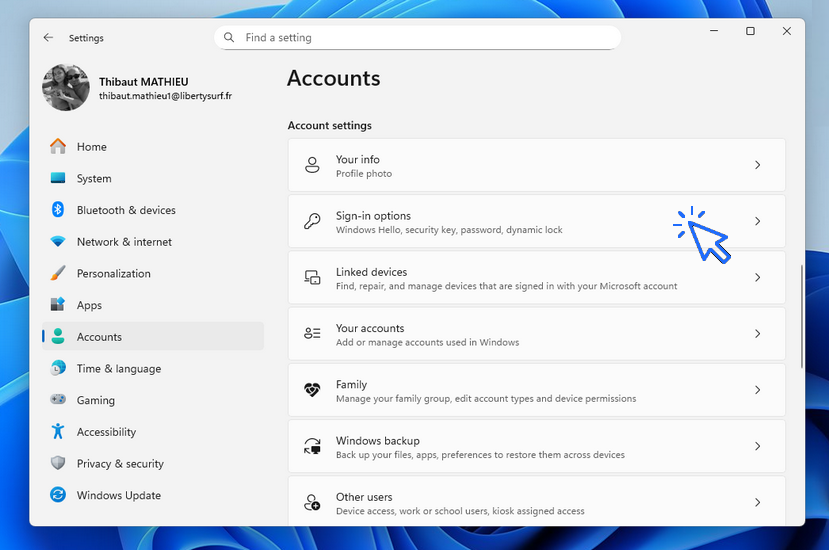
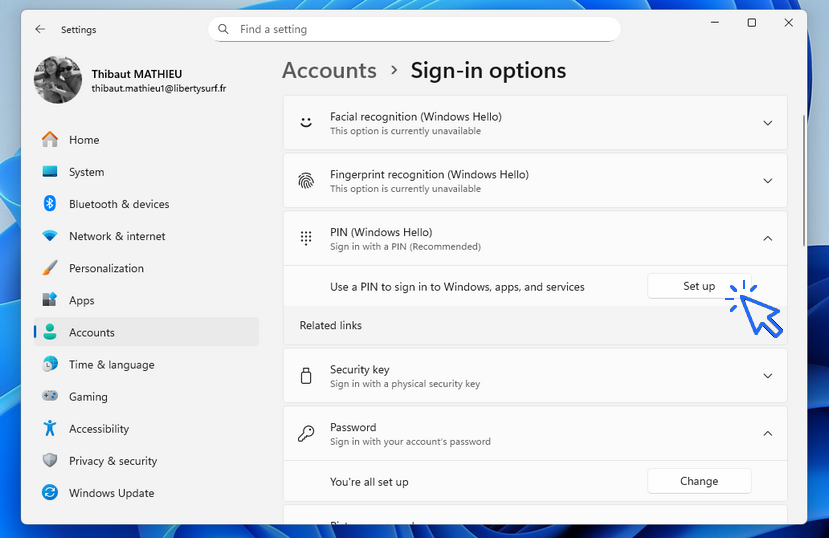
Let’s see this in pictures. Go to your PC Settings, then choose Accounts / Sign-in options :
Click Set up in the PIN (Windows Hello) section :
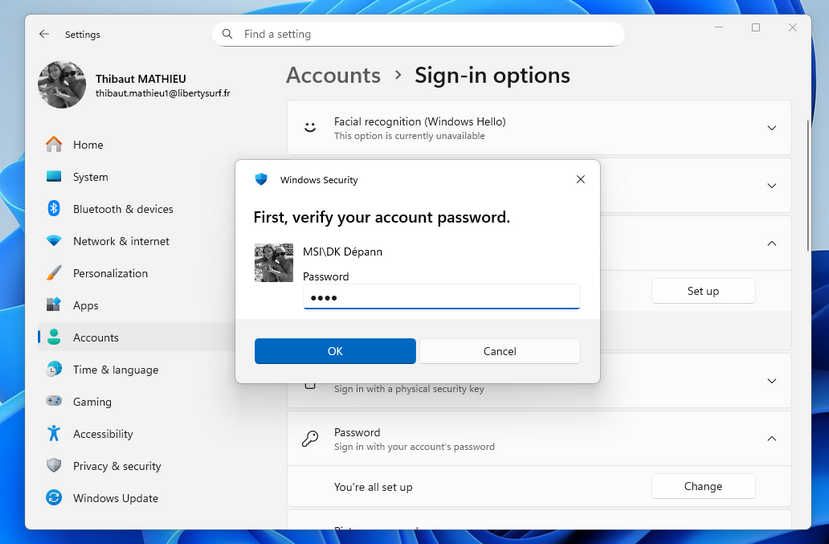
You will be asked to enter your current password (this is a security check to confirm your identity) :
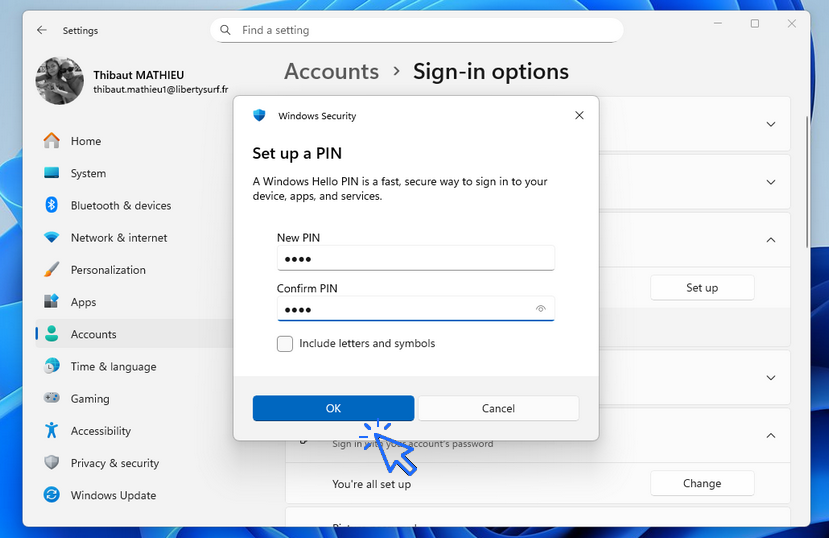
Then choose your PIN code (4 or 6 digits) and confirm :
Once done, you can sign in using your PIN instead of your password !
Important to remember
At the next startup, Windows will ask for the PIN by default
You can switch between password and PIN by clicking « Sign-in options » :
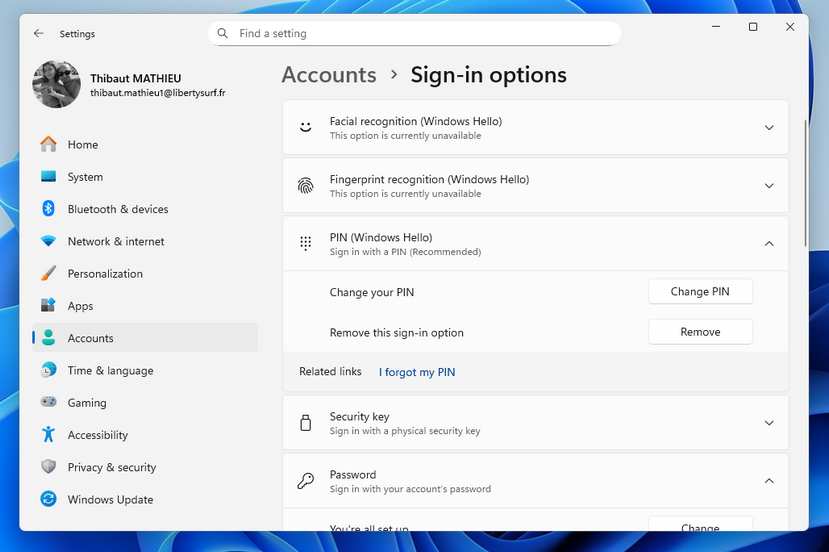
Remove or change the PIN (Windows Hello)
You can easily remove or change the PIN in the Windows settings :
3. Lock my Windows session (Lock my computer)
To lock your Windows session, use the keyboard shortcut « Ctrl + Alt + Delete », then click Lock. You can also lock your PC this way : Start menu (Windows logo) / Your name / Sign out.
End of the lesson
Now you know how to protect your computer with a password or PIN code.

Change Wallpaper
How to change the Windows Wallpaper. Windows Course
Create desktop shorcuts
How to create shortcuts on the desktop.
Pin a programm on the taskbar
Increase display size

Connect a wifi printer
How connect a printer to your wifi network and how install it in Windows.

Backup your computer
How to backup your computer in Windows.

View Google browsing
How to check your Google browsing in Chrome, Edge or Firefox.

Create an email account (Gmail)
How to create a Gmail account to send and receive emails.

Contact Vinted
How to contact Vinted Customer Service.

Solve internet issues
How to fix the main internet connections issues. Main troubleshooting steps.

How to get the wifi password
How to get the wifi password in order to connect a new device (phone, tablet, PC..)

Access Netflix

Thibaut MATHIEU
Editor of Premiers Clics
Editor and writer of Premiers Clics, and author of the book “Je me mets à l’informatique” (only avalaible in french), I share all my computer knowledge to help you learn, using the Premiers Clicsc
Also the manager of a computer support and repair company, I fully understand your needs in computer training and assistance. Every day, I answer my clients’ questions about their computers, phones, or tablets.
This experience has given me extensive knowledge in consumer digital technology, allowing me to separate fact from fiction in device protection, identify the most common user mistakes, and provide numerous tips to make the best use of PCs, smartphones, and tablets.

0 commentaires