Smartphones et tablettes / Mise en route et configuration
How to Change Screen Timeout on Android (Phone and Tablet)
Difficulté : Facile
Matériel requis : tablette ou smartphone Android
[yoast_breadcrumb]

Why does my Android screen turn off too fast?
Many Android users complain that their phone or tablet screen turns off too quickly, sometimes after only 30 seconds. This happens because the default screen timeout setting is very short, mainly to save battery life.
However, this is not practical at all in everyday use. Increasing the screen timeout on Android makes your device much more comfortable to use. So I will explain here how to easily change this setting, whether you are using a smartphone or a tablet.

When can this tutorial help you?
“My phone screen turns off too quickly”
“My tablet screen goes black by itself”
“How do I extend screen timeout on Android?”
“My phone or tablet goes to sleep too fast”
“Change Android screen sleep settings”
“Android screen turns off too fast”
Table of Contents
- Open the tablet or smartphone settings
- Change the screen timeout duration

Increase the screen timeout on your phone or tablet for greater comfort of use.
1. Open the device settings
To open the settings on your Android tablet or smartphone, swipe the screen to the left or the bottom until you find the Settings icon. Tap it to access your device settings :
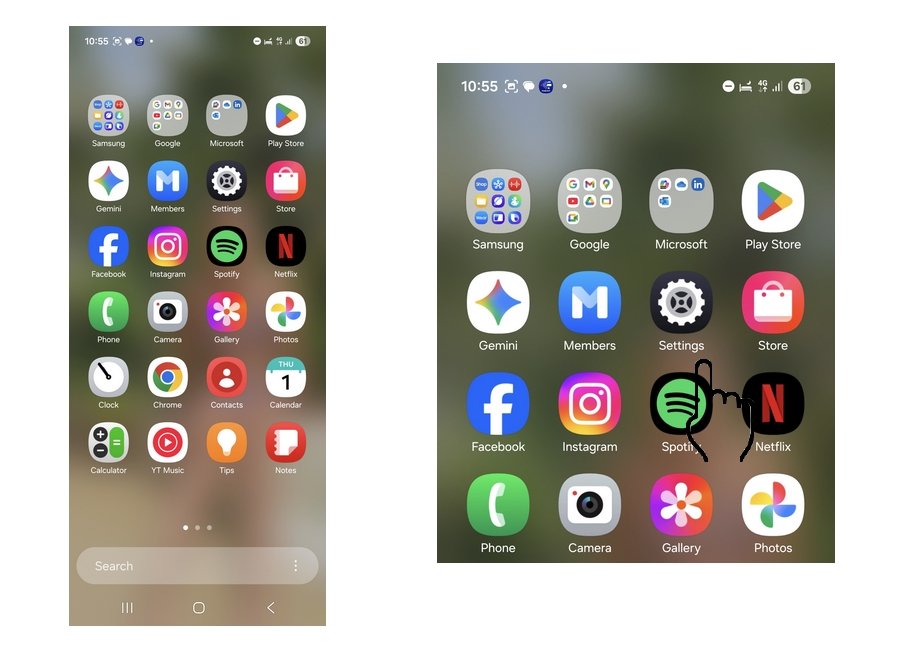
Find the Settings app on your device, either from your home screens or from the app drawer.
If you cannot find the Settings icon, swipe up from the bottom of the screen to display all installed applications. The Settings app will always be there.
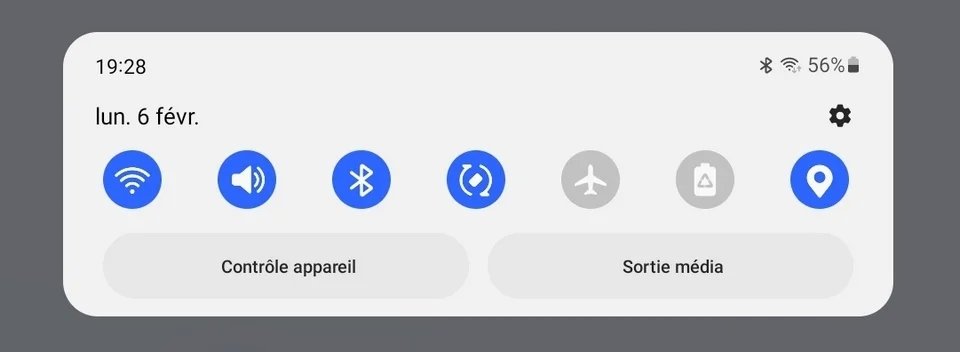
You can also access the settings by pulling down the status bar at the top of the screen. Then tap the gear icon to open the main settings menu.
2. Change the screen timeout duration
By default, the screen timeout is often set to 30 seconds, which is far too short for most users. This means your device will constantly turn off the screen, forcing you to wake it up again—especially annoying if a PIN code or pattern is required.
To change this setting, open Settings, then go to Display and select Screen timeout (or Sleep depending on your Android version).
Choose a longer duration, such as 2 minutes or more. Your screen will then turn off only after the selected period of inactivity, making your smartphone or tablet much more comfortable to use.
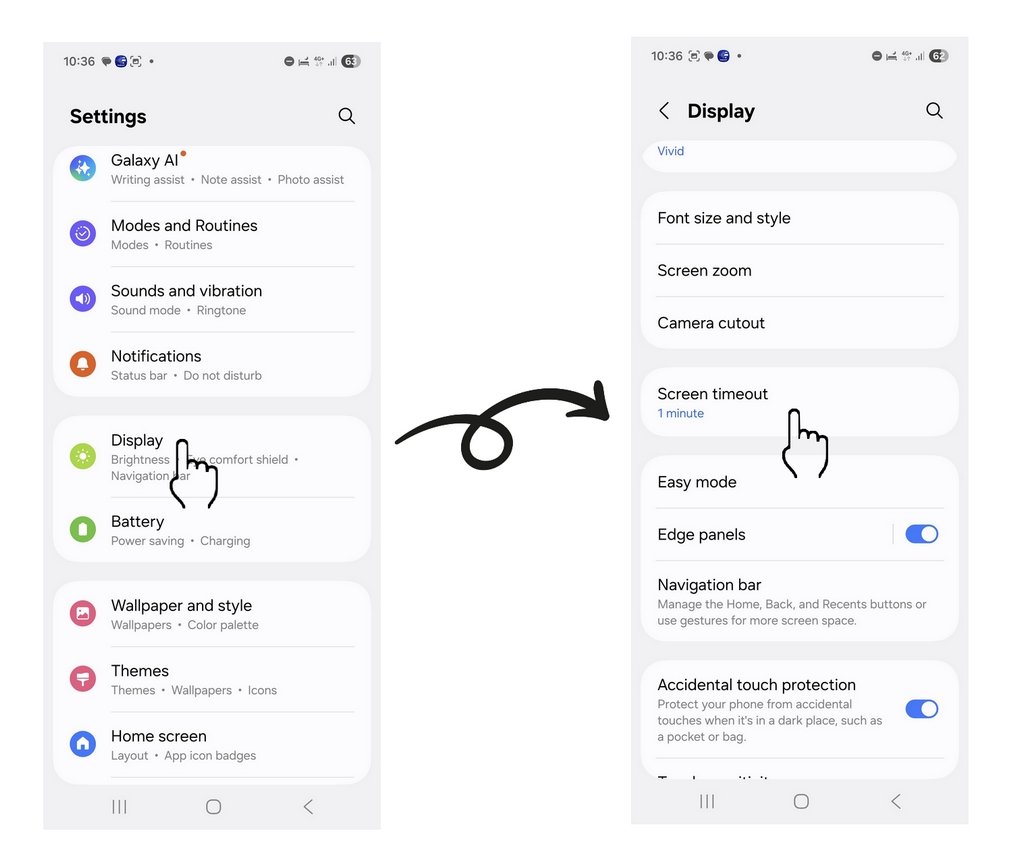
Example with an Android phone : Settings / Display / Screen timeout
Tip
If your tablet stays at home and you are the only user, you can also disable the lock screen password to make access even easier (see our Android smartphone and tablet tutorials). More practical for a tablet that stays at home, for example.
End of tutorial
You now know how to adjust the screen timeout on your device.

Thibaut MATHIEU
Editeur de Premiers Clics
Éditeur et rédacteur de Premiers Clics, auteur du livre "Je me mets à l'informatique", je mets à votre disposition toutes mes connaissances en informatique afin de vous aider à vous former, à l'aide des cours d'informatique Premiers Clics.
Également gérant d'une entreprise d'assistance et de dépannage informatique, je connais au mieux vos besoins en matière de formation et d'assistance informatique. Tous les jours je réponds aux questions de mes clients sur le fonctionnement de leur ordinateur, de leur téléphone ou de leur tablette.
Ceci m'a permis d'acquérir une incroyable expérience dans le domaine du numérique grand public, d'y démêler le vrai du faux en matière de protection de nos appareils, d'identifier les fausses manipulations les plus courantes, de donner de nombreux conseils afin d'utiliser au mieux PC, smartphone et tablette. C'est une expérience de plus de 20 ans en assistance et dépannage informatique que je transmets à travers les cours et tutos informatiques disponibles sur Premiers Clics.

Connect a wifi printer
How connect a printer to your wifi network and how install it in Windows.

Increase display size

View Google browsing
How to check your Google browsing in Chrome, Edge or Firefox.
View download history
How to view the browser download history in Google.

Create an email account (Gmail)
How to create a Gmail account to send and receive emails.

Solve internet issues
How to fix the main internet connections issues. Main troubleshooting steps.

0 commentaire