Computer Basics / Windows Course
How to make file and folder icons bigger ? How to increase display size in Windows ?
Difficulty : easy
OS needed : Windows (all version)
General information about file and folder display
Changing the appearance of folders allows you to customize the display to suit your needs. Modifying how files are displayed is not only about aesthetics: it also allows you to view useful information such as file size, date, and file type.
For example, you can quickly identify which files take up the most space on your computer. On the other hand, in a photo folder, you can display thumbnails to instantly preview your pictures.
This lesson focuses on changing how icons and files are displayed on the desktop and in File Explorer. You can also choose to enlarge the entire display, which will increase the size of all screen elements (including text). This is a different option.
Table of Contents
1. Change the size of desktop icons
2. Change the appearance of files and folders
3. Increase the display size on my PC (icons, text, and other elements)
1. Change the size of desktop icons
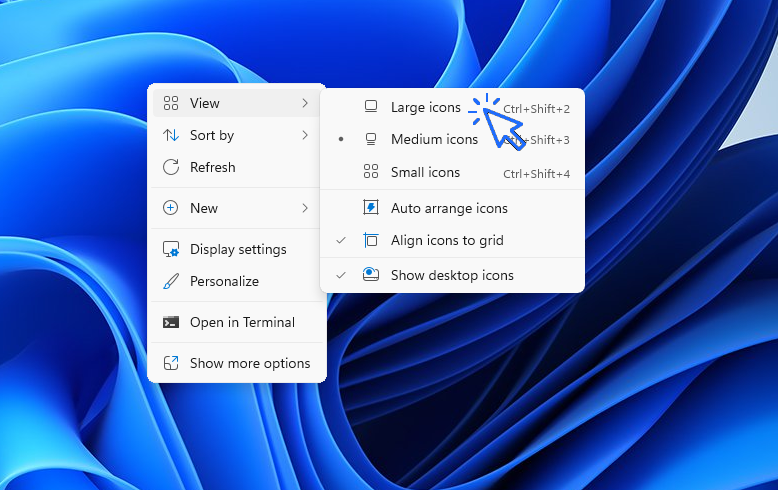
You can change the size of desktop icons using the shortcut Ctrl + mouse wheel, or by using the desktop context menu (right-click on the desktop, then choose View). Release the mouse wheel when you find the icon size that suits you best.
To restore the default display, right-click on the desktop, then select View → Small icons. Windows offers three preset icon sizes via this menu :
If you want a custom icon size, use Ctrl + mouse wheel.
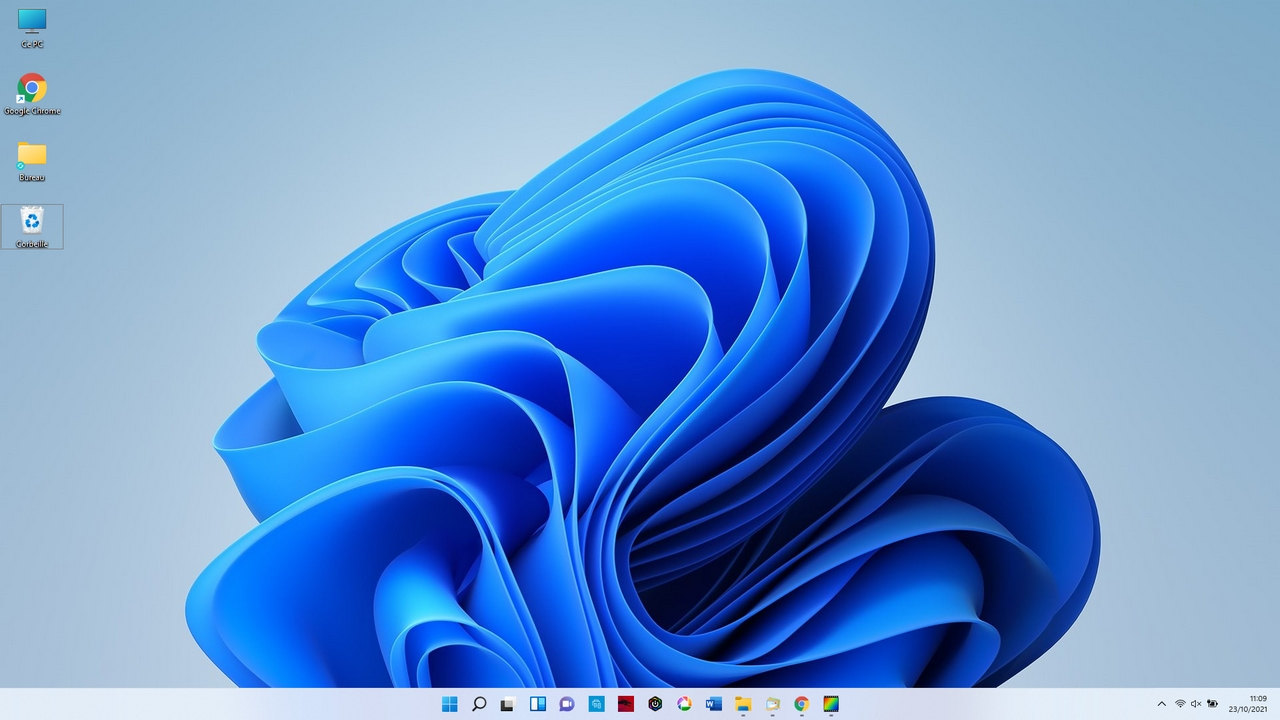
Here is the desktop with the default icon size:
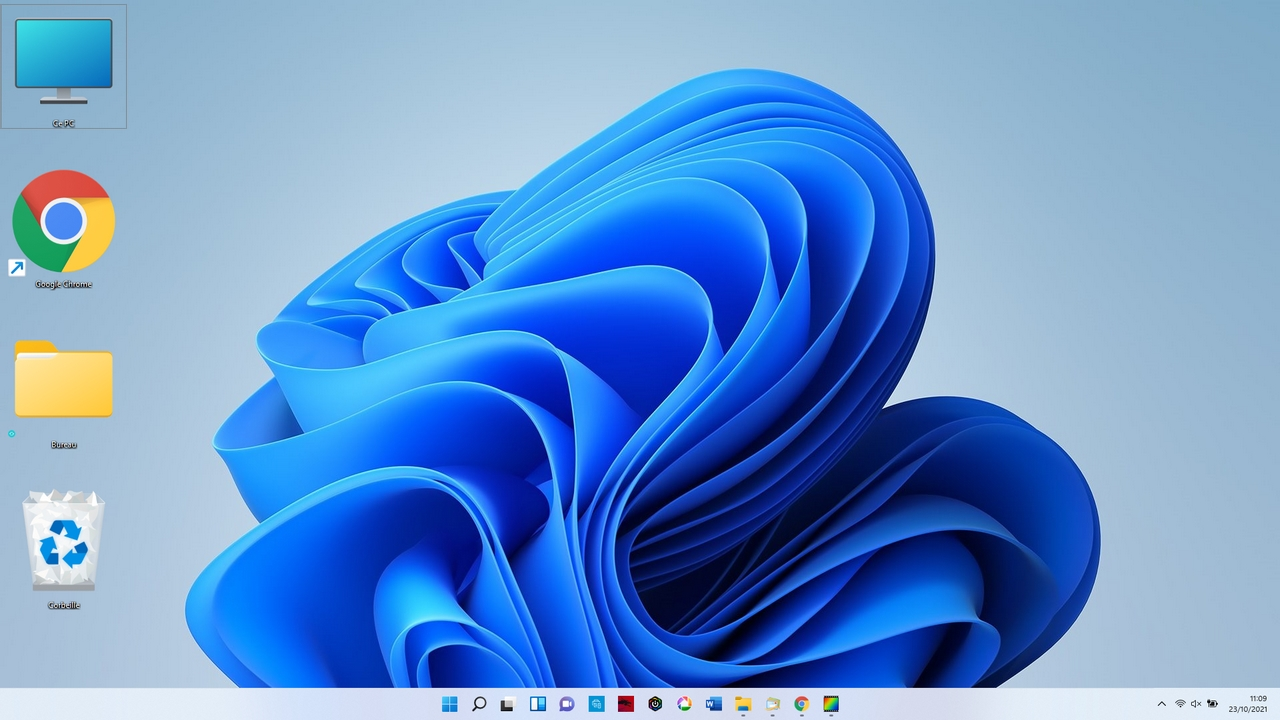
After increasing the size of the icons:
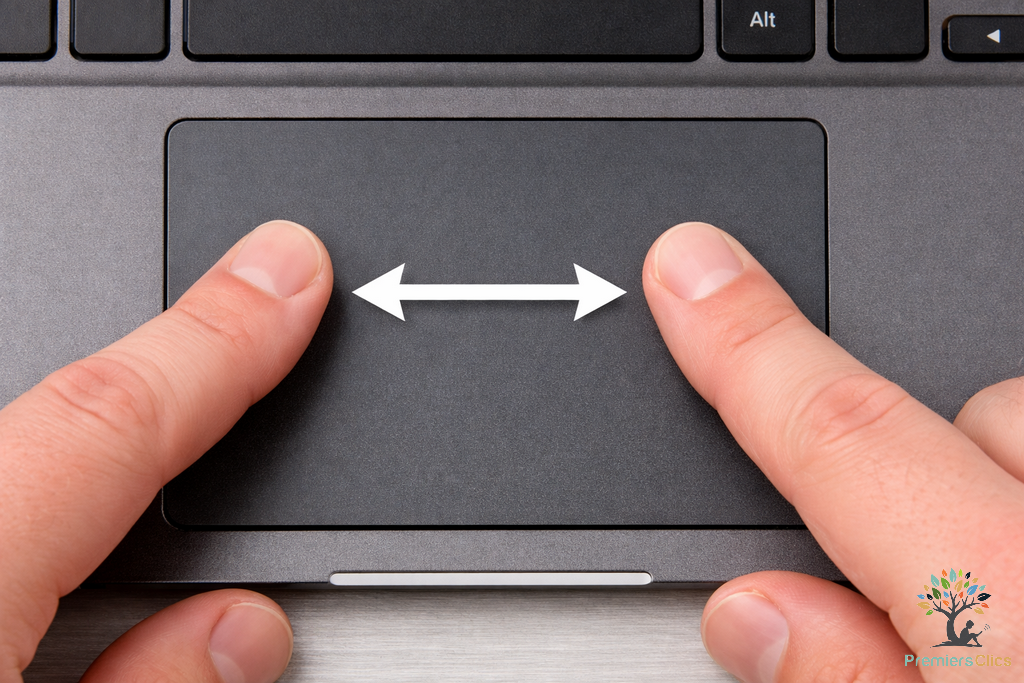
On a laptop, spread two fingers apart to change the size of elements: desktop icons, files and folders in File Explorer, thumbnails of your photos and videos, and also to zoom in on a website that appears too small.
Very handy!
2. Change the appearance of files and folders
In File Explorer, you can change how files and folders are displayed to show larger icons (useful for photos and image folders), or display them as a list to view file details such as size, type, and creation date.
Windows offers many display options: Small icons, Large icons, Tiles, List, Content, Details, and more.
Click on the desired view mode to apply it. Windows remembers your display preference for each folder, which is very convenient. To change the file and folder display, click View in the toolbar and choose the display mode you prefer.
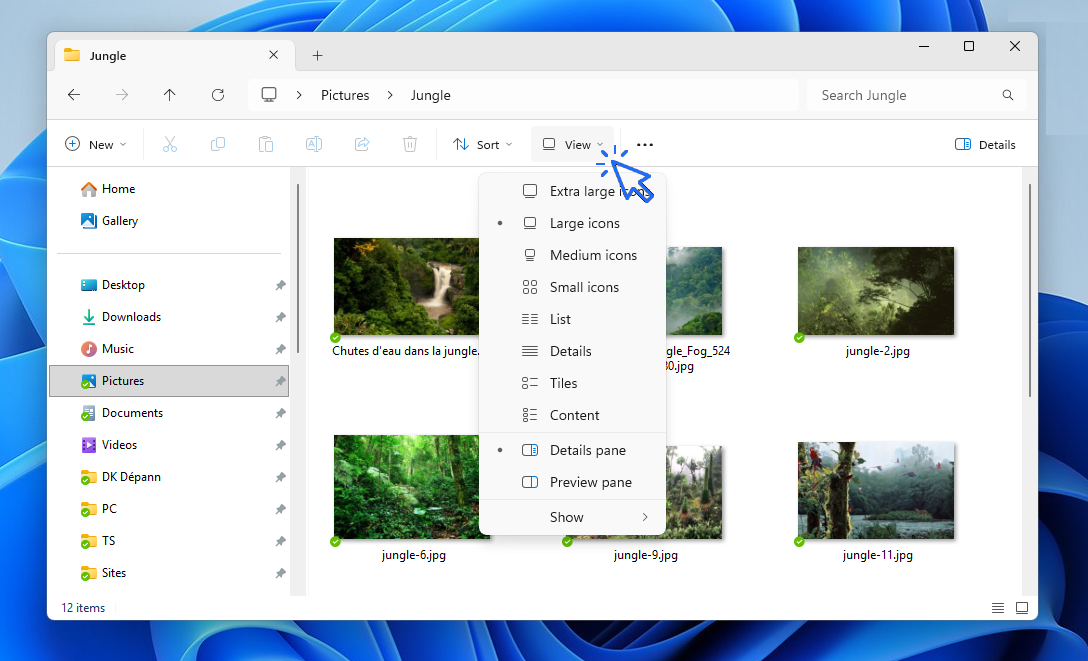
File Explorer > View > Choose a file and folder view type (thumbnails, list, details…). Windows remember it for each folder. Typically, I choose this view on my computer: Viewing photos and videos as large thumbnails, viewing the items in the "Documents" folder sorted by name, and viewing the items in the "Downloads" folder sorted by date to display the most recent files at the top.
You can also change the appearance using the mouse : use Ctrl + mouse wheel to adjust icon and thumbnail size. Again, Windows remembers the display settings for each folder.
Set a custom thumbnail size
If you use a mouse, the easiest method is Ctrl + mouse wheel, which lets you define a fully customized display size.
When you scroll down to the minimum size (Small icons), Windows automatically switches display modes (Thumbnails, List, Details, etc.). If you use a touchpad instead of a mouse, you can access display modes from the View menu in File Explorer :
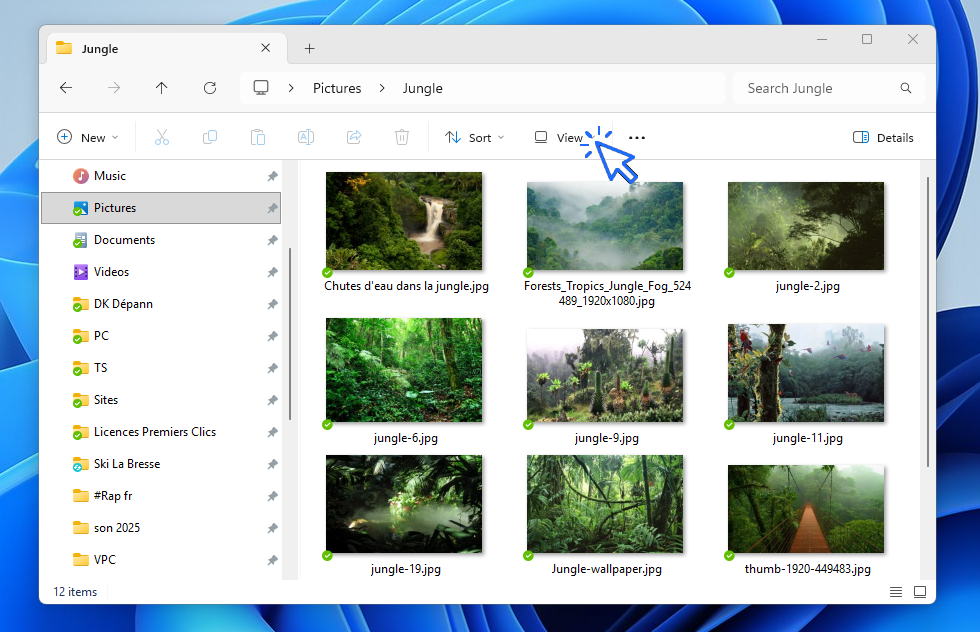
Use the file sorting feature
In the toolbar, you will also find the Sort function, which is very useful. For example, you can sort files from newest to oldest, or from largest to smallest. To sort files by type, date, or size, switch to the Details view, which is best suited for this purpose:
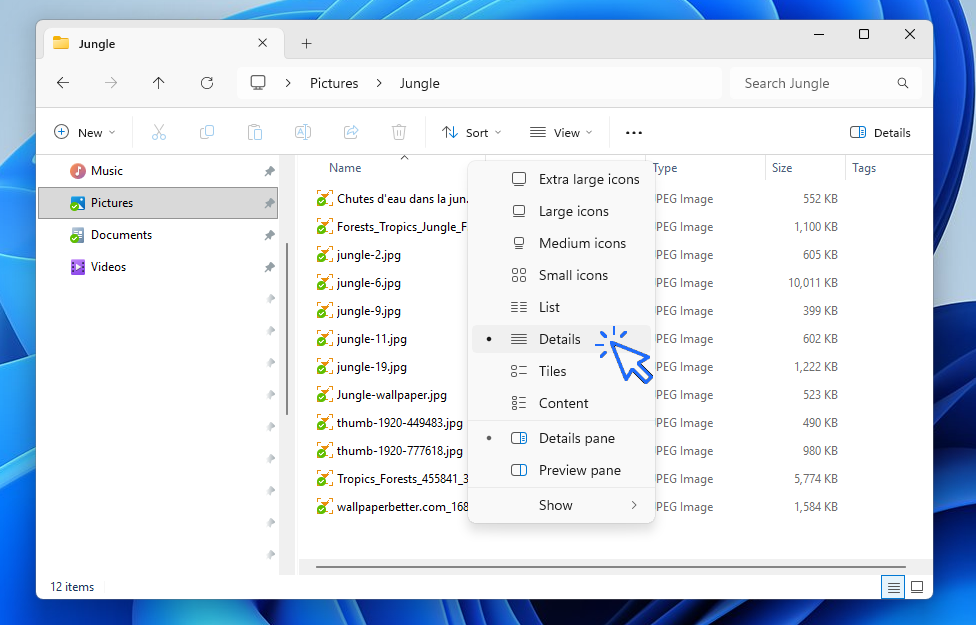
Click the Date column to display files in descending chronological order. Click again to switch to ascending order.
Quickly switch between “Thumbnails” and “Details” view
In Windows 11, you can quickly change file presentation by switching between Thumbnails and Details view (file type, size, and modification date).
Simply click the two small icons located at the bottom-right corner of the File Explorer window.
Click the first icon to display files and folders in detailed list view
Click the second icon to display files and folders as thumbnails
These two small icons make it easy to switch display modes in Windows 11.
In Windows 10
In Windows 10, a real-time preview of display modes is available.
Hover over a display option to instantly preview how it will look.
Click the desired view to apply it.
3. Increase the display size on your PC (icons, text, and elements)
If you find that elements are displayed too small in Windows, you can zoom the entire display (not to be confused with the Magnifier tool).
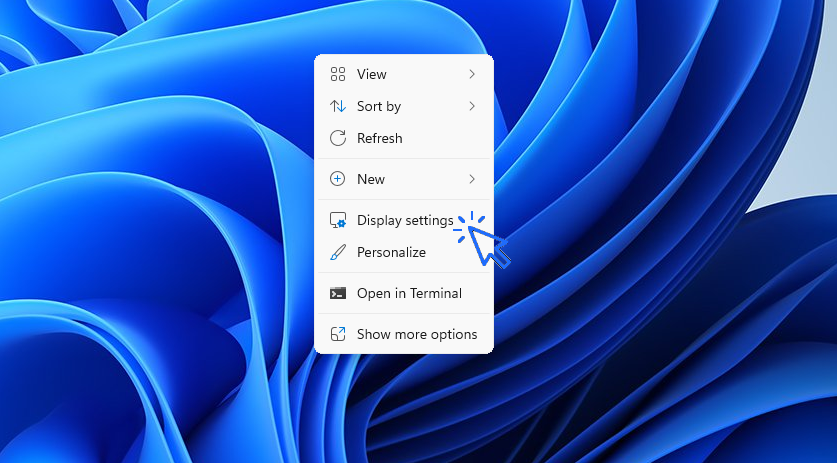
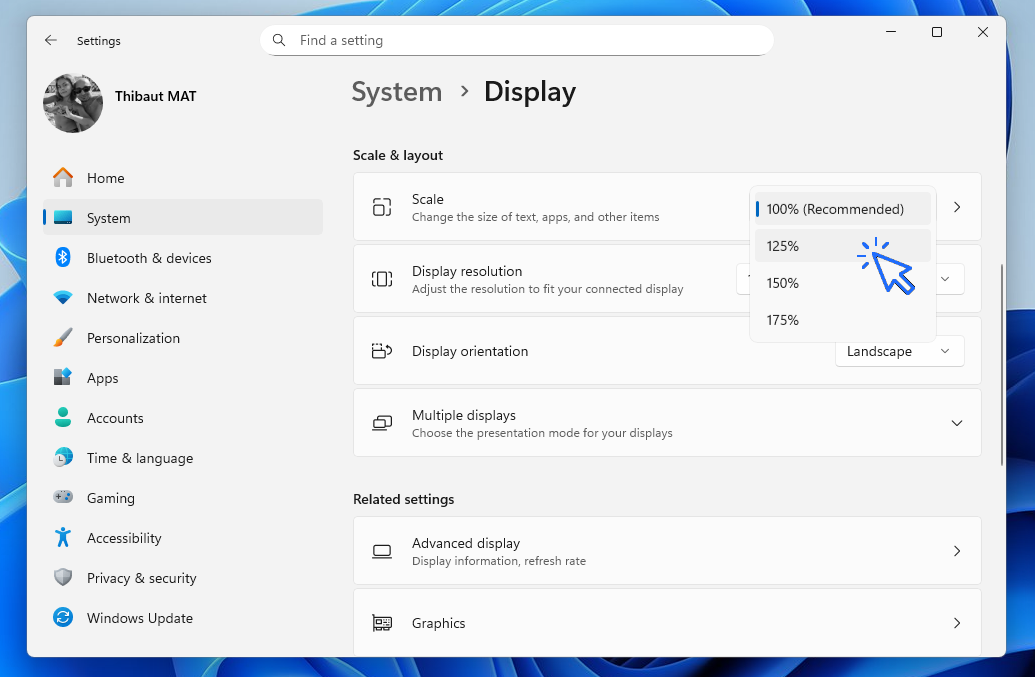
On the desktop, right-click on the background image and select Display settings. In the settings window, under Scale, choose 125% from the dropdown list. You can also test 150%, but avoid higher values, as you may need to scroll excessively. Let’s see this in pictures !
Right click on the desktop > Display settings :
Then choose the scale of your choice :
Video demonstration:
Want to learn more about customizing and personalizing your computer? Also read my article explaining how to easily change your PC's wallpaper. On Premiers Clics, you will find courses on Windows and using a computer, but also tutorials to better use your smartphone.
End of the Lesson
You now know how to change and customize the way files and folders are displayed.
Decompress ZiP File
Learn how to compress and compress ZIP Files.

Change Wallpaper
How to change the Windows Wallpaper. Windows Course
Create desktop Shorcuts
How to create shortcuts on the desktop.
Protect my computer using a password
How protect my computer with a password or a PIN code.

Empty Recycle Bin
How empty and manage the Windows Recycle Bin.

Connect a wifi printer
How connect a printer to your wifi network and how install it in Windows.

View Google browsing
How to check your Google browsing in Chrome, Edge or Firefox.

Change Google Chrome Homepage

Create an email account (Gmail)
How to create a Gmail account to send and receive emails.
Send an email with attachments
How to send an email with one or several attachments Go to the Chapter 5 of the lesson 🙂

Solve internet issues
How to fix the main internet connections issues. Main troubleshooting steps.

Access Netflix

Send a photo with text message

Thibaut MATHIEU
Editor of Premiers Clics
Editor and writer of Premiers Clics, and author of the book “Je me mets à l'informatique” (only avalaible in french), I share all my computer knowledge to help you learn, using the Premiers Clics computer courses.
Also the manager of a computer support and repair company, I fully understand your needs in computer training and assistance. Every day, I answer my clients’ questions about their computers, phones, or tablets.
This experience has given me extensive knowledge in consumer digital technology, allowing me to separate fact from fiction in device protection, identify the most common user mistakes, and provide numerous tips to make the best use of PCs, smartphones, and tablets.

0 commentaire