Home / Computer Courses & Windows Basics
Add a Website to Favorites (How to Create a Website Shortcut)
Difficulté : Facile
Navigateur requis : Chrome, Firefox, Edge ou autre
General information about the Favorites (Bok)
The favorites bar (also called the bookmarks bar) is very useful because it allows you to create shortcuts to the websites you visit most often. You can easily add, delete, move, and organize your favorites as you collect more over time.
Using website shortcuts also helps you avoid scams, as you can be sure you are visiting the correct website.
Sommaire
- Show the favorites bar
- Add a website to the favorites bar
- Move a favorite
- Delete a favorite
- Organize your favorites
Sur PC, vous pouvez également utiliser d'autres services de messagerie instantanée tels que Messenger ou encore Zoom. L'utilisation reste sensiblement identique à Skype, le tuto est donc généraliste.
1. Show the Favorites Bar
If your browser does not display the favorites bar, you will need to enable it.
To do this, go to the “Appearance” section in the Google Chrome settings and activate the favorites bar.
Another quick way to display it is:
Menu → Favorites → Show favorites bar
Path:
Menu → “Favorites and lists” → “Show favorites bar”
You can click on the screenshots to enlarge them.
First, open the Chrome menu by clicking on the three vertical dots.
Then select “Favorites and lists” and click on “Show favorites bar.”
The favorites bar will appear just below the address bar. This is where you can add shortcuts to your most frequently visited websites.
The advantage of the favorites bar is that it is always visible, so your shortcuts are accessible in one click. There is no need to go back to your desktop to open your email, for example.
If you want to create a website shortcut on your desktop instead, you can follow another tutorial.
2. Add a Website or Page to the Favorites Bar
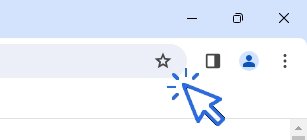
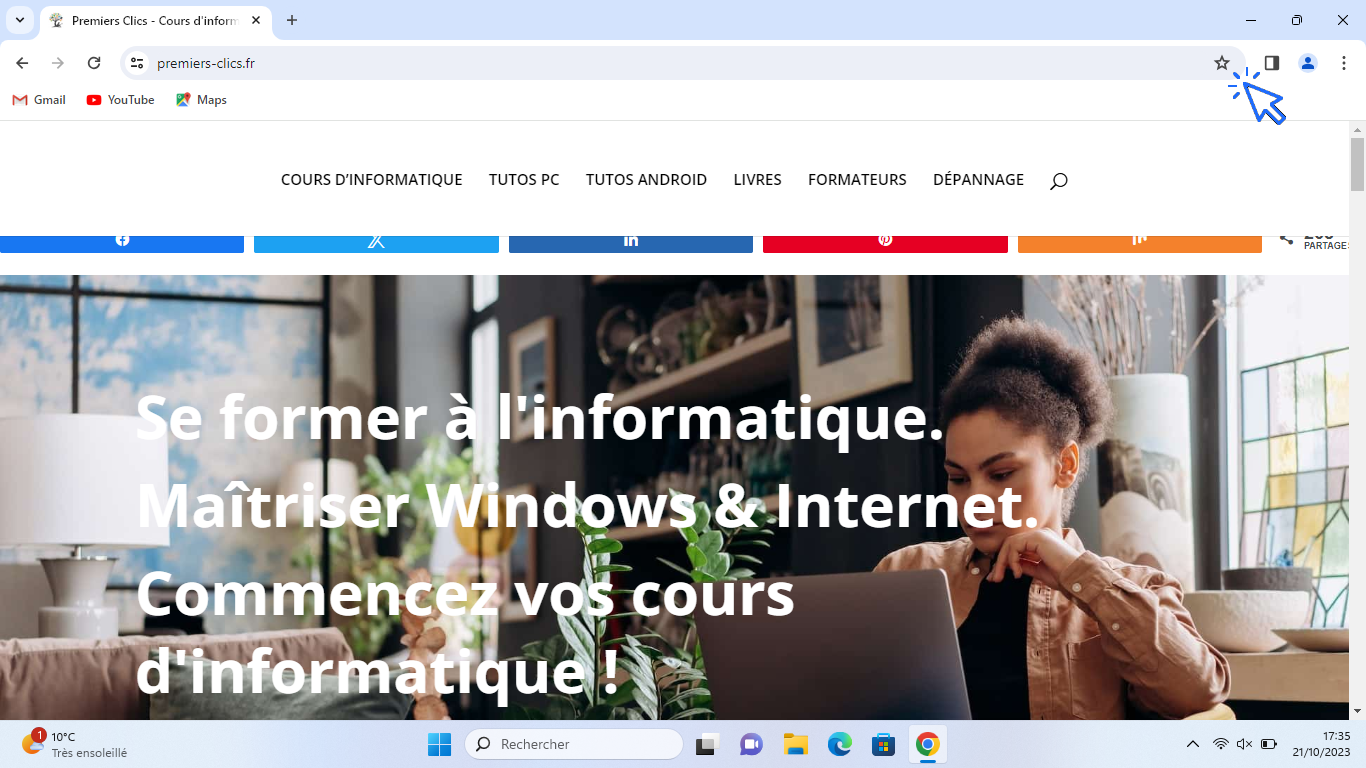
To add a website or web page to the favorites bar, click on the star icon located on the right side of the address bar.
Then enter a short name to keep your favorites bar organized.
You can also use the keyboard shortcut:
Ctrl + D
To rename a favorite, right-click on it and select “Edit.”
A yellow star means the page is already saved as a favorite.
Example:
In this example, we will add the Premiers Clics website to the favorites bar.
- Open a new tab
- Go to the website (by typing the URL or using a search engine like Google)
To add it:
- Click the star icon on the right of the address bar
- Enter a name
- Select “Favorites bar” in the folder section
- Confirm
3. Move a Favorite
You can change the order of your favorites directly in the favorites bar.
- Click and hold the favorite
- Drag it to a new position
4. Delete a Favorite
To delete a favorite:
- Right-click on it
- Select “Delete”
If you only want to rename it:
- Right-click
- Select “Edit”
5. Organize Your Favorites
If you have many favorites, you can create folders to organize them by category, making them easier to find.
Examples:
- Recipes
- Videos
- Useful websites
- Fashion
- Administrative websites
To create a folder:
- Right-click on the favorites bar
- Click “Add folder…”
Path:
Right-click → “Add folder”
When adding a new favorite, you will be able to choose a folder or create a new one.
Create a folder:
- Right-click on the favorites bar
- Enter a name
- Confirm
Repeat as many times as needed using the “New folder” button.
Then, when adding a new website, you can choose the folder to organize your favorite.
If you already have many favorites, you can organize them using the Bookmark Manager.
To access it:
- Click Menu
- Select “Favorites”
- Click “Bookmark Manager”
You can also access it by right-clicking the favorites bar.
Path:
Menu → “Favorites and lists” → “Bookmark Manager”
Video Lesson
Watch a video presentation of the Chrome or Edge favorites bar and learn how to add your favorite websites as shortcuts on your computer.
End of the Lesson
Know youknow how to add a website to the favorites bar.
Retour aux différents cours d'initiation informatique.

Thibaut MATHIEU
Editor of Premiers Clics
Editor and writer of Premiers Clics, and author of the book “Je me mets à l'informatique” (only avalaible in french), I share all my computer knowledge to help you learn, using the Premiers Clics computer courses.
Also the manager of a computer support and repair company, I fully understand your needs in computer training and assistance. Every day, I answer my clients’ questions about their computers, phones, or tablets.
This experience has given me extensive knowledge in consumer digital technology, allowing me to separate fact from fiction in device protection, identify the most common user mistakes, and provide numerous tips to make the best use of PCs, smartphones, and tablets.

0 commentaire